

-
Written By Evren Cole
-
Updated on June 12th, 2026
Convert ICS to CSV File Format: Complete Guide of 2026
User Query: Users have reported issues when attempting to merge multiple ICS files into a single CSV file. In certain cases, the conversion process continues running without completing, while converting each ICS file individually works as expected. This behavior may be caused by specific calendar entries or formatting inconsistencies within particular ICS files.
Summary:- Calendar data is saved in ICS files, which makes it easy to exchange event information between different applications. There are situations where working with the same data in a spreadsheet is more practical. That’s where CSV comes in. Whether you need to sort events or manage large schedules. Convert ICS to CSV can make the information easier to work with. This guide covers the available conversion methods, which include the MSOutlookHelp ICS Converter Tool to make sure a smooth conversion.
Why Convert iCalendar File to CSV?
Explore the different reasons why users convert their ICS files into CSV format:
- CSV files can be opened in Excel and other spreadsheet applications for easy modifications.
- With CSV, a large volume of data like contacts and calendars is stored in a single file within the database.
- Sharing data across different email clients in CSV format is comparatively easier and more accessible.
- It has a simple layout, storing data in plain text & separated by commas. Thus, it is easy to categorize the data.
Best Methods to Convert ICS to CSV
In this section, we have mentioned the four different methods to move ICS into CSV format, such as:
- By Using MS Outlook
- Use Google Calendar
- Using Microsoft Excel
- With the help of Specialized Tool
Let’s go through each method step by step.
Method 01: Use Outlook to Convert ICS to Excel CSV
- Firstly, open the MS Outlook application on your system.
- Now, click on File >> choose the Open & Export option.
- Select Import/Export & Import from another program or file. Click Next.
- After that, choose the option Import from (.ics) or (.vcs) file. Press Next.
- Choose the ICS file from your system and click Finish.
- Then, go back to Import/Export & select Export to a file. Hit Next.
- Further, choose CSV and click Next. Define the Path to Save.
- Lastly, click on the Finish button to initiate the process.
Note: Outlook allows you to export calendar events to CSV, but formatting might not be preserved.
Method 02: Use Google Calendar to Convert ICS to CSV
- Open Google Calendar on your PC and select Settings.
- Now, click on the + button and select the Import option.
- Then, select Import & Export and choose Upload File.
- Select an ICS file that you want to convert and click Import.
- After importing the ICS file on a calendar >> click on Export.
Note: Google Calendar does not directly export CSV files, so you need to extract the ZIP file to retrieve your calendar data.
Method 03: Use Microsoft Excel to Convert ICS File to CSV
- Firstly, open Microsoft Excel on your system.
- Click on File and select Open to add the ICS file.
- Then, choose the Delimited file type and click Next.
- After that, select Others and enter a Comma. Press Next.
- In the end, press Finish to complete the process.
Important Note: All of the above methods are free to use, but they contain some limitations, which are discussed below.
Limitations of the Manual Method
- These methods easily lead to errors and are prone to file corruption.
- Risk of losing some valuable data while performing manual methods.
- You can not perform bulk conversion with these methods.
If you want to avoid all the limitations and convert bulk ICS files into CSV format, you can use the method below.
Method 04: Quick & Reliable Method to Convert ICS to CSV
The ICS Converter Tool is one of the best solutions to perform ICS conversion without data loss or hassle. It also allows users to convert ICS to PDF, PST, JPG, and other file formats without data loss. Unlike manual methods, it preserves the original formatting and structure of your data.
Exclusive Features of this Tool
- You can remove duplicate emails based on several criteria.
- Perform only selective file conversion by applying a Date filter.
- Has a simple interface, so tech/non-tech users can easily use it.
- If you want to move your ICS files into document format, then convert ICS to Word
- Highly compatible with all the latest & earlier Windows OS versions.
Simple Steps to Convert ICS File to CSV
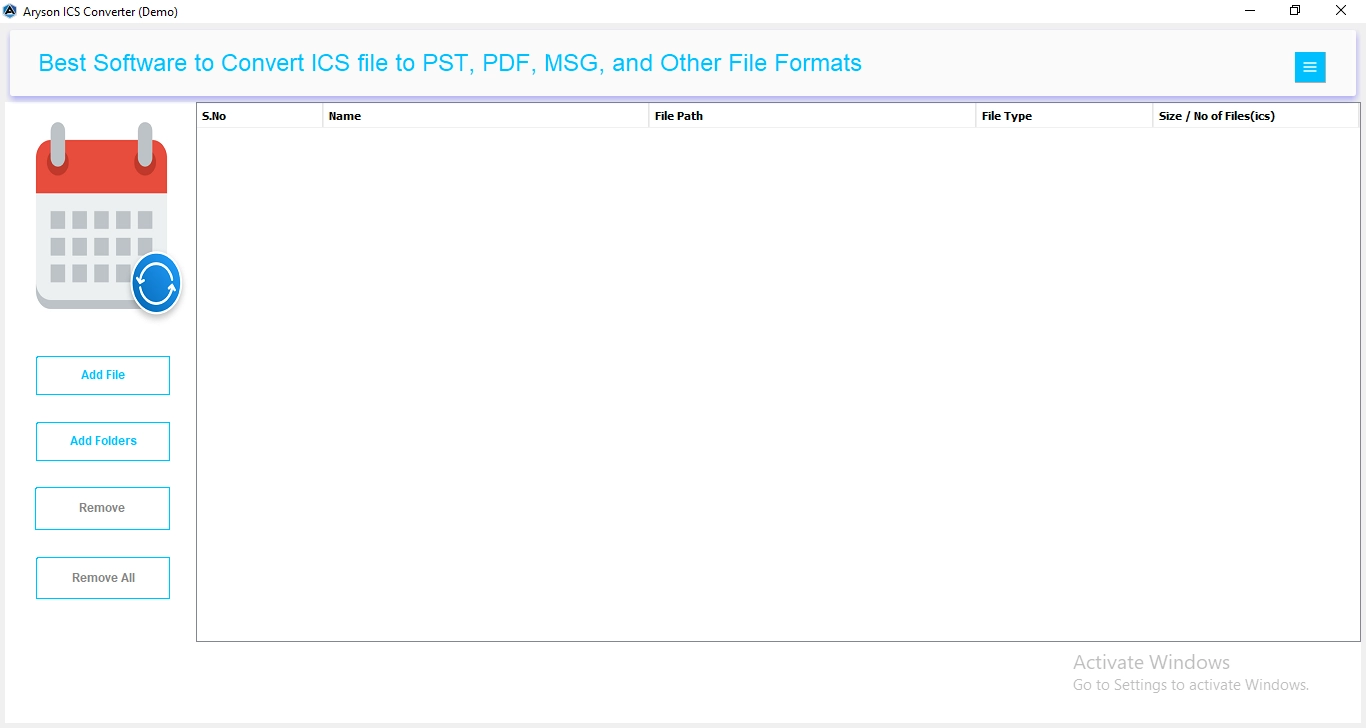
- Firstly, launch the ICS Converter Tool on your computer.
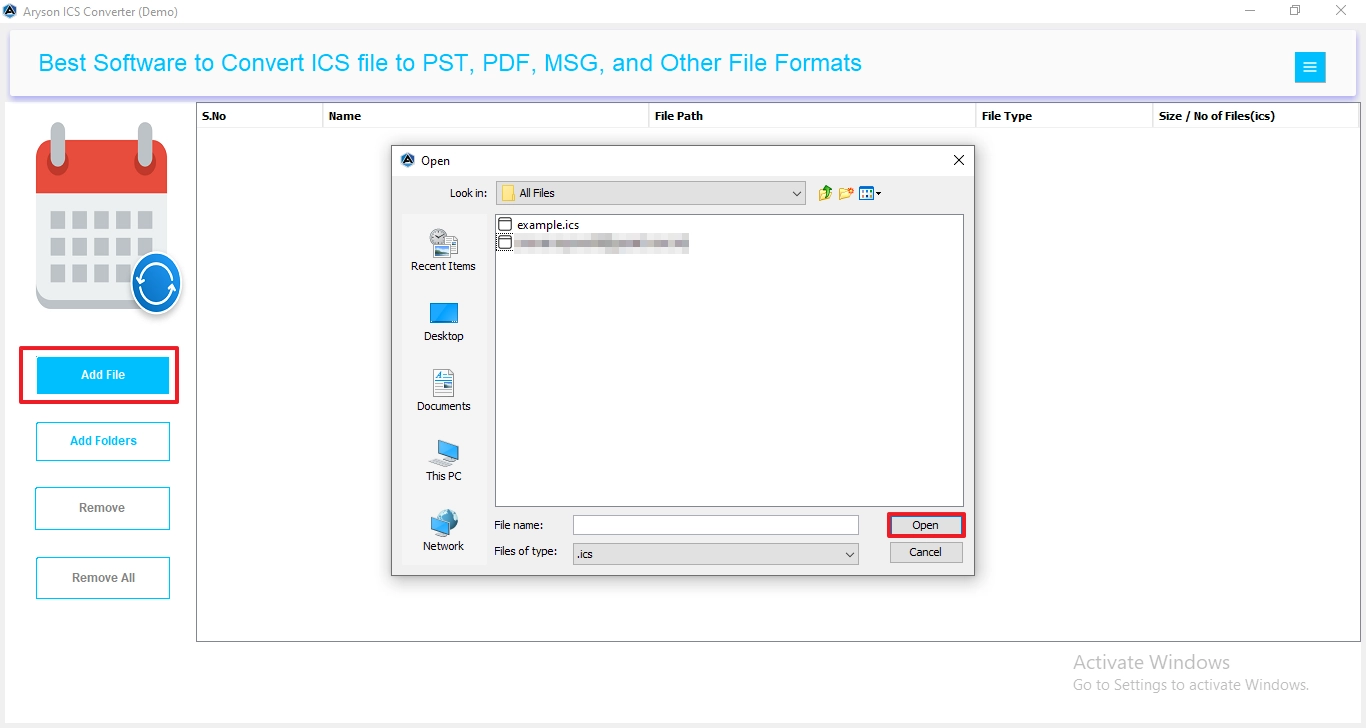
- Mark Select File or Select Folder to add the ICS file. Click Next.
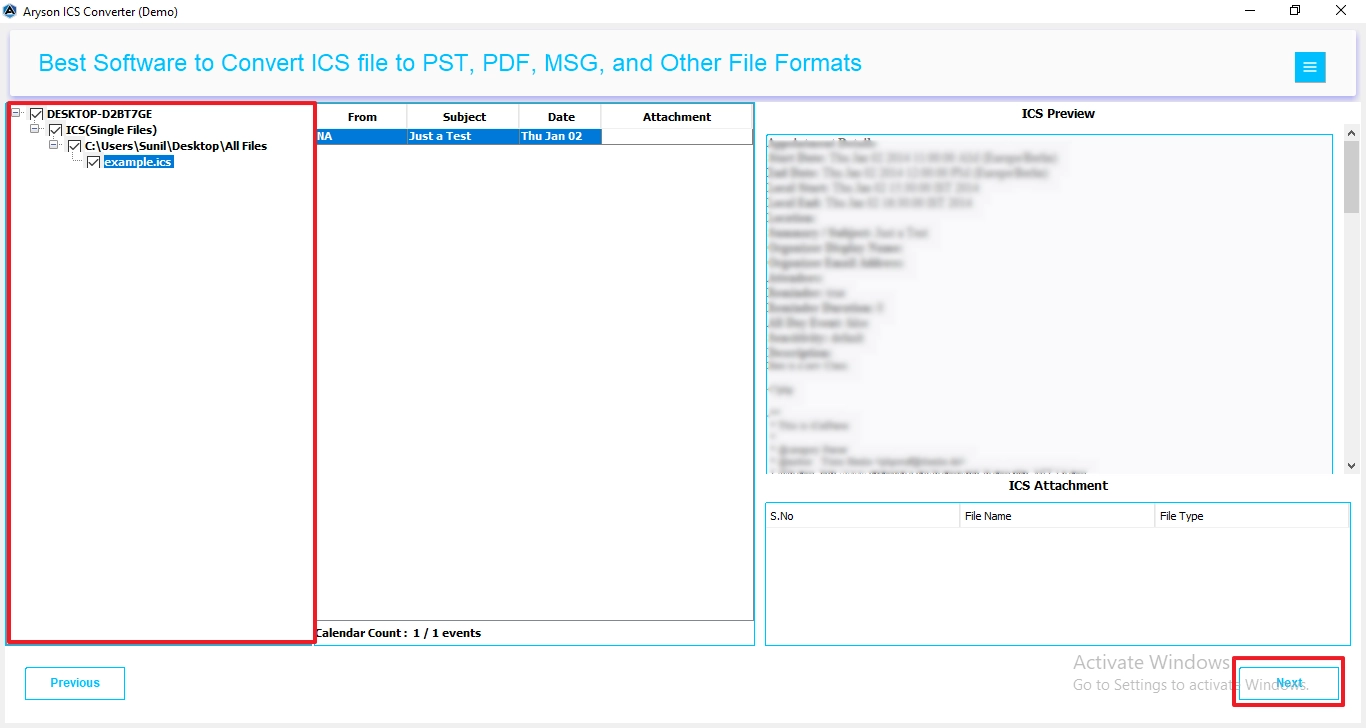
- Preview & select the file that you want to convert. Press Next.
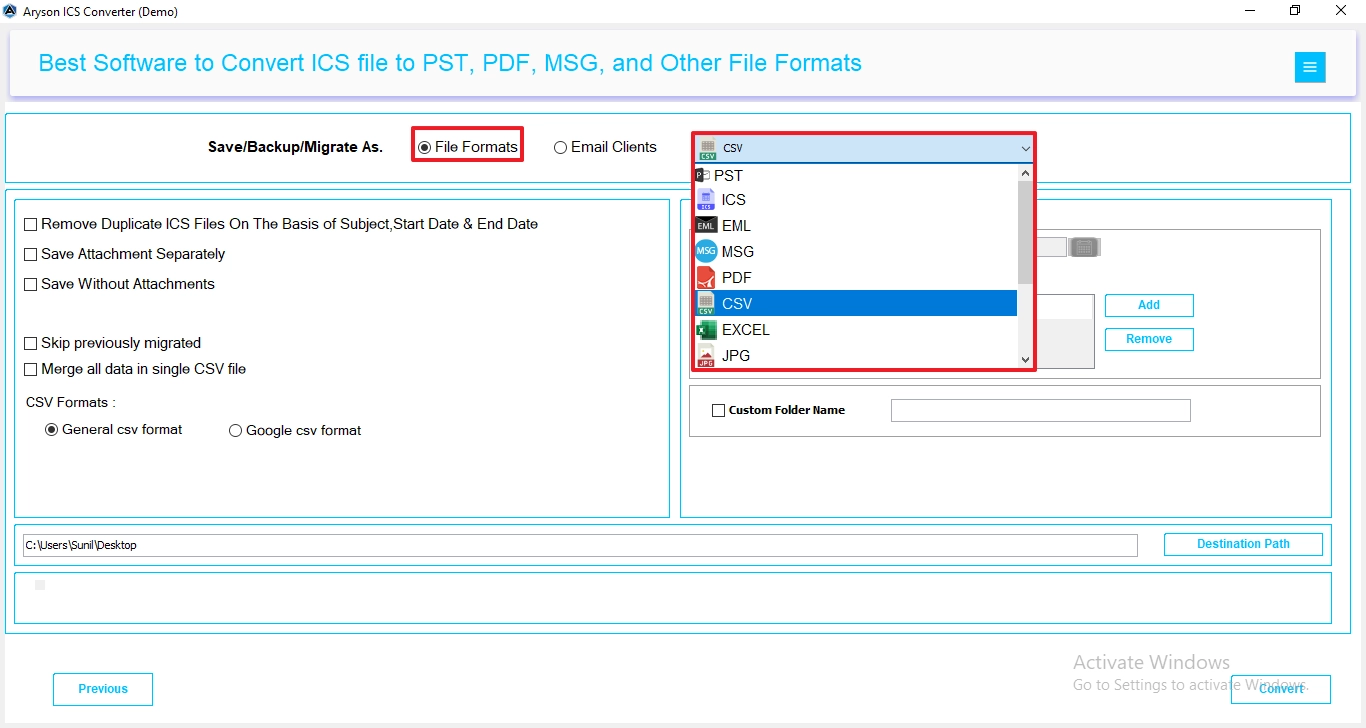
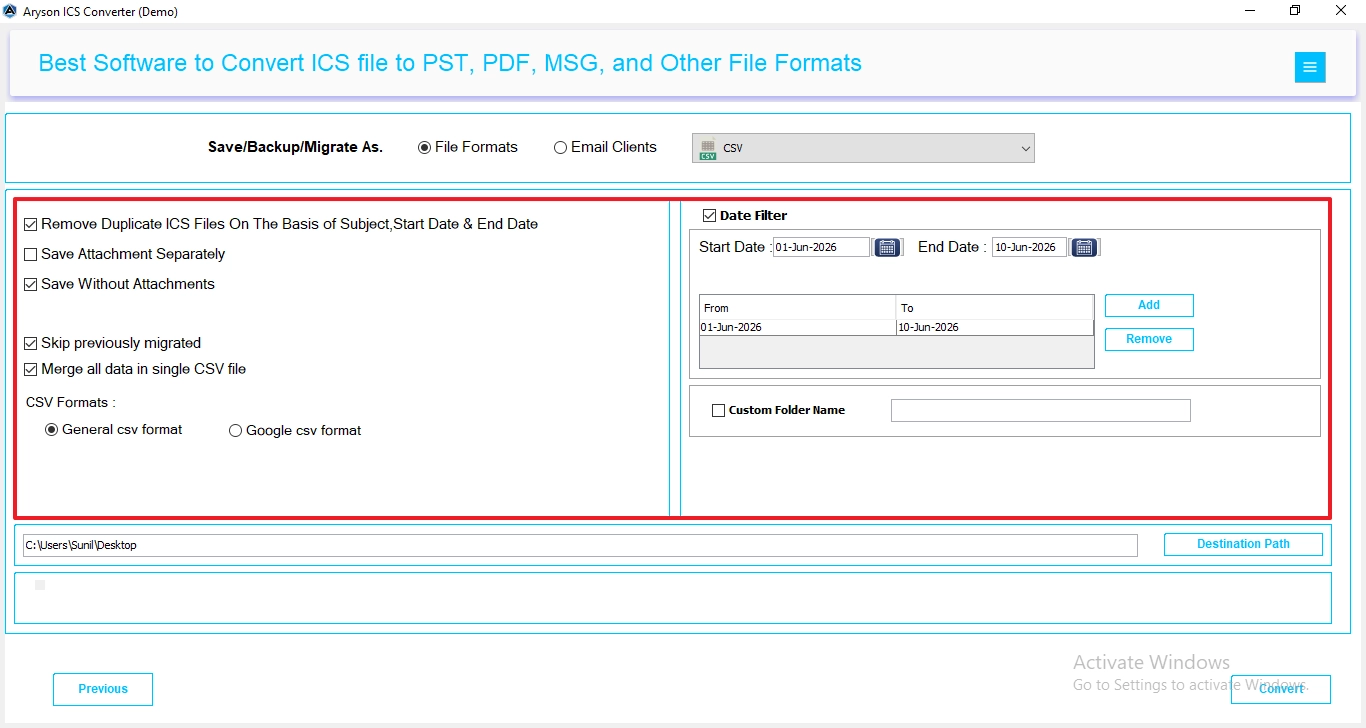
- Then, select CSV as the saving option from the list.
- Enable the filters for selective ICS data transfer.
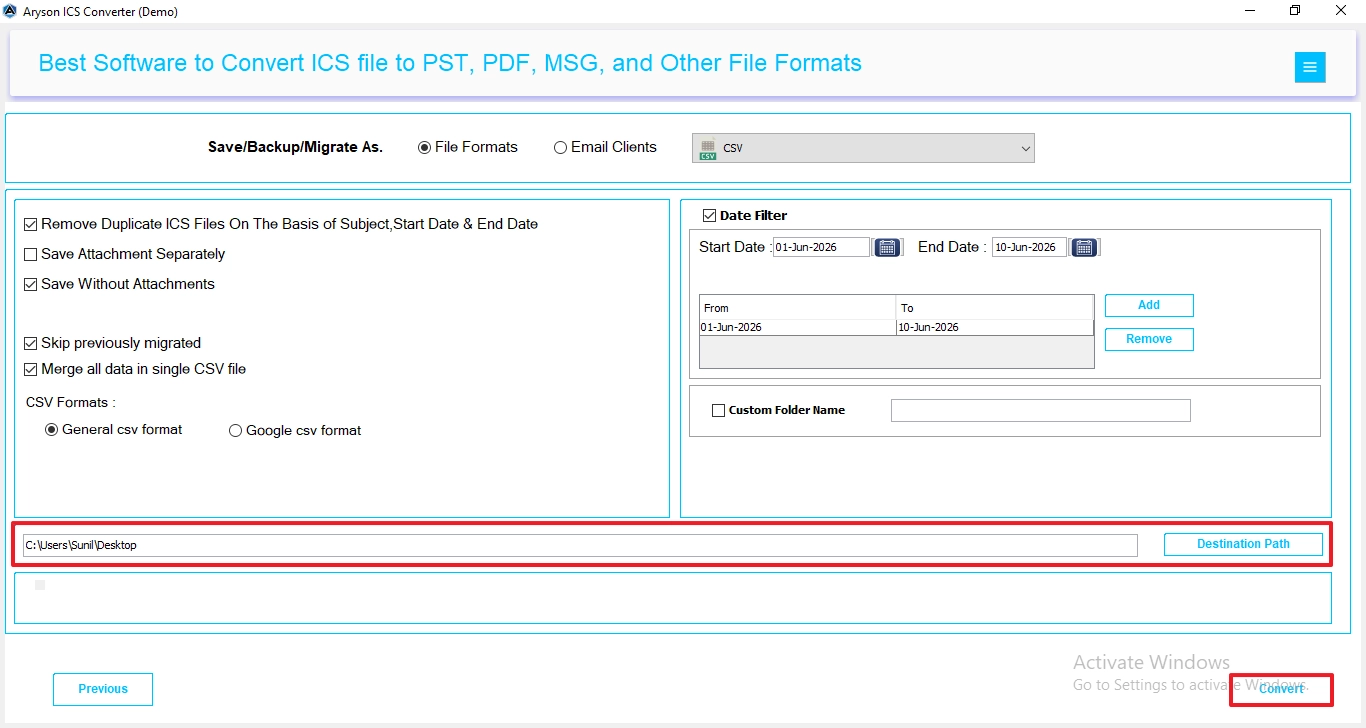
- Lastly, provide the destination Path to Save and click Convert.
Conclusion
With the help of this blog, you can find the best methods to convert ICS to CSV. The manual method is used for limited emails and is not an ideal solution for batch conversion. However, you can use the expert-recommended tool for smooth and secure conversion. It ensures a bulk conversion with just a few clicks. Furthermore, you can try the demo version of this tool to evaluate its performance & functionality.
Frequently Asked Questions
Q1. Is it possible to batch convert more than 50 individual .ics files into one CSV file?
Ans. Yes, multiple ICS files can be combined and converted into a single CSV file using a professional ICS conversion tool. This approach is much more efficient than processing each calendar file individually.
Q2. What information is included when converting ICS to CSV?
Ans. The CSV file typically contains event details such as subject, start date, end date, location, description, organizer, and reminder information. The exact fields may vary depending on the conversion method used.
Q3. Why are recurring events missing after manually converting my calendar data?
Ans. Manual conversion methods may not correctly interpret recurring event patterns stored in ICS files. As a result, some recurring appointments may be skipped or exported incompletely.
Q4. What is the easiest way to convert ICS to CSV?
Ans. Using a professional ICS converter is generally the simplest method. It automates the process and helps preserve calendar details during conversion.
Q5. Can I convert 25,000+ ICS calendar events into a CSV file?
Ans. Yes, large calendar datasets containing thousands of events can be converted into CSV format using the ICS Converter tool. Manual methods may struggle with such volumes and can be time-consuming.
About The Author:

Evren Cole is an expert in Email and Data Management. She has a strong passion for technology and entrepreneurship. In her free time, she enjoys football, music, and reading books.

