

-
Written By Evren Cole
-
Updated on July 23rd, 2026
Migrate OneDrive From One Tenant to Another Without Data Loss (2026 Guide)
User Query: My company recently acquired another business, and we need to migrate OneDrive from one Microsoft 365 tenant to another. There are only a few users, and I want to preserve the folder structure and file versions. What is the best way to perform this migration?
Summary: IT teams often need to migrate OneDrive from one tenant to another during a merger, an acquisition, or company restructuring. Microsoft’s native options, SharePoint Online PowerShell and the Graph API, work, but come with account caps, a separate licensing add-on, and no incremental syncing. Complete the entire migration in a single process. The Tenant to Tenant Migration handles bulk moves automatically, preserves folder structures and permissions, and minimizes downtime.
What Is Cross-Tenant OneDrive Migration?
Cross-tenant OneDrive migration is basically moving a user’s OneDrive content, files, folders, version history, permissions, all of it, from one Microsoft 365 tenant to another. You’ll usually see this come up during mergers, acquisitions, or when a business unit splits off on its own. It’s not the same as a regular backup. This kind of move has to keep metadata intact. Sharing links need to keep working. And the folder hierarchy has to stay structurally consistent too. Otherwise, employees land in the new tenant and can’t find anything or, worse, can’t get back to work at all.
Why do organizations migrate OneDrive data between Tenants?
- Mergers & Acquisitions – Consolidate users and data into a single Microsoft 365 tenant.
- Tenant Consolidation – Simplify IT management by reducing multiple tenants.
- Business Separation – Move OneDrive data when a business unit is spun off.
- Domain Change or Rebranding – Align user data with a new Microsoft 365 tenant and domain.
- Security & Compliance – Implement stronger security policies and centralized governance while preserving business data.
Prerequisites for Cross-Tenant OneDrive Migration
- Verify Both Microsoft 365 Tenants – Make sure the source and destination tenants are active and set up right.
- Assign Required Licenses – Get the Cross-Tenant User Data Migration licenses for the users who need them.
- Configure Microsoft Entra Cross-Tenant Access – Set up trust between the source and destination tenants.
- Create User Mapping – Match each source account to its destination account, usually with a CSV file.
- Grant Required Permissions – Global admins need the right permissions before the migration can even start.
- Provision OneDrive Accounts – Make sure OneDrive for Business is already up and running for destination users.
- Verify Storage Availability – Check the destination tenant actually has room for all that data.
- Notify End Users – Give people a heads up about the schedule and any downtime they should expect.
Methods to Migrate OneDrive from One Tenant to Another
Admins can move OneDrive data between tenants using either Microsoft’s native method or a dedicated migration tool. Which one makes sense really comes down to how many users you’re dealing with and how much automation you actually need.
Method 01: Native Method to Move OneDrive from One Tenant to Another
OneDrive data can also be transferred using Microsoft’s native migration option. This method depends on SharePoint Online PowerShell and involves several manual setup steps.
Step 01: Verify the Prerequisites
First, complete the required preparation before starting the migration.
- Sign in to both the source and destination Microsoft 365 admin centers.
- Verify that both tenants are active and supported for cross-tenant migration.
- Assign the required Cross-Tenant User Data Migration licenses.
- Finally, install the latest SharePoint Online Management Shell on your system.
Step 2: Connect to Both Tenants
Next, connect to the source and destination Microsoft 365 tenants.
- Open the SharePoint Online Management Shell as an administrator.
- Connect to the source tenant using SharePoint Online PowerShell.
- Then, connect to the destination tenant with administrator credentials.
- Lastly, verify that both tenant connections are successful before continuing.
Step 3: Configure Cross-Tenant Trust
After that, establish a trust relationship between the two tenants.
- Open the Microsoft 365 Admin Center.
- Then, configure Cross-Tenant Access Settings in Microsoft Entra ID.
- Next, add the destination tenant to the trust relationship.
- Grant the required permissions for cross-tenant migration.
- Finally, save the configuration and verify that the trust has been established successfully.
What Are the Loopholes of the Native Method?
- You need PowerShell knowledge to complete the migration.
- The setup takes time because several configurations are required.
- Most tasks require manual work with very little automation.
- You need additional Microsoft migration licenses before the process can begin.
- Large user migrations increase the chance of errors and require more effort.
Method 02: Expert Choice to migrate OneDrive from one tenant to another
The Aryson Tenant to Tenant Migration Tool simplifies OneDrive migration between Microsoft 365 tenants. It lets you authenticate both tenants, select users, map accounts, apply migration filters, and start the migration from a single interface. The tool preserves folder hierarchy, metadata, and file structure while ensuring a secure transfer using the Microsoft Graph API. Besides OneDrive, it also supports Cross-Tenant Mailbox Migration and SharePoint migration.
Working Guide to Migrate OneDrive for Business to Another Tenant:
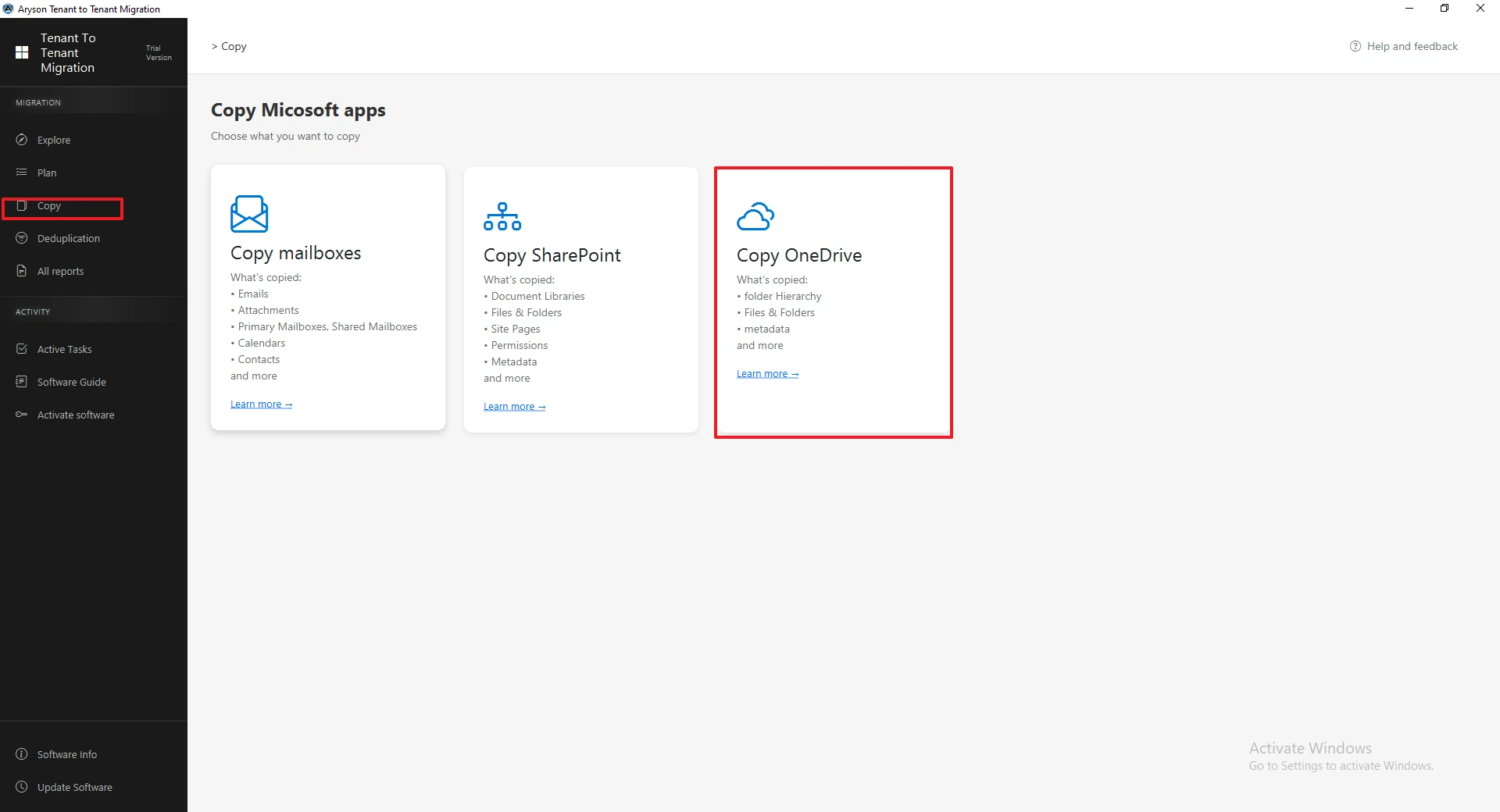
- First, download the Tenant-to-Tenant Migration Tool. Choose Copy OneDrive from the dashboard.
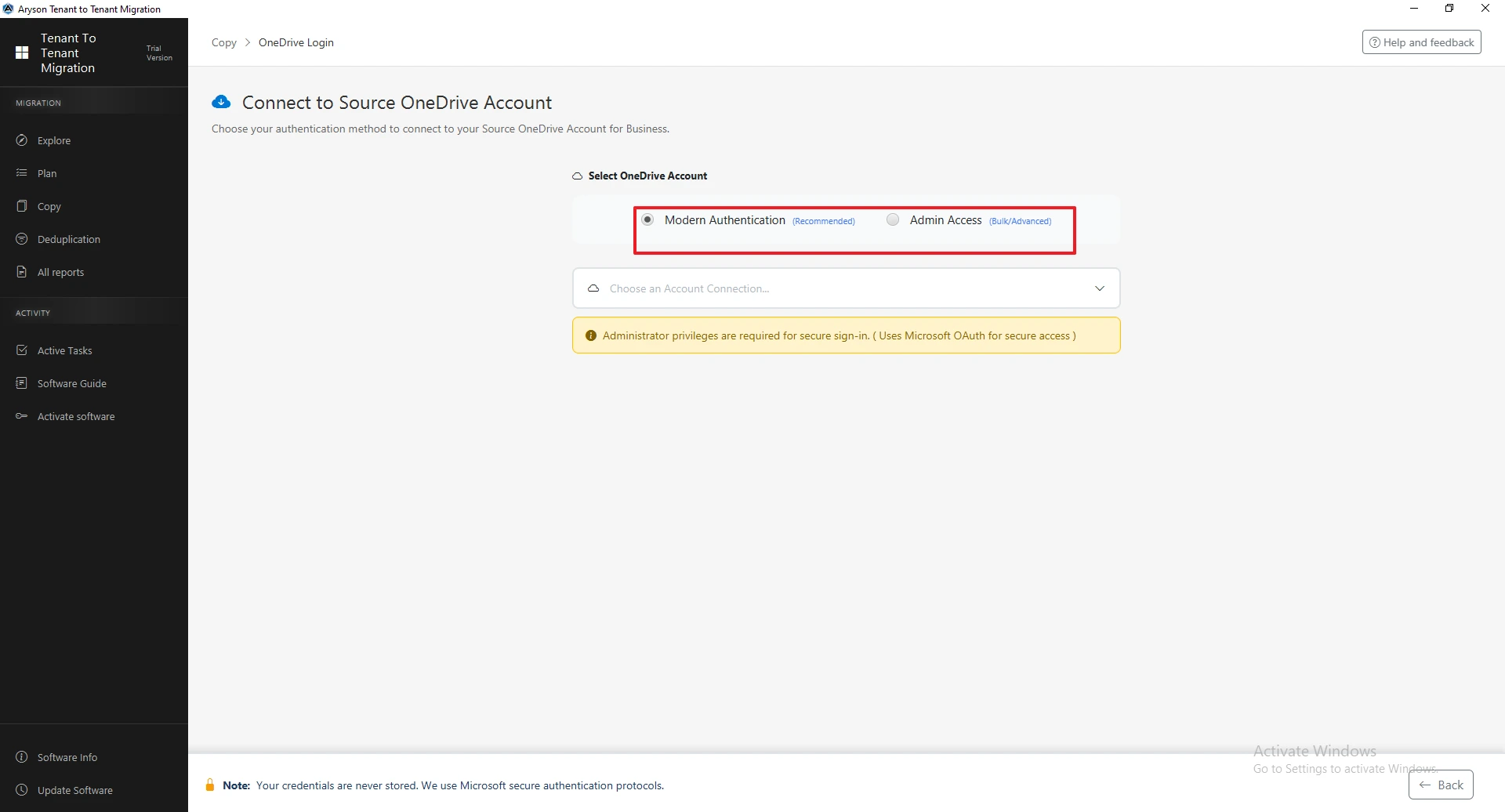
- Next, connect the source OneDrive account using Modern Authentication or Admin Access, & complete the authentication process.
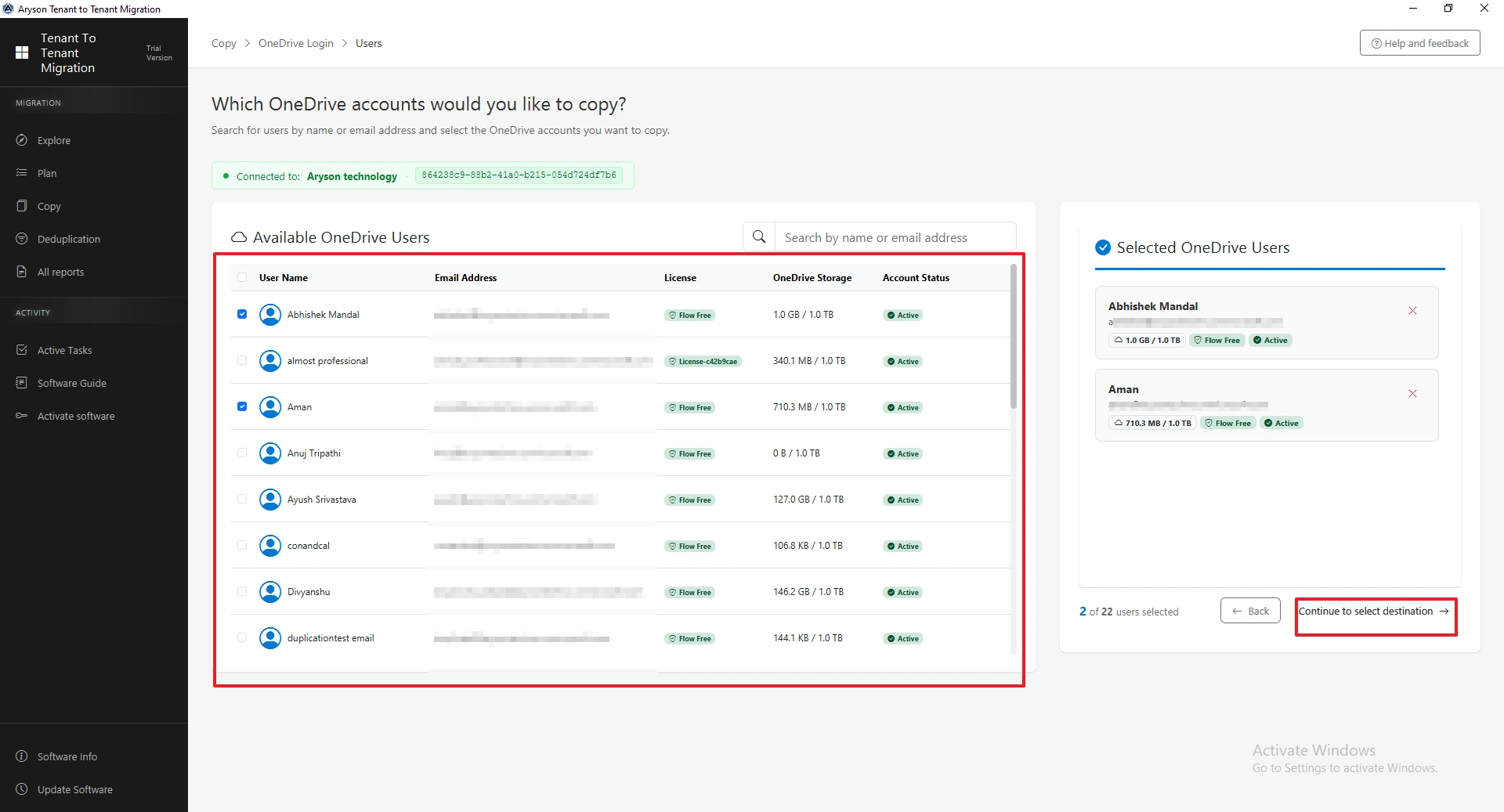
- After that, select the source OneDrive users you want to migrate >> click Continue to Select Destination.
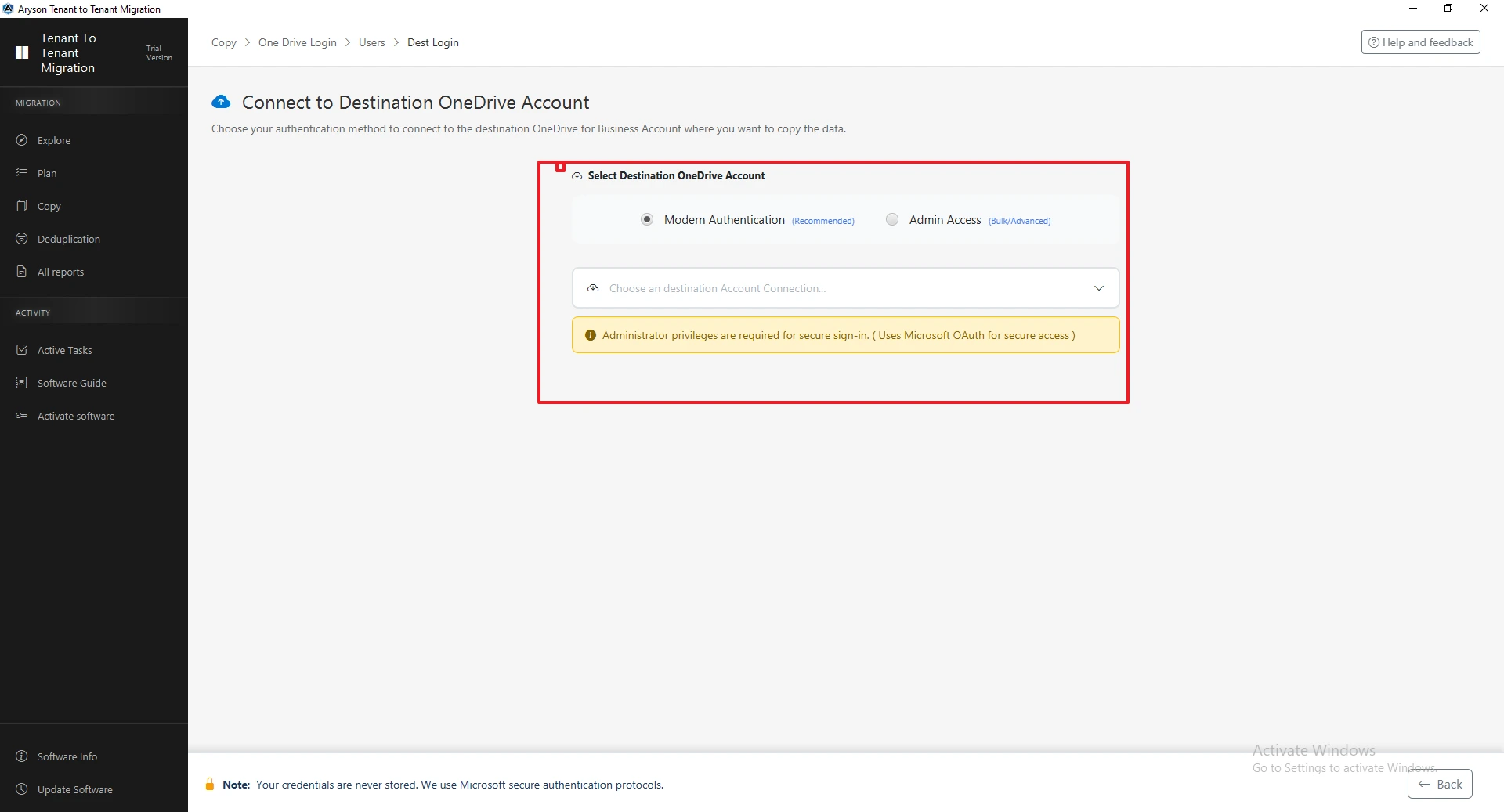
- Then, connect the destination OneDrive account using Modern Authentication or Admin Access.
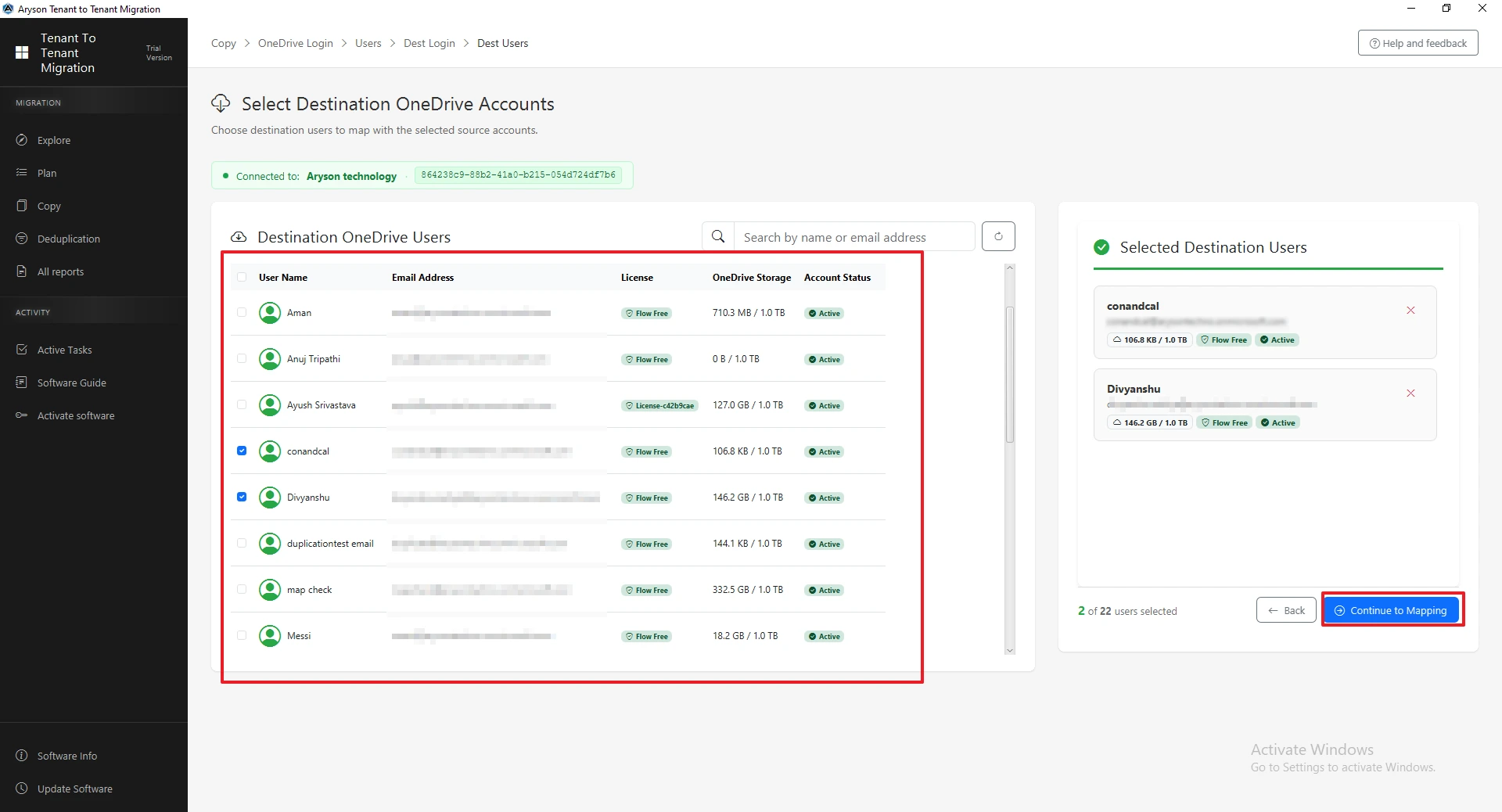
- Now, choose the destination OneDrive users & tap Continue to Mapping.
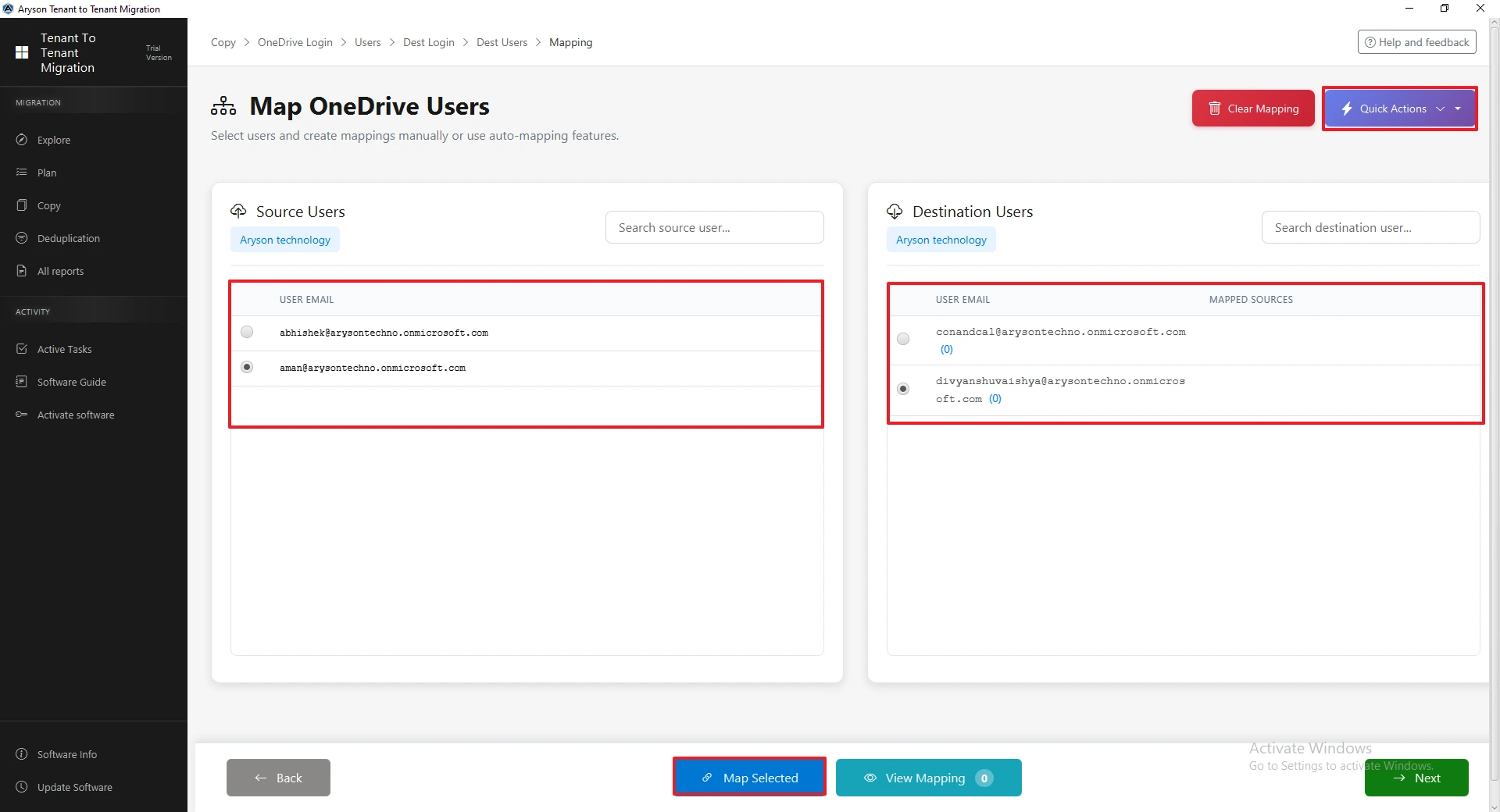
- Next, map the source and destination users manually or use the Quick Actions option for automatic mapping.
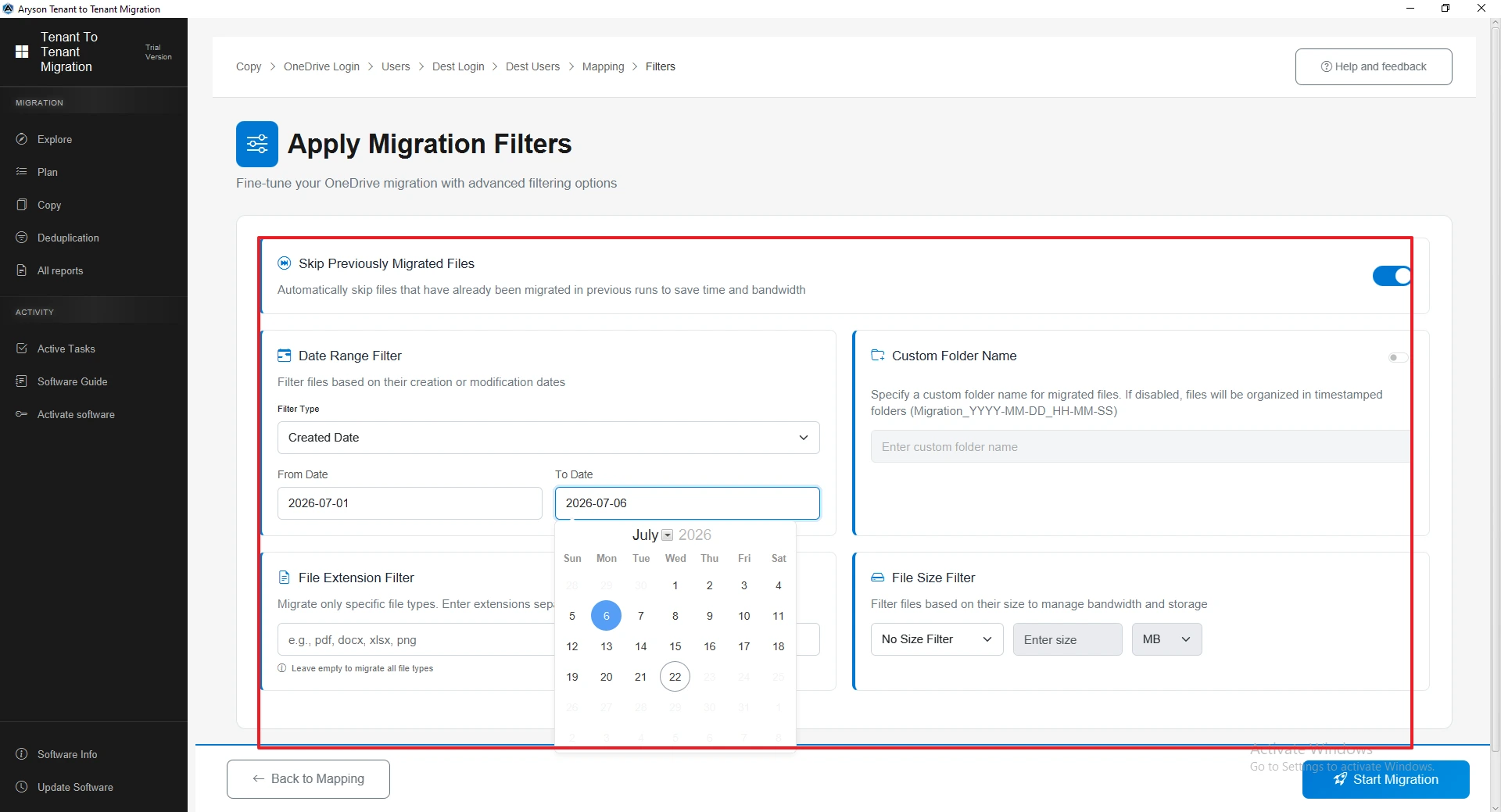
- Afterward, apply the required migration filters, such as Date Range, File Extension, File Size, or Skip Previously Migrated Files.
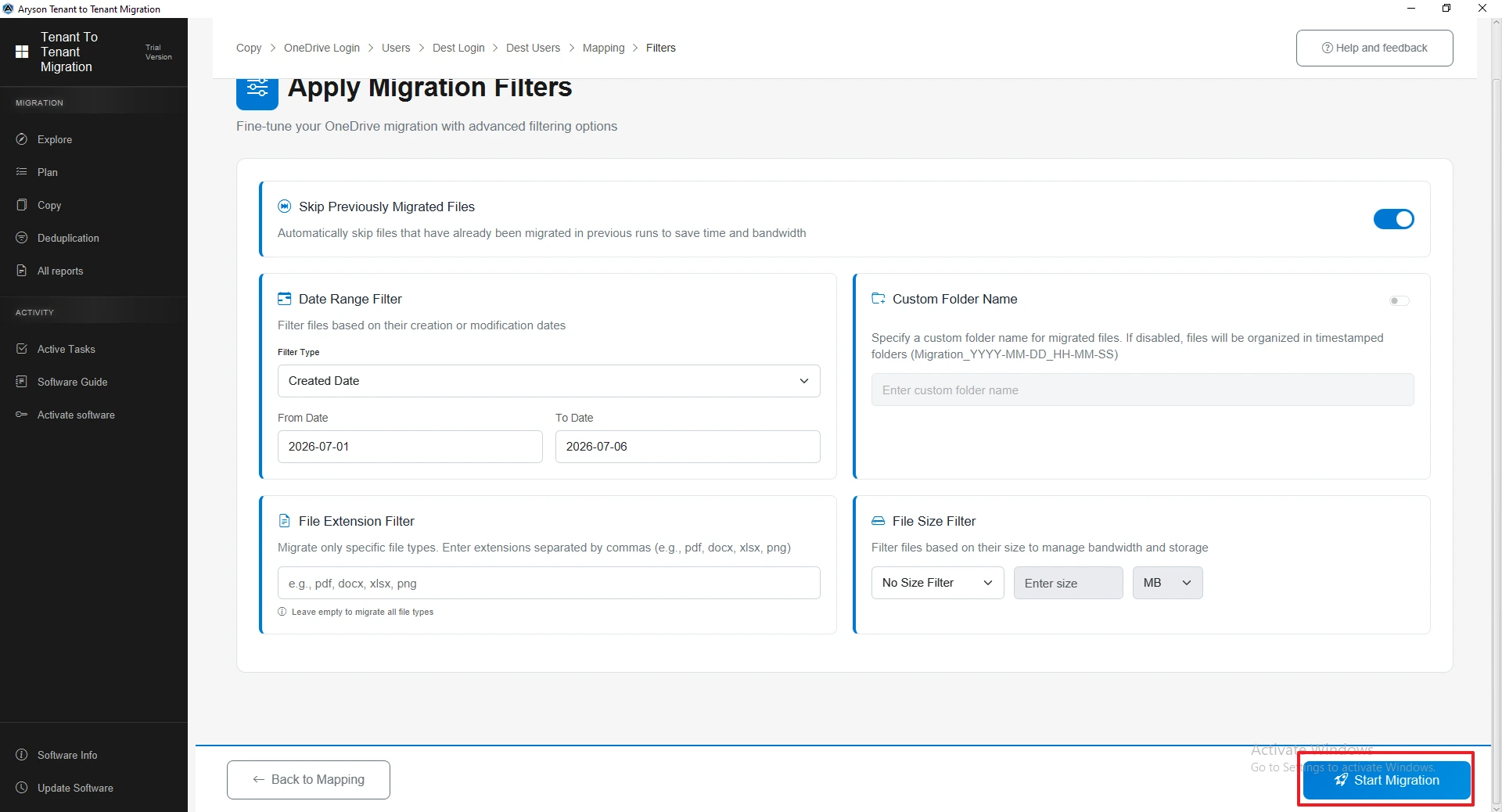
- Finally, click Start Migration to begin the OneDrive tenant-to-tenant migration process.
ShareGate vs Aryson: Which OneDrive Migration Tool Really Delivers?
|
Feature |
Aryson Tenant-to-Tenant Migration |
ShareGate |
|
Pricing model |
One-time license |
Recurring subscription, ongoing cost every year |
|
Free trial |
Free demo version, no card needed |
15-day trial, then paid |
|
Multi-workload in one tool |
OneDrive, SharePoint, and Mailbox together |
OneDrive plus other workloads, but priced as separate solutions |
|
Incremental migration |
Built-in, skips already migrated files |
Not specifically called out for OneDrive |
|
Deduplication |
Built-in suite across OneDrive, SharePoint, and email |
Not a core feature |
|
Filtering control |
Date range, file size, and file extension filters |
Filter by usage or size only |
|
User mapping |
Quick Actions for fast bulk mapping |
Manual mapping via CSV |
|
Authentication |
Modern Authentication and Admin Impersonation |
Standard Microsoft 365 login |
|
Support |
24/7 technical support included |
Standard support tiers |
|
Best fit |
Teams that want full control and a one-time cost |
Teams already paying for a broader ShareGate subscription |
Conclusion
To migrate OneDrive from one tenant to another, organizations need careful planning, the right permissions, and a reliable migration approach. While Microsoft’s native method works well for basic migrations, it involves multiple manual configurations and technical expertise. For large-scale or enterprise migrations, a professional solution simplifies the process with automation, user mapping, migration filters, & detailed reports. By choosing the right method, users can complete the migration securely while preserving their OneDrive data, folder hierarchy, & metadata with minimal downtime.
Frequently Asked Questions:
Q1. Can I migrate 1,000+ OneDrive accounts from one Microsoft 365 tenant to another?
Ans. Yes. You can migrate over 1,000 OneDrive accounts using Microsoft’s native migration method or a Microsoft Office 365 Migration Tool. A professional tool simplifies bulk migration with automated user mapping, migration filters, and detailed reports, making it ideal for large organizations.
Q2. Is the Microsoft Graph API reliable for OneDrive tenant migration?
Ans. Yes. Microsoft Graph API is a secure and reliable authentication method for OneDrive tenant-to-tenant migration. It helps transfer supported files, folders, metadata, and other content while maintaining data integrity throughout the migration process.
Q3. Can I migrate OneDrive while users continue working?
Ans. Yes. Users can continue working during most of the migration. However, it is recommended to schedule the final synchronization or cutover outside business hours to prevent conflicts with recently modified files.
Q4. What are the biggest risks during OneDrive tenant-to-tenant migration?
Ans. The most common risks include incorrect user mapping, missing permissions, configuration errors, insufficient licenses, migration failures, and incomplete data transfer. Proper planning and testing help minimize these issues.
Q5. What data can I migrate during a OneDrive tenant-to-tenant migration?
Ans. You can migrate OneDrive files, folders, folder hierarchy, metadata, supported permissions, and file versions. The exact data transferred depends on the migration method or the tool you use.
Q6. Is native Microsoft OneDrive tenant migration enough for large organizations?
Ans. Microsoft’s native migration method is suitable for many scenarios. However, large organizations often choose a Microsoft Office 365 Migration Tool because it offers bulk migration, automatic user mapping, advanced filters, and detailed migration reports, reducing manual effort and migration time.
About The Author:

Evren Cole is an expert in Email and Data Management. She has a strong passion for technology and entrepreneurship. In her free time, she enjoys football, music, and reading books.

