

-
Written By Evren Cole
-
Updated on March 10th, 2026
Securely Migrate Google Workspace to Outlook.com
Summary: In recent years, several businesses have moved their Google Workspace emails to Outlook for several reasons. Most of the users prefer Microsoft Outlook because of its integration with the simple Outlook interface, improved email organisation features, and seamless connectivity. However, migrate Google Workspace to Outlook.com requires a careful plan to keep the data intact. In this article, we discuss the reliable method to accomplish the migration process, along with the Google Workspace Migration Tool, for secure data transfer.
Why is a Google Workspace to Outlook Migration required?
Before you proceed further, it is important to understand why you need to switch from Google Workspace to Outlook. Some of the common reasons include:
- Outlook has integration with the Microsoft ecosystem and productivity tools.
- Moreover, Outlook consists of advanced email organisation features.
- Additionally, it has a centralised email system within Microsoft Outlook.
- Familiar interface for users who have used Microsoft products for a long time.
- Furthermore, it improves the compatibility with Microsoft-based workflows.
Because both platforms use different infrastructure, migrating data requires a proper configuration.
Pro Tip: Make sure to always take a backup of your Google Workspace emails. In addition, it is a good choice to always have a backup of your important emails for future use.
Top Methods to Migrate Google Workspace to Outlook.com
Now, walk through the most reliable approach that helps to migrate Google Workspace to Microsoft Outlook. You can follow any method to complete the Google Workspace Migration to Microsoft Outlook.
- Manual Method
- Automated Software
Add Google Workspace to Outlook Manually
Before you proceed with this method, first enable IMAP and generate an app password to configure your Google account without any errors.
STEP 01: In Google Workspace, enable IMAP
- To enable IMAP, first sign in with your Google Workspace account.
- After that, open Gmail and then click on Settings >> See all settings.
- Then, navigate to Forwarding and POP/IMAP.
- Next, you have to enable IMAP and click on Save Changes.
Step 02: Generate App Password
- First, open the Google browser, and tap on Google Account.
- Afterward, click on Manage on your Google Account.
- Then, you need to open Google Account Security Settings.
- Locate the app password >> generate the Mail & Windows computer password.
- Thereafter, you can save the generated password.
Step 03: Configure Google Workspace in Outlook
- Initially, open your Microsoft Outlook account.
- Subsequently, go to the File, and thereafter click on Add Account.
- In the blank field, enter your Google Workspace email address.
- After that, you have to choose the IMAP configuration and enter server details:
- Incoming Server (IMAP): server – imap.gmail.com
- Outgoing Server (SMTP): server – smtp.gmail.com
Port – 993, Encryption – SSL
Port – 465 or 587, Encryption – SSL/TLS
- Now, when the app password is prompted, enter the password.
- At last, click on Connect to complete the setup.
After the correct configuration, Outlook will synchronise the email from the Google Workspace.
Drawback of this Manual Method:
While this method allows users to transfer Google Workspace emails to Outlook, it has several methods:
- In this method, only email is synchronised, and other components may not migrate.
- If you have a large mailbox, then it may take a long time to download.
- Moreover, there is a risk of data inconsistency during sync.
- You need to require a manual configuration for each email account.
Migrate Google Workspace to Outlook.com using Automated Software
For the organisations that want a secure way to transfer data, use the enterprise-level Google Workspace Migration Tool. It is a professional migration software that allows users to migrate multiple mailboxes simultaneously. Moreover, it includes all the Google Workspace data, such as emails, contacts, calendars, and attachments. With the help of its advanced features, you can migrate selective data and make sure complete data integrity. Also, the same tool is used to export Google Workspace to CSV for a structured format.
Simple Process to Migrate G Suite to Outlook
- First, you have to install the Google Workspace Migration Tool on your system.
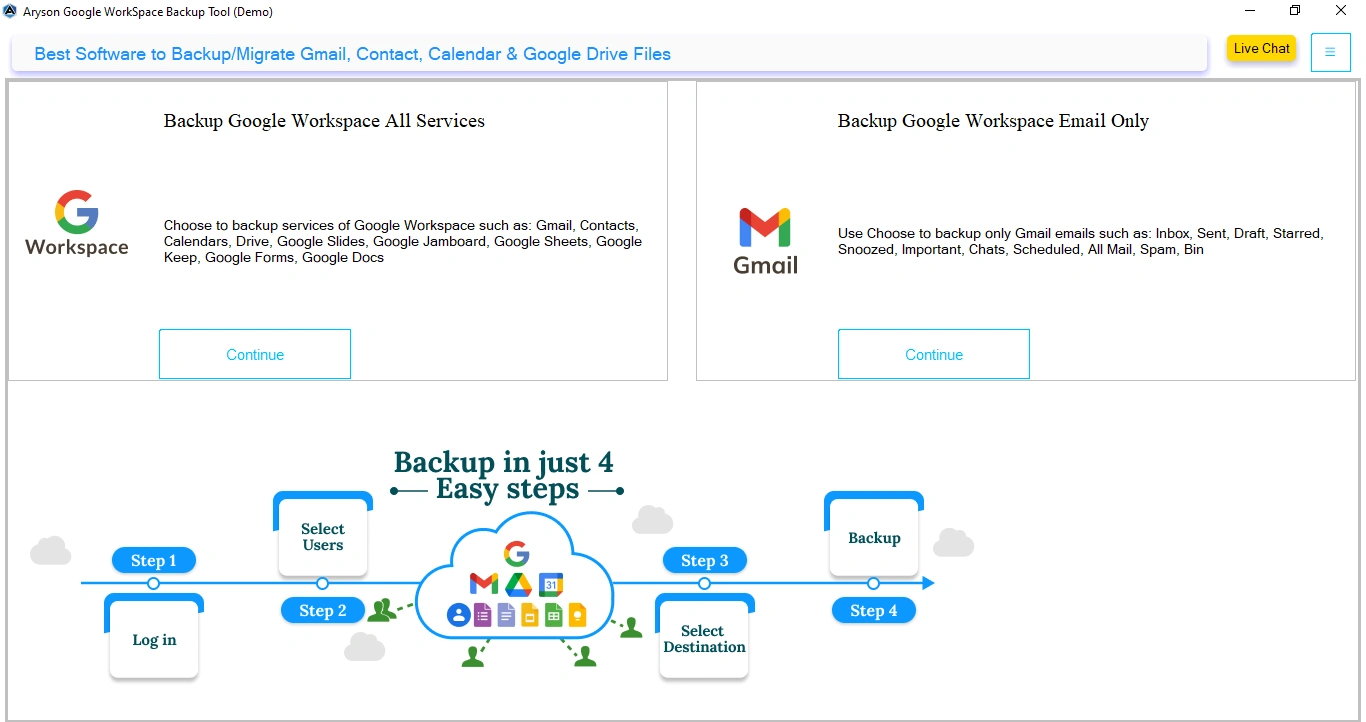
- Then, choose Backup all Google Workspace Services and click Continue.

- After that, enter the login credentials and click on login to proceed.

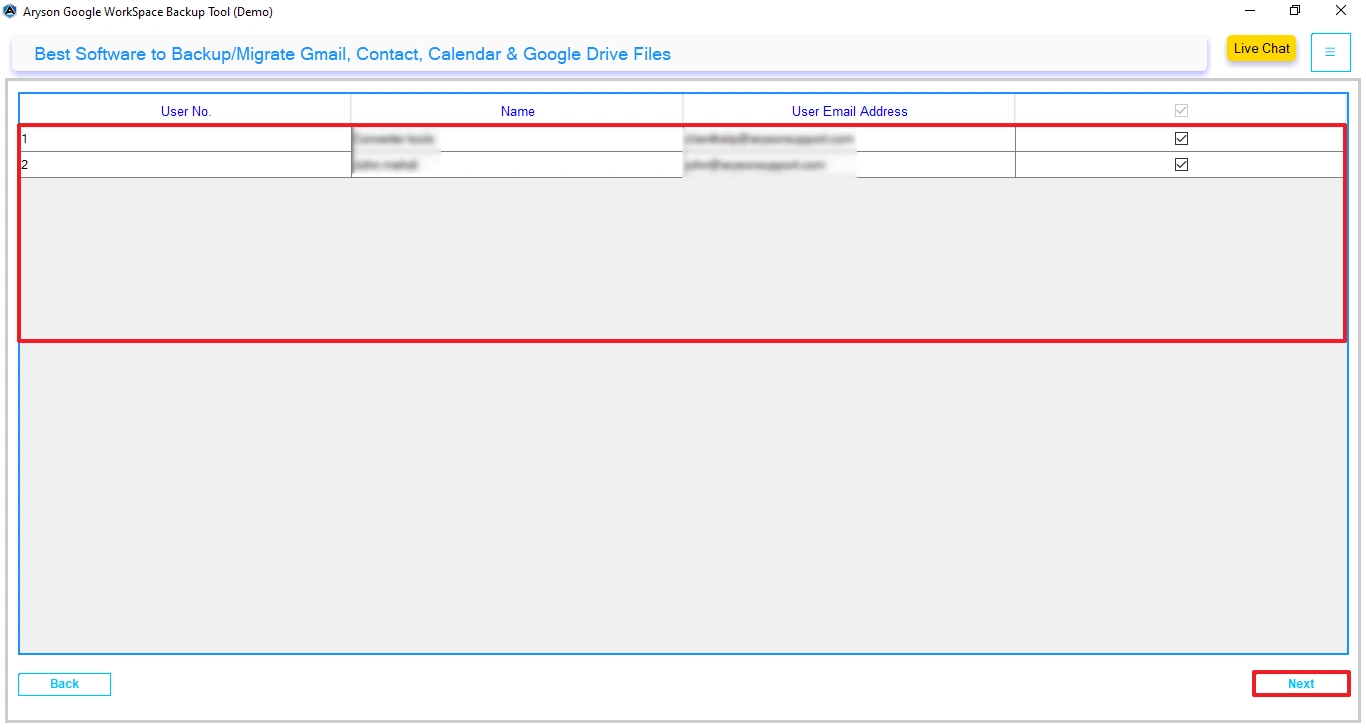
- Once logged in, preview available users and select the account to migrate >> Next.
- Select Outlook.com (Hotmail) as the destination and enter login details.

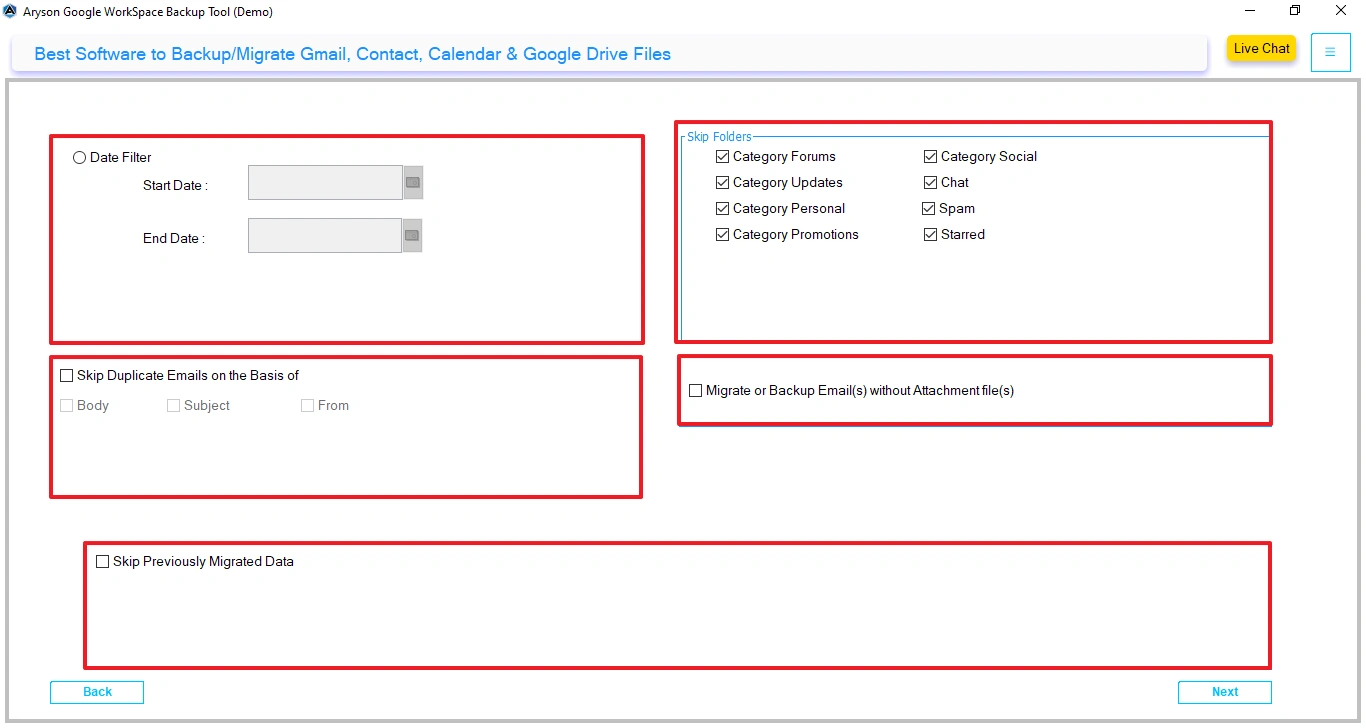
- After authentication, apply the required filters for selective migration >> Next.
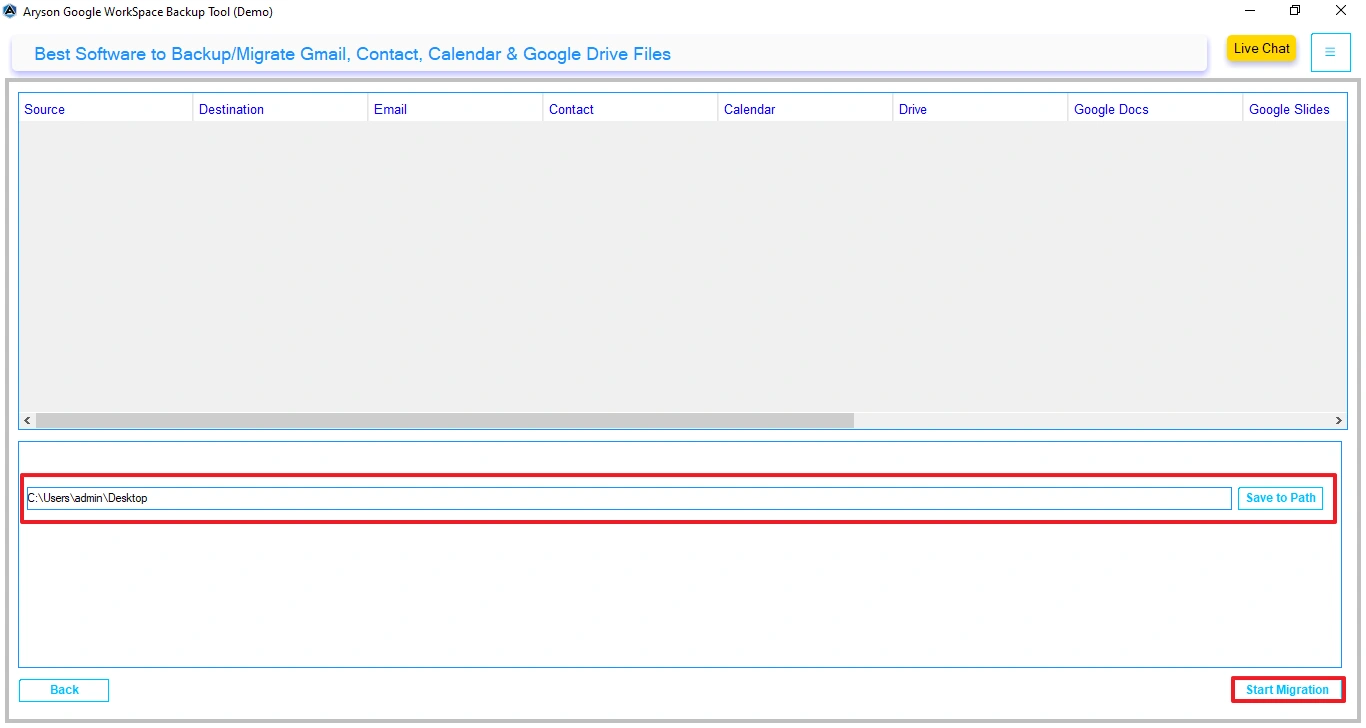
- Finally, specify the path to save the resultant file and click on Start Migration.
Conclusion
To sum up, we covered all the aspects that help you to migrate Google Workspace to Outlook.com. It is a good thing to always choose the right method. Moreover, the manual method is suitable for small mailbox migrations. As a result, it is recommended to use the automated software for complete mailbox migration with data integrity.
Frequently Asked Questions:
Q.1 How long does it take to migrate Google Workspace to Outlook.com?
Ans. The migration time depends on mailbox size, internet speed, and the number of accounts being migrated. Small mailboxes may take a few minutes, while larger mailboxes can take several hours.
Q.2 What is the best way to migrate Google Workspace to Outlook.com?
Ans. The MSOutlookHelp Google Workspace Migration Tool is the best way to migrate data, as it provides various features for selective migration, and it uses secure authentication.
Q.3 What data can be migrated from Google Workspace to Outlook.com?
Ans. The manual method migrates emails only. Whereas the Google Workspace Migration Tool migrates complete mailbox data, including emails, contacts, and attachments.
Q.4 Is Google Workspace migration to Microsoft Outlook secure?
Ans. Yes, the migration is secure when you perform the migration using Google Workspace Migration tools or properly configured protocols such as IMAP with secure authentication.
About The Author:

Evren Cole is an expert in Email and Data Management. She has a strong passion for technology and entrepreneurship. In her free time, she enjoys football, music, and reading books.

