

-
Written By Evren Cole
-
Updated on February 25th, 2026
Migrate Google Workspace to iCloud: A Step-by-Step Tutorial
User Query: Hi, I’m Alex from New York. I have a custom email address currently connected to Google Workspace, and I want to migrate it to iCloud. I already have an iCloud through an Apple One subscription, and my domain is registered with Namecheap. I’m looking for clear step-by-step instructions to complete the process with minimal downtime and no email loss. What precautions should I take, and are there any common issues I should be aware of during the process?
Summary: Like Alex, are you also someone who looks for a secure process to migrate Google Workspace to iCloud? In this guide, we will discuss the simple and most reliable solution that will migrate your data. Along with that, we also discuss the Google Workspace Migration Tool that minimizes downtime and prevents email loss.
What makes iCloud better than Google Workspace?
Many users choose to transfer their custom domain email from Google Workspace to iCloud for several reasons. Below is the list given of why users should migrate G Suite to iCloud:
- iCloud has integration with Apple devices like iPhone, iPad, and the Mac ecosystem.
- It enhances privacy control with Apple’s strong data protection and encryption policies.
- Also, it has a simple interface that is easy to manage for personal and small businesses.
- Simple, cost-effective plans for Apple users who need emails, storage, and collaboration.
- Additionally, it has automatic sync across Apple apps, including Mail, Contacts, etc.
Premigration Checklist
- Confirm iCloud Subscription: Make sure your Apple ID has an iCloud subscription.
- Lower DNS TTL: Log in to your domain provider.
- Backup Google Workspace Emails: Always take a backup via Google Takeout, Export via Outlook, and use an IMAP backup server.
Top 3 Solutions to Move from Google Workspace to iCloud
Many approaches are available to move your data from Google Workspace to iCloud. Here, we will discuss the most appropriate one:
- Google Takeout Method
- Automated Software
Solution 01: Use Google Takeout to Migrate Email from Google Workspace to iCloud
Google Takeout is a service from Google that lets you download a copy of your data from different Google platforms. Moreover, you can use it to export your emails and later move to another platform, such as iCloud. Here are the complete steps to migrate data:
- First, launch your preferred browser and go to the Google Takeout page.
- After that, log in using Google Workspace credentials >> Deselect all services.
- Then, enable only the ‘mail‘ option to download your Gmail messages.
- Next, after you select the mail, move to the bottom of the page >> Next.
- Choose how you want to receive the export file, such as a download link sent to Gmail.
- Now, select the preferred file format and adjust the size limit as per your needs.
- Once configured, click ‘Create Export‘ to begin the process.
- Upon completion, Google will send an email with the download link. Save the export.
- Thereafter, sign in to your iCloud account with your Apple ID credentials.
- Next, open iCloud Drive and go to the browse section.
- Then, click the upload option and select the file you downloaded from Google Takeout.
- Ultimately, press Open to upload your Google Workspace data to iCloud.
Drawback of this method:
- The method consists of several steps to migrate data.
- It increases the risk of data loss and corruption, which may occur if not done carefully.
- Moreover, some files are not compatible with Google Workspace and iCloud.
- Further, the user must have good knowledge to easily navigate the data for transfer.
Solution 02: Automated Software to Migrate Google Workspace to iCloud
Based on your requirements, if the manual method doesn’t work, then you can use the Google Workspace Migration tool. It helps you safely move emails, contacts, calendars, and attachments to make things easier. This software process is simple; even a non-technical user can easily migrate their data. You can even migrate Google Workspace to Zoho Mail or another platform with the same software. It is a straightforward option for a smoother and less stressful migration experience.
Easy Steps to Transfer Google Workspace to iCloud
- First, download and install the Google Workspace Migration Tool on your computer.
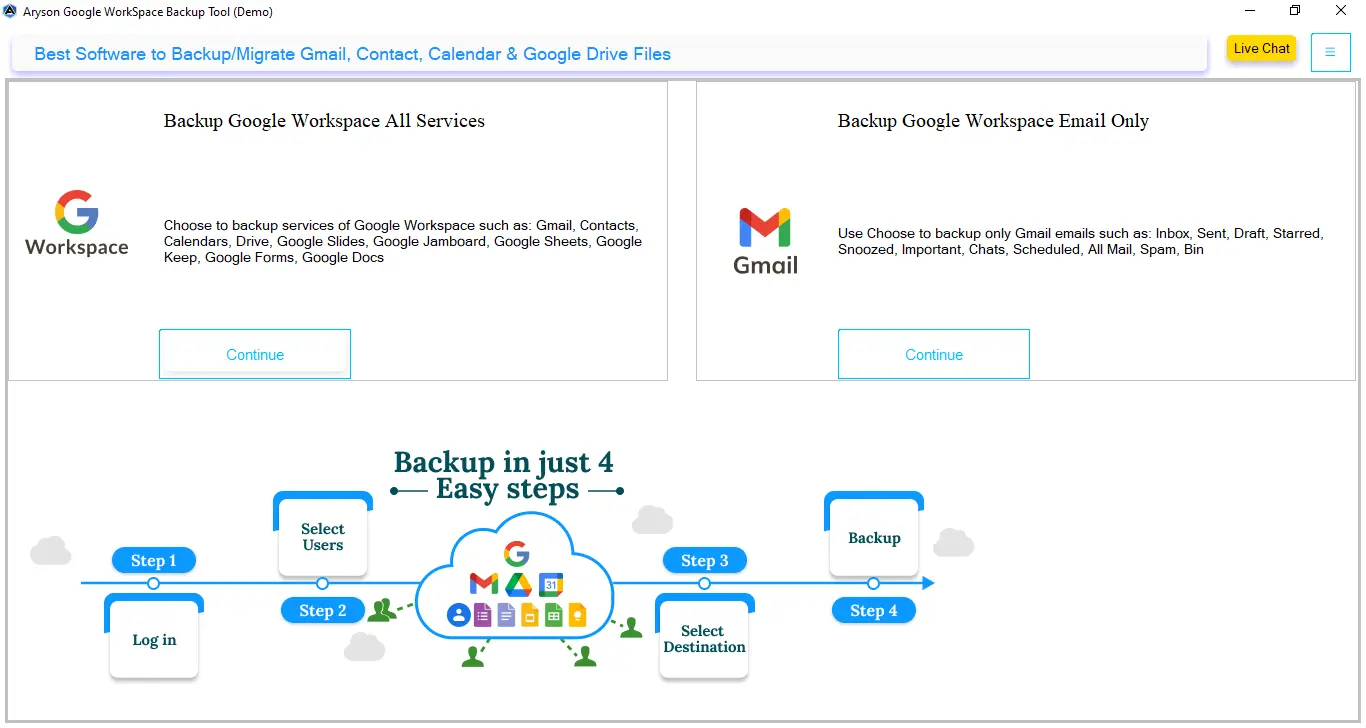
- Open the software and choose Backup All Google Workspace Services >> Continue.
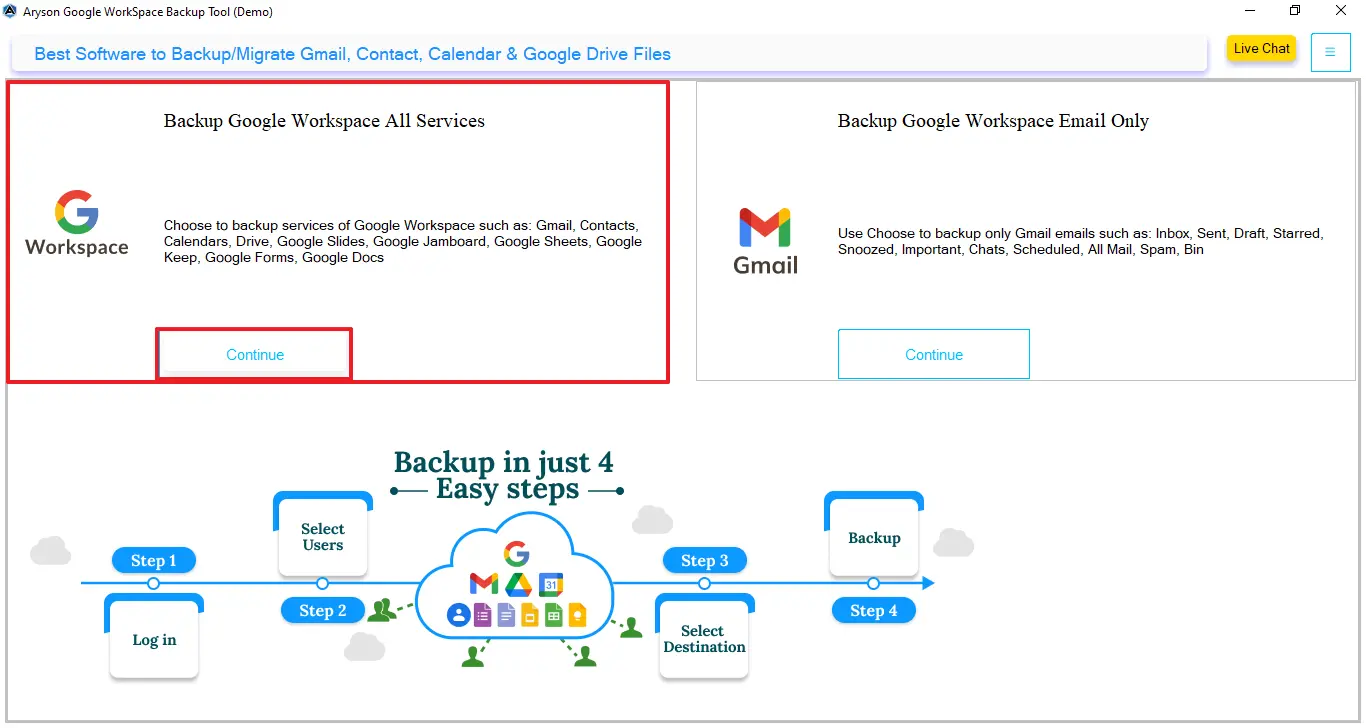
- Enter your admin details, including the root user email address, and sign in securely.
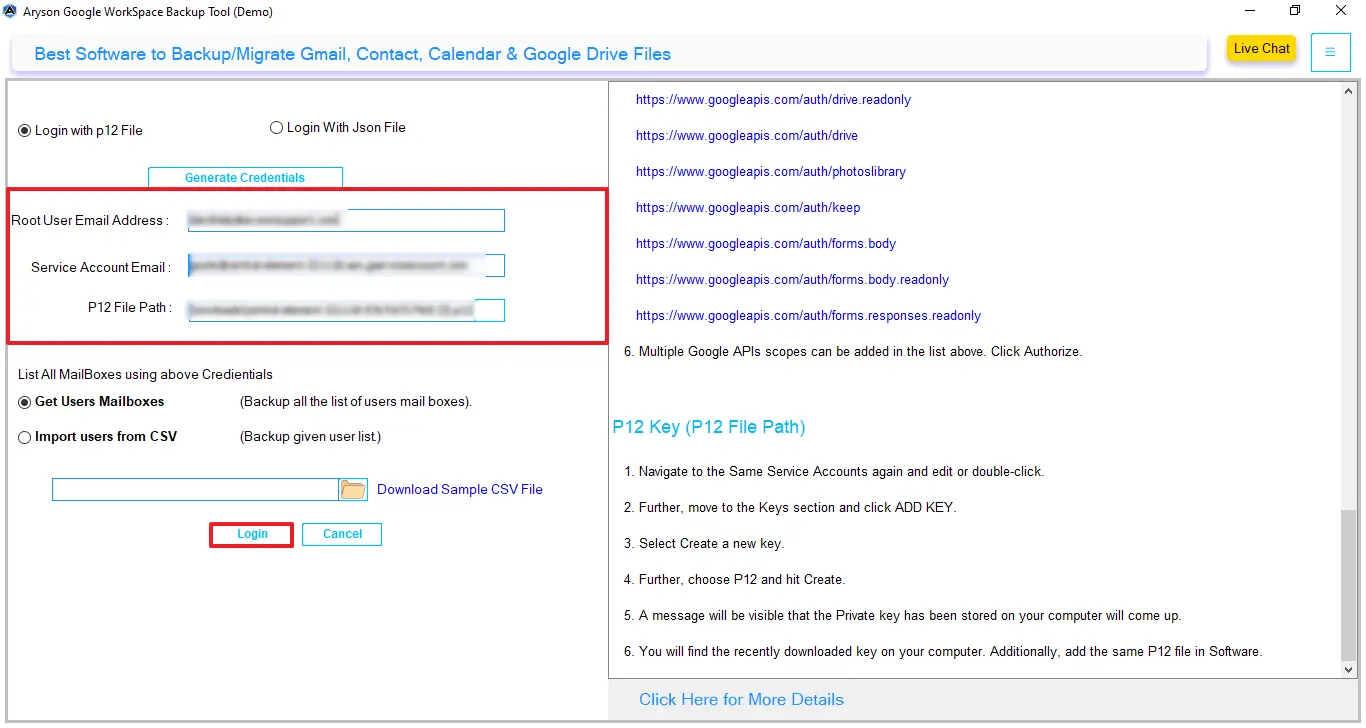
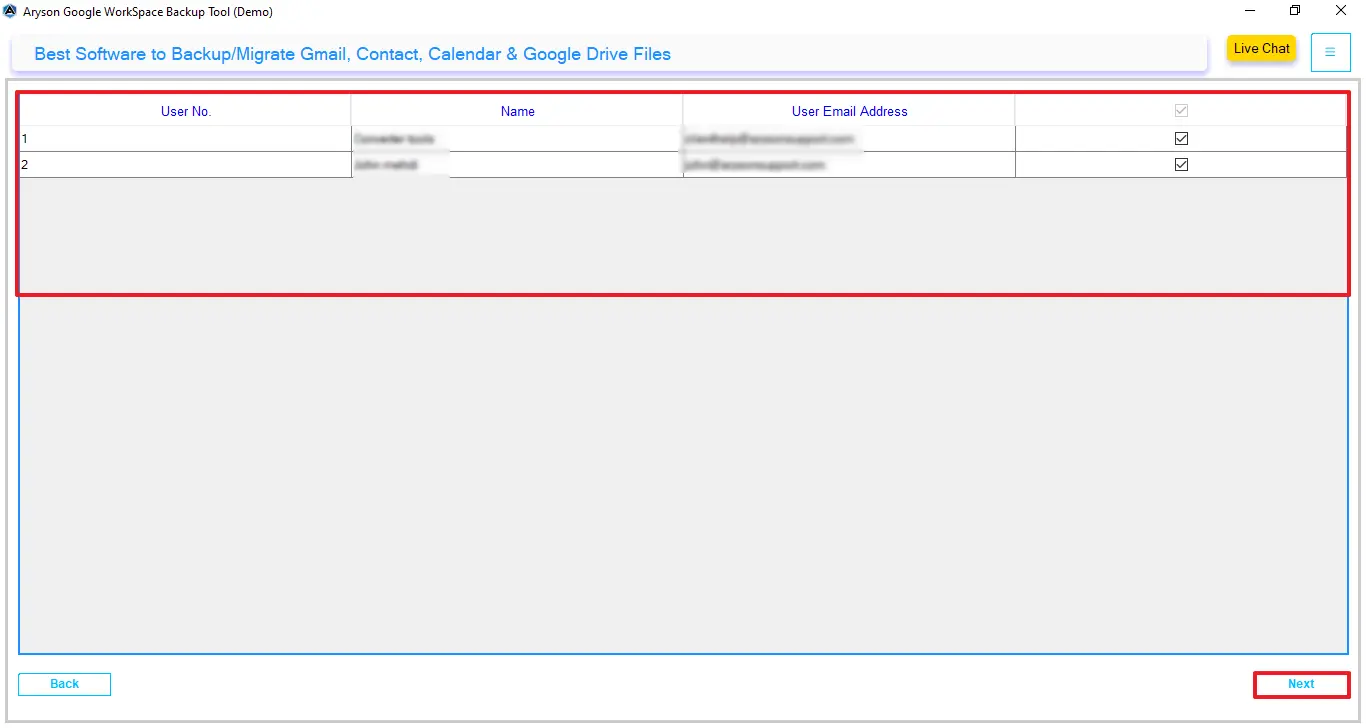
- Thereafter, select the user account and click Next to proceed further.
- From the Google Workspace services, choose where you want to transfer data.
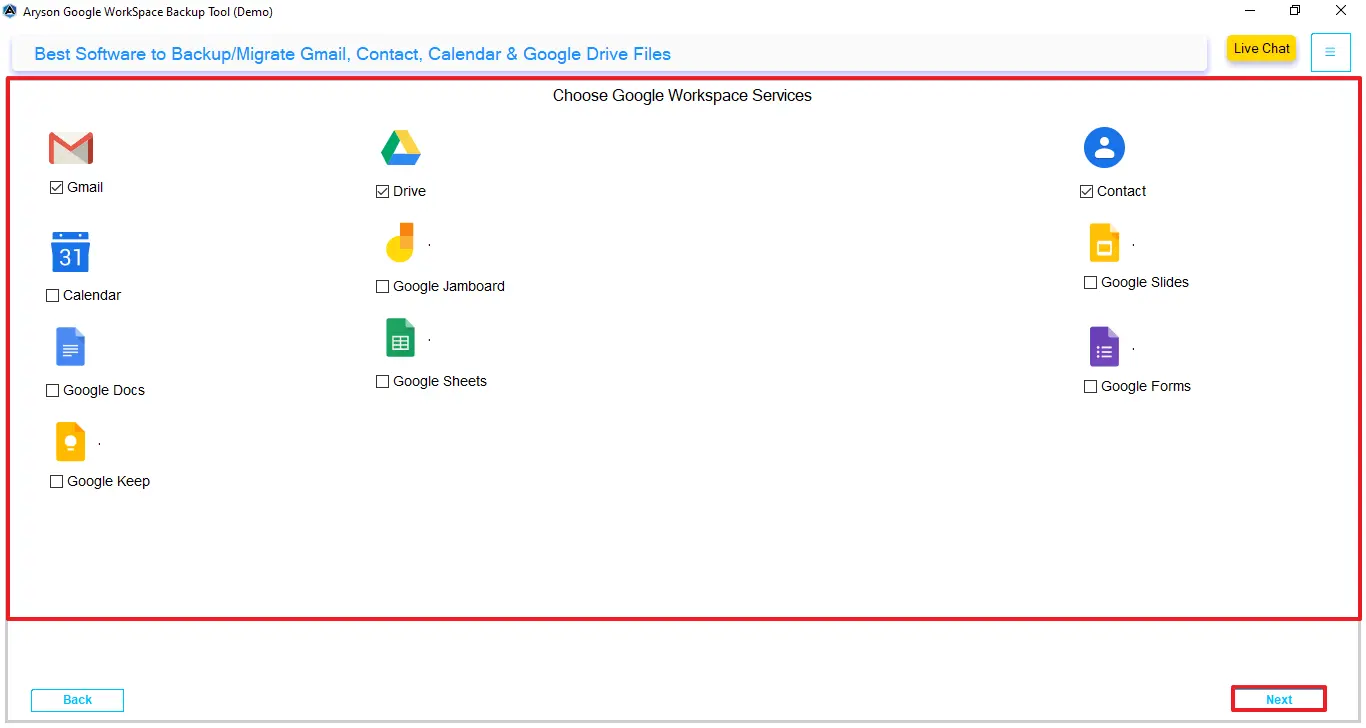
- Then, select iCloud as the destination to save Google Workspace data.
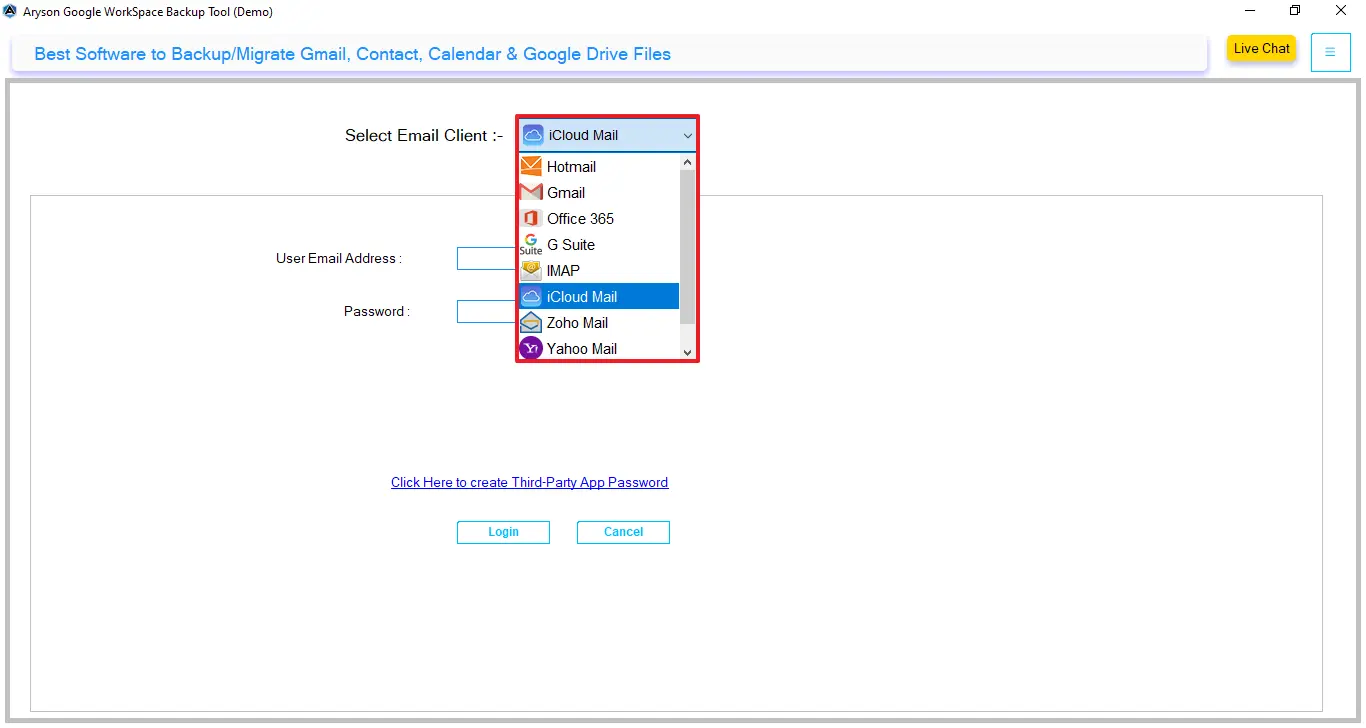
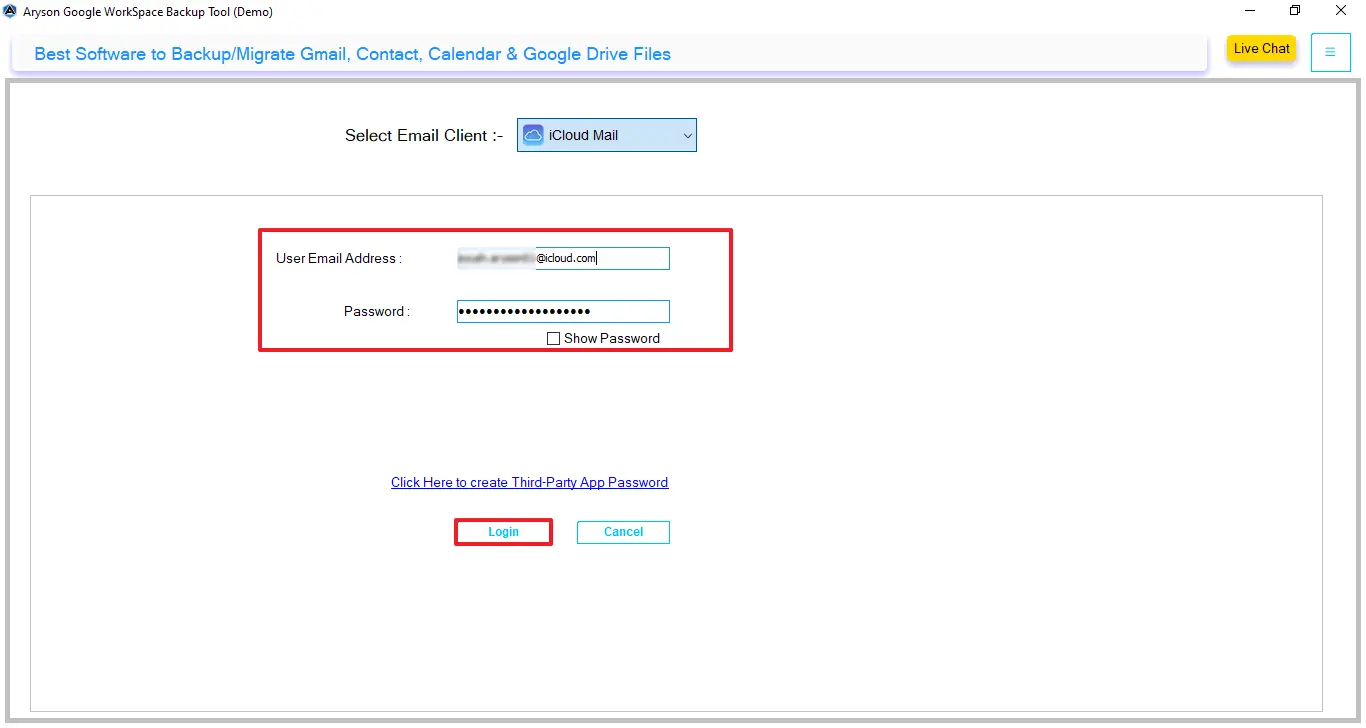
- Proceed then, and enter the login credentials for iCloud – username and app password.
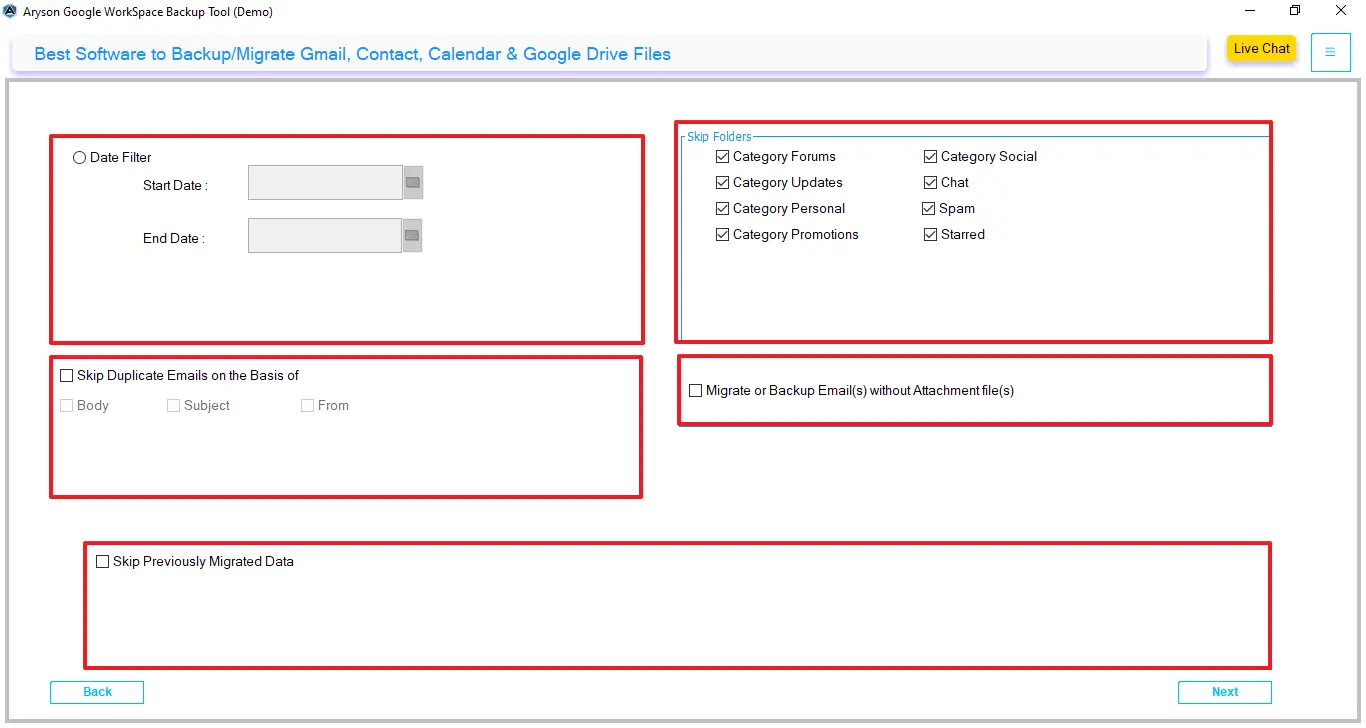
- Apply the required advanced filters for selective migration and click Next.
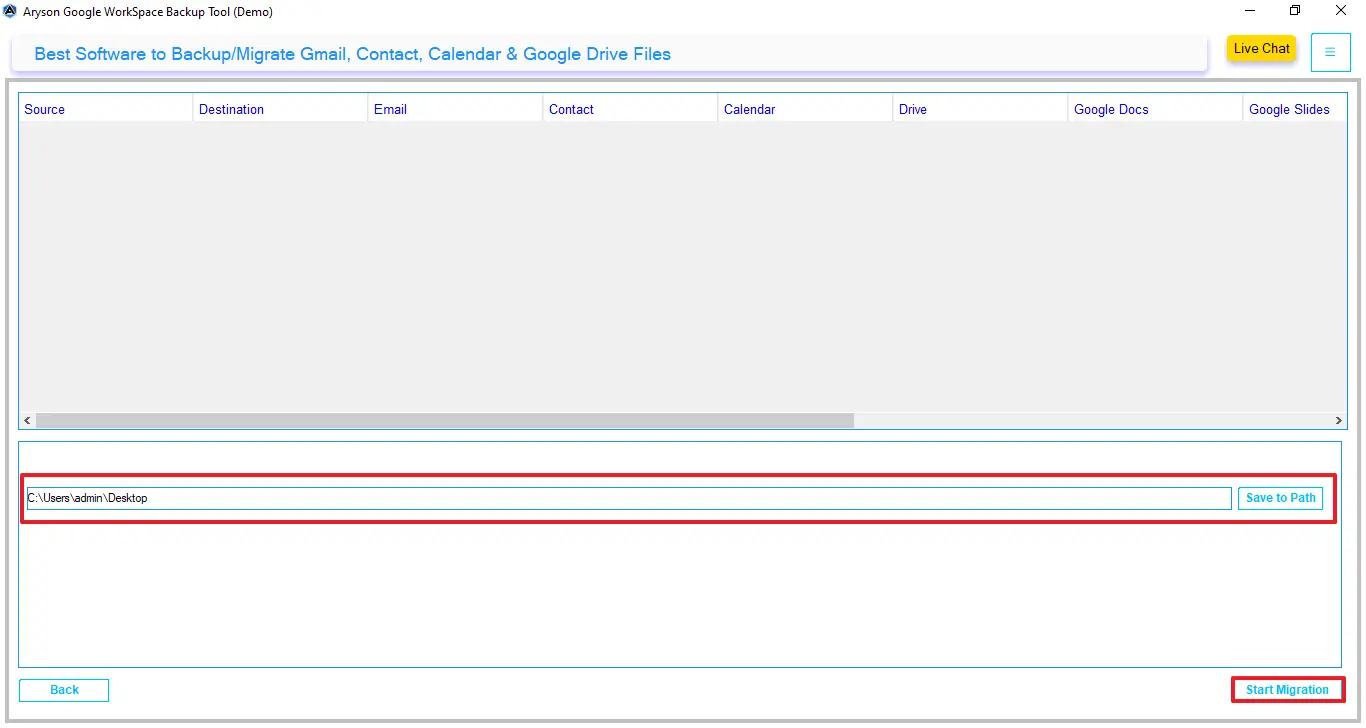
- At last, select the path to save the resultant file and click on Start Migration.
Final Thought
In conclusion, this guide covered all the aspects that help you to migrate Google Workspace to iCloud. A good choice is to choose the right method. The manual method is suitable for small data. On the other hand, it is recommended to use the automated software that will securely migrate all your data in bulk. If done correctly, you can successfully migrate Google Workspace data to iCloud with minimal downtime.
Frequently Asked Questions:
Q1. How long does it take to migrate Google Workspace to iCloud?
Ans. Generally, the Google Workspace Migration tool migrates data in a much faster way than manual methods.
Q2. Will I lose emails during migration?
Ans. In some cases, the manual method results in email loss. Therefore, use the Google Workspace migration tool to save emails from loss.
Q3: Can I migrate multiple users?
Ans. Yes, the Google Workspace Migration Tool allows you to migrate multiple users at once.
Q4. Is iCloud suitable for business email?
Ans. For small teams or personal domains, yes, it can be a practical option.
About The Author:

Evren Cole is an expert in Email and Data Management. She has a strong passion for technology and entrepreneurship. In her free time, she enjoys football, music, and reading books.

