

-
Written By Evren Cole
-
Updated on March 2nd, 2026
Migrate Google Workspace Emails to IMAP Server Guide
Summary: In today’s digital era, many users rely on Google Workspace to keep their data secure and maintain smooth operation. However, when users plan to switch to other email clients, such as Thunderbird or Apple Mail, at that time, configuring an IMAP server becomes essential for proper email access. Migrate Google Workspace emails to IMAP server account helps with real-time sync and better mobility. To complete the process. You can either follow a manual method or use the Google Workspace Migration Tool for a simple, efficient migration.
Reasons to Migrate Google Workspace to IMAP Server
Here are the common reasons why individuals move from Google Workspace to an IMAP-based ecosystem:
- Basically, IMAP keeps the email synchronised across various devices.
- When users migrate to IMAP, they can easily access emails from any email client.
- IMAP simplifies the email data on different platforms and offers great flexibility.
- Moreover, emails are stored on a server that allows users to manage mailboxes.
- Email stores on IMAP add an extra layer of protection and prevent data loss.
Proven Method to Migrate G Suite to IMAP
Now, we will discuss the most appropriate methods that will help you to migrate your Google Workspace data with ease.
- Manual Method
- Professional Software
Method 01: Manual Method to Migrate G Suite Mailbox to IMAP
Here, see the complete step-by-step process to manually migrate your Google Workspace emails.
Follow the prerequisites before you start the process:
- Make sure the IMAP server is enabled for both accounts.
- You have administrator login details for both accounts.
- It is recommended to create a backup of your important emails.
Steps to complete the migration process:
- Install the Gmail app and sign in using administrator account details.
- After that, open the settings and click on ‘See all settings’.
- Then, navigate to the Forwarding POP/IMAP tab.
- Next, you have to enable the IMAP option and click on Save changes.
- Now, download and install the Thunderbird email client on your system.
- Thereafter, open Thunderbird and go to the settings >> Mail Account.
- Then, you must enter the login credentials for both the source and the destination.
- Afterward, choose the mailbox that you want to move.
- Finally, drag and drop the selected folder into IMAP to finish the transfer.
Demerits of this Manual Method:
- IMAP converts Gmail’s labels into folders during synchronisation.
- It only supports Gmail data and does not transfer the contacts or calendars.
- The account setup requires manual configuration, which is time-consuming.
- Migrating a large volume of data may increase the risk of data loss or missing emails.
- Certain email properties or metadata might change during the transfer process.
Method 02: Automated Software for Google Workspace to IMAP Migration
As you see, the manual method migrates emails only. For the entire Google Workspace data migration, you can use the Google Workspace Migration Tool. This software comes with several embedded features that provide a secure migration. Moreover, it has a simple and user-friendly interface that is useful for both technical and non-technical users. Along with that, the software is compatible with Windows, Mac, and Linux, allowing users to use it on any operating system. In addition, the migration tool can also export Google Workspace to EML, PST, MSG, and other file formats smoothly.
Simple Steps to Migrate Google Workspace Emails to IMAP Server:
- First, download the Google Workspace Migration Tool.
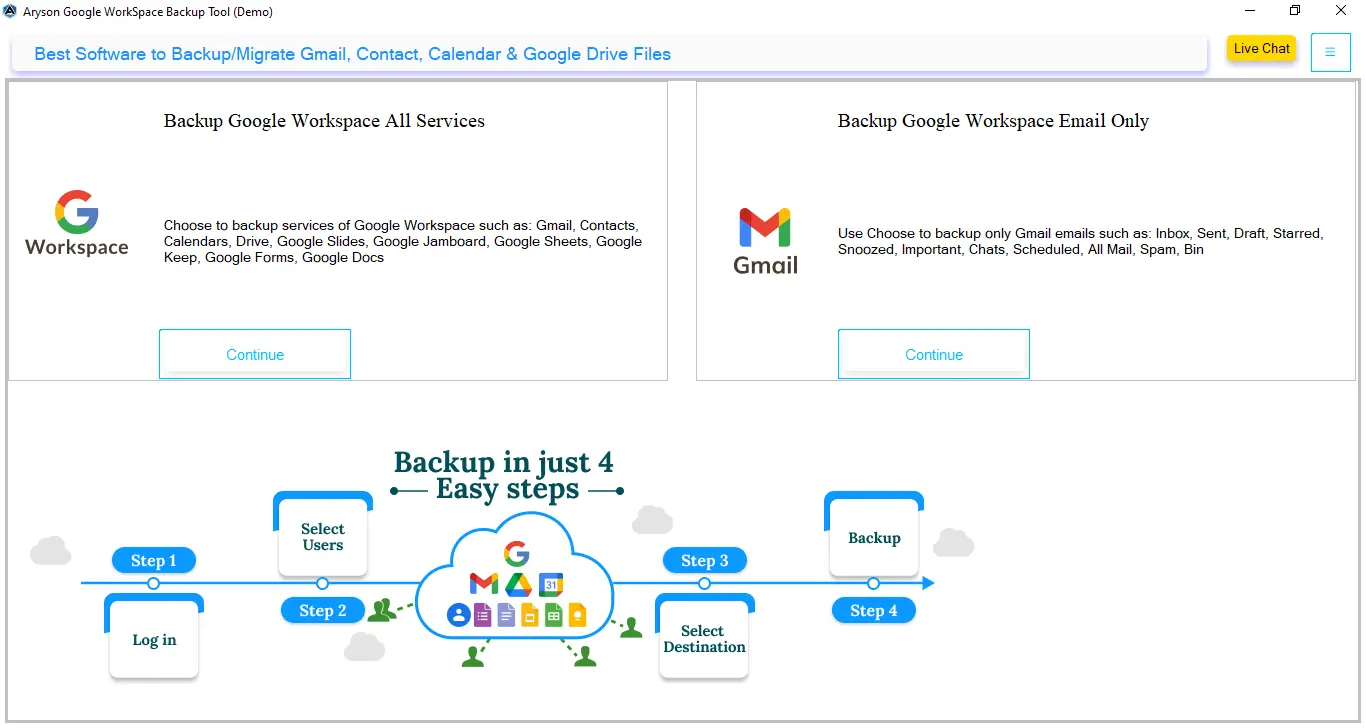
- Then, select Backup Google Workspace All services >> Continue.
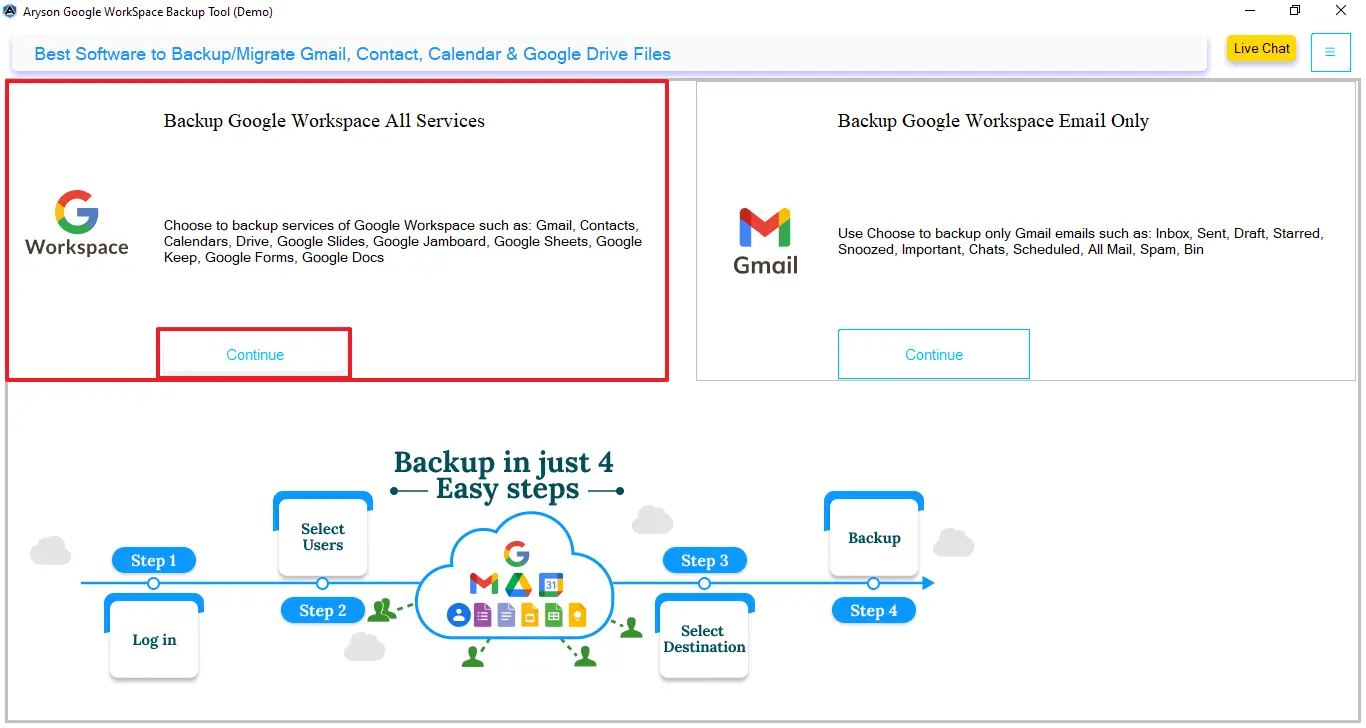
- Afterward, select ‘Login with p12 file‘ and enter the login details.
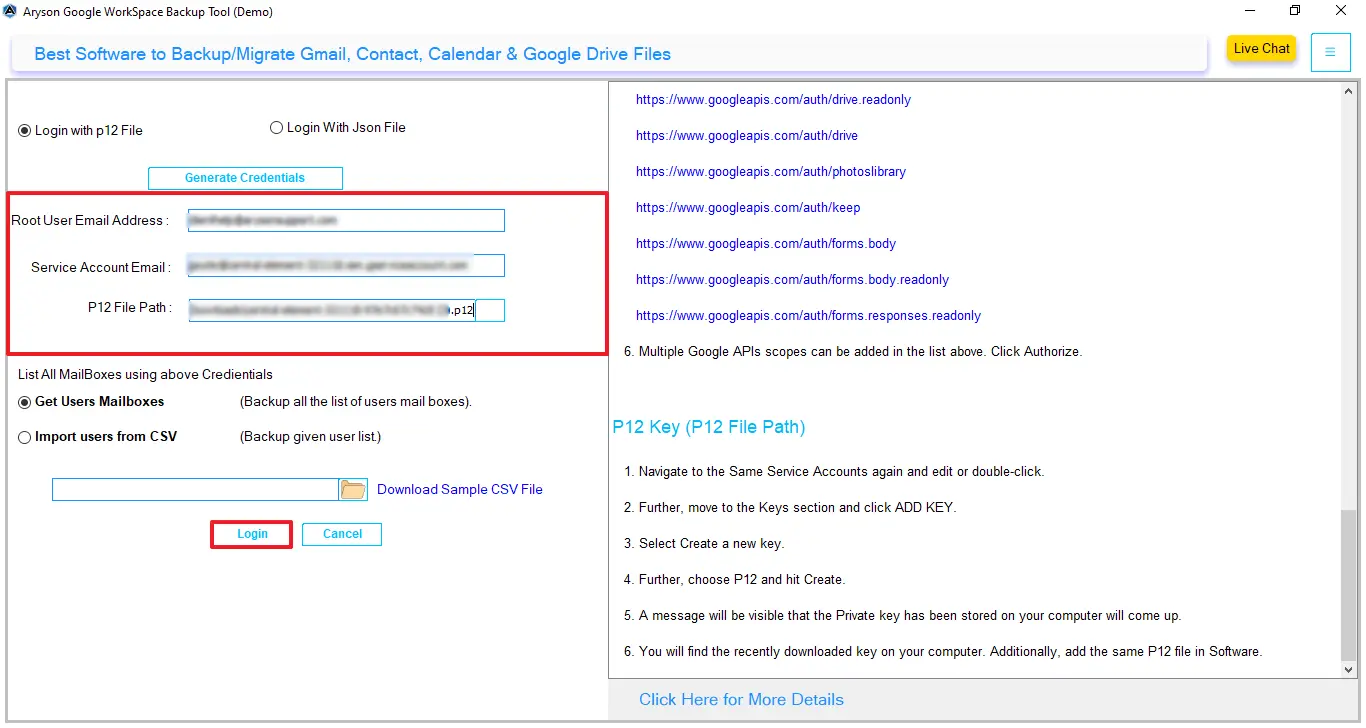
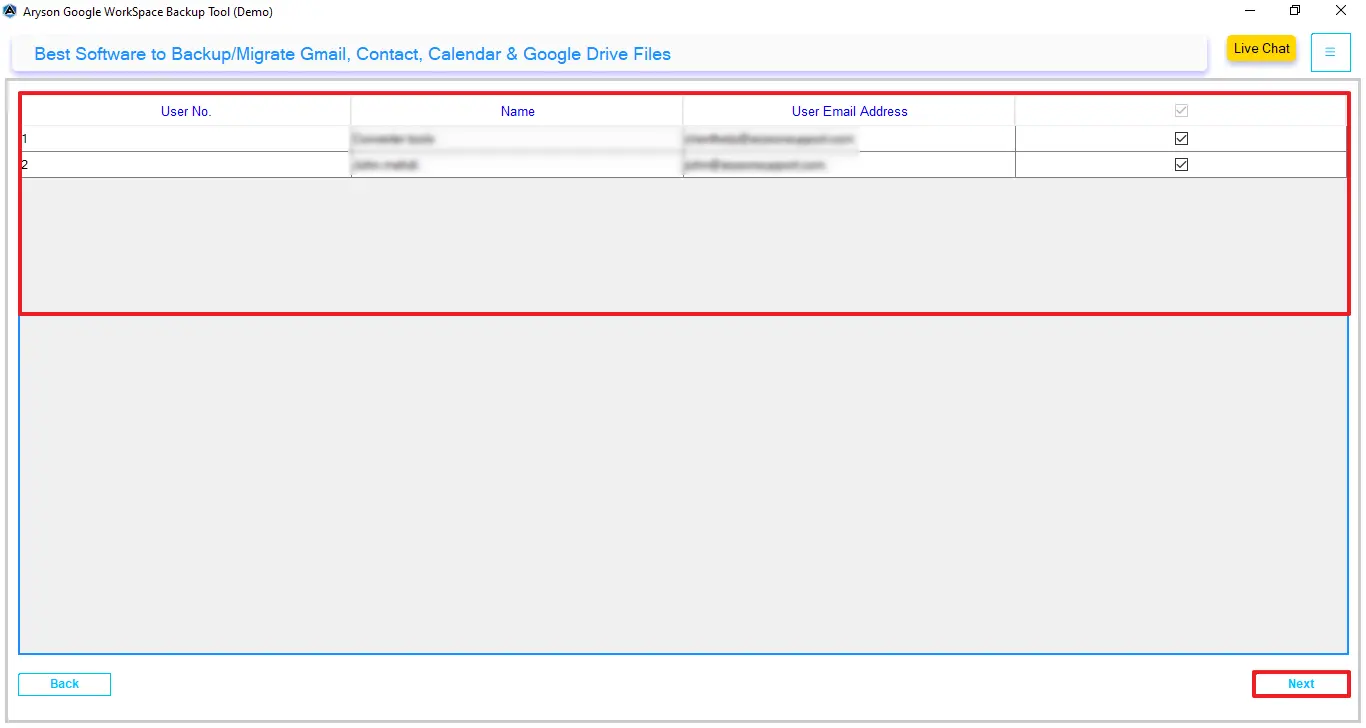
- Now, preview and select the users from whom you want to migrate >> Next.
- Proceed and select the Google Workspace services, and click ‘Next‘ to move ahead.
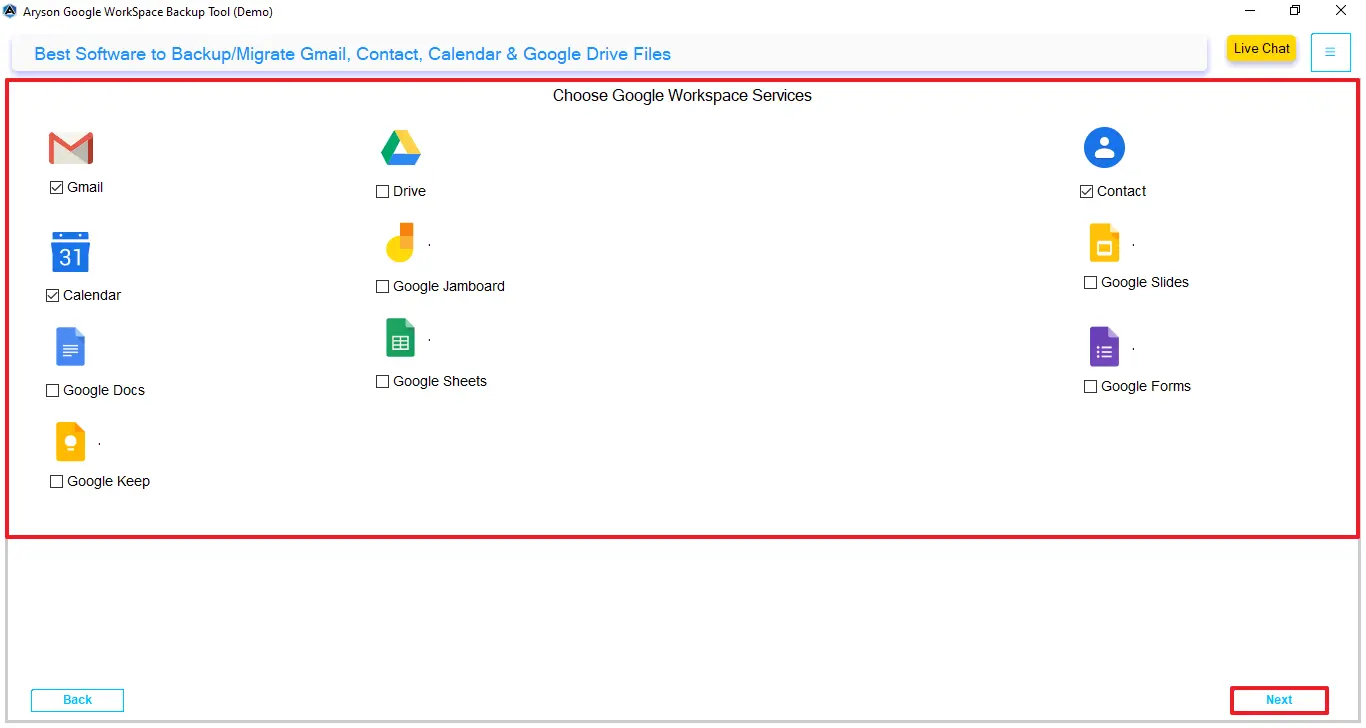
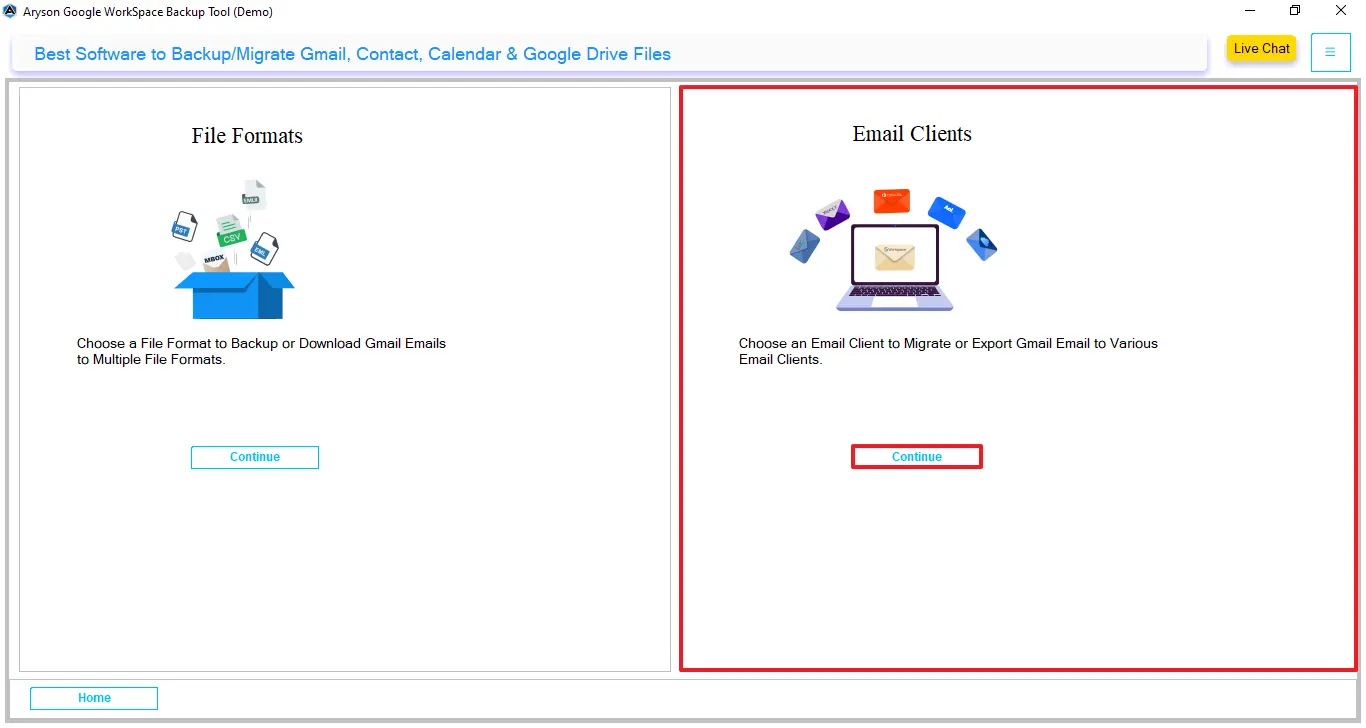
- Click on Continue under the email client section to choose the destination.
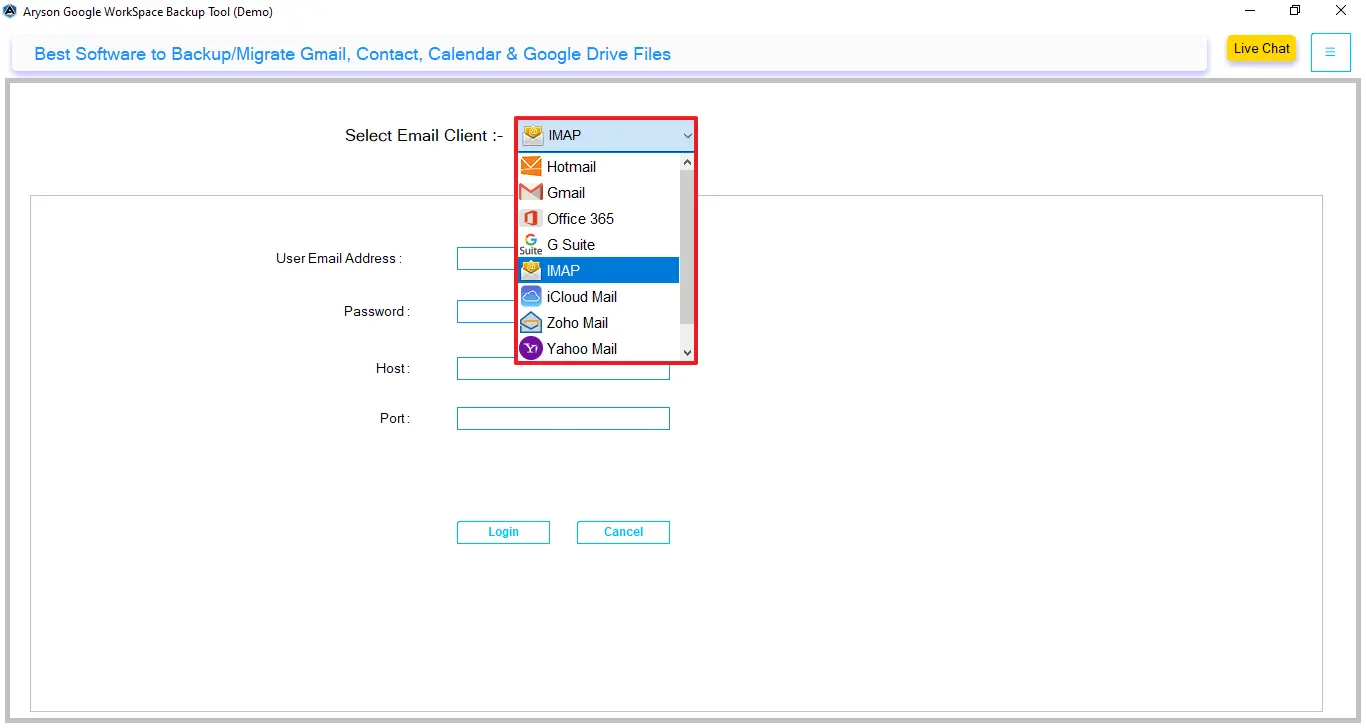
- From the drop-down menu, select IMAP as the output format.
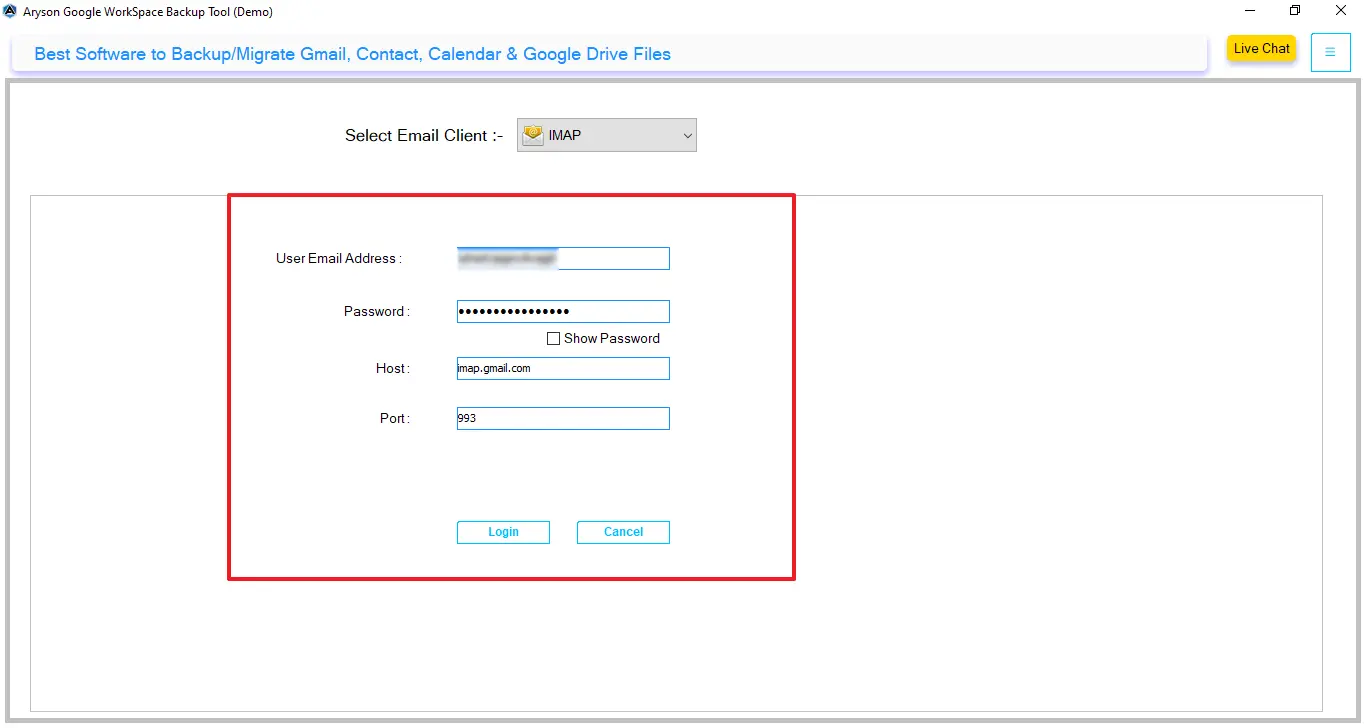
- Thereafter, enter the email address, app password, host, and port, and tap on login.
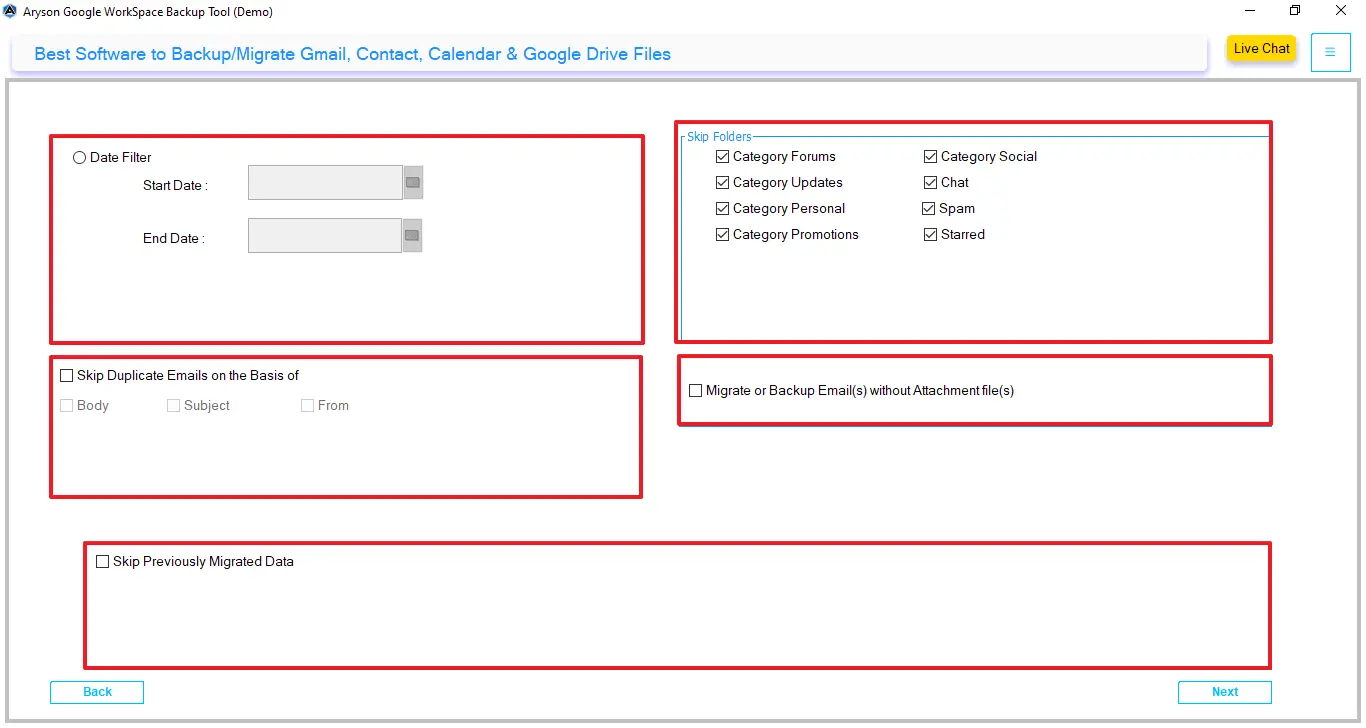
- Subsequently, enable the required filters for selective data migration >> click Next.
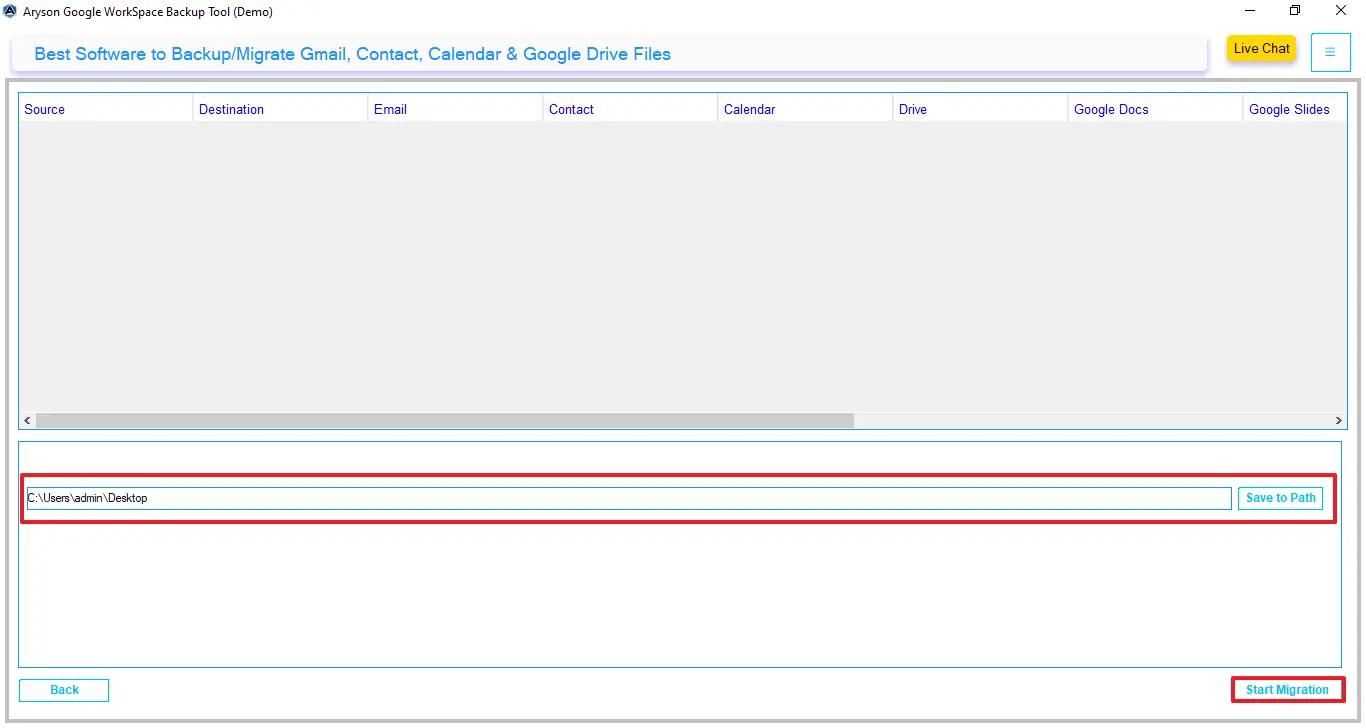
- Click on ‘save to path‘ and select the resultant file destination >> Start Migration.
Conclusion
In conclusion, we covered all the aspects of migrating Google Workspace to an IMAP server. Choosing the right procedure for migration makes the process easier and smoother. The manual method comes with several limitations. Therefore, it is recommended to use the professional software that will migrate Google Workspace emails to IMAP server. Select the reliable process that makes the migration process smoother without any data loss.
Frequently Asked Questions:
Q.1 Do I need admin access to migrate Google Workspace to IMAP server?
Ans. Yes, you need an admin credential for migrating multiple user accounts. The Google Workspace migration tool securely works with admin login details to simplify the procedure.
Q.2 Is there a size limit when migrating Google Workspace mailbox to IMAP?
Ans. The Google Workspace Migration Tool does not impose any size limitations. However, the actual limit may depend on the IMAP server storage capacity.
Q.3 Is automated migration better than manual Google Workspace to IMAP migration?
Ans. Yes, the automated software is better, as it provides advanced filters for selective data migration and reduces manual efforts.
About The Author:

Evren Cole is an expert in Email and Data Management. She has a strong passion for technology and entrepreneurship. In her free time, she enjoys football, music, and reading books.

