

-
Written By Evren Cole
-
Updated on December 30th, 2025
Best Way to Export Office 365 to MBOX Format
Oliver Bennett’s Query: I own a mid-sized company, and we use MS Office 365 for communication and collaboration. But as we are moving to Thunderbird, there is a need to export Office 365 to MBOX format. Please suggest a secure and reliable method to export emails, including attachments and folder structure, without any data loss.
Overview: As we know, Office 365 is a cloud-based platform that provides users with various applications and tools. On the other hand, MBOX is a universal email file format used to store multiple emails in a single file. Now, due to some relevant factors like long-term email archiving, cost savings, etc, organisations decide to export their Office 365 emails to MBOX format. If you also want the same, read this entire article to know the use of the MSOutlookHelp Office 365 Backup Tool, along with a hands-on approach.
Major Reasons to Export Emails from Office 365 to MBOX
There are numerous reasons behind the export of Office 365 emails to MBOX. A few of the most common ones are listed below for you.
- To access Office 365 data in MBOX-supported email clients like Thunderbird.
- Users can keep a secure offline backup & long-term email archiving.
- To facilitate a cross-platform migration from O365 mailboxes to non-Microsoft platforms.
- Moreover, it becomes easier to share data across different operating systems.
- Also, the export process eliminates the dependency on Office 365.
Considering the above reasons for exporting Office 365 files to MBOX, you should export your files for sure. Let’s discuss some practical ways for the same in the sections ahead.
Proven Solutions to Export Office 365 to MBOX
In this section, we will focus on the two primary solutions to export O365 emails. However, both solutions possess their own advantages; the choice of method depends upon the user’s personal preference and needs. Read further to get more insights.
Solution 1: Manual Solution to Export Office 365 Mailbox to MBOX
Some of the users prefer to perform the entire export process on their own. They can use the Import/Export feature of Thunderbird to export their Office 365 emails to MBOX format. Steps to perform the manual export are as follows:
- To begin, Open Mozilla Thunderbird on your device & go to Account Settings.
- Then, click on Account Actions & select Add Mail Account.
- After that, enter your Office 365 email address and password, then click Continue.
- Choose the IMAP account type; Thunderbird will automatically configure the server settings.
- After successful setup, right-click on the folder pane and create a new local folder.
- Now, transfer your desired Office 365 emails into this newly created folder.
- Next, right-click on the folder you created & select ImportExportTools.
- After that, click on Export Folder & choose a destination location on your local system.
- This will save your selected Office 365 emails in MBOX format.
Drawbacks of the Manual Export
- This method is time-consuming for large Office 365 mailboxes.
- You can’t export bulk or multiple mailboxes at the same time.
- Moreover, you may lose some of your attachments during the process.
- Additionally, it requires sufficient local storage space.
- It is difficult to understand & perform for beginners.
As it is important to get rid of these limitations and opt for a more secure and reliable solution, let me introduce you to an optimised solution ahead.
Solution 2: Export Office 365 to MBOX Using Automated Software
MSOutlookHelp Office 365 Backup software is the most efficient solution available to export your Office 365 files to MBOX. This software aims to export emails and attachments in the minimum time possible with complete data integrity. Moreover, it allows users to export multiple emails at the same time, which eventually increases the efficiency & productivity of the user. In addition, it allows enterprises to use the same software to migrate Office 365 to Gmail, Thunderbird, IMAP, GSuite, etc., email clients. Also, features like the detailed preview, removing duplicate emails, skipping previous migration, etc., enhance work efficiency and save time.
Quick Steps for Office 365 to MBOX Migration:
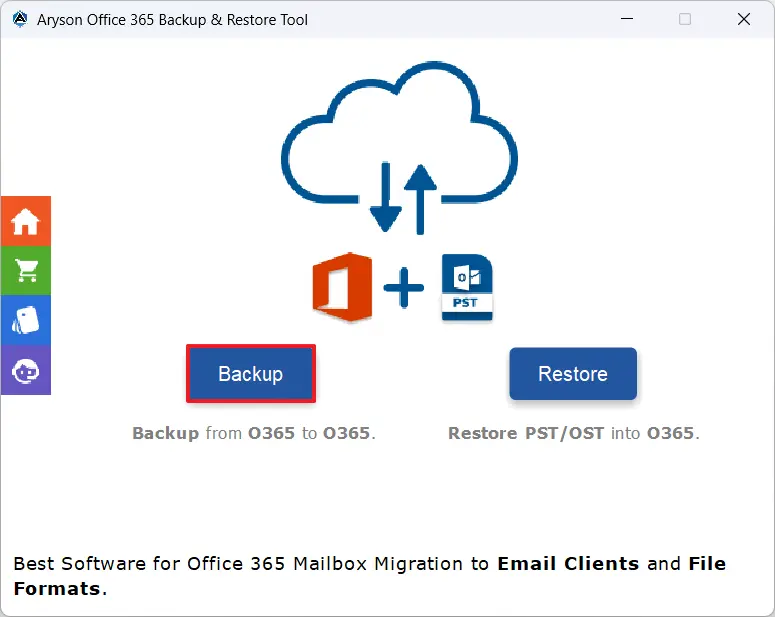
- First, run the MSOutlookHelp Office 365 Backup Tool >> press the Backup button.
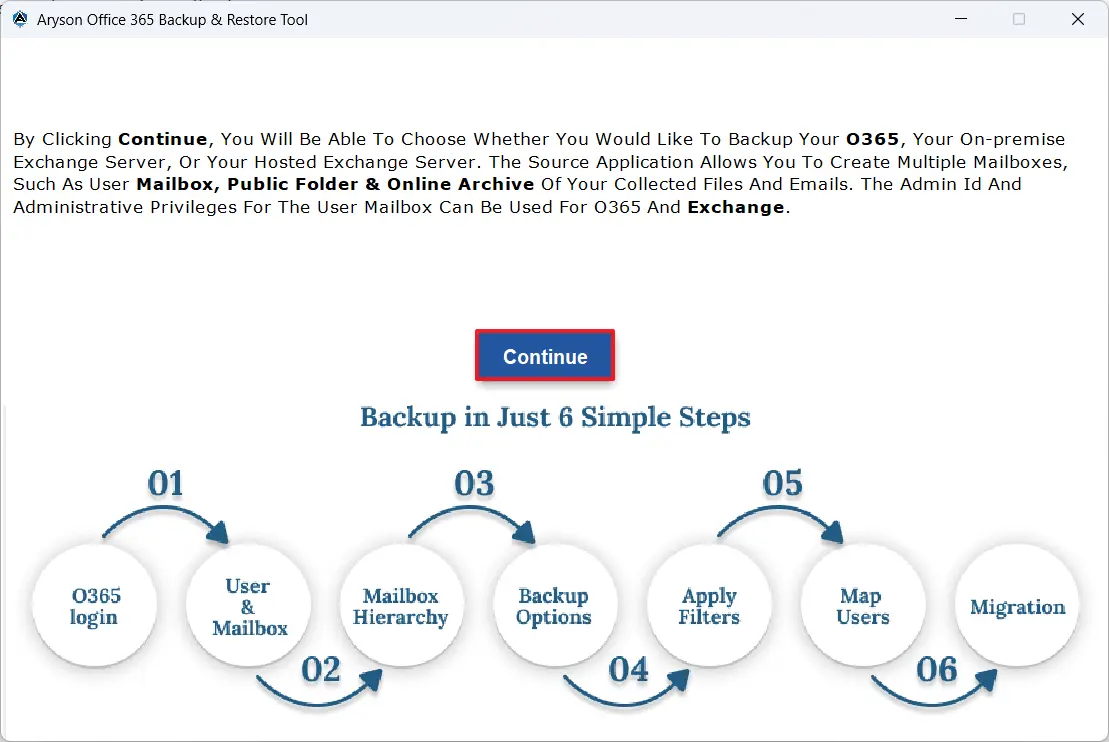
- Then, click on the Continue option to move further.
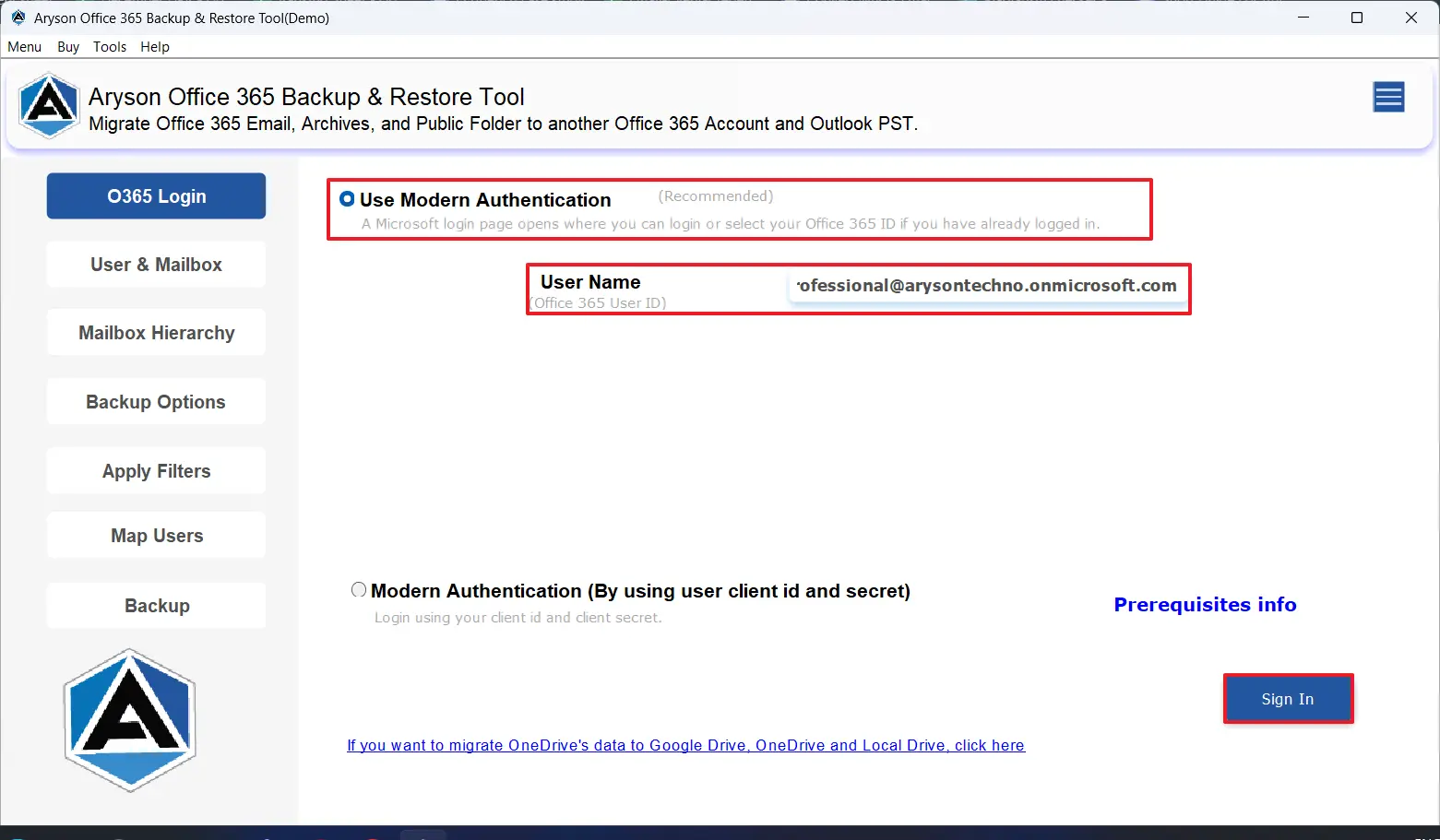
- After that, log in to your Office 365 account via Modern authentication or impersonation.
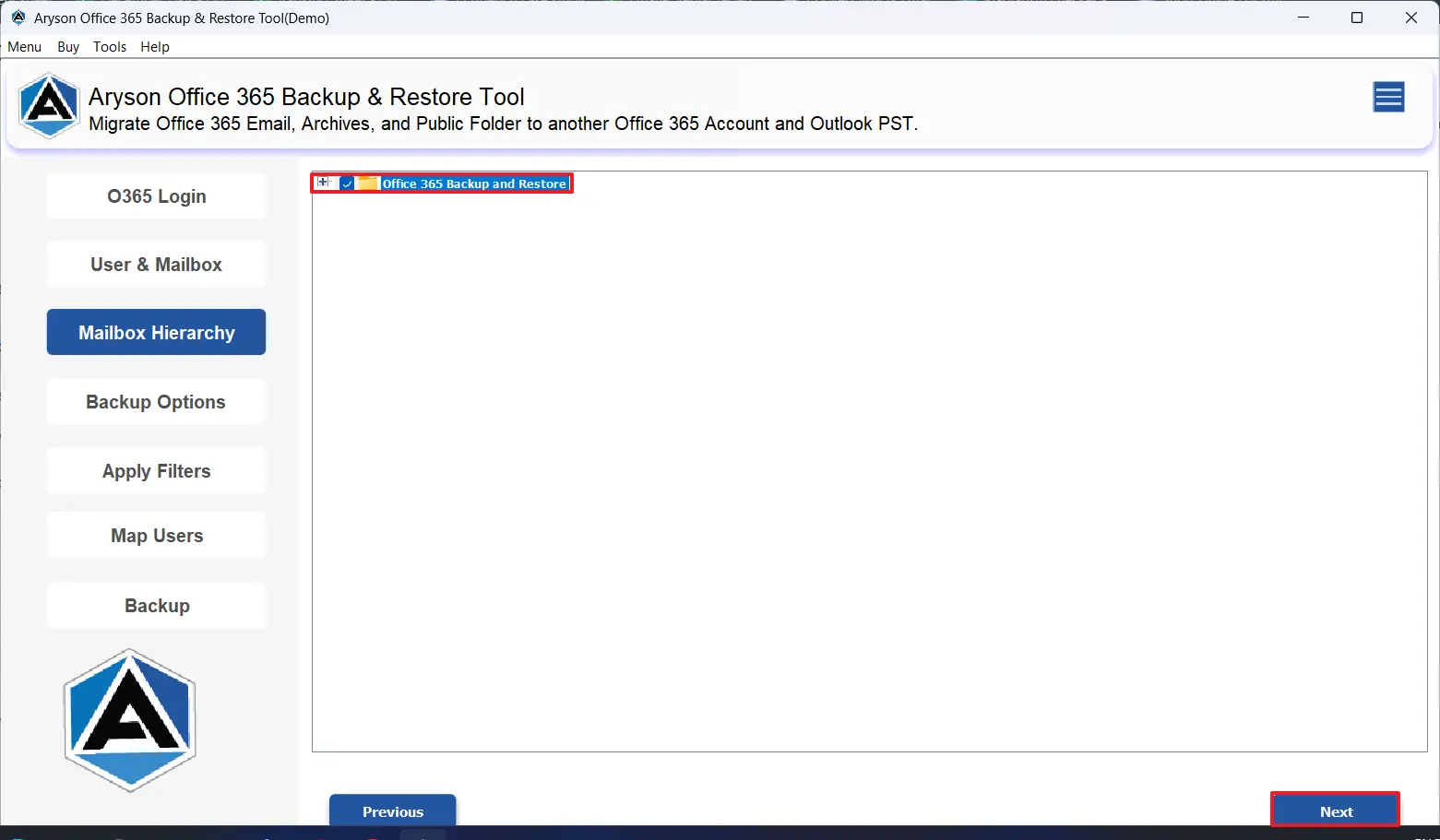
- All your O365 emails and attachments will appear >> Select them to export >>Next.
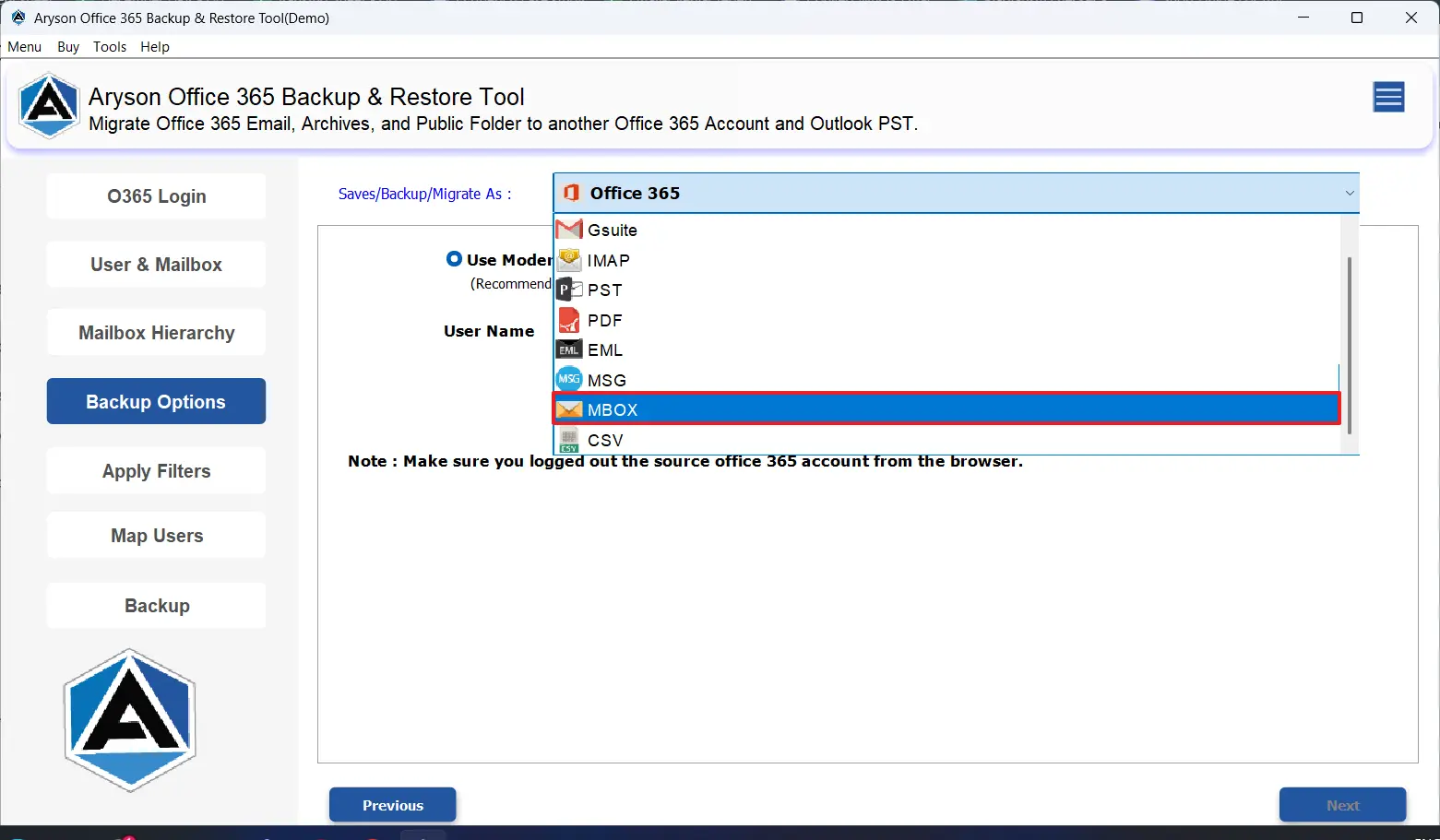
- Now, among all file formats & email clients, choose MBOX as the output format.
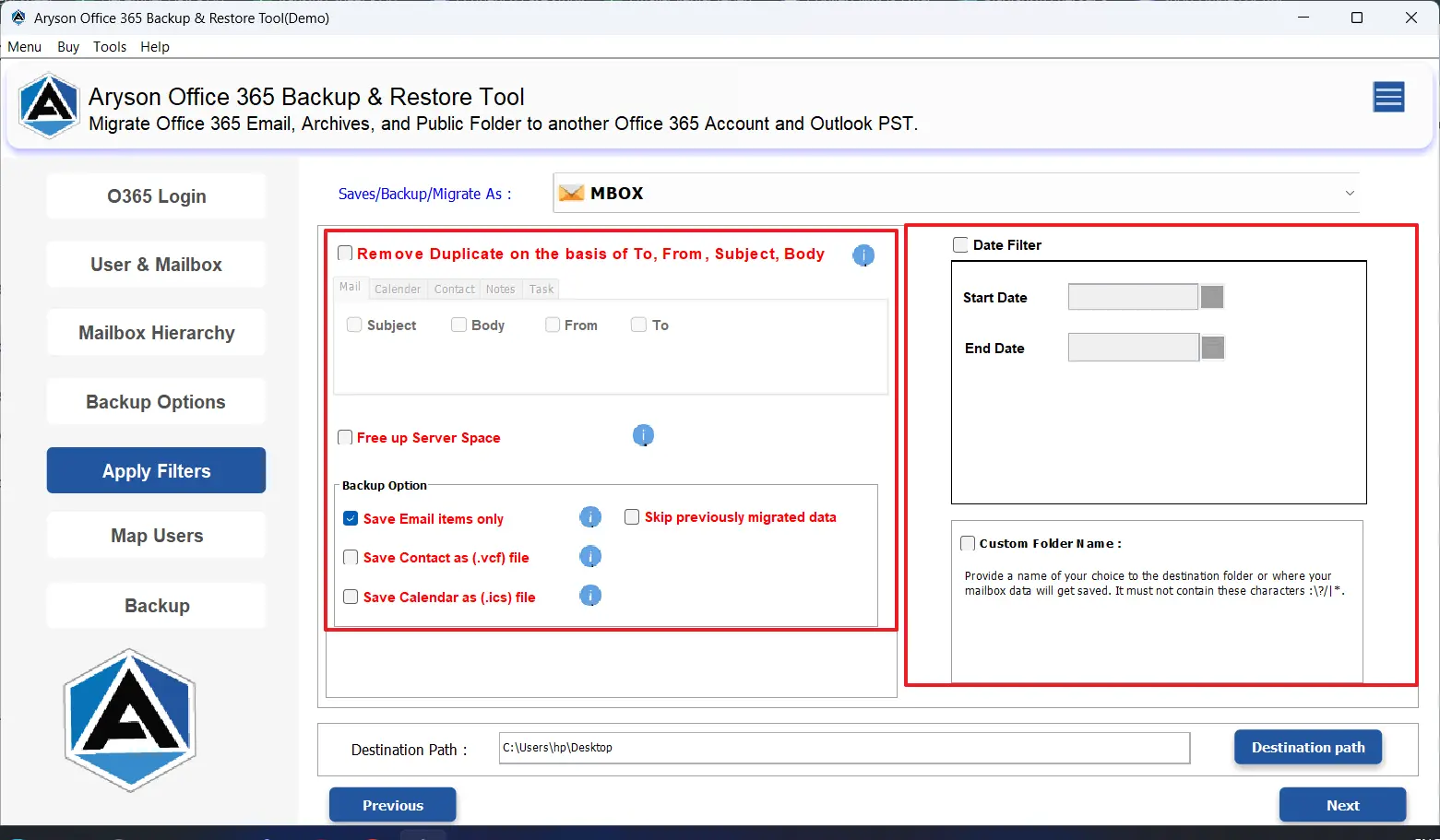
- As per your needs, choose the filters.
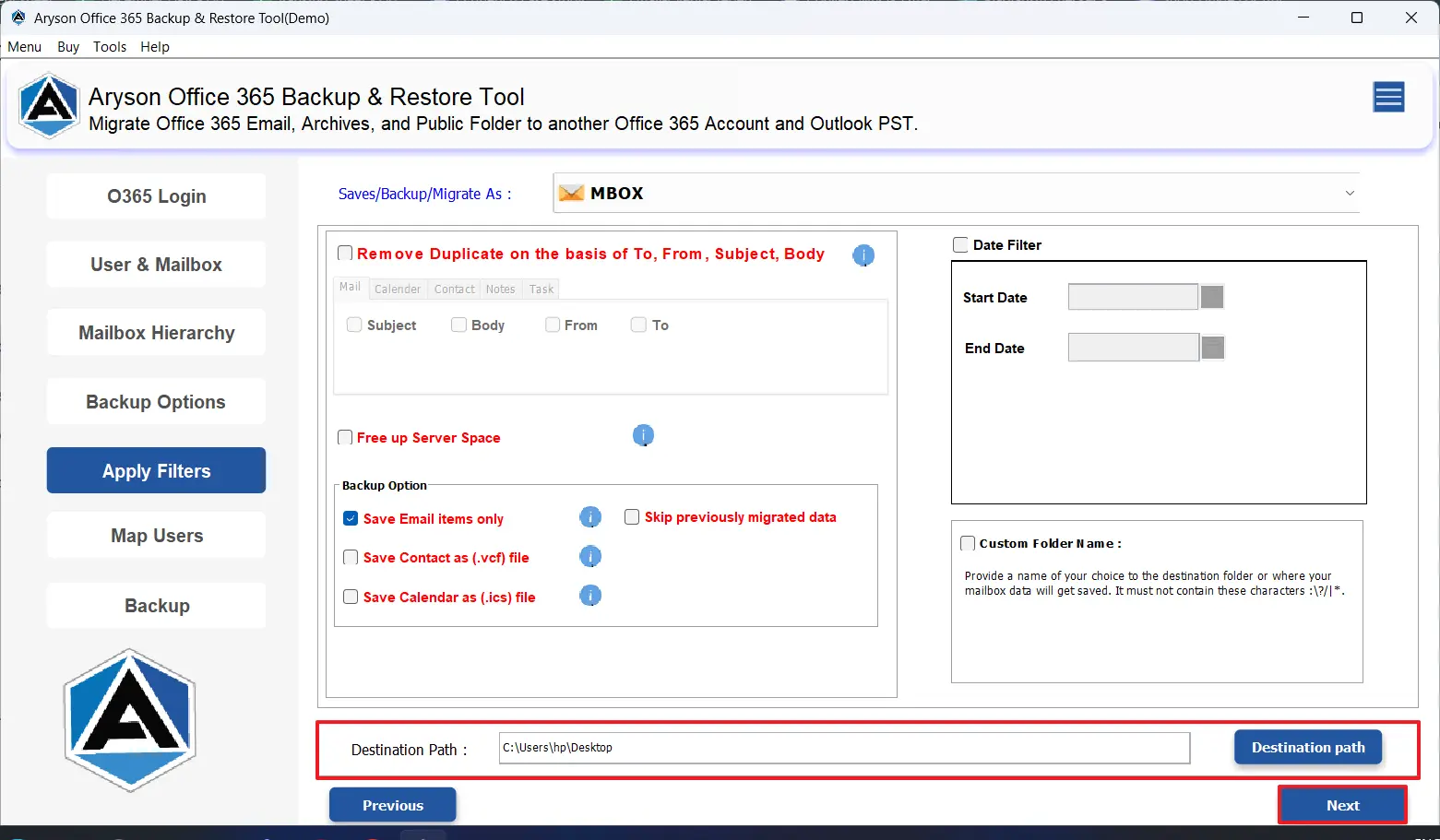
- At last, provide the destination path to save the resultant file >> click Next.
Following the above methods carefully, you would have successfully exported your Office 365 emails to the MBOX format.
Let’s sum it up
As we discussed different ways to export Office 365 to MBOX in the above blog, you can choose either of the approaches accordingly. This blog delivers value to every kind of user, irrespective of their needs and convenience. If you have a few emails in your O365 account and know how to use Thunderbird, better proceed with the manual method. But, in case data integrity, security & conversion time matter to you, opt for the automated solution above. To get more insights, refer to the FAQs below.
Frequently Asked Questions:
Q.1 Is it possible to export emails from Office 365 to MBOX in bulk?
Ans. Yes, with the help of the MSOutlookHelp Office 365 Backup Tool, it is possible to back up Office 365 Email to MBOX in bulk. You just have to first log in to the O365 account >> select the desired mailbox >> select MBOX as output format >> and use filters >> click Next to export.
Q.2 What is the best way to export Office 365 to MBOX format?
Ans. MSOutlookHelp Office 365 Backup Tool is the best way to export Office 365 to MBOX format.
Q.3 Does exporting Office 365 to MBOX cause data loss?
Ans. No, if you are using the above solution carefully, exporting Office 365 to MBOX will not cause data loss.
Q.4 Is MBOX compatible with other email clients after export?
Ans. Yes, you can access the restaurant MBOX files on any MBOX-supported email platform after the export.
Q.5 What should I consider before choosing an Office 365 to MBOX migration solution?
Ans. You must consider the following factors:
1. The time taken for migration
2. Data security and integrity
3. Original Folder Structure
4. Bulk migration Support
About The Author:

Evren Cole is an expert in Email and Data Management. She has a strong passion for technology and entrepreneurship. In her free time, she enjoys football, music, and reading books.

