

-
Written By Evren Cole
-
Updated on February 27th, 2026
How to Export Google Workspace to EML Fast & Error-Free
Summary: Google Workspace is a cloud email service, while EML is a file format that can be opened in many desktop email clients. The problem is that Google Workspace does not provide a direct option to save your emails in EML format. Due to these limitations, most of the users face difficulties when they need office access or want to move their emails to another platform. In this blog, we will cover effective ways to export Google Workspace to EML format, including the Google Workspace Migration Tool, in a hassle-free way.
Reasons to Export G Suite Email to EML
Before you proceed with the methods, it is important to understand why you must save Google Workspace emails into EML. See the reasons below:
- You can open EML files without an internet connection in different email clients.
- EML files can be opened in different email clients, such as Thunderbird or Outlook.
- Moreover, you can export emails to EML files for safe backup.
- You can send emails directly without even logging in to a G Suite account.
- Further, you can import EML files into other platforms and move your data smoothly.
Move ahead to see the export process for taking your Google Workspace files to EML for easy access.
Reliable Solutions to Save Google Workspace Emails into EML
Now, see the most appropriate method that will export Google Workspace to EML with ease.
- Manual Method
- Automated Software
Method 01: Convert G Suite Mailbox to EML in Manual Way
There are several manual methods; here, we discuss the most appropriate methods to export Google Workspace emails using Google Takeout and Google Workspace Admin control.
01: Export with the help of Google Takeout
This is a free method to export your emails from various email services.
Step 01: Sign in & select Mails
- To initiate the process, sign in to your Google account first.
- After that, open the browser and go to Google Takeout.
- Then, sign in to your G Suite with administrator credentials.
- You will see the Google services that you can export from the Google Takeout home page.
- By default, all services are selected; you need to select Gmail as the backup.
- Next, in the file type & size section, you have to choose EML as output.
- Now, Google Takeout will archive all the data into a ZIP file that contains EML files.
Step 02: Select the Download Method
- Additionally, select the option for how you want to back up your files.
- Option contains ‘Download via Gmail, Add to Drive, or Add to Dropbox or OneDrive.
- After backup completion, a link will be sent to your Gmail to download the files.
- At last, download the link that contains your Gmail files in EML format.
Demerits of this method:
- It supports bulk files to export, but does not provide a selective data option.
- For the large mailbox, it will take several hours to create a ZIP file.
- Extracting EML files from ZIP requires some extra steps that are time-consuming.
02: Use Google Workspace Admin Console to Export Emails
- First, sign in to your Google Admin Console through an administrator account.
- After that, from the dashboard, go to Reports and click on Audit.
- Then, select Email log search to track and review email activity.
Use Google Vault (optional method)
- Now, you have to open Google Vault with your admin credentials.
- Afterwards, you have to create a new matter for the user or case.
- Then, use the search option to find emails for specific users, keywords, or date range.
- Thereafter, select the required emails and click on Export options.
- At last, download the exported ZIP file. And emails saved in MBOX format.
Disadvantages of this method:
- This method exports data in MBOX, not in EML, so you need extra steps to export.
- Moreover, this method required an administrator account for login.
- It is designed for more legal compliance than the regular backups.
Method 02: Backup G Suite Mailboxes to EML Via Automated Software
If the manual methods do not meet your needs, then you can use the Google Workspace Migration Tool. It allows you to transfer emails, contacts, calendars, and attachments securely without any complications. The process is simple and user-friendly, so a non-technical user can also use it easily. With this same software, you can migrate Google Workspace to iCloud and other email clients as well. Additionally, it offers a practical and hassle-free way to complete the migration process.
Simple Steps to Export Google Workspace to EML:
- Start by launching the Google Workspace Migration Tool.
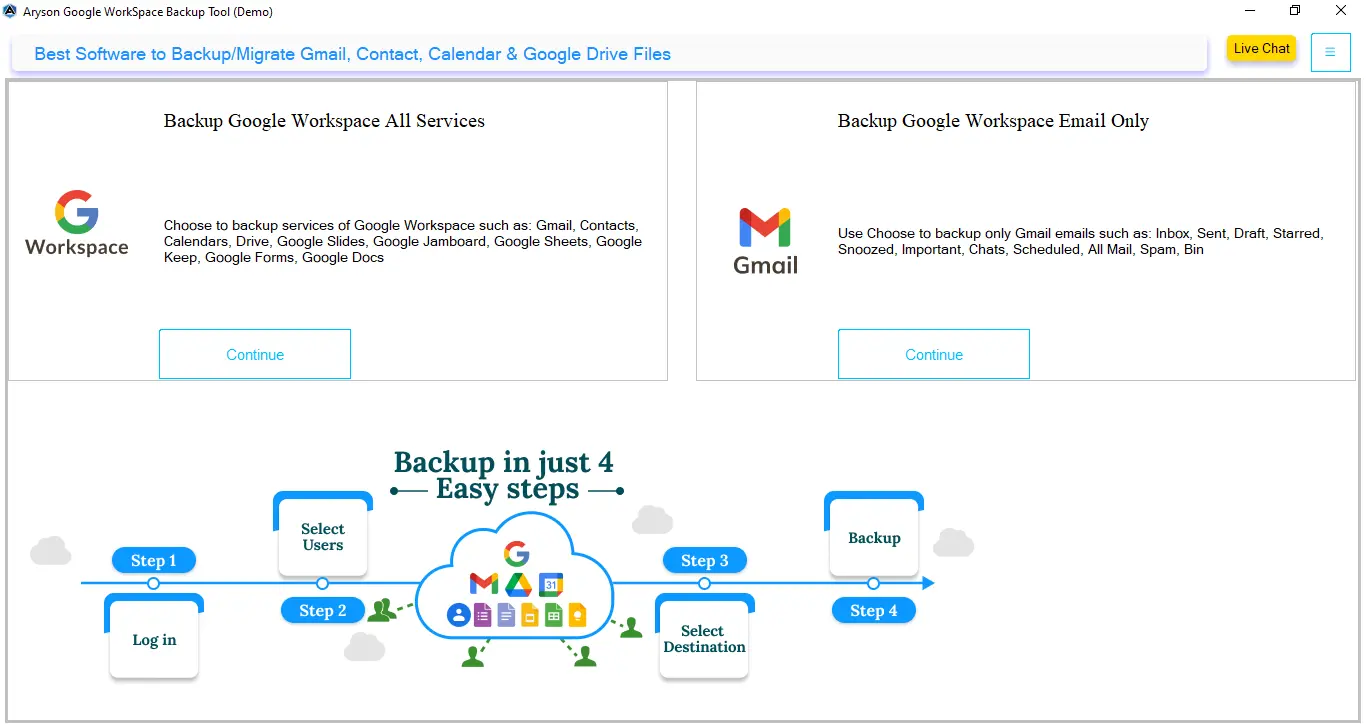
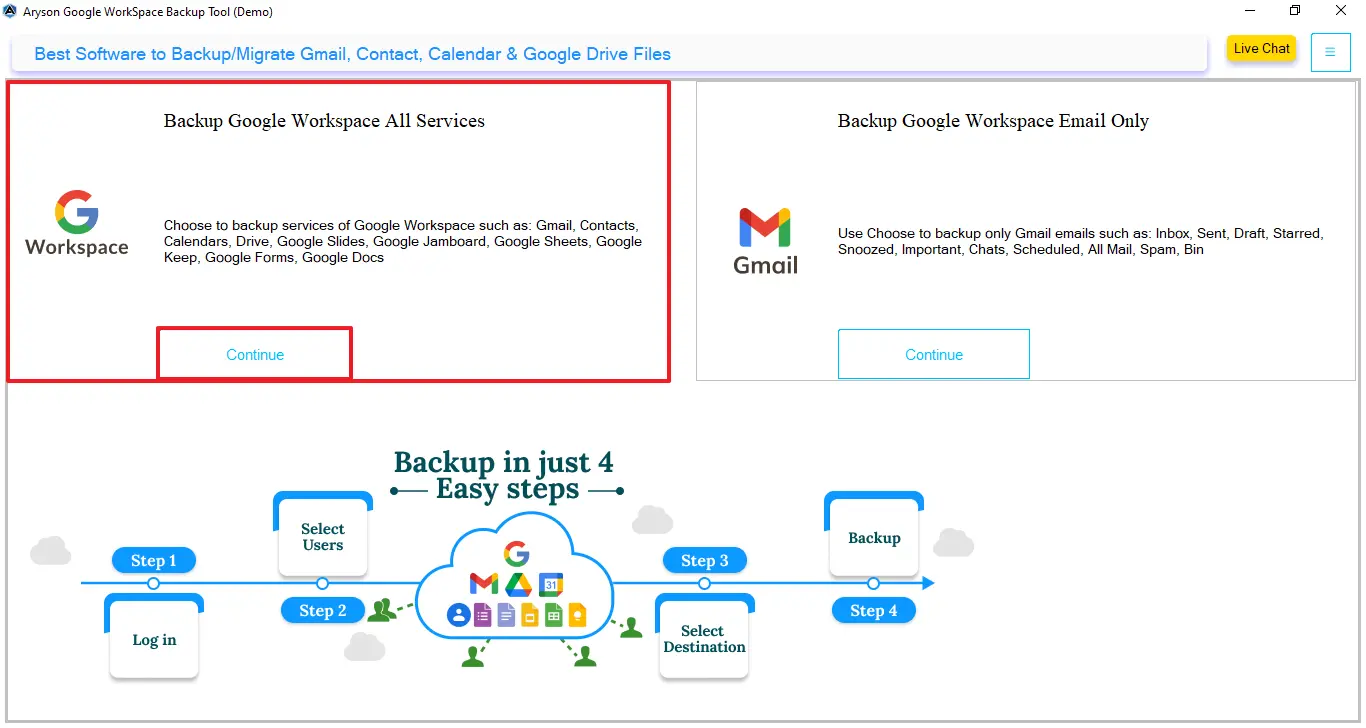
- After that, select the Backup All Google Workspace Service and then click Continue.
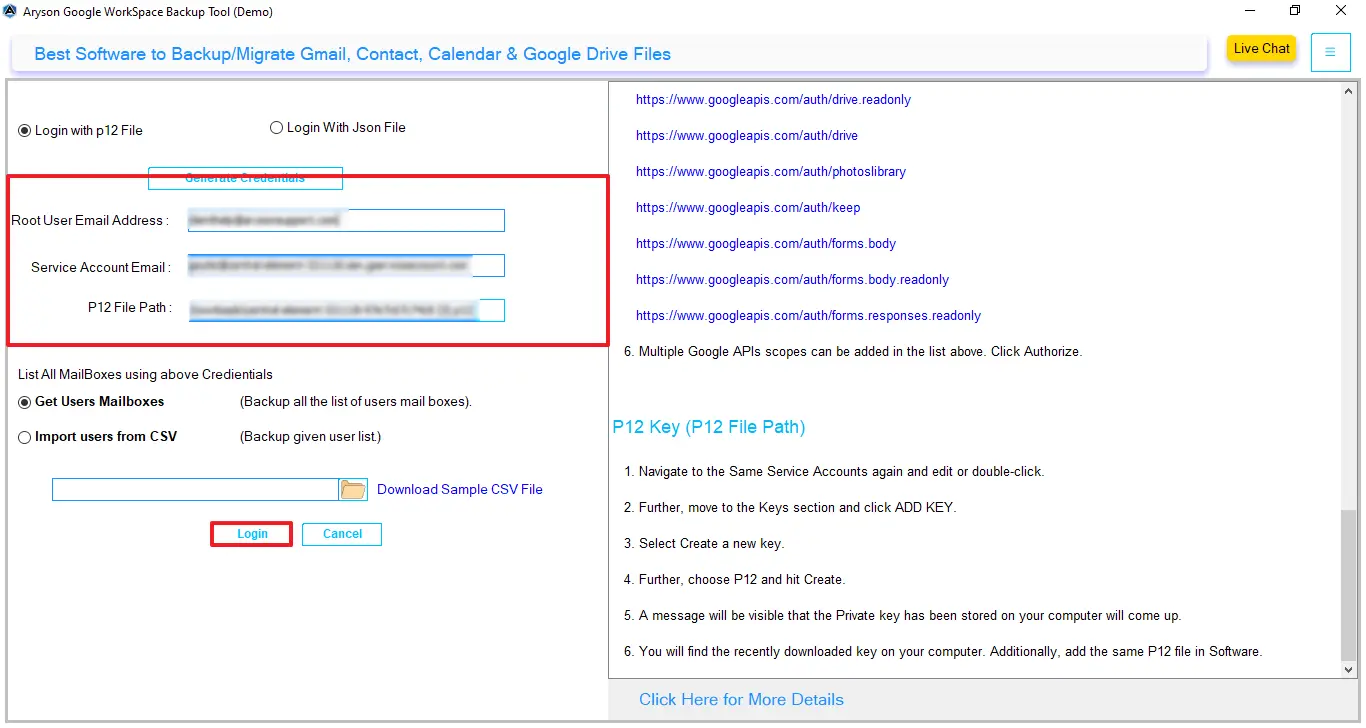
- Next, provide the admin credentials, such as Root User Email Address >> login.
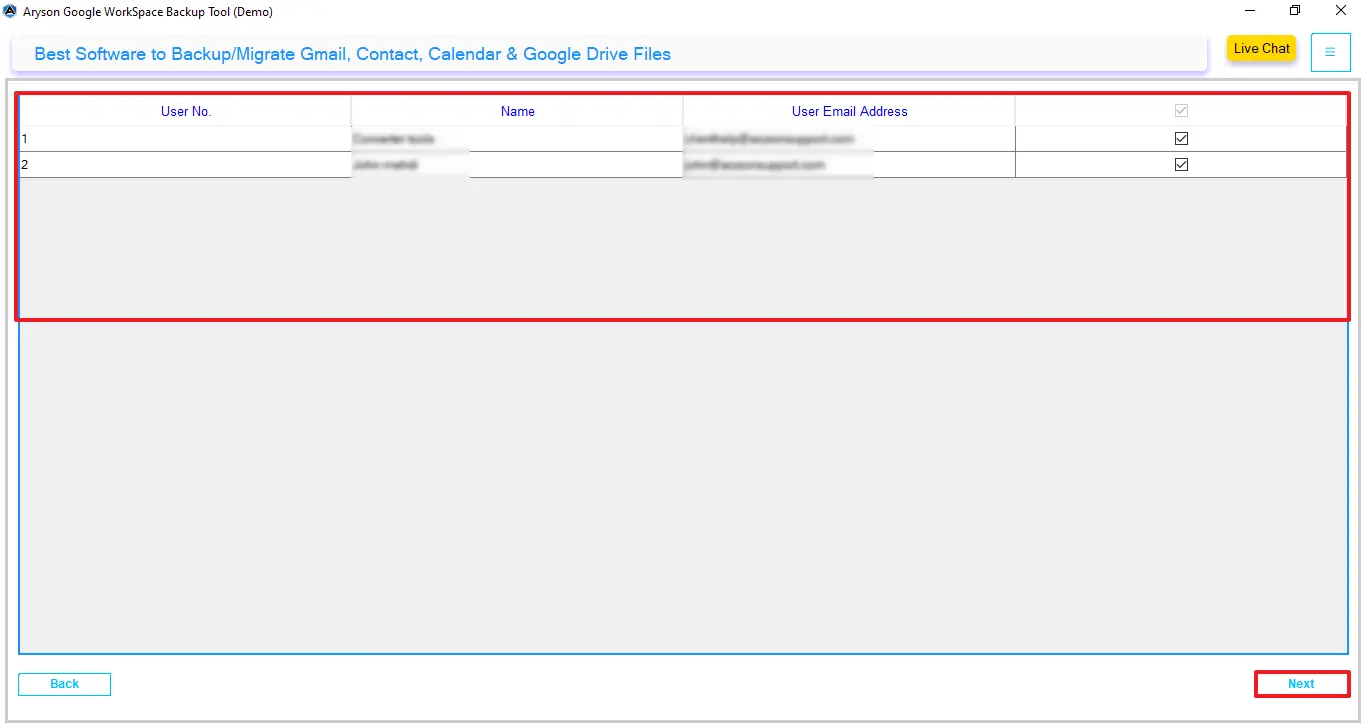
- In addition, from the given user list, select the users to migrate data >> Next.
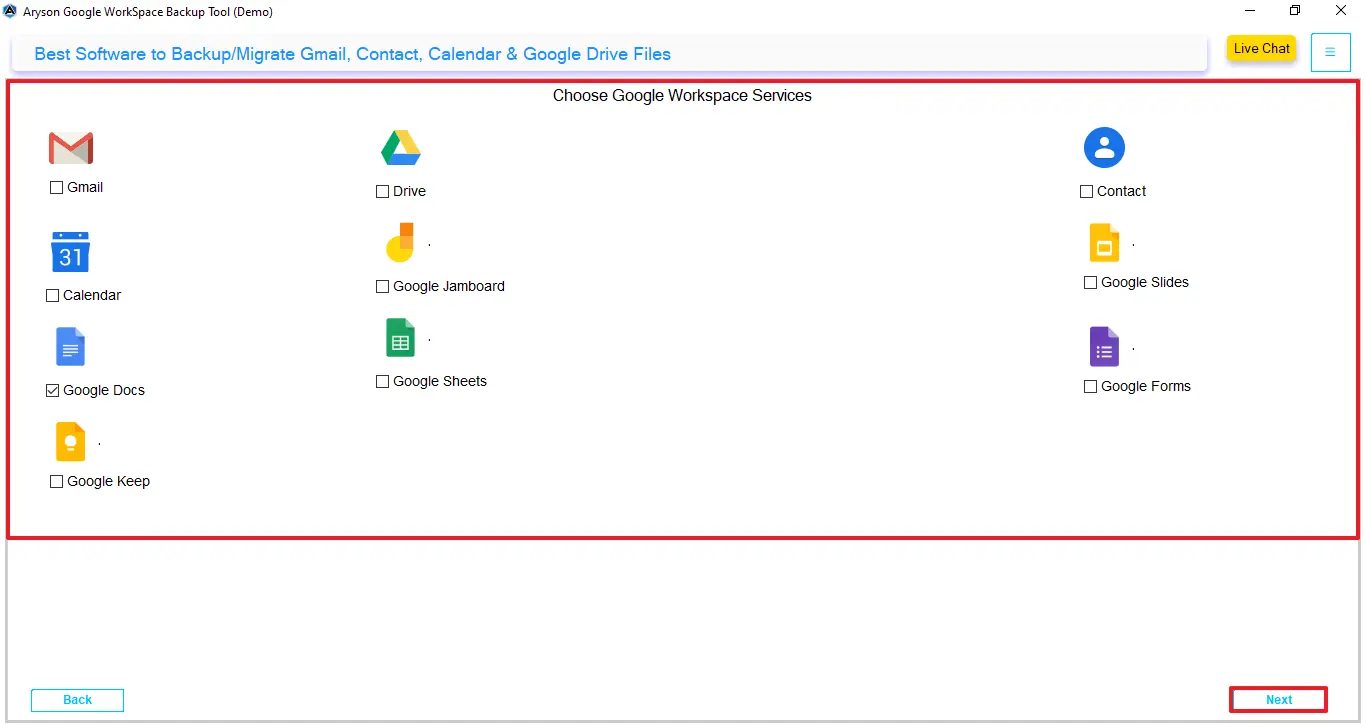
- Then, choose the Google service where you move your data and click on Next.
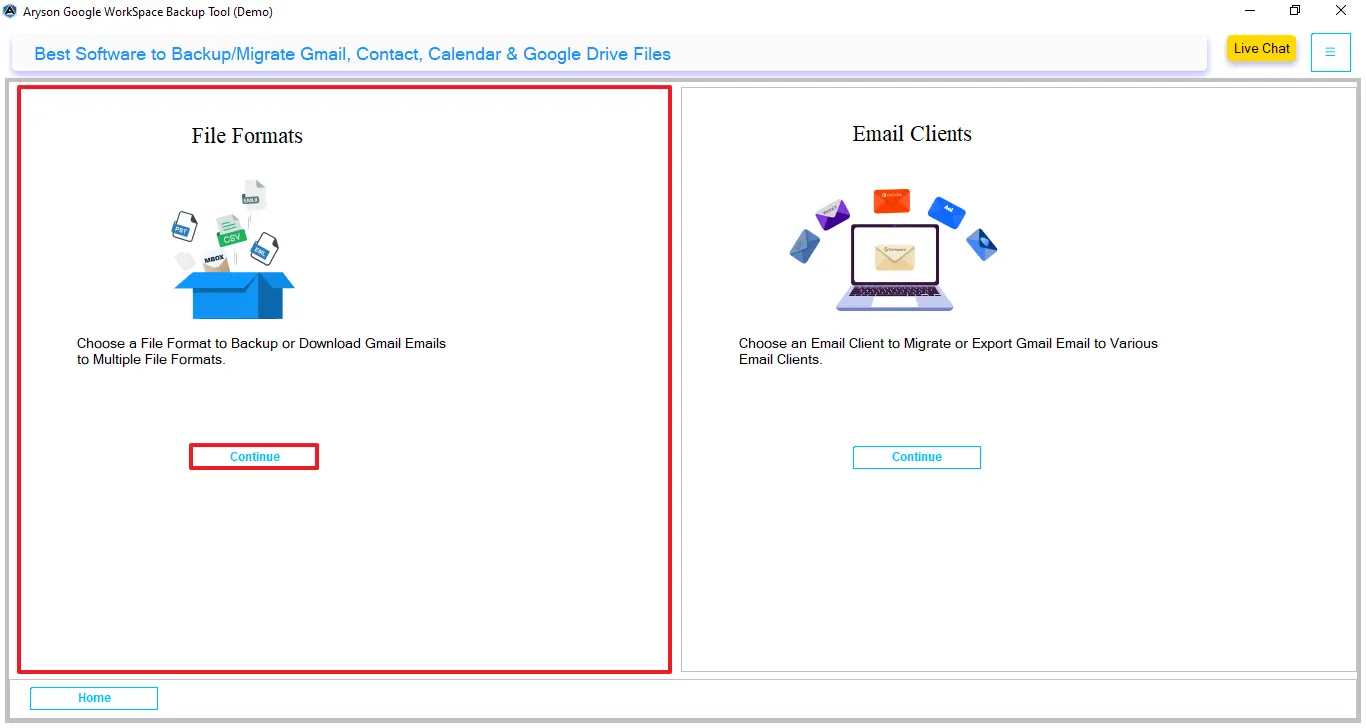
- Afterward, select the file format and press the Continue button.
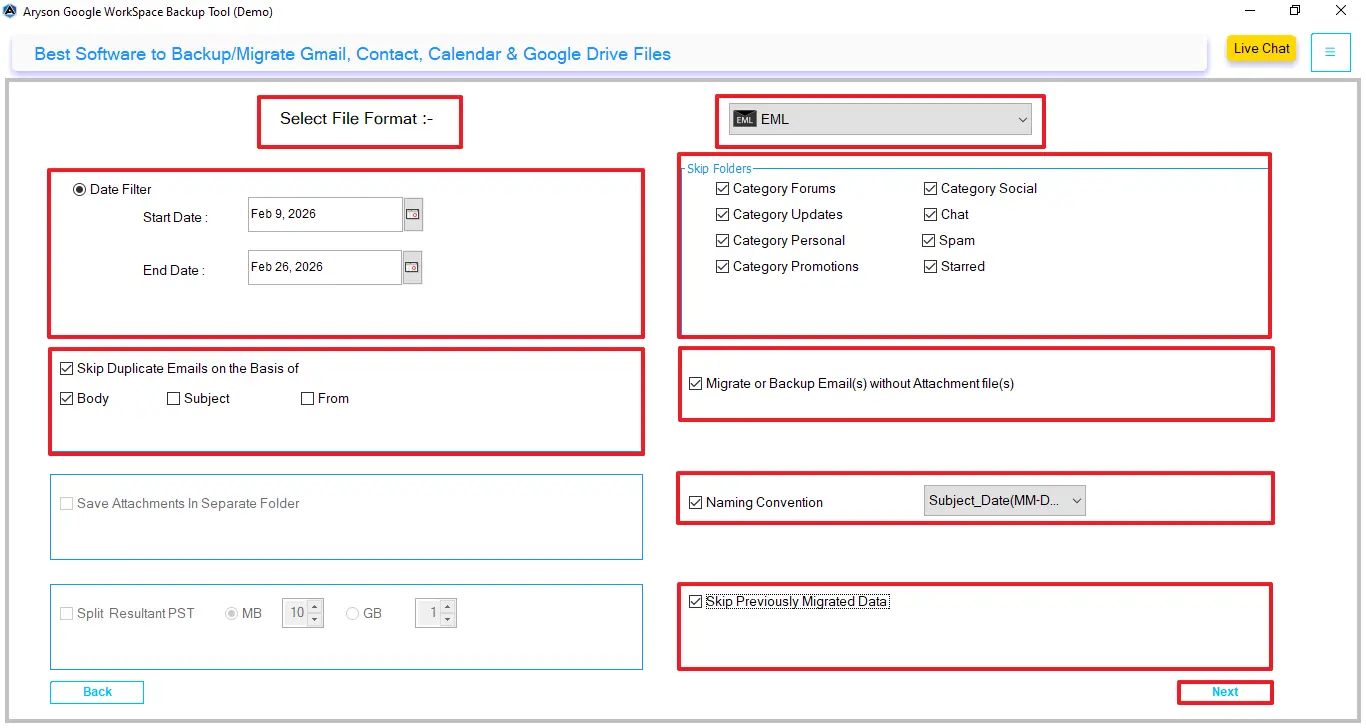
- Moreover, select EML from the drop-down and apply the filters for selective export.
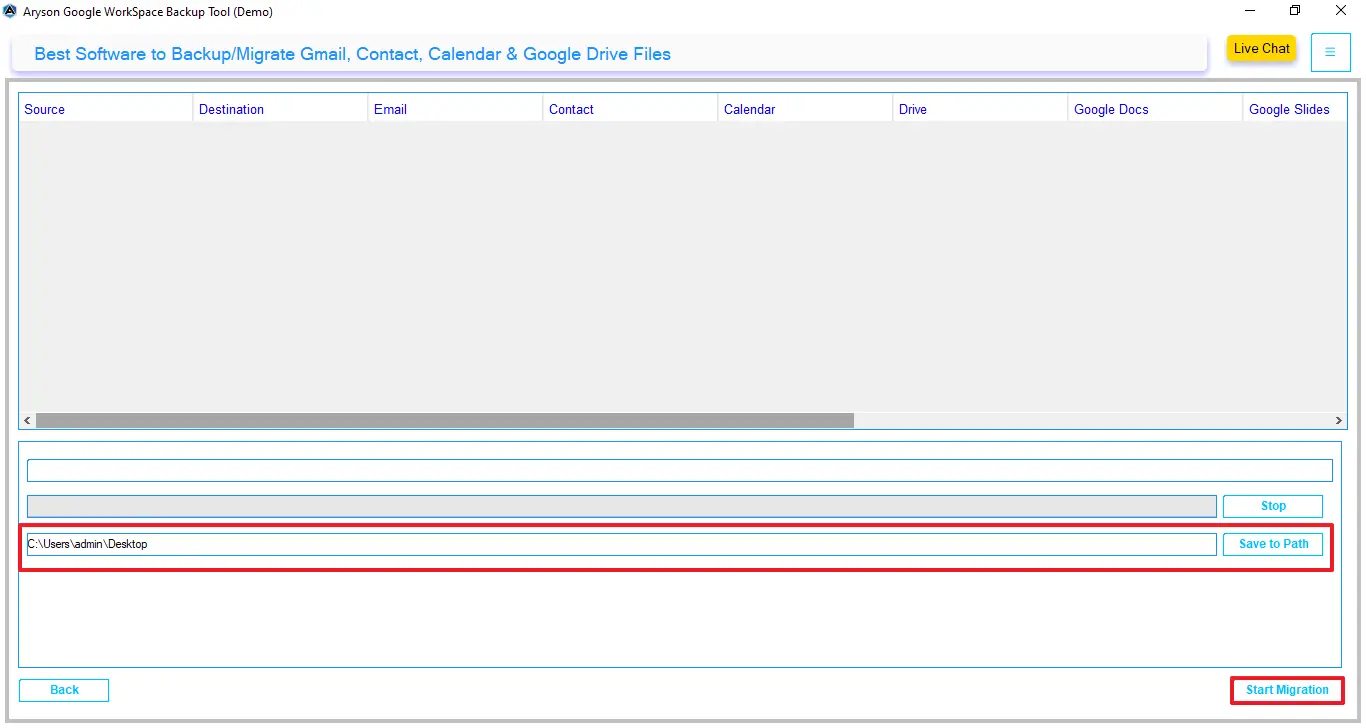
- At last, click on the path to save files after export and click on Download.
Final Thoughts
To sum up, we covered all the aspects to move your Google Workspace data to EML format. You can choose any method as per your requirements to export your Google Workspace data. The manual method does not provide a direct solution to export Google Workspace to EML. Therefore, it is recommended to use the automated software to transfer your data in a hassle-free way with ease.
Frequently Asked Questions:
Q.1 Does Google Takeout export emails as EML?
Ans. No, Google Takeout exports emails in MBOX format, not EML. Therefore, you need a separate Google Workspace Migration tool if you specifically require EML files.
Q.2 What is the fastest way to export Google Workspace to EML?
Ans. The quickest method is to use the Google Workspace Migration Tool. It directly exports emails to EML format without extra conversion steps.
Q.3 How can I ensure all attachments are preserved when exporting to EML?
Ans. To ensure complete data integrity, use a reliable Google Workspace Migration tool. It maintains email formatting and attachments during the export process.
Q.4 Can AI tools help me export Google Workspace emails to EML?
Ans. While AI tools may assist with guidance, they do not perform direct exports. Instead, you should use a Google Workspace Migration Tool created specifically for accurate email conversion.
About The Author:

Evren Cole is an expert in Email and Data Management. She has a strong passion for technology and entrepreneurship. In her free time, she enjoys football, music, and reading books.

