

-
Written By Evren Cole
-
Updated on March 9th, 2026
Export Google Workspace to CSV Without Errors (2026)
Summary: Organisations need to export Google Workspace to CSV for data analysis or an email migration task. CSV files are used because of their lightweight and easy management with multiple applications, like spreadsheets. However, exporting them without errors is very difficult for many users, especially for large mailboxes. In this guide, we will discuss the most reliable approach for 2026, including the Google Workspace Migration Tool for secure export of Google Workspace emails.
Why export Google Workspace to CSV?
There are several reasons why individuals and organisations choose to download Google Workspace data as a CSV file.
- CSV files can easily be opened in spreadsheet applications for easy communication.
- Some organisations need to manage email communication for compliance purposes.
- This helps administrators organise mailbox data before migrating emails to another platform.
- Exporting email metadata provides an additional record of mailbox activity.
- Also, CSV files are lightweight and can be shared easily across systems and teams.
What information is included in a CSV format?
When you save Google Workspace data to CSV, the file generally contains structured information such as:
|
Field |
Description |
|
Subject |
It contains the subject line of the email. |
|
From |
It reflects the sender’s email address. |
|
To |
It reflects the receiver’s email address. |
|
Date |
It contains the date and time of the message. |
|
Message ID |
It helps to identify a unique email identifier. |
|
Labels |
Gmail label associated with the message. |
Note: The CSV file does not include attachments or full email body content.
Top 2 Solutions to Convert G Suite Mailbox to CSV
Now, walk through the most reliable conversion approaches to fulfill the exportation of Google Workspace to CSV. Moreover, these methods help you to easily export your Google Workspace files.
- Manual Method
- Automated Software
Method 01: Manual Method to Export Google Workspace Emails to CSV
The one way to export Google Workspace emails to CSV is by first downloading the mailbox data. After that, you need to convert the extracted data into CSV format. Now, follow the steps to perform the exportation.
Step 01: Open Gmail & Select Email
- First, log in to your Gmail account with Google Workspace credentials.
- After that, search and filter the emails you want to export, like date, sender, and label.
Step 02: Export Data through Google Takeout
Technically, Google provides a data export service called Google Takeout that allows users to download their mailbox data.
- You need to visit Google Takeout first, then select Mail from the list of services.
- Next, you have to select the labels or folders you want to export and click on Next.
- Thereafter, select the delivery method and download the exported archive.
Step 03: Convert Extracted Data to CSV
The exported mailbox data is usually downloaded in MBOX format. So, you need to extract metadata from the MBOX file and convert it to CSV with the help of a script tool.
Disadvantages of the Manual Method:
- With the help of the manual method, you can export data in MBOX format, not CSV.
- Also, for MBOX to CSV conversion, you need to perform additional steps.
- Moreover, for large mailbox exports, this method is not suitable.
- In addition, this method provides a limited filter option for migration.
Method 02: Automated Software to Download Google Workspace Emails as CSV
Use the Google Workspace Migration Tool to import Google Workspace to CSV directly. It provides the easiest way to export data without any loss or formatting issues. For selective migration, it provides generous features like a date filter or skips previously migrated files. Moreover, it provides a batch export from multiple mailboxes simultaneously. As a result, it keeps the emails and their attachments intact. Additionally, if you want to migrate email instead of export, then you may go through this guide: Migrate Google Workspace Emails to IMAP Server.
Easy Process to Export Google Workspace to CSV:
- The first step is to download the Google Workspace Migration Tool.
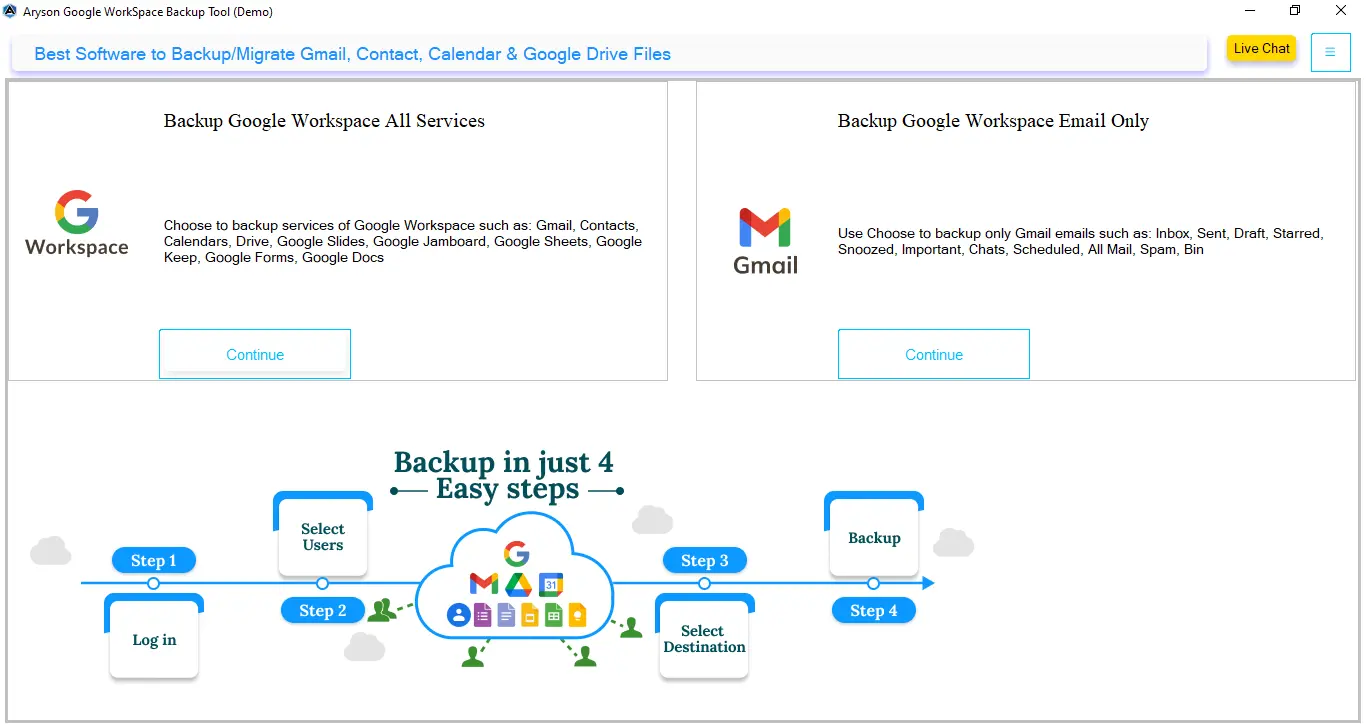
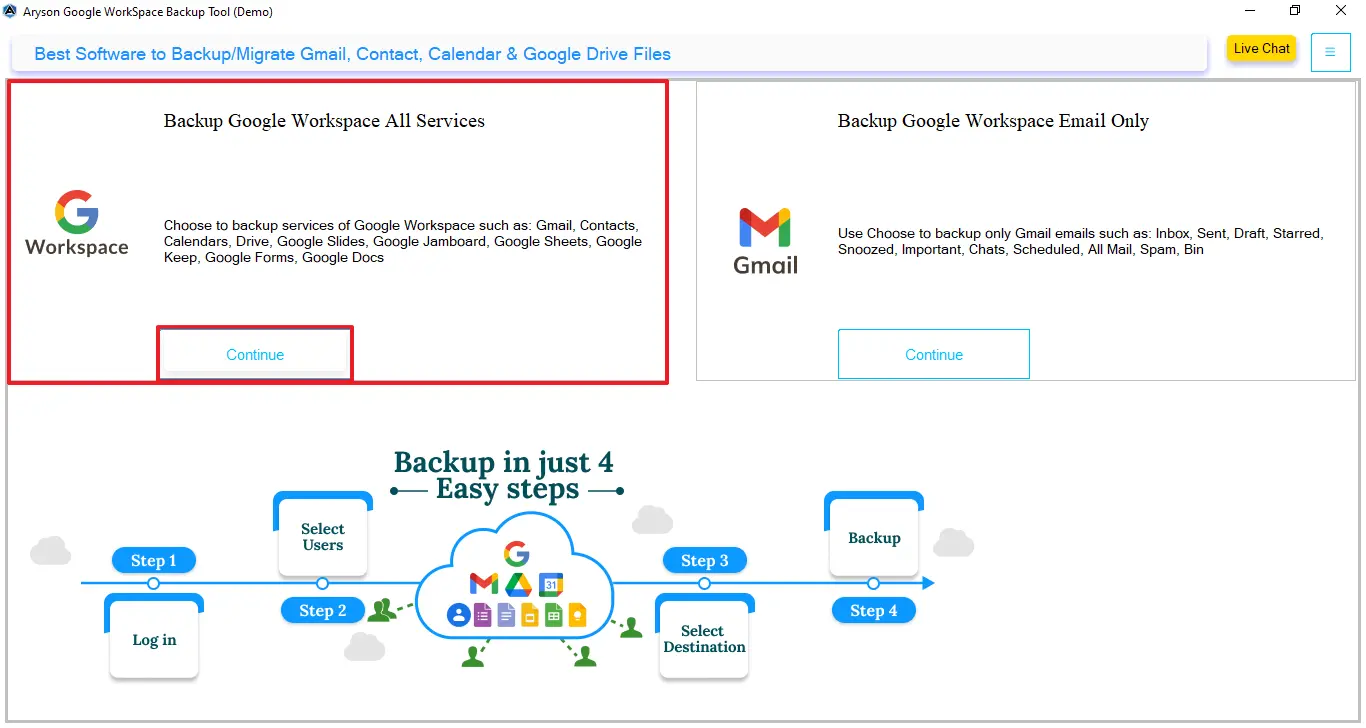
- After that, click on continue under Backup Google Workspace All Service.
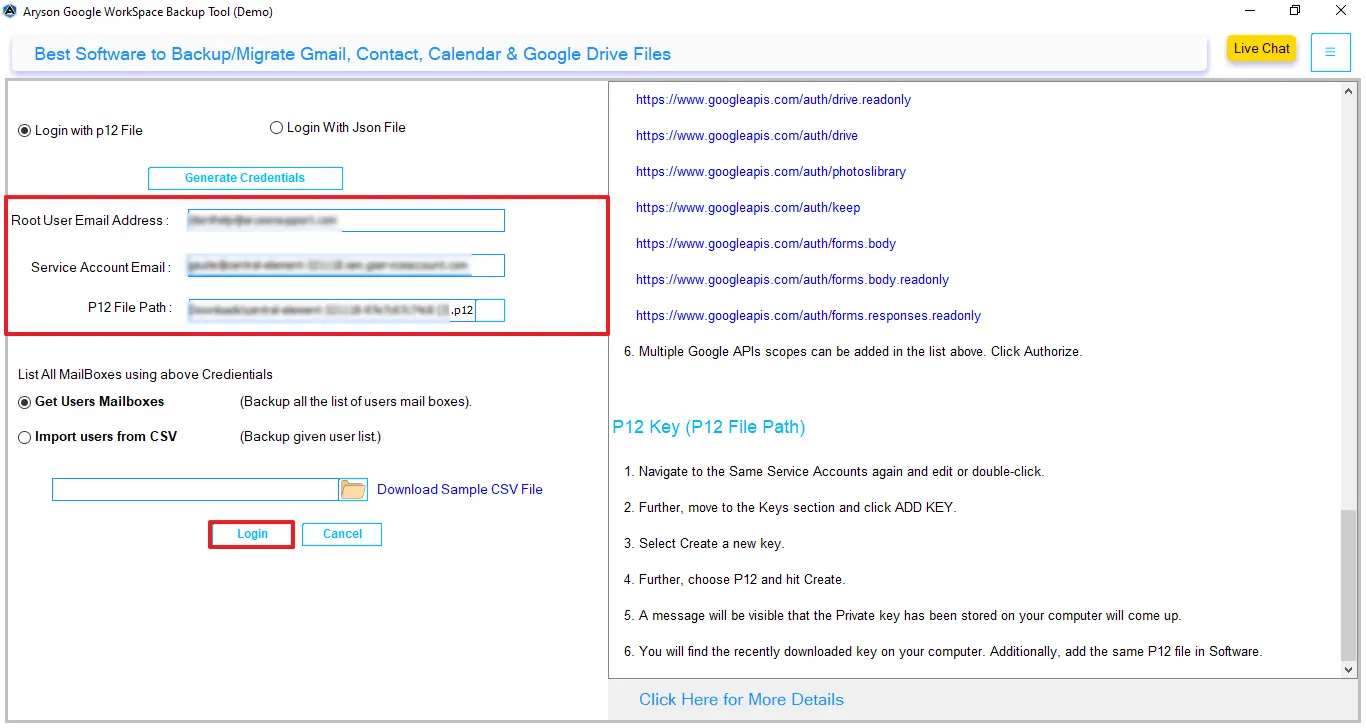
- Then, provide the credentials in the login P12 files and click on login.
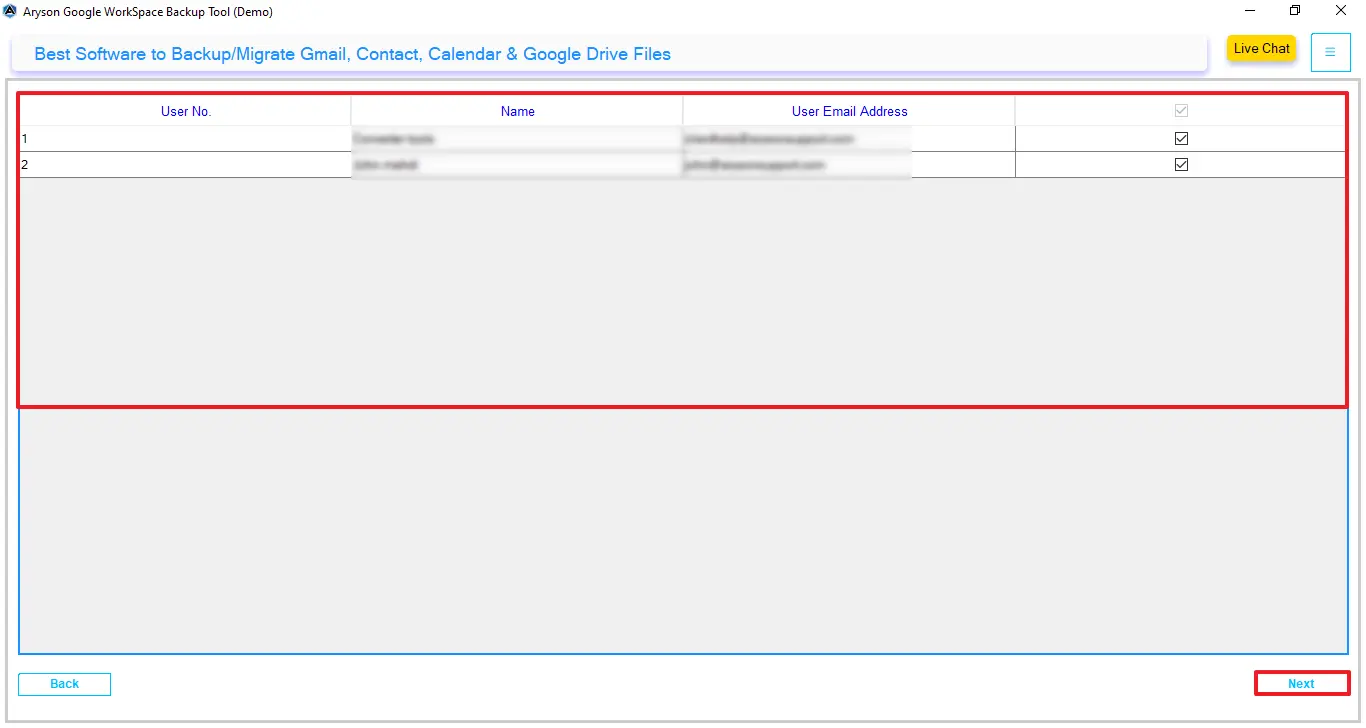
- Next, preview the users and select whom you want to export >> Next.
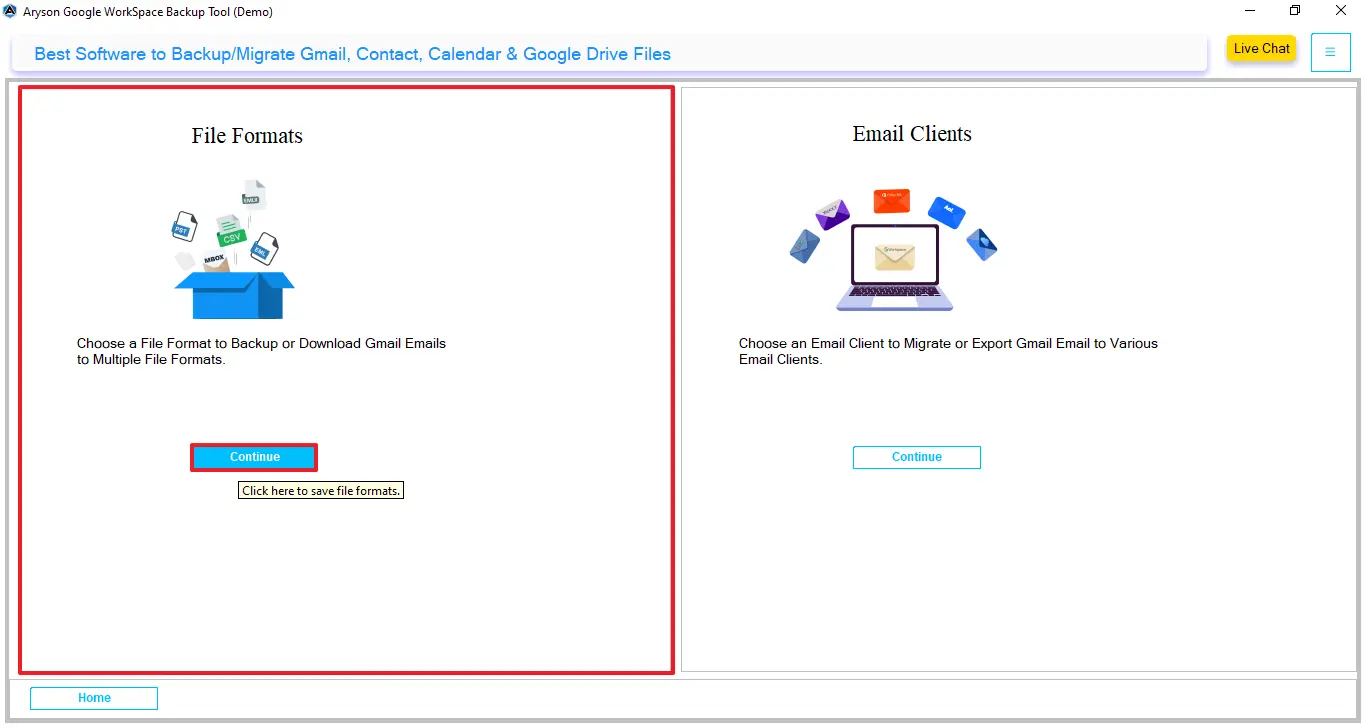
- Now, under the file format, click on continue to proceed further.
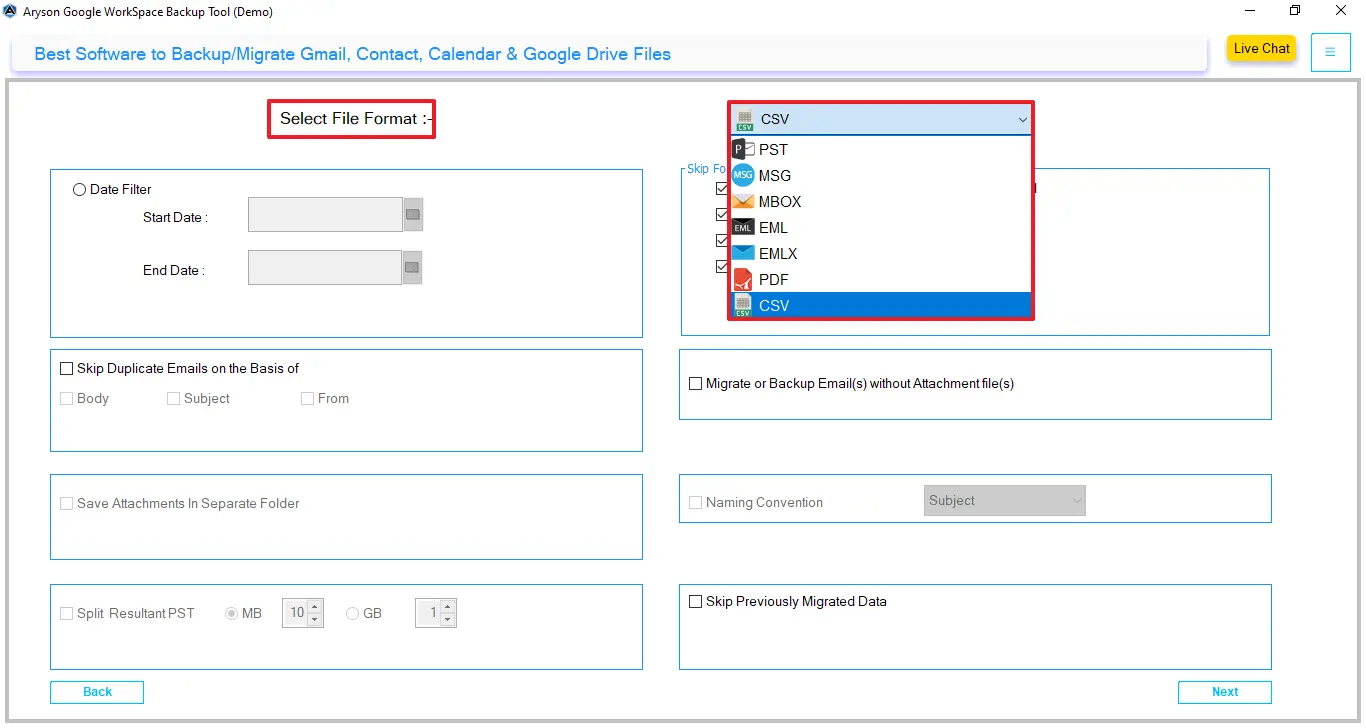
- Subsequently, select CSV as the output format in the file format option.
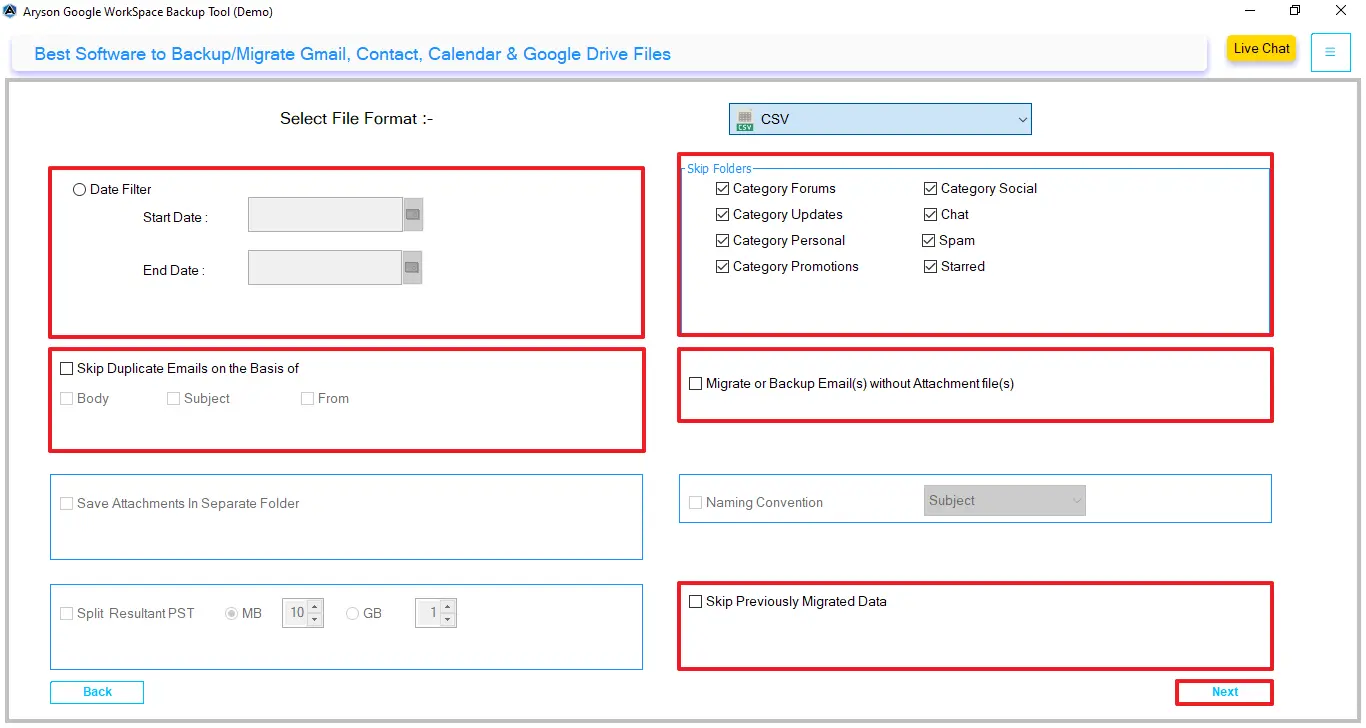
- Thereafter, you can enable the required filters for selective data migration >> Next.
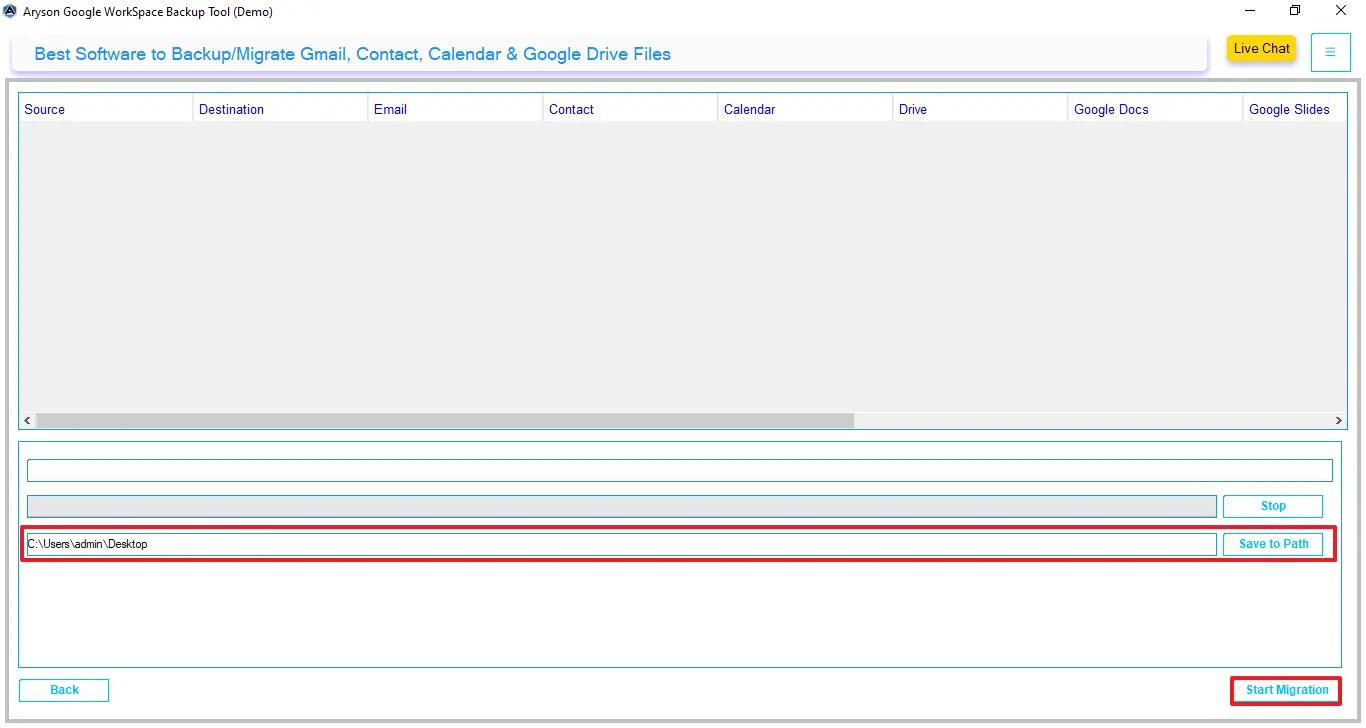
- Lastly, provide a path to save the resultant file and click on Start Migration.
In conclusion
To sum up, we discuss all the reasons for Google Workspace to CSV exportation. Moreover, users need to choose the best method for secure migration. In this guide, we discuss the two methodologies to export Google Workspace to CSV; the manual one comes with limitations. Therefore, it is recommended to use the automated software that provides a fast conversion and maintains data accuracy.
Frequently Asked Questions:
Q.1 How do I export Google Workspace emails to CSV?
Ans. Yes, you can export Google Workspace emails to CSV by using a Google Workspace Migration tool that extracts Gmail mailbox data and saves it directly in CSV format.
Q.2 Can I export Google Workspace emails to CSV without admin access?
Ans. Yes, you can export emails from your own mailbox without admin access. However, exporting multiple user mailboxes typically requires administrative permissions in Google Workspace.
Q.3 Can I open exported Google Workspace CSV files in Excel?
Ans. Yes, CSV files can be opened easily in spreadsheet applications such as Microsoft Excel, Google Sheets, or other data analysis tools.
Q.4 How do I export Google Workspace emails by date range?
Ans. Yes, the Google Workspace Migration Tool provides date filters that allow users to export emails within a specific date range. This helps users extract only relevant mailbox data instead of exporting the entire mailbox.
About The Author:

Evren Cole is an expert in Email and Data Management. She has a strong passion for technology and entrepreneurship. In her free time, she enjoys football, music, and reading books.

