

-
Written By Evren Cole
-
Updated on July 12th, 2025
Convert Outlook OLM File to MSG File Format – Easy Guide
If you try to open your Outlook emails from a Mac on a Windows computer, you may run into problems. It happens because Mac Outlook saves emails in OLM format, while Windows Outlook uses MSG format to store messages. So, when someone moves from a Mac to a Windows PC or wants to view their emails in Outlook for Windows, converting OLM to MSG becomes important. With the help of the reliable OLM Converter Tool, you can convert OLM files to MSG in a hassle-free way. In this guide, we’ll show you two easy ways to convert your emails – one using a tool and the other manually. This way, you can pick the method that works best for you.
Top Reasons to Export OLM to MSG File Format
Here are some clear and simple reasons why you might want to export your OLM emails to MSG:
- OLM files work only in Mac Outlook, while MSG files work in Windows Outlook.
- MSG format saves one email per file. Hence, it is easy to find, store, or send just one message.
- You can share MSG files quickly by attaching them to an email or saving them to a folder.
- If you’re moving from Mac to Windows, converting OLM to MSG helps retain access to your emails.
- Instead of converting the whole file, you can export only the emails that are important to you.
- The MSG format is easier to store or archive as individual emails for legal or backup purposes.
Understanding these reasons makes it clear why the OLM to MSG conversion is useful. Now, let’s see how you can do it step by step.
How to Convert OLM Files to MSG
There are two main ways to convert OLM files to MSG format. First one is quick and automatic using a professional tool. And the other is a manual method that takes more time and effort. Let’s take a look at both methods to simplify the conversion process:
Method 01: Manual Method to Convert Mac Outlook OLM to MSG
This process involves using an IMAP-enabled email account (like Gmail) to move your Mac Outlook emails to a Windows system. Once the emails are available in Windows Outlook, you can save them as MSG files.
- First, open Outlook on your Mac and go to Preferences > Accounts.
- Next, add your Gmail account using IMAP settings (not POP).
- Once added, wait for Outlook to sync with the Gmail account.
- Now, drag and drop the emails or folders you want to convert into the Gmail folder.
- After that, allow some time for all the emails to sync with Gmail properly.
- Then, switch to your Windows computer and open Outlook.
- Add the same Gmail account that you used on your Mac.
- Let Outlook finish syncing the emails from Gmail to your Windows Outlook.
- Now, open any synced email inside Outlook on Windows.
- Click on File > Save As from the top menu.
- Choose MSG as the file format, pick a folder to save the email, and click Save.
- Repeat this last step for each email you want to export as MSG.
This method helps you convert OLM to MSG for free. But it’s best suited for converting a few emails. If you have a large number of emails, this process can become slow and complex.
Limitations Associated With the Manual Method
While the manual method can work for a few emails, it comes with several drawbacks. Here’s why it may not be the best choice for everyone:
- You have to save each email one by one, which is very slow if you have hundreds or thousands of emails.
- You must switch between two devices, making the process more complicated.
- Outlook doesn’t allow you to save multiple emails as MSG files at once.
- Some attachments or formatting can be lost during the move.
- If syncing fails or you forget to move certain folders, some emails may not get converted.
- Setting up IMAP, syncing, and exporting can be confusing for non-technical users.
Because of these limitations, many users prefer using a professional tool that saves time and ensures accuracy.
Method 02: Best Automated Solution to Convert OLM Files to MSG
The OLM Converter is a reliable and user-friendly tool designed to convert Mac Outlook OLM files to MSG format with ease. It allows users to export multiple OLM emails into individual MSG files. Also, it preserves all email properties, attachments, and folder hierarchy. This utility is useful for users who want to access their Mac Outlook emails in Windows-based Outlook or share them in a universally supported format. It also offers advanced features like email preview, date range filters, duplicate removal, and selective folder export.
The best part is, you don’t need to install Outlook to use this tool on your Windows system. Whether you’re dealing with large OLM files or batch conversion tasks, it ensures accurate and fast results without any data loss. It supports various other export options as well. So, you can also convert OLM to EML format using this utility.
Simple Steps to Convert OLM Files to MSG Format
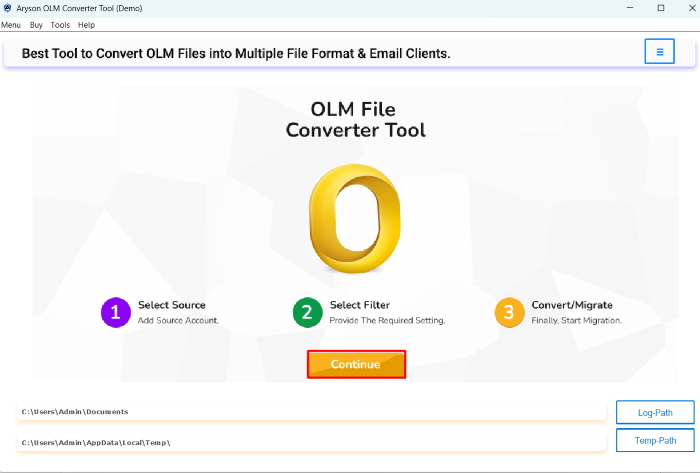
- Download and install the OLM Converter Tool on your system. Click Continue.
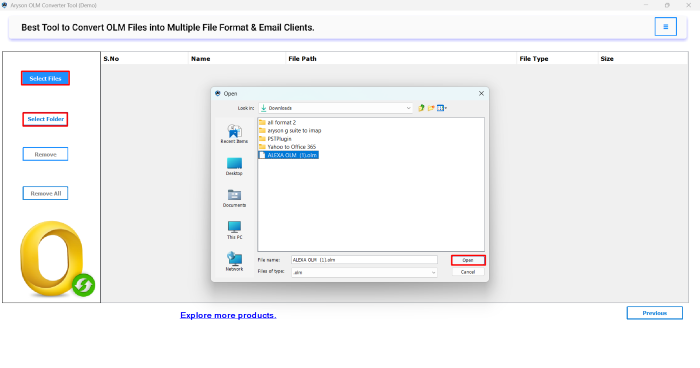
- Click Select File/Select Folder and tap on the Open button to add your OLM file.
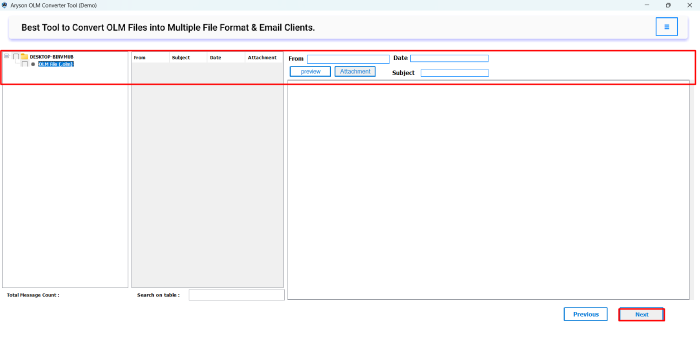
- Now, you can preview all mailbox items. Select the folders you want to convert.
- From the available formats, choose MSG as your saving option and move next.
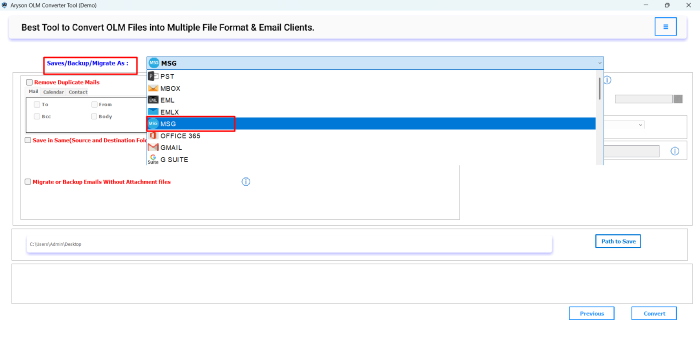
- Also, you can apply filters if needed, such as date range or skip duplicate emails.
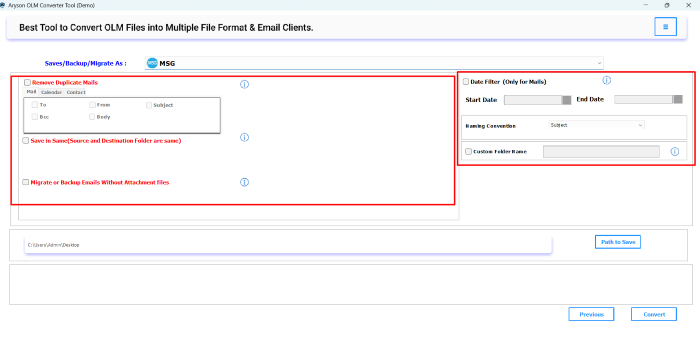
- Select the destination path where you want to save the converted MSG files.
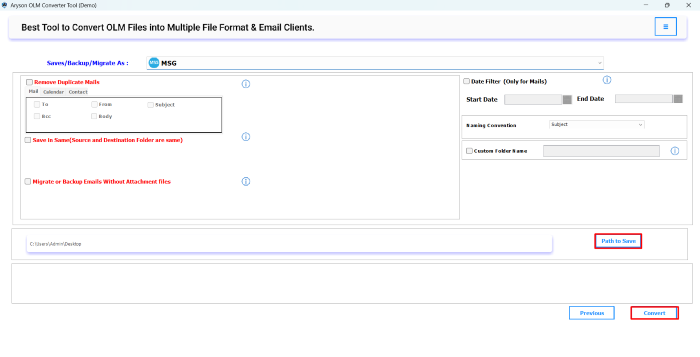
- At last, click on the Convert button to begin the OLM to MSG conversion.
Conclusion
This guide covered two ways to turn your Mac Outlook OLM emails into MSG files. The manual approach may help when you have only a few messages; however, it can take a lot of time and effort for larger mailboxes. In contrast, an automated solution works much faster and keeps your email formatting and attachments intact. Ultimately, choose the method that fits your needs and workflow. If you value speed and accuracy, the automated option offers a hassle‑free path to convert OLM Files to MSG with ease.
FAQ’s
Q1. How to open OLM file on Mac?
Ans: To open an OLM file on Mac, you need to import it into Microsoft Outlook for Mac. Go to Outlook >> Import, select the OLM file, and follow the prompts. If you don’t have Outlook for Mac or want to access OLM data on Windows, you can use a tool like Aryson OLM Converter to convert the file into other formats like MSG, PST, or MBOX.
Q2. How do I convert OLM to MSG on Mac?
Ans: Mac systems do not natively support direct OLM to MSG conversion. However, you can transfer the OLM file to a Windows system and use the Aryson OLM Converter Tool to convert it into MSG format.
1. Install the OLM Converter Tool and click Continue.
2. Click Select File/Folder and hit Open to load your OLM file.
3. Preview mailbox items and choose the folders to convert.
4. Select MSG as the output format and proceed.
5. Apply filters like date range or skip duplicates if needed.
6. Choose the destination path for saving the MSG files.
7. Click Convert to start the OLM to MSG conversion process.
Q3. What is the difference between save as OLM and MSG?
Ans: OLM is a file format used by Outlook for Mac to store emails, contacts, and other mailbox data in a single archive. MSG, on the other hand, is a file format used by Windows Outlook to store individual email messages. So, “Save as OLM” creates one file containing the entire mailbox, while “Save as MSG” saves each email as a separate file, ideal for sharing or storing individual messages.
About The Author:

Evren Cole is an expert in Email and Data Management. She has a strong passion for technology and entrepreneurship. In her free time, she enjoys football, music, and reading books.

