

-
Written By Evren Cole
-
Updated on November 14th, 2025
Convert EML to OFT– Quick Conversion Tips
Overview: A marketing team had an important EML file, and they needed to reuse it frequently in Microsoft Outlook. As Outlook doesn’t support EML as template files, they decided to convert EML to OFT. Are you also facing the same challenge? If yes, follow along with this write-up. Here, you will explore reliable workflows to perform conversion, along with a step-by-step tutorial on using MSOutlookHelp EML Converter for an effortless bulk conversion.
Advantages of Converting EML to OFT
The .oft file is highly helpful for individuals and businesses who frequently send repetitive emails. Take a look at some of the advantages of OFT files.
- The .oft format helps users to reuse email templates for Outlook.
- Using the same template every time keeps the formatting and branding intact.
- OFT files are completely compatible with MS Outlook.
- OFT files save time on creating new emails every time & enhance productivity.
- Users can easily personalize their emails before sending.
Proven Ways to Convert EML to OFT
Considering the advantages of EML to OFT conversion, let’s perform the actual conversion.
Here, in this section, we will use the two most effective workflows:
- The Manual Approach
- Use of a Reliable Software
Carefully read through the details of both methods, and adapt the one that is suitable for you.
Method 1: Manually Convert EML File to OFT
Users can use Outlook’s built-in feature to save the EML files to OFT format. This method is straightforward, as you just have to save the required EML file to OFT format in Outlook. But at the same time is only applicable to single EML files. Also, to proceed with this method, you would need to install the MS Outlook application on your system.
Steps to Change EML to OFT format Manually
- Open the Microsoft Outlook application on your PC.
- Then, navigate to the Mail section >> drag and drop the desired EML files.
- After that, Double-click that specific EML file to open it.
- Next, go to the File tab and select the Save As option.
- At this point, select the .oft extension from the Save as dropdown list.
- Select the folder where you want to save the OFT file and click Save.
Drawbacks of the Manual Conversion
- This method may take a significant time to convert multiple EML files.
- As well as it also doesn’t support the bulk conversion of EML files.
- Also, some of the HTML emails may lose formatting, fonts & images during the conversion.
- You have to be familiar with the Outlook interface to proceed with this method.
- There are high chances of human errors and data loss during conversion.
Method 2: Effective Solution to Convert EML to OFT in Bulk
In case the user wants to quickly convert multiple EML files to the OFT format, using the MSOutlookHelp EML Converter is the most suitable and reliable solution available. This software can convert multiple EML files to OFT format without any data loss. Moreover, it keeps the formatting, attachments, and original folder structure intact during the conversion. Along with that, it provides the users with various built-in features, such as Date Range Filter, remove duplicate emails, skip previous mails, and many other features. Also, it provides the user with a user-friendly GUI to allow beginners to convert EML to DOC, EMLX, PDF, and other file formats as well. It is important to follow the steps below carefully to promote an accurate conversion.
Step-by-Step Tutorial to Convert EML to OFT
- Download and open the MSOutlookHelp EML Converter on your system.
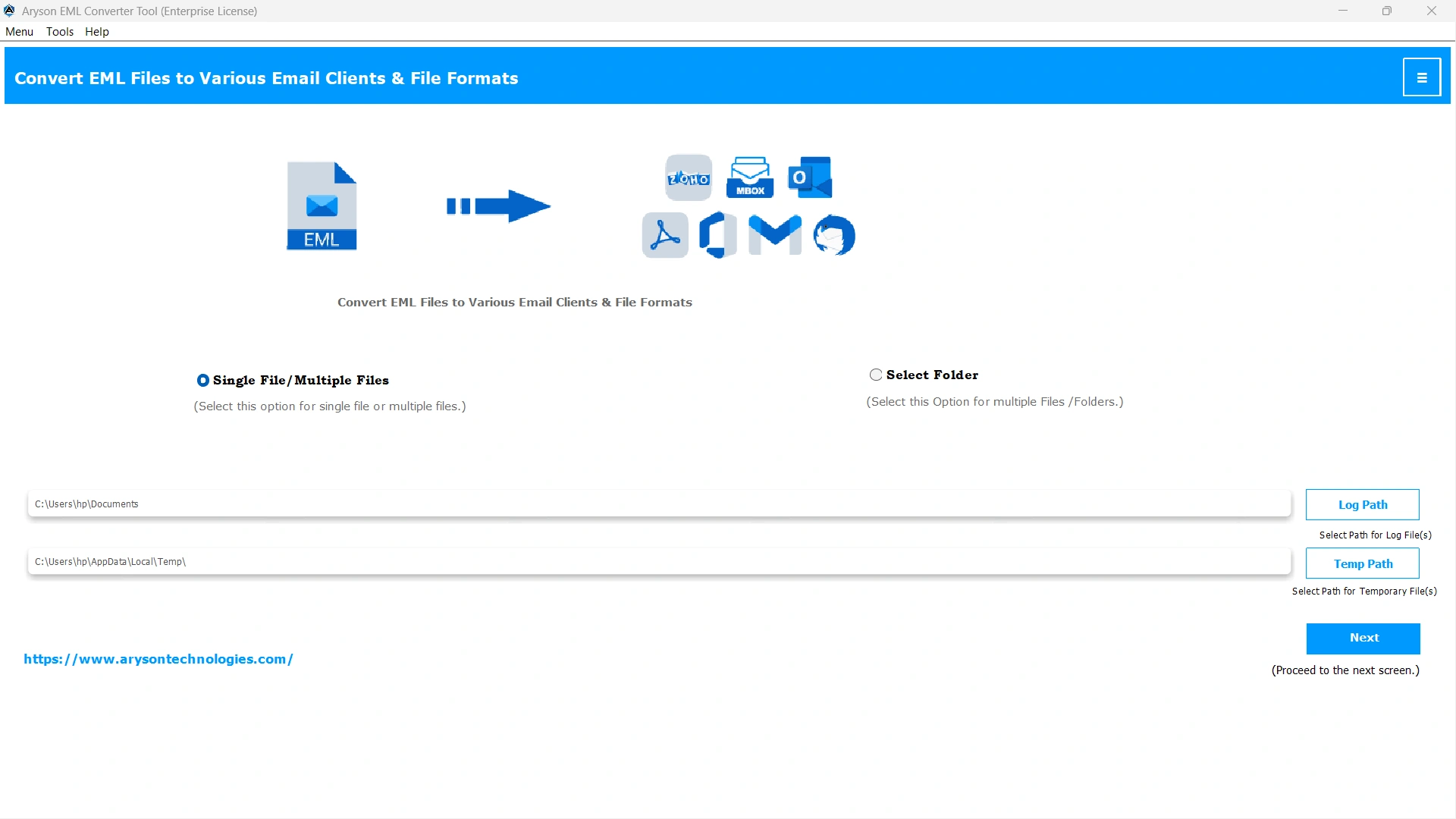
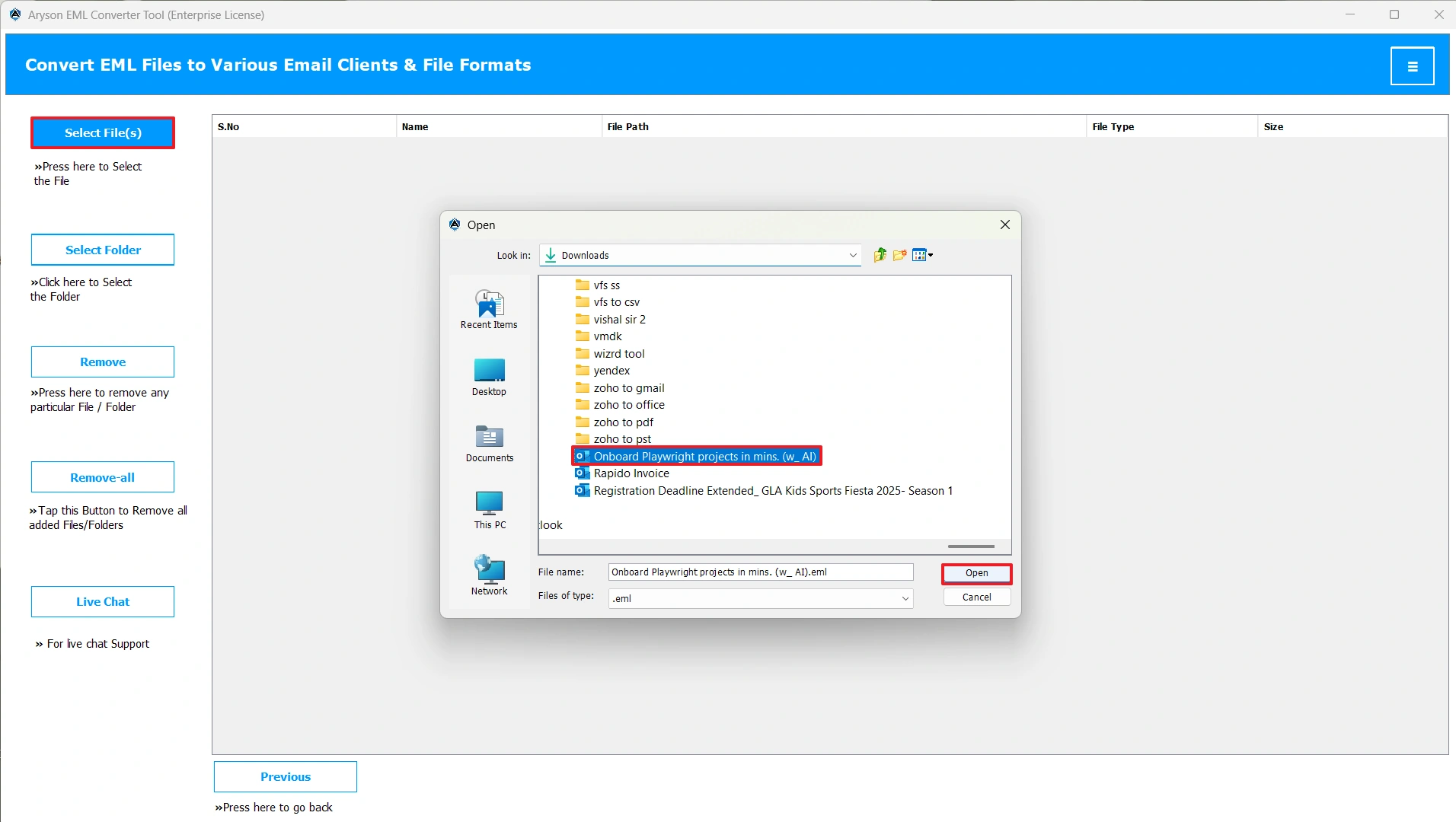
- Then, click Select Files or Select Folders to add the required EML files.
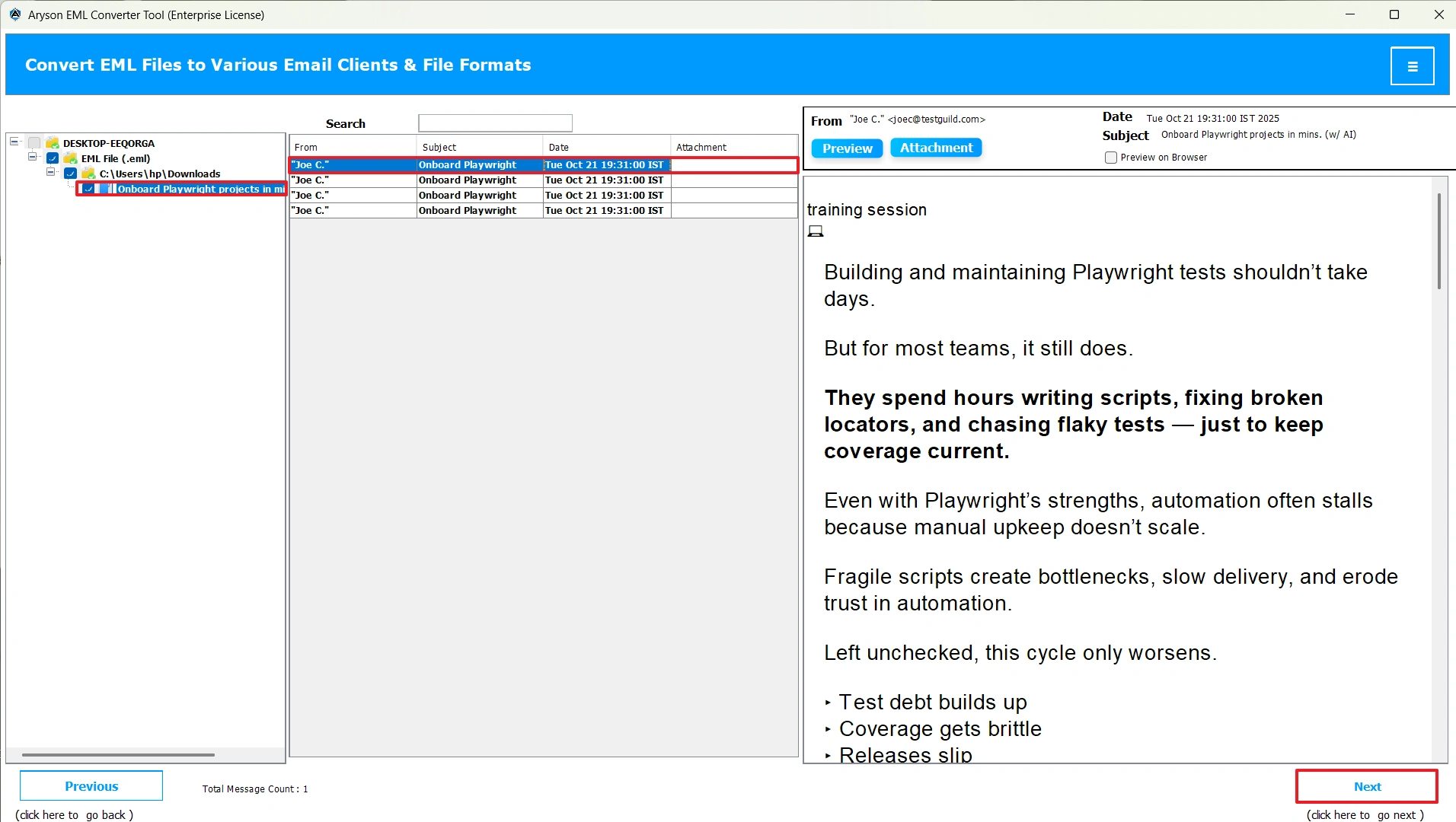
- After that, select the specific EML files from the tree structure, preview them, & click Next.
- At this point, you have to select OFT from the listed file formats.
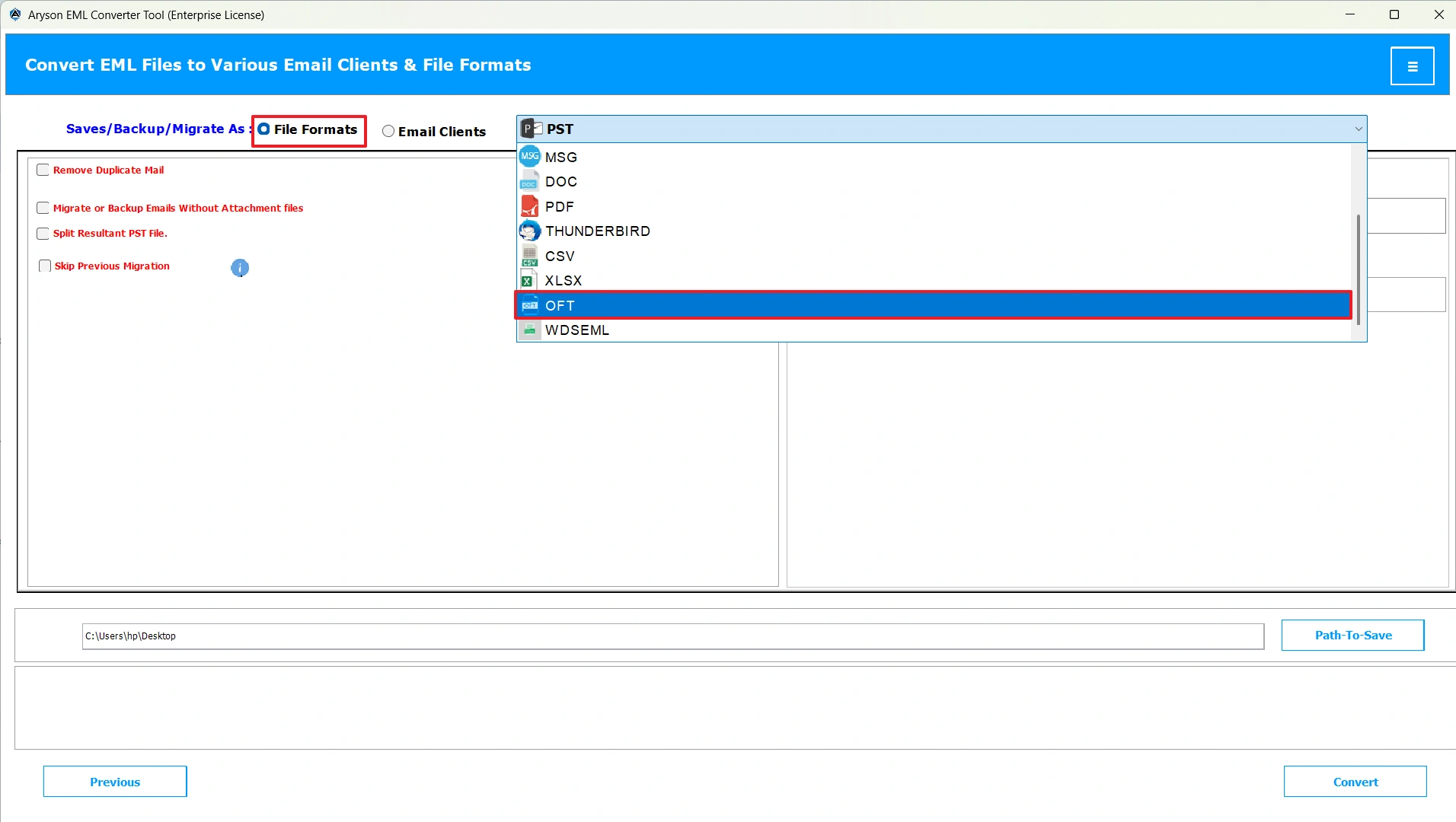
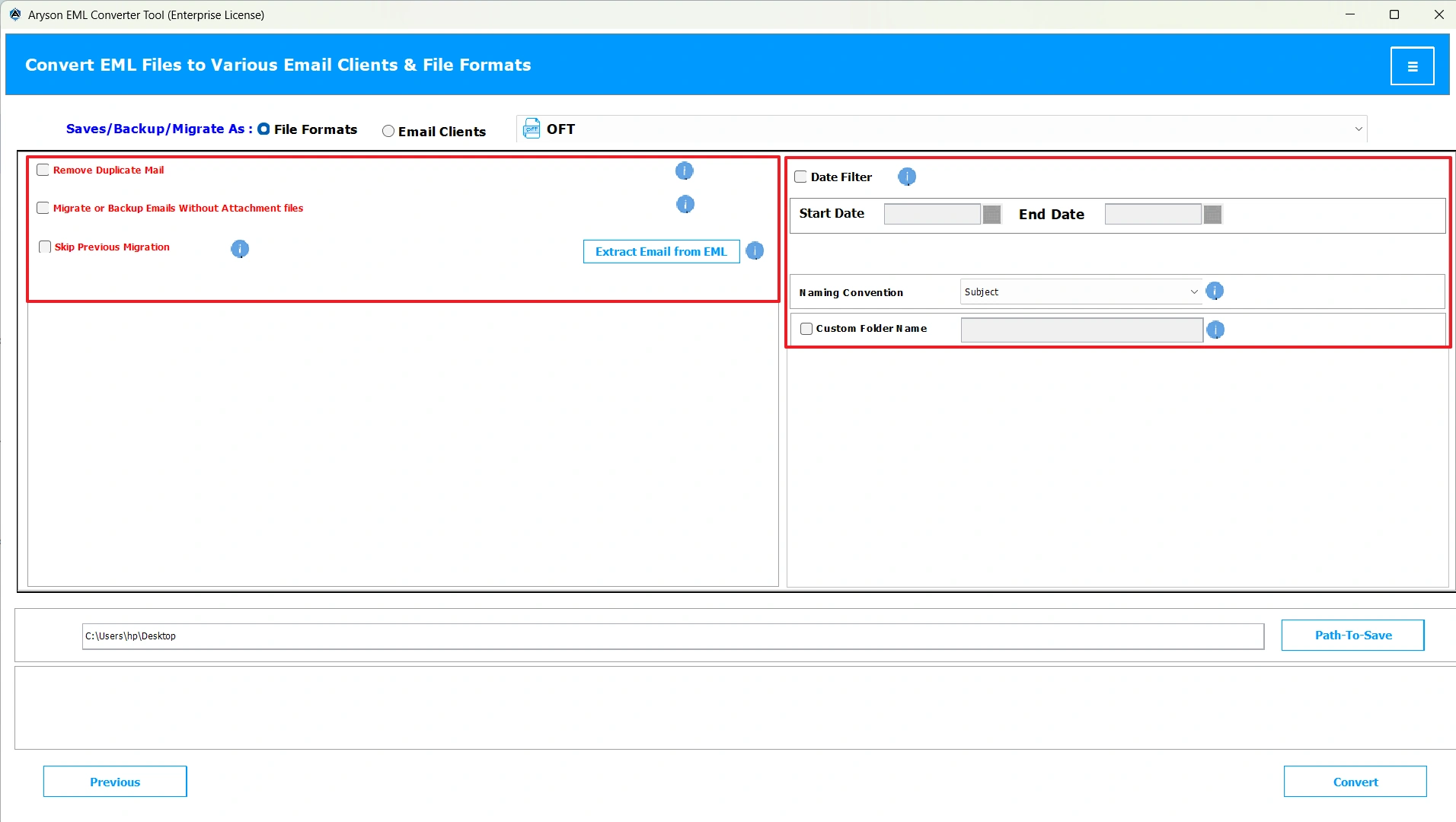
- You can utilize the advanced built-in features provided for customizing your file selection.
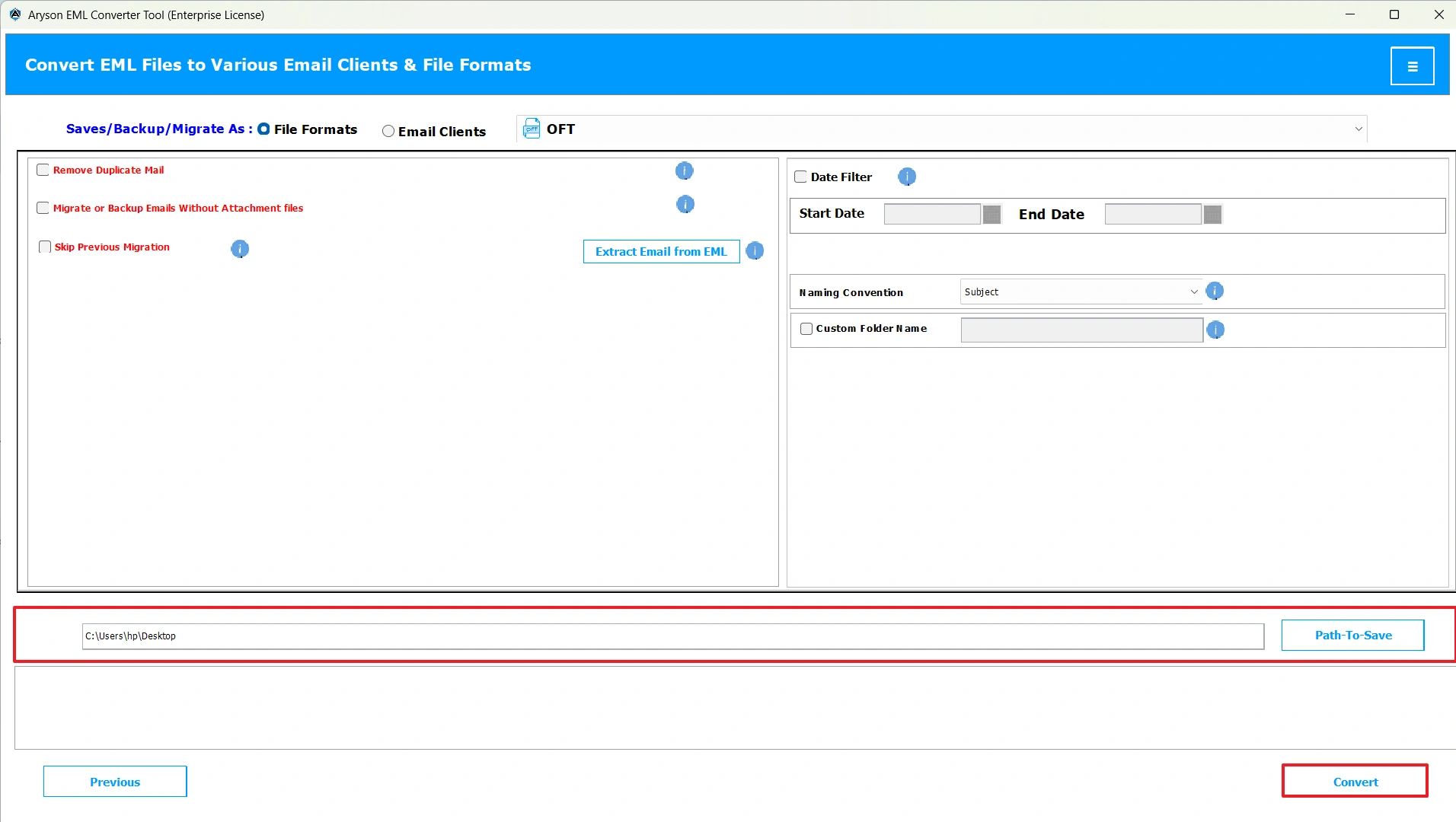
- Specify a location where you want to save the resultant OFT file and hit Convert.
Conclusion
The above blog discussed two different workflows to convert EML to OFT. Converting EML files to OFT format is an efficient way to reuse your EML files as templates and increase productivity. In order to convert multiple EML files, users can go for the automated solution. This will eventually increase the efficiency, maintain consistency, and reduce human errors during email communication. Start converting your EML files to OFT format today to maintain an efficient workflow in Outlook.
Frequently Asked Questions:
Q.1 How can I convert EML to OFT in Outlook?
Ans. You can save EML to OFT, using the MSOutlookHelp EML Converter.
Steps to perform are as follows:
1. Download EML Converter on your system.
2. Click Select Files/Folders to add EML files.
3. Choose OFT as the desired file format.
4. Use the additional built-in features and click Convert.
Q.2 Can I convert multiple EML files to OFT at once?
Ans. Yes, you can convert multiple EML files to OFT at once by using the automated software above.
Q.3 Can I open EML files directly in Outlook before conversion?
Ans. Yes, as Outlook supports the EML file format, you can easily open them in Outlook before conversion.
Q.4 Why should I change EML to OFT format?
Ans. You should change EML to OFT format, to reuse it frequently as a template for new emails. This will keep the formatting intact and reduce human errors during email communication.
About The Author:

Evren Cole is an expert in Email and Data Management. She has a strong passion for technology and entrepreneurship. In her free time, she enjoys football, music, and reading books.

