

-
Written By Harshita Sachdeva
-
Updated on May 8th, 2026
How to Migrate IMAP to Office 365 – A Complete Guide
Summary: These days, IMAP to Office 365 migration helps users to move their emails from one email server to a cloud-based Microsoft 365 account. Most of the businesses and individual users choose Office 365 for its advanced email features and easy accessibility across devices. Moreover, the migration process allows you to transfer emails, folders, and mailbox data and then keep your communication organized. In this guide, you will learn different methods to migrate IMAP to Office 365 step by step, which include the IMAP Backup Wizard Tool for hassle-free migration.
Pre-Migration Checklist
- Before you start the migration process, first verify and set up your Office 365 account.
- Make sure you enable the IMAP access on the source email server.
- Most importantly, you need to keep your IMAP server details & users’ credentials ready.
- Moreover, take a backup of your important mailbox data for future needs.
- At last, take the test of the migration process with a few mailboxes.
Methods to Migrate IMAP to Office 365
We will walk you through the methods that help you to accomplish the migration process.
- Native Method
- Software-Based Approach
Native Method to Migrate IMAP Email to Office 365
Follow the methods to accomplish the migration of IMAP emails to Office 365.
Method 01: Using Microsoft 365 Admin Center
This is the best option for a large organization who manage multiple mailboxes. It allows administrators to migrate several IMAP accounts at once and monitor the process in a single dashboard.
Step 01: Log in to Microsoft 365 Admin Center
- First, to initiate the process, open the Microsoft 365 Admin Center in your browser.
- Then, you have to sign in with your administrator account credentials.
- After that, go to the setup section >> Data Migration.
- Now, choose Other Email Sources (IMAP) from the available migration process.
- Create user mailboxes in Office 365 for all IMAP users.
- (Make sure a valid license is assigned to each mailbox)
Step 02: Make CSV file and Start Migration
- Prepare a CSV file which contains email addresses, usernames, & passwords.
- Thereafter, you have to upload a CSV file to the migration dashboard.
- Afterward, you need to provide an IMAP server hostname and port number.
- Make sure to verify the connection setting >> Start Migration.
- Microsoft 365 will begin the transfer of emails from IMAP to the Office 365 account.
Disadvantages of the Microsoft 365 Admin Center Method
- The setup process can consume a lot of time for beginners.
- Users must have admin access to perform the migration process.
- It mainly migrates email data and may not transfer contacts and notes.
- To monitor multiple migrations in batches requires technical knowledge.
- The large mailboxes may take a long time to complete the migration process.
Method 02: Using Outlook PST Import to Migrate IMAP to Office 365
Basically, this method is suited for individuals and small businesses. Moreover, this works well when users want to import IMAP emails to Office 365 without any admin access.
Step 01: Setup Your IMAP Email Account in Microsoft Outlook
- To initiate, open Microsoft Outlook on your device.
- Navigate to the File tab >> then click on Add Account.
- Now, enter your IMAP account credentials and complete the setup.
- Thereafter, click on the File tab >> Open & Export >> Import/Export.
- You need to select Export to a File >> Next, and choose Outlook Data File (.pst).
- Choose the IMAP mailbox folder you want to export >> Save the PST file to your system.
Step 02: Add the Office 365 Account in Outlook
- Repeat the process, go to File >> Add Account, and enter Office 365 credentials.
- Afterward, finish the account configuration process.
- Moreover, click on File >> Open & Export, and then click Import/Export.
- You need to select Export to a File >> Next.
- Choose Outlook Data File (.pst) and browse the saved PST file.
- In the end, select the Office 365 mailbox as the destination folder >> Start Import.
Drawbacks of the Outlook PST Import Method
- Users need to configure both IMAP and Office 365 accounts manually in Outlook.
- This process becomes difficult for multiple mailbox migrations.
- Moreover, large PST files may slow down the Outlook performance.
- This method requires the continuous involvement of users to monitor the process.
Software-Based Method to Migrate IMAP to Office 365
To overcome the limitations of the above methods, you can use an enterprise-level IMAP to Office 365 Migration Tool. It offers a bulk migration of IMAP emails with batch processing mode. Moreover, it runs smoothly with a large mailbox size without any delays. Its simple user interface makes the process easier for beginners and professional users. You can export emails from IMAP to MBOX and any other formats with this same software.
Simple Steps to Transfer IMAP to Office 365
- Initially, install and launch the IMAP Backup wizard Tool.
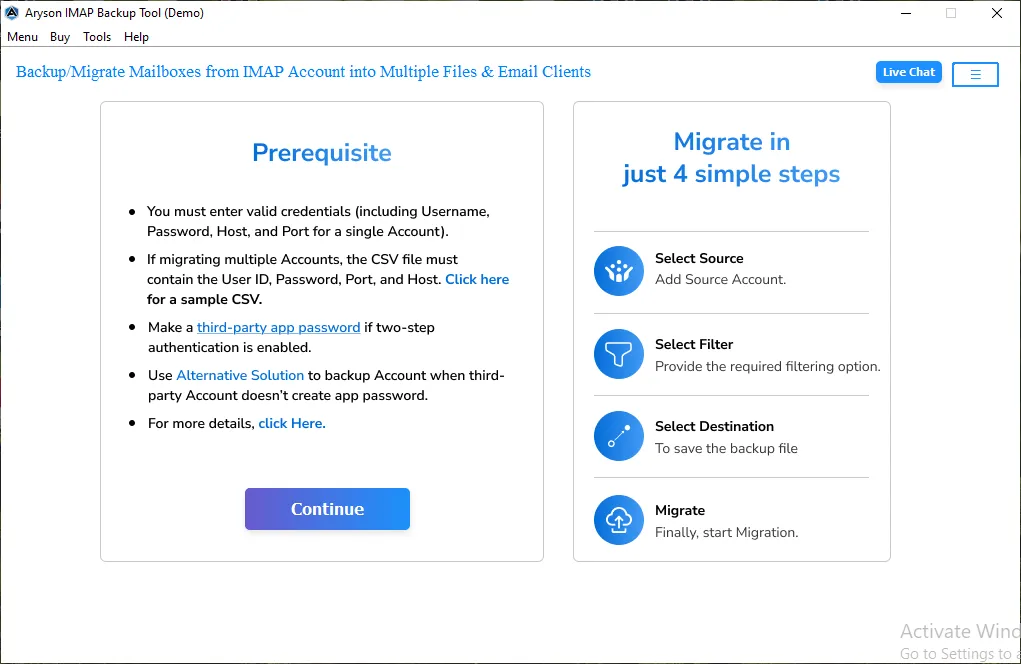
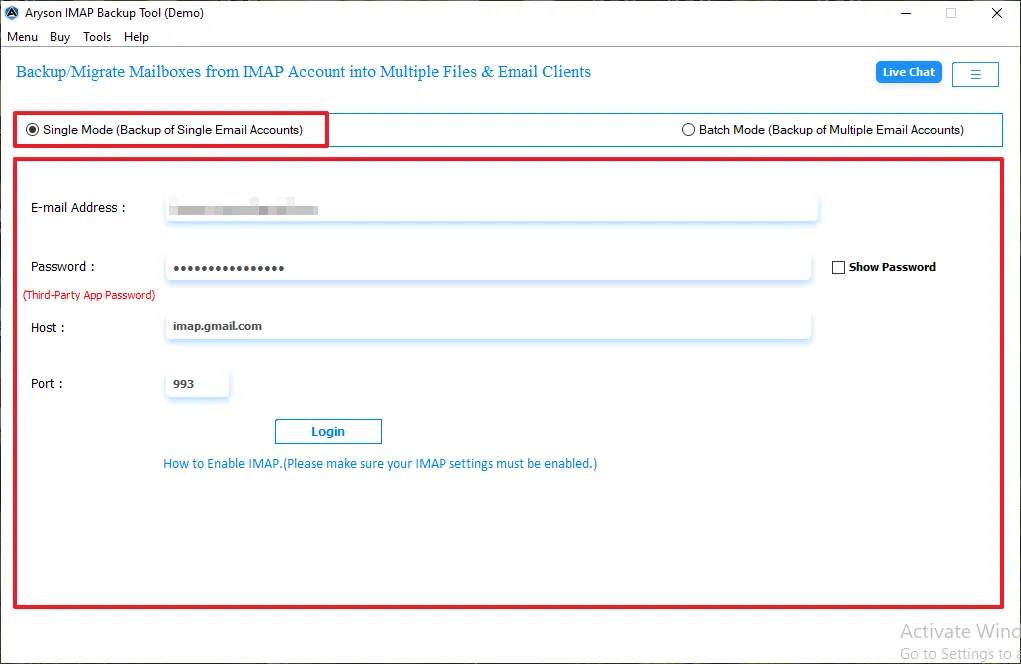
- Then, you need to provide the IMAP login details.
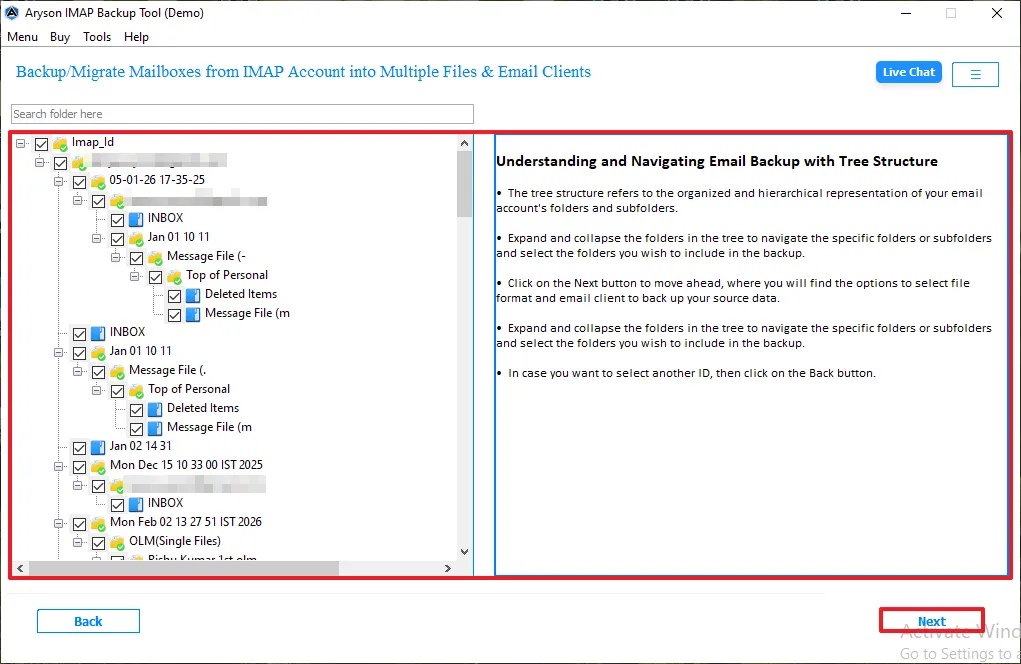
- After that, a preview panel opens where you can select the folder to migrate >> Next.
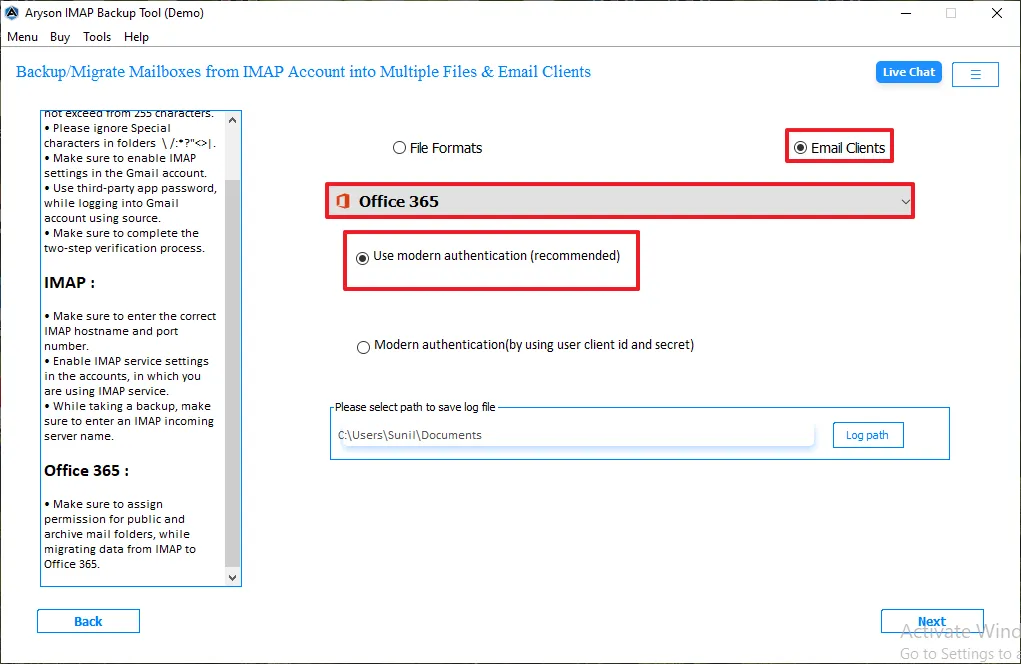
- Click on the email client, select Office 365, and enter credentials.
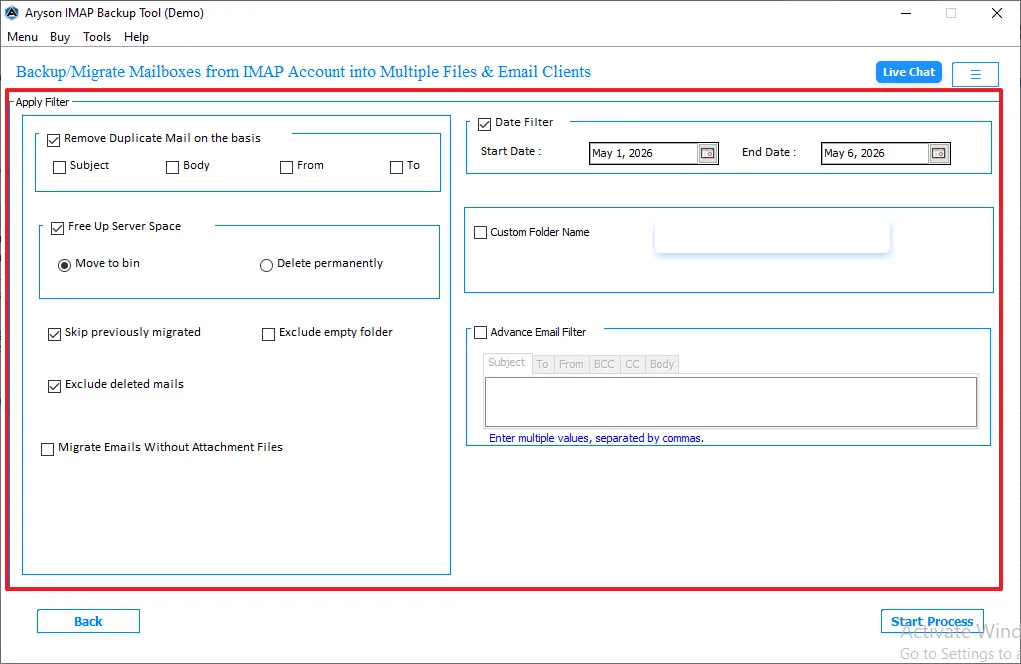
- Finally, apply the filters if needed for the selective data migration.
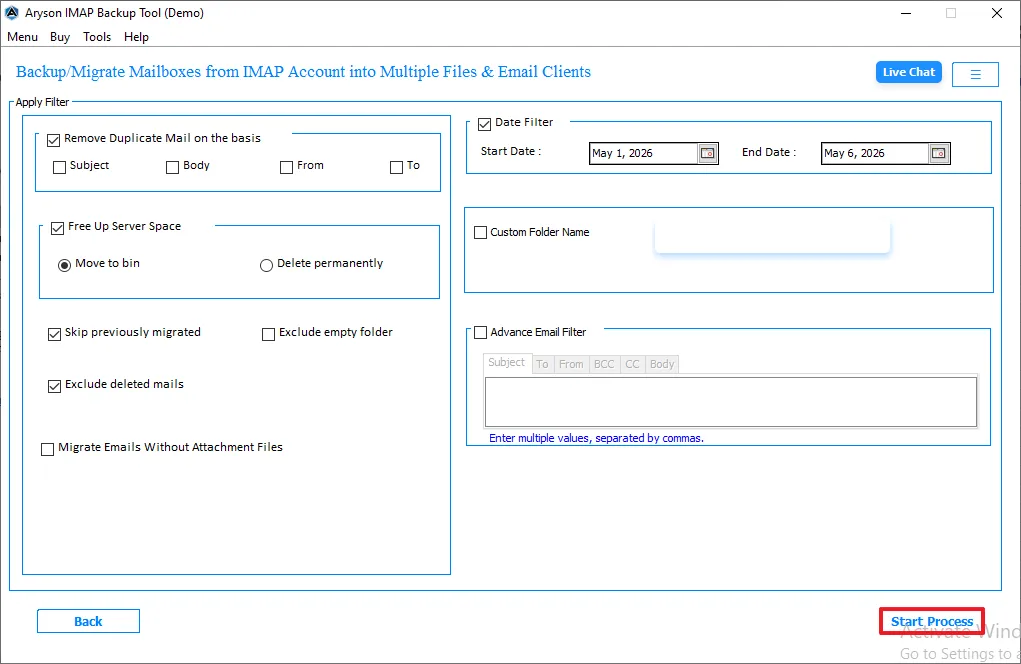
- In the end, click on Start Process to Import IMAP to Office 365.
Also Read: If you want to convert IMAP emails to Mac format, then read our detailed guide on Convert IMAP Emails to EML.
Comparison Table: Native vs Software-Based Method
|
Features |
Native Methods |
Software-Based Method |
|
Mailbox Migration |
Suitable for limited or moderate mailbox migration |
Supports bulk migration of multiple mailboxes |
|
User Interface |
Requires manual configuration steps |
Provide a simple and user-friendly interface |
|
Migration Speed |
Depends on manual processing and server response |
Offers faster and automated migration |
|
Large mailbox Support |
May take more time for large mailbox transfers |
Smoothly handles large mailbox data |
|
Selective Migration |
Limited Filtering options |
Advanced filters for selective email migration |
|
Technical Expertise |
Requires technical knowledge for setup and monitoring |
Suitable for both beginners and professional users |
Conclusion
To wrap up, we discussed all the aspects to migrate IMAP to Office 365 to accomplish the migration process. While the manual method is suited for small mailboxes, it has several limitations. Therefore, it is suggested to use a software-based approach for faster and bulk migration.
Frequently Asked Questions:
Q.1. How to migrate IMAP emails to Office 365 without duplicates?
Ans. Use the “Incremental Migration” feature in the Admin Center or a professional migration tool that performs a check to skip already migrated items.
Q.2. How to transfer IMAP emails to Office 365 with attachments?
Ans. Both the native tool and PST imports automatically include attachments, provided they are within the Microsoft 365 file size limits.
Q.3. How to transfer emails from IMAP to Office 365 for small business?
Ans. For small businesses, professional software is the best method. For teams with 5 or fewer users, a manual PST import/export is also viable.
Q.4. How to migrate IMAP emails to Office 365 without technical knowledge?
Ans. The easiest way is to use specialized software. This tool offers a GUI that automates the mapping of folders and the transfer of data with just a few clicks.
About The Author:

I’m Harshita Sachdeva, a technical content writer at MS Outlook Help with expertise in Microsoft Outlook, Exchange, IMAP/POP protocols, and Microsoft 365. I simplify complex concepts, like email migration, backup, and data recovery, into clear, actionable insights, delivering clarity, accuracy, and real value by minimizing technical complexities for users.

