

-
Written By Evren Cole
-
Updated on September 13th, 2025
How to Import OLM to IMAP Step by Step
User Query: “How can I import OLM to IMAP when I have a lot of files? I really need to move my emails from Outlook for Mac to an IMAP account like Gmail or Office 365 without losing data.”
Summary: When a user tries to manage emails from different platforms, it is very hectic in today’s digital world. Many users from Outlook start importing OLM to IMAP for better access, collaboration, and security. While manual steps are available, they can be time-consuming. To simplify the process with ease, use the MSOutlookHelp OLM File Converter as an easy way to transfer OLM files to IMAP without data loss. These processes are used for making the migration safer for both individuals and businesses.
Why do people transfer OLM Files to IMAP Servers?
There are many reasons to choose the migration from OLM to IMAP:
- Your emails become available on multiple devices anytime.
- Moreover, it ensures smoother collaboration, as team members can access the same mailbox in real time from different locations.
- IMAP can be used to allow multiple users to access shared mailboxes.
- In addition, IMAP reduces storage dependency on a single computer since data stays on the server.
- Modern IMAP protocols offer better security and encryption.
Method 1: Manual Migration to Import OLM Emails to IMAP
Manual migration is very easy and possible, but can be time-consuming and requires technical know-how.
Part 1: Configure Your IMAP Account in Outlook for Mac
- Firstly, open Outlook for Mac.
- Click Outlook in the top menu and select Preferences.
- Under Accounts, click the + icon to add a new account.
- Select the Email ID and password of your IMAP server.
- At last, activation of the account is completed.
Part 2: Migrate OLM data into IMAP folders
- Firstly, open the mailbox that contains your OLM data in Outlook.
- Browse and select the files you want to move.
- Similarly, drag the selected files into the folders in your IMAP account.
- Repeat the process and selection.
- Lastly, drag-and-drop for every folder you need to migrate.
Part 3: Synchronization & verification
- Let Outlook sync: the client will upload the moved items to the IMAP server.
- Then, check your IMAP account to confirm the OLM to IMAP Migration.
Downsides of the Manual Method
- Time-consuming: Large amounts of data can take many hours to move.
- No automation: You must monitor the whole process manually.
- Limited filtering: Manual moves rarely let you migrate only selected date ranges or message types.
- Poor error handling: Troubleshooting missed items or sync errors is manual and tricky.
Method 2: Using an Automated Tool to Import OLM to IMAP
MSOutlookHelp OLM File Converter is an advanced tool for simplifying OLM file transfer. It also allow users to export emails and their data without loss. This software supports almost every file format, and users can also directly import OLM to Thunderbird, and more. It has no file size limits, making it a safe migration option for both personal and professional use.
Easy steps to Import OLM to IMAP:
- Firstly, download the MSOutlookHelp OLM File Converter on your PC.
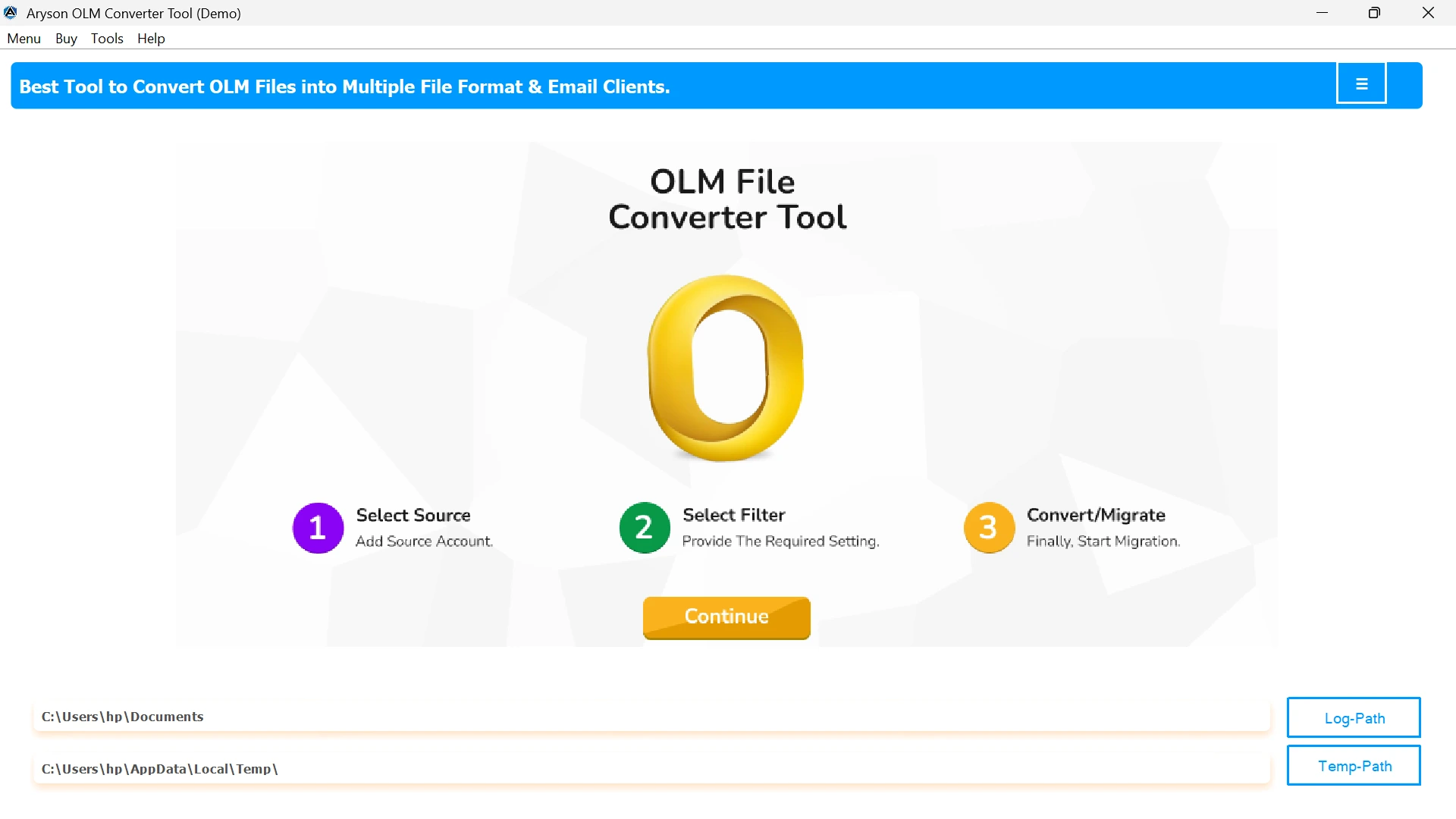
- Browse and select the OLM files from the PC.

- Select and preview the migrated files before migration.

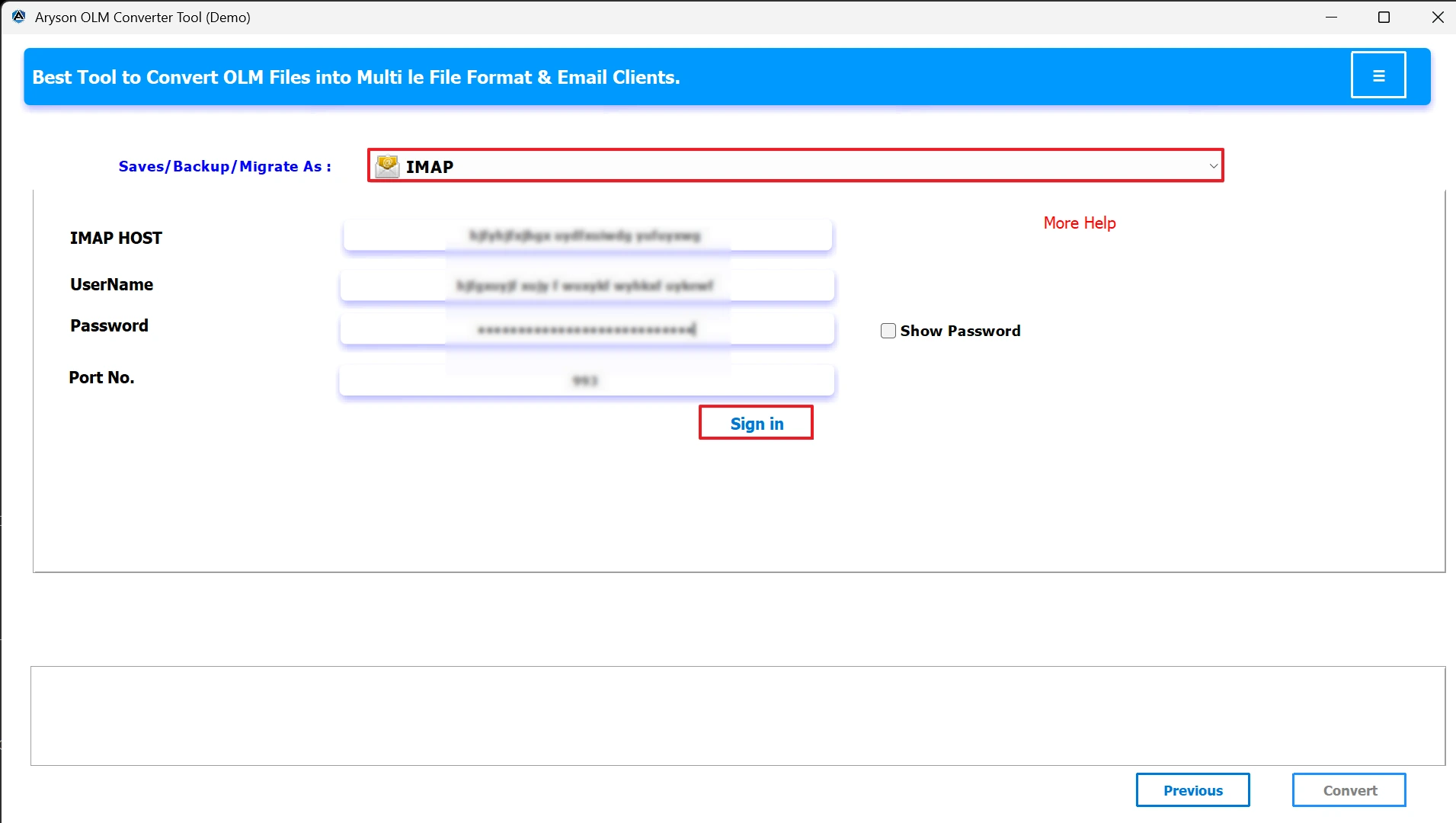
- From the Email client, select IMAP from the dropdown menu.

- Select your IMAP server and enter the login credentials.
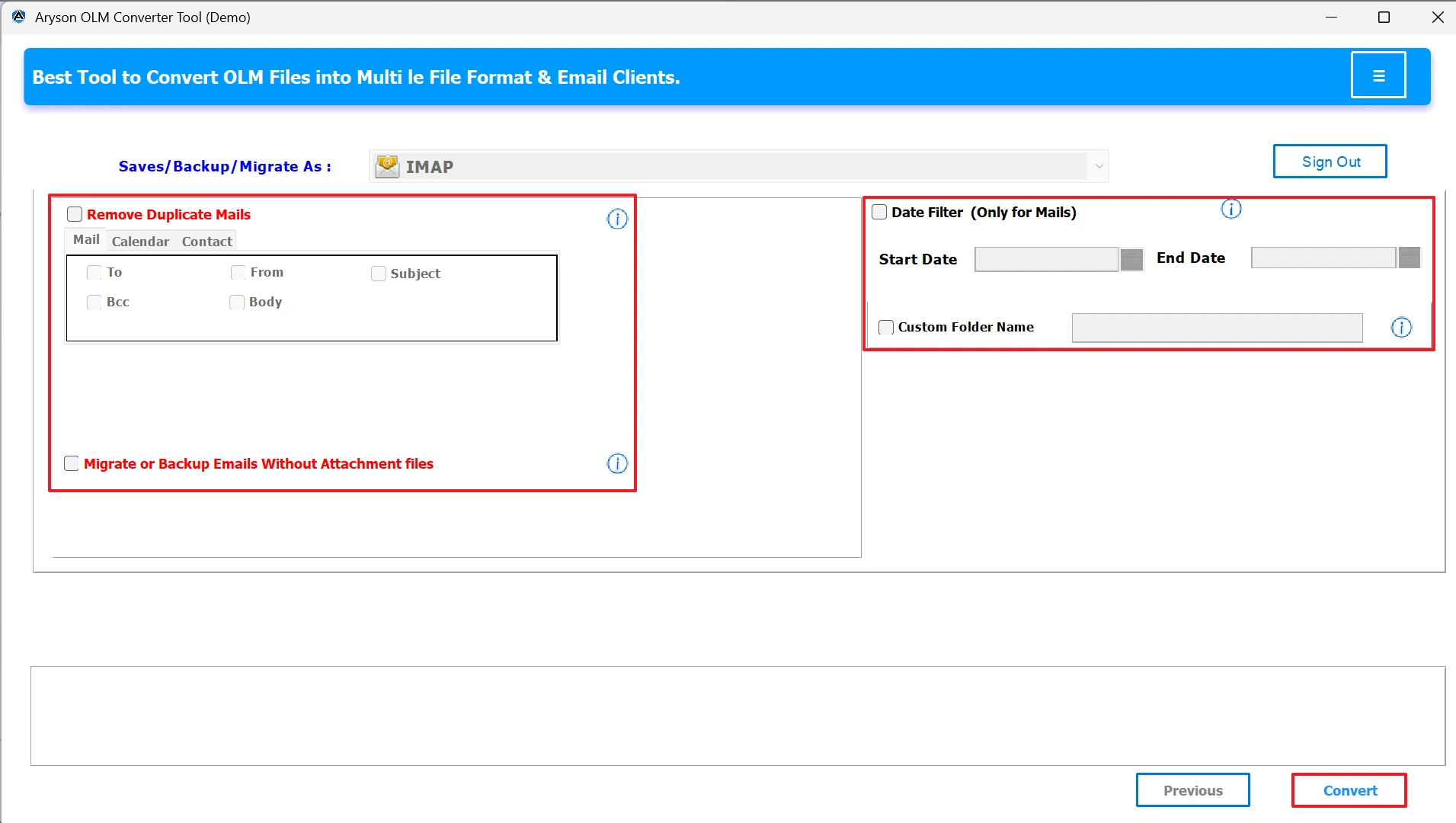
- Lastly, pick any optional features and hit Convert to start the migration process.
Conclusion
When users migrate OLM to IMAP, it’s not just about changing email formats. It is all about creating a more flexible, accessible, and secure communication environment. You opt for the manual approach or a professional tool; the key is to choose a method that matches your volume and expertise. Do the conversion for easier access and better collaboration with your emails.
Frequently Asked Questions:
Q.1 What IMAP servers support importing emails from OLM?
Ans. Almost all standard IMAP servers (like Gmail, Yahoo, Outlook.com, and Office 365) support this process. As long as the account provides IMAP access, you can move your OLM emails into it.
Q.2 How do I import OLM emails into an IMAP account in Outlook for Mac?
Ans. You can import OLM emails into an IMAP account in Outlook for Mac by downloading the MSOutlookHelp OLM File Converter for Mac. Follow the steps given in the blog.
Q.3 Can I directly import an OLM file into an IMAP server?
Ans. Follow the steps to directly import an OLM file into an IMAP server:
1. Firstly, download the MSOutlookHelp OLM File Converter on your PC.
2. Browse and select the OLM files from the PC.
3. Select and preview the migrated files before migration.
4. After that, from the Email client, select IMAP from the dropdown menu.
5. Select your IMAP server and enter the login credentials.
6. Lastly, pick any optional features and hit Convert to start the migration process.
About The Author:

Evren Cole is an expert in Email and Data Management. She has a strong passion for technology and entrepreneurship. In her free time, she enjoys football, music, and reading books.

