

-
Written By Evren Cole
-
Updated on September 23rd, 2025
Import OLM to iCloud Mail: Quick Guide
User Query: I recently moved to iCloud Mail from Outlook for Mac. My contacts and emails are all saved in OLM files. How can I import all of this info into iCloud Mail without losing anything?
Summary: To import OLM to iCloud safely, users need a method that keeps emails, contacts, and calendars intact. iCloud is preferred by many users because it can sync data across many Mac devices and offers secure cloud storage. Moving OLM files can make everything accessible from one place without risk of data loss. MSOutlookHelp OLM Converter Tool is the ideal solution, as it offers fast migration and preserves folder structure. Additionally, it can be used for bulk transfer and is reliable for both personal and business needs.
Understanding the Need to Import OLM Files into iCloud Mail
In the following, there are some advantages of importing OLM files to iCloud:
- Every email and its content can be accessible from a single location.
- iCloud instantly synchronizes your data across all Apple devices.
- Importing the content can guarantee the secure storage of your Outlook data on iCloud servers.
- You don’t lose any data while switching from Outlook for Mac to iCloud.
- To handle all imported data, iCloud Mail offers a straightforward interface.
Methods to Import OLM to iCloud Mail
There are mainly two ways to import OLM files to iCloud Mail: the manual method and the professional tool method. The manual method works for smaller mailboxes, but it is slow and prone to errors. Large data migrations can be completed quickly and reliably with the help of the automated solution.
Method 1: Manual Method to Import OLM to iCloud
The manual method can export data from Outlook for Mac and import it into iCloud. Although this process is free, it comes with limitations for large transfers.
Stage 1: Export Outlook OLM File on Mac
- First, open Outlook for Mac on your computer.
- Next, choose the folder that contains the data you want to move.
- After that, drag and drop them onto your desktop, they will save as MBOX files.
- Then, place all the .mbox files together in one folder for easy access.
- Finally, close Outlook after the completion of the export process.
Stage 2: Import MBOX Files into Apple Mail
- First, open Apple Mail on your Mac.
- Next, navigate to the File menu for Importing Mailboxes.
- After that, choose the MBOX file format from the Import wizard.
- Then, browse and select the files that are stored.
- Finally, press Continue to Transfer OLM to iCloud Mail.
Limitations of the Manual Method:
- It can be time-consuming when it comes to big mailboxes.
- The high risk of missing emails or data.
- Need some technical guidance for the manual method.
Method 2: Using the MSOutlookHelp OLM Converter Tool
The MSOutlookHelp OLM Converter Tool is one of the fastest recommendations to move Outlook for Mac data into iCloud Mail. This tool can offer a direct and secure migration without any errors. It can easily support emails and attachments with the original folder hierarchy intact. Users can have a single OLM file or a bulk of them. This software can be used for smooth transfers with no data loss. Like iCloud, you can also directly import OLM to AOL and other email clients.
Given below are the Instructions to import OLM to iCloud
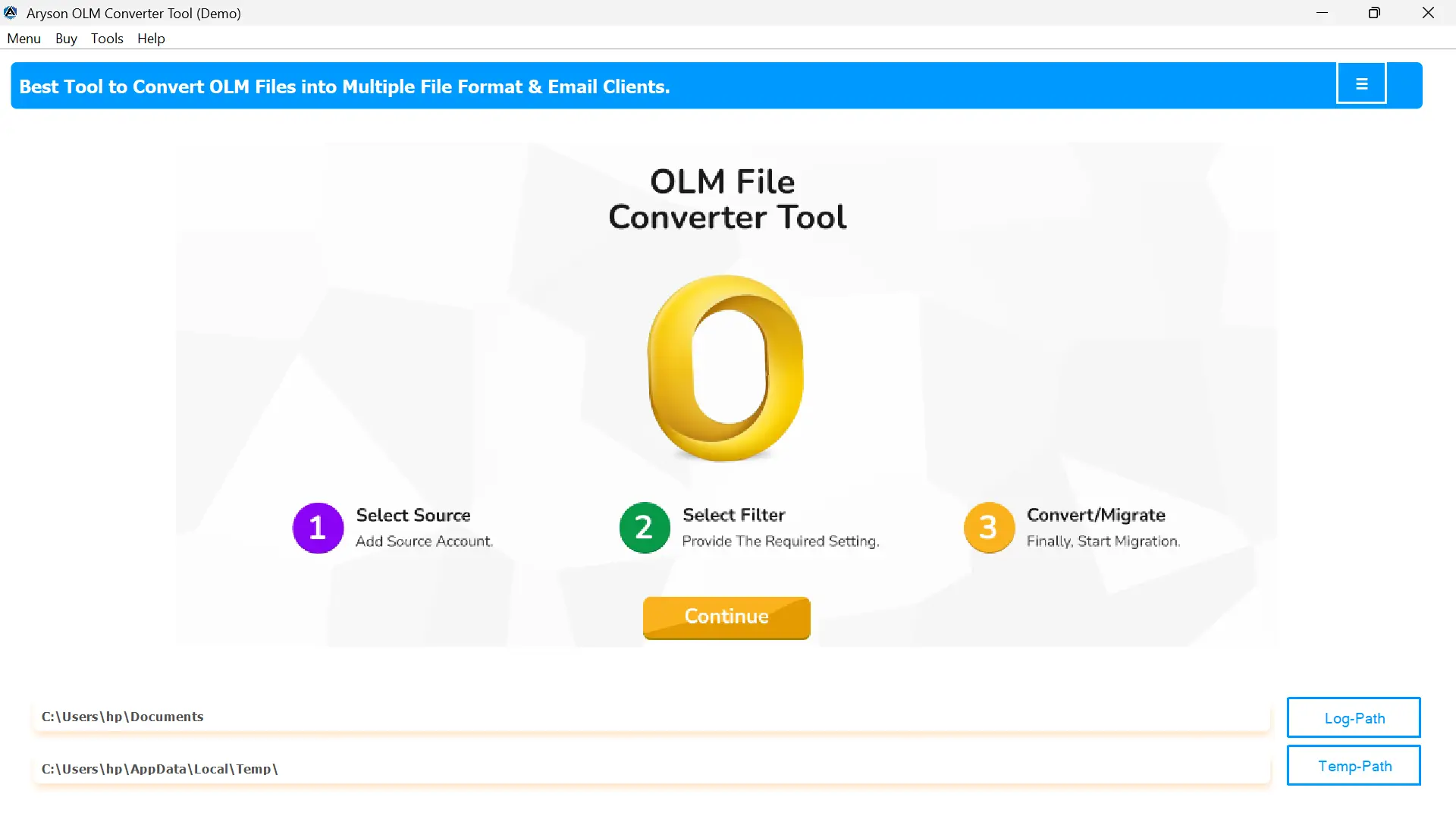
- First, download the MSOutlookHelp OLM Converter Tool on your device.
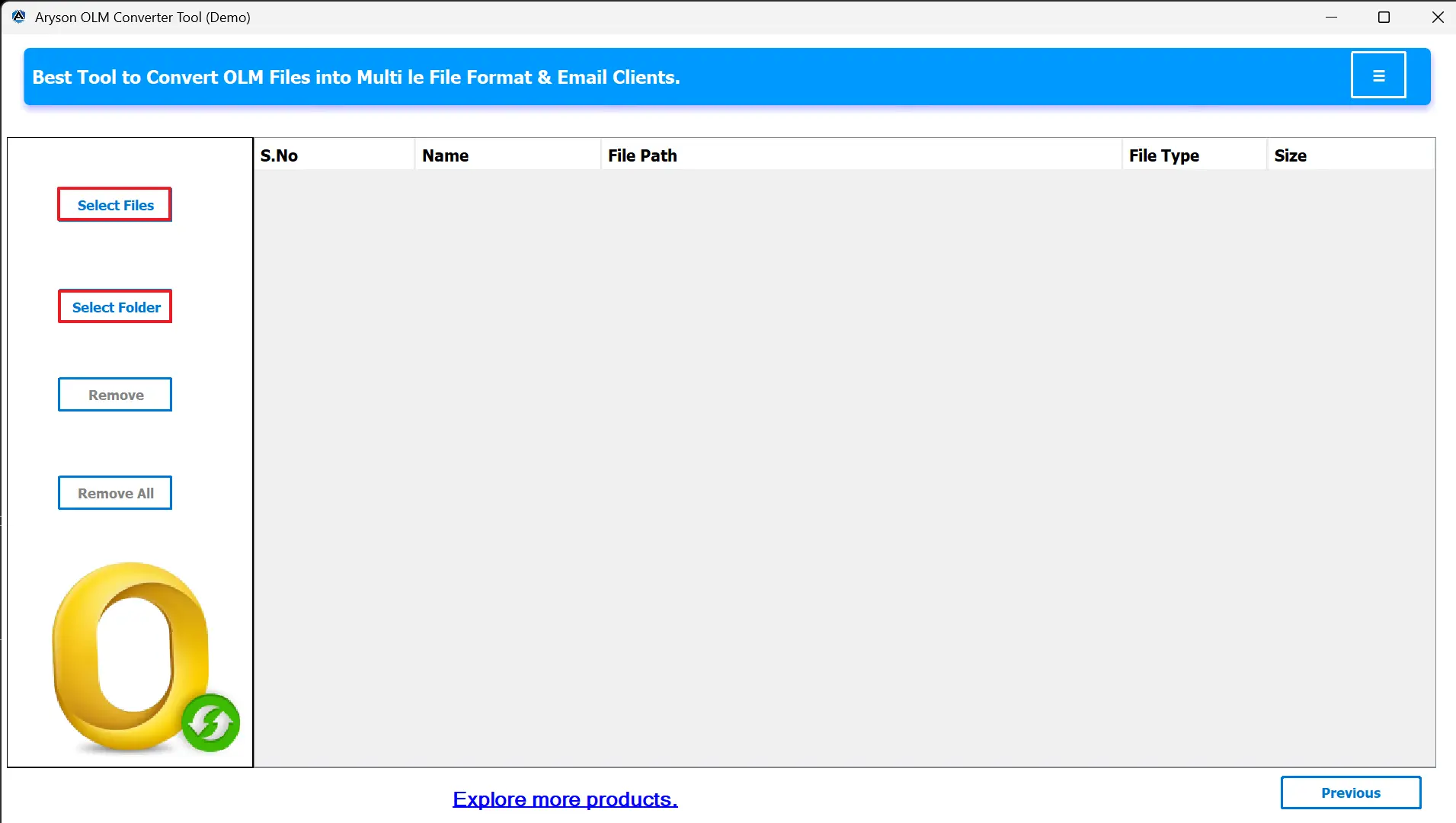
- After that, click on Select File/Select folder to select the files.
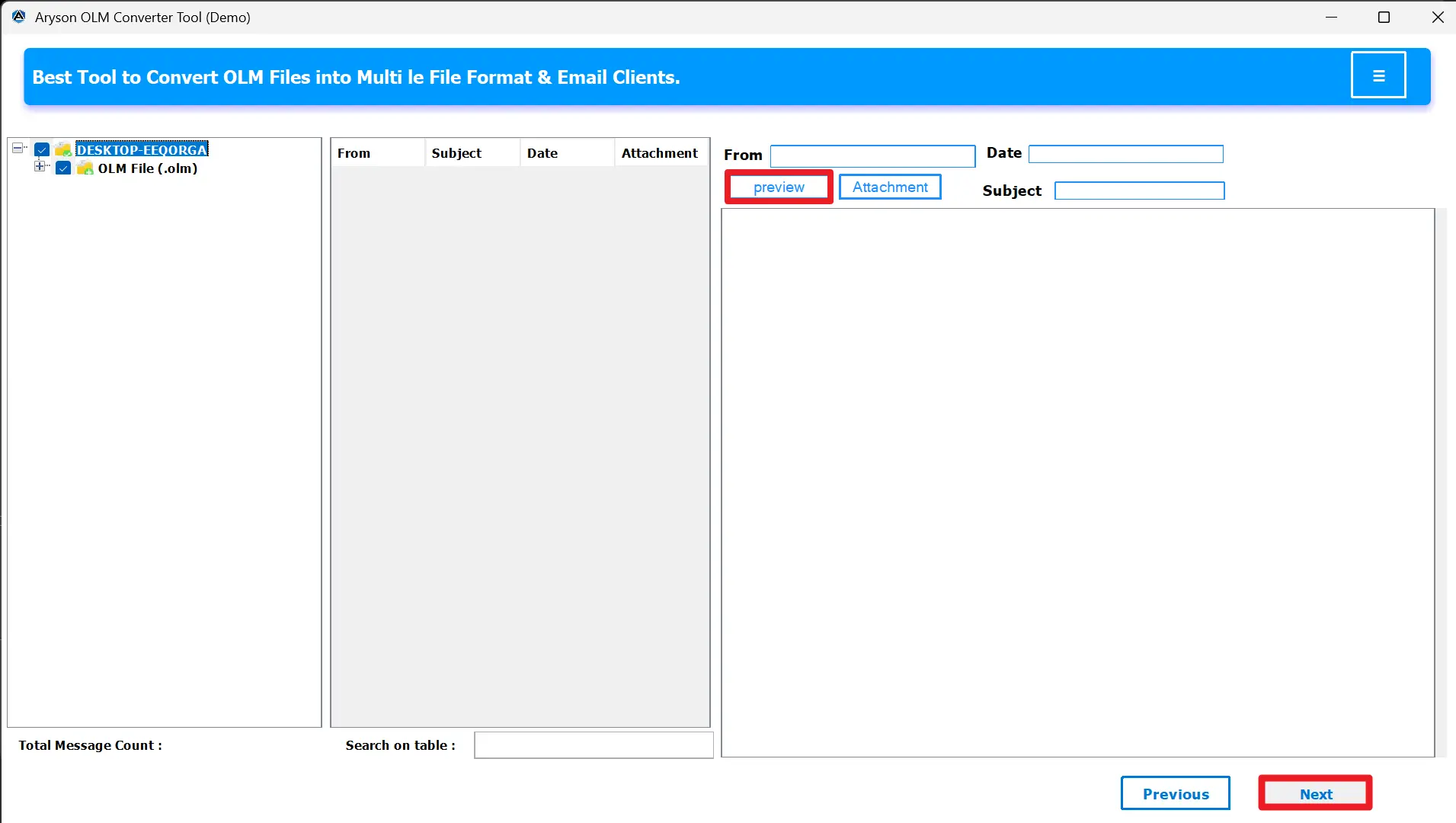
- You can select and preview the selected file before importing.
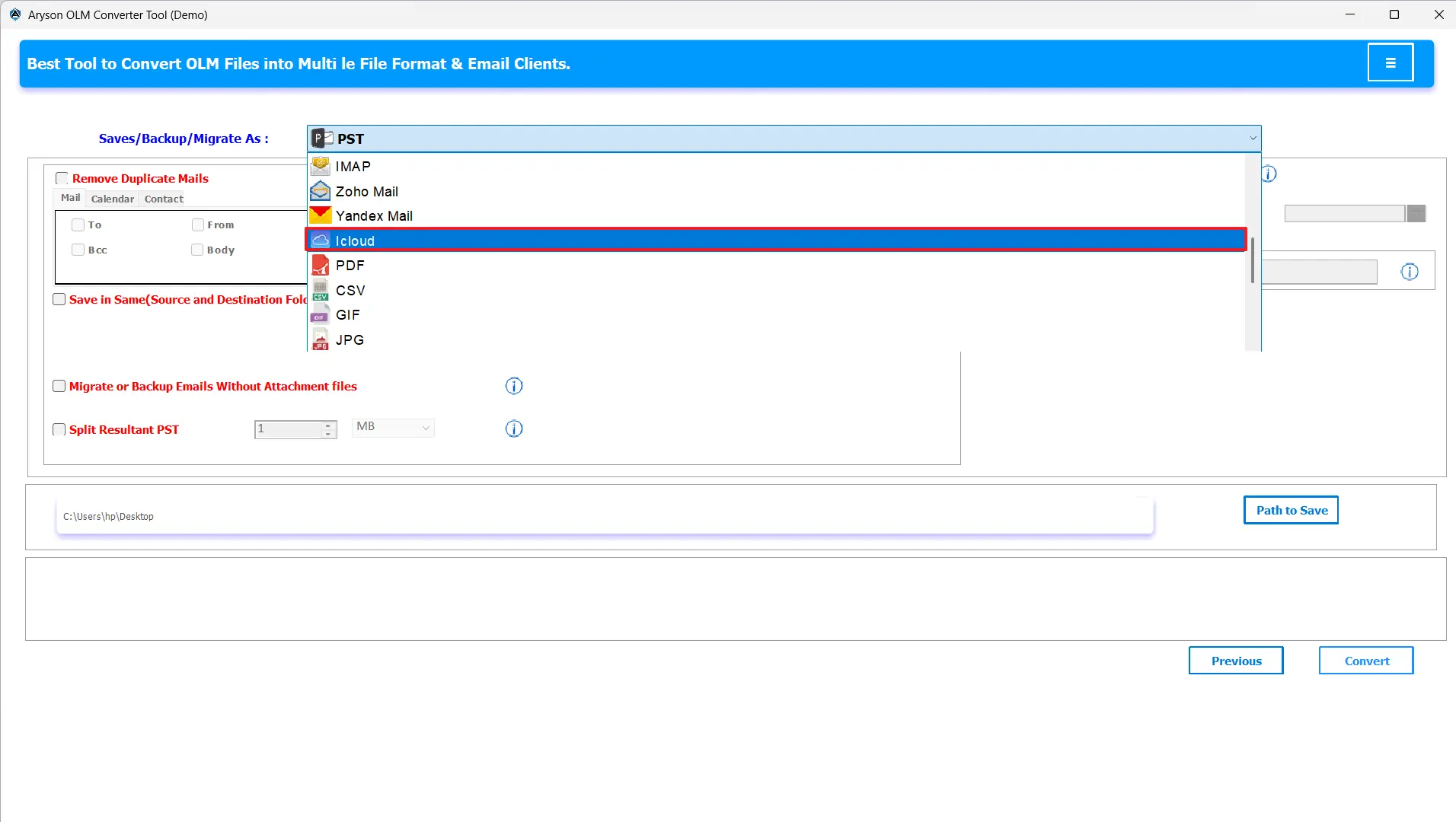
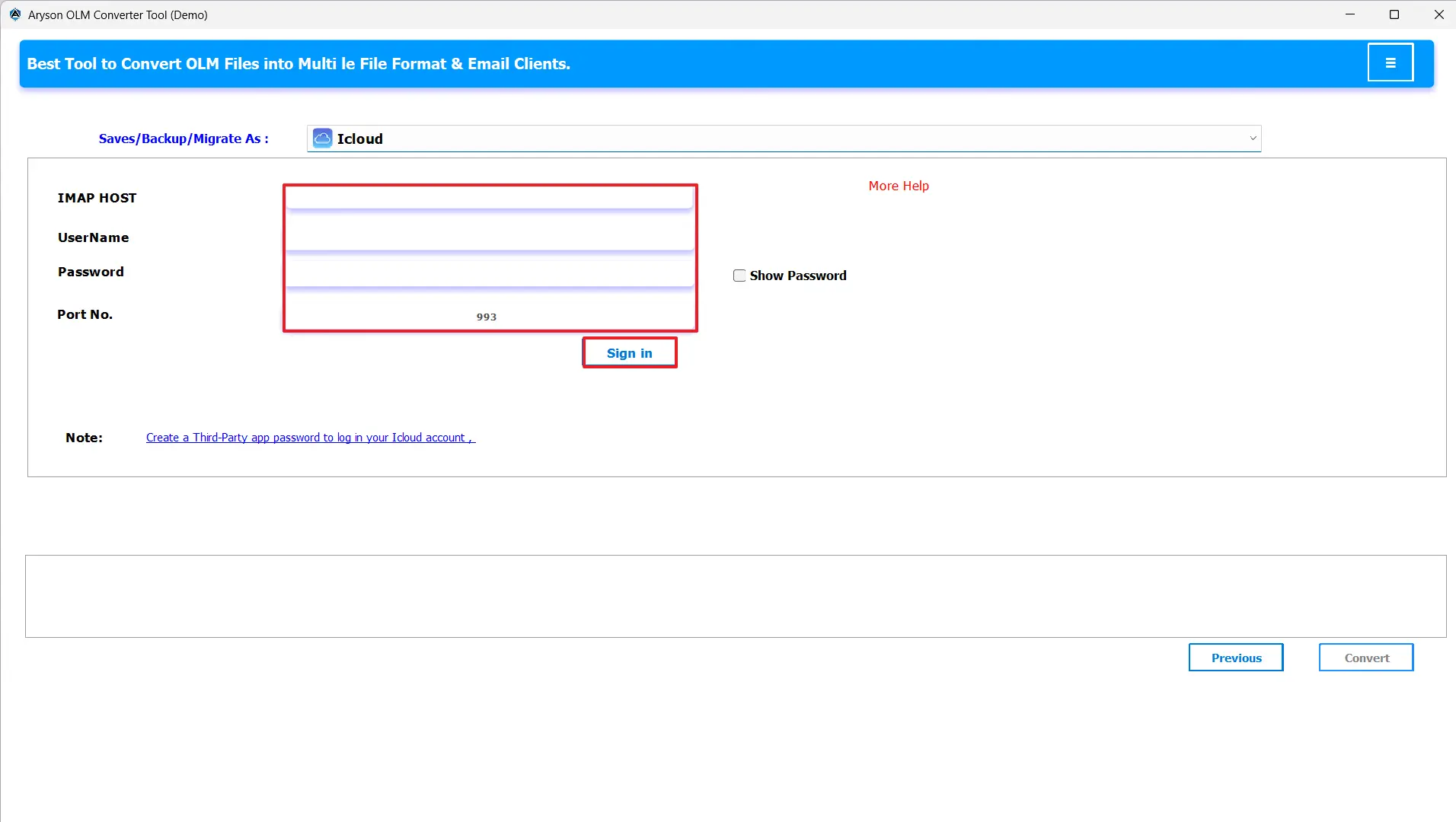
- Then, from the drop-down options, select iCloud as the email client.
- Simply sign in with your iCloud credentials correctly.
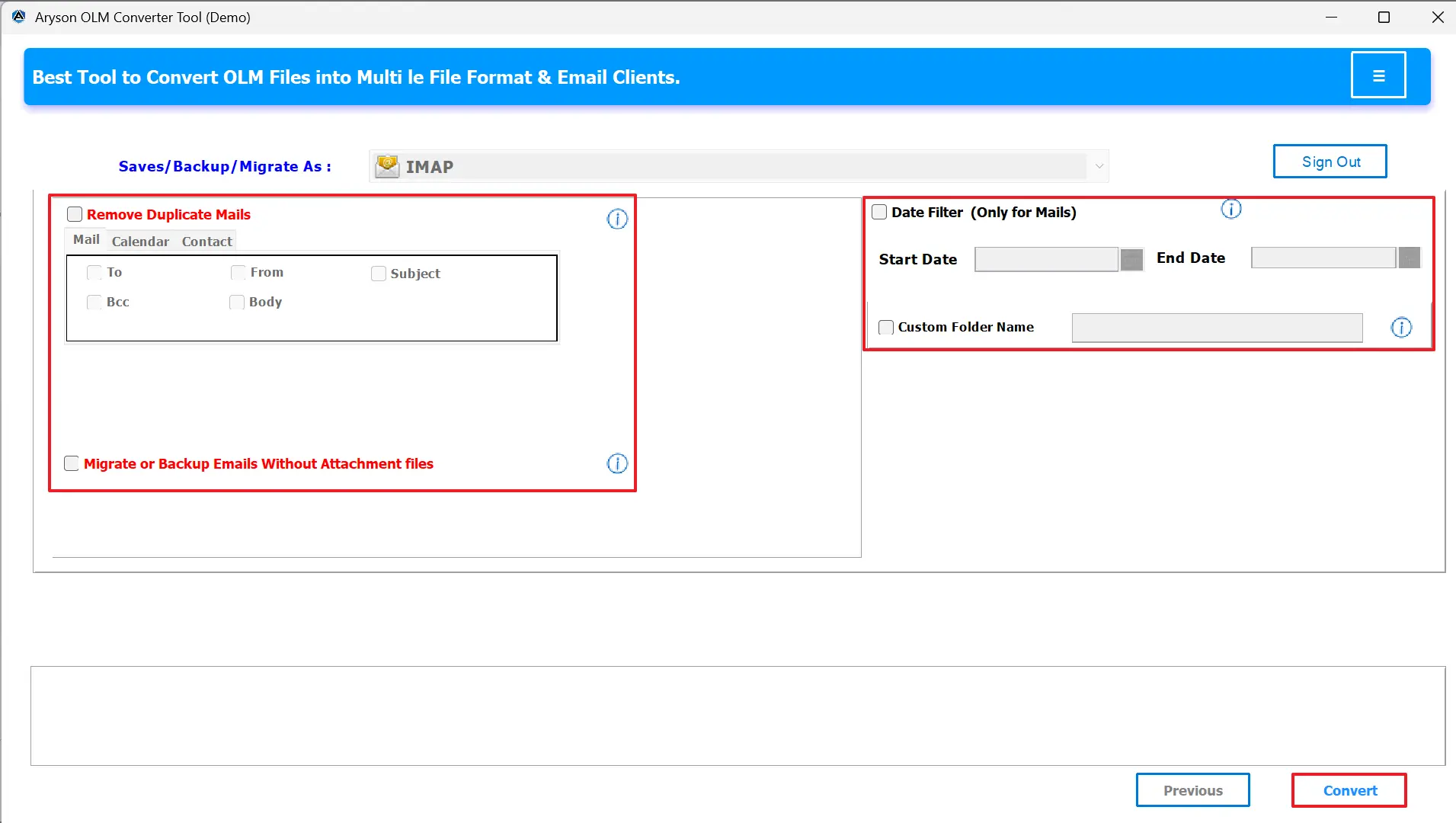
- Apply any advanced filters and click on convert to OLM to iCloud.
Final Thoughts
In this blog, we have discussed about importing your mailbox from Outlook for Mac to iCloud Mail. That makes it a secure, organized, and accessible communication across all Apple devices. While the abovementioned manual method works with small data, it is time-consuming and prone to errors. Using the MSOutlookHelp OLM Converter Tool simplifies the process, preserving folder structure, attachments, contacts, and calendars with bulk migration, zero data loss, and minimal downtime.
Frequently Asked Questions:
Q.1 How do I import Contacts from OLM to iCloud?
Ans. Yes, using the MSOutlookHelp OLM Converter Tool, you can migrate contacts directly without manual steps:
1. Firstly, download the MSOutlookHelp OLM File Converter on your PC.
2. Browse and select the OLM files from the PC.
3. Select and preview the migrated files before migration.
4. From the Email client, select IMAP from the dropdown menu.
5. Select your IMAP server and enter the login credentials.
6. Pick any optional features and hit Convert to start the migration process.
Q.2 Can I import Outlook calendar events from OLM into iCloud?
Ans. Yes, the MSOutlookHelp OLM Converter Tool also transfers calendar events automatically while keeping all details intact.
Q.3 Is it possible to sync OLM emails with iCloud on Windows?
Ans. Yes, it is possible to sync OLM emails with iCloud on Windows directly using the MSOutlookHelp OLM converter tool.
About The Author:

Evren Cole is an expert in Email and Data Management. She has a strong passion for technology and entrepreneurship. In her free time, she enjoys football, music, and reading books.

