

-
Written By Evren Cole
-
Updated on August 13th, 2025
Quick Guide: Import MBOX to Yandex Webmail
Summary: If you’ve ever used email apps like Thunderbird or Apple Mail, chances are you’ve got a bunch of emails saved in MBOX files somewhere. Now, if we import MBOX to Yandex Webmail, moving over to Yandex Mail, here’s the complex part: Yandex Webmail doesn’t let you just drag and drop an MBOX file. It’s not that simple, but don’t worry, there are ways around it. That’s why importing MBOX into Yandex needs the right approach. This guide will walk you through practical ways to get your emails where you will be using the MSOutlookHelp MBOX Converter Tool, without losing data.
Why Transfer MBOX to Yandex Webmail?
- Yandex Webmail lets you open your emails from any device with internet access, without depending on local software.
- Keep all your old MBOX emails neatly arranged with Yandex’s folder and label features.
- Yandex offers security for login and spam filtering to protect your imported messages.
- Use your imported emails alongside new ones without switching between different apps.
- If your old email client stops working, you’ll still have all your messages safe in Yandex.
- Works on Windows, Mac, Linux, and mobile browsers without special settings.
- There are no extra software costs if you already have a Yandex account.
Method 1: Import MBOX Files to Yandex Webmail Using an Email Client
Yandex doesn’t let you import MBOX files directly. You can make use of a free email client, such as Mozilla Thunderbird, to assist with the process. Thunderbird is a middleman that can open your MBOX files and import them to Yandex Webmail.
Make sure you have all the following ready:
- Firstly, Mozilla Thunderbird should be installed on your computer.
- Turn on IMAP and set up your Yandex Mail account.
- Similarly, check the MBOX files that need to be imported.
Here’s what to do for MBOX Import to Yandex Mail:
- Firstly, go to your Yandex Mail settings and turn on IMAP.
- Add your Yandex account to Thunderbird using the IMAP settings.
- Similarly, install the ImportExportTools NG add-on in Thunderbird.
- Use it to import the MBOX file into Local Folders in Thunderbird.
- When the import process is completed.
- Simply drag and drop the required emails or folders from Local Folders into your Yandex account.
- Lastly, let Thunderbird complete the migration process.
Limitations for the basic method:
- It is too slow for importing when the data is too big.
- The user should have the credentials for the Yandex account.
- Users have to manually transfer every file one by one.
- If any step is missed, there is a chance of data loss.
Method 2: Use an Automated Solution to Import MBOX to Yandex Webmail
MSOutlookHelp MBOX Converter is easy-to-use software designed to help users move files and documents from the mbox to other email clients like Yandex. The tool offers many advanced filters, like selection of files by type or date, preview of the filter, and support for both personal and business use. You need to migrate data between tenants, back up files locally, or switch cloud storage services; it provides a safe and efficient solution.
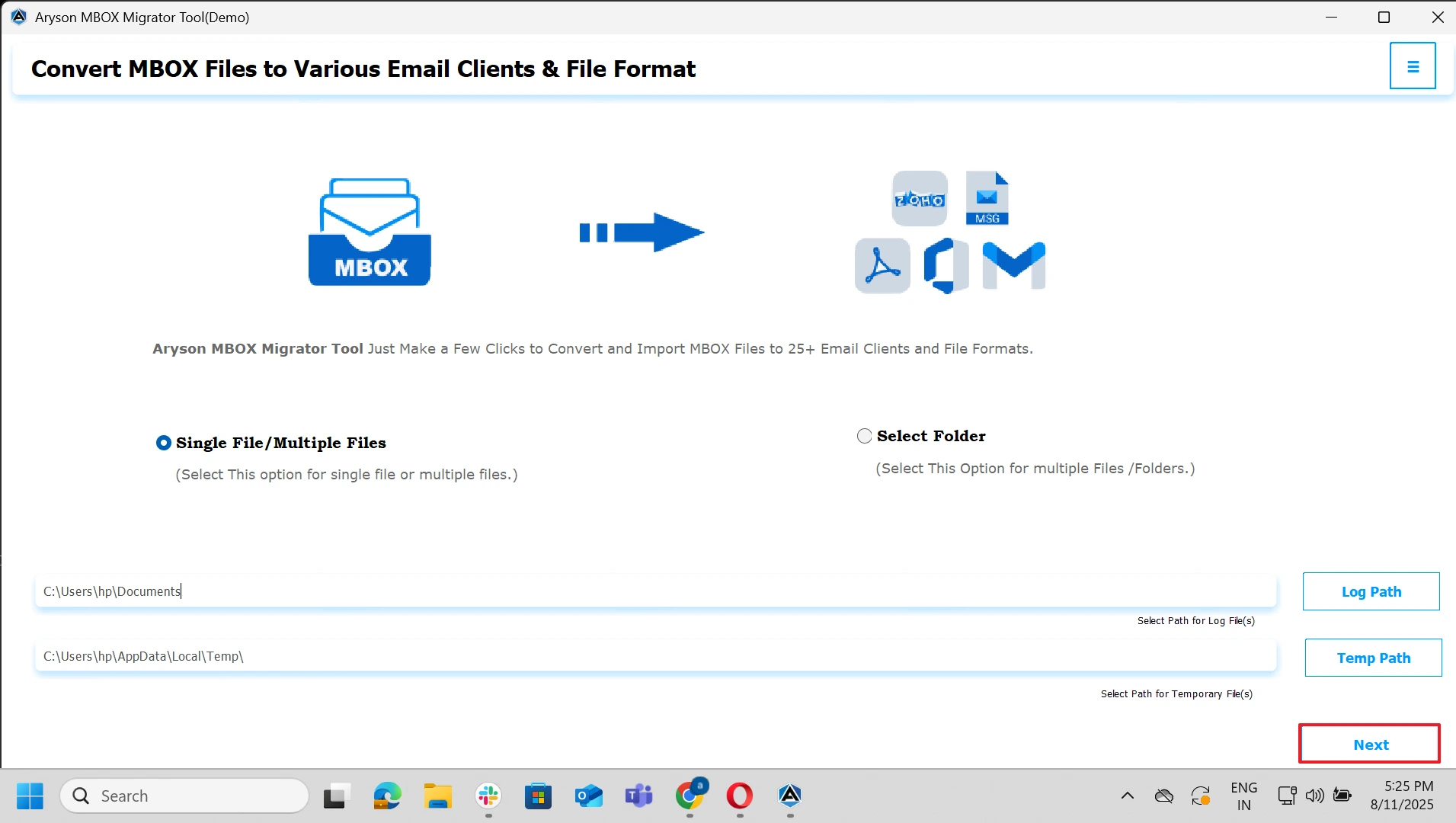
- Firstly, install the MSOutlookHelp MBOX Migrator tool and click on Next.
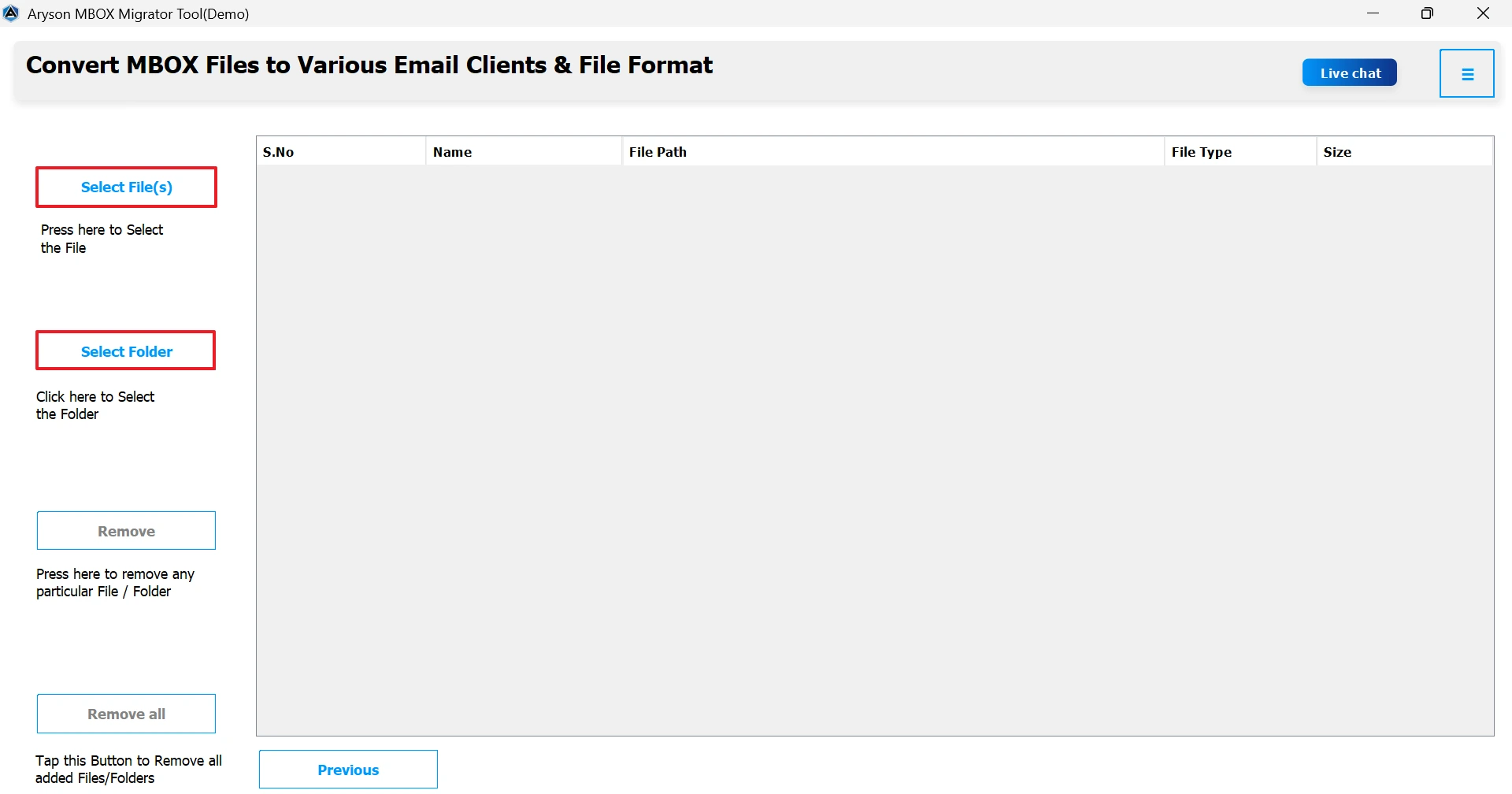
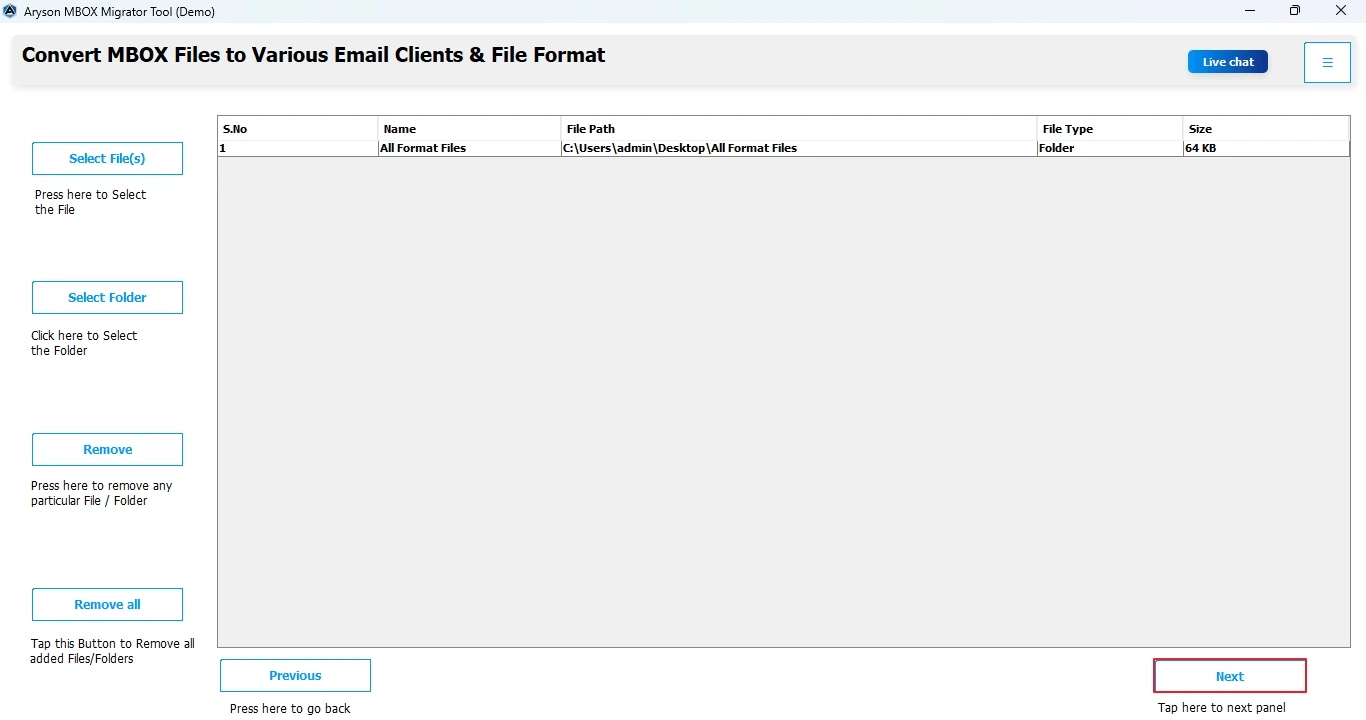
- Select the MBOX by clicking on the select files or folders you want to import.
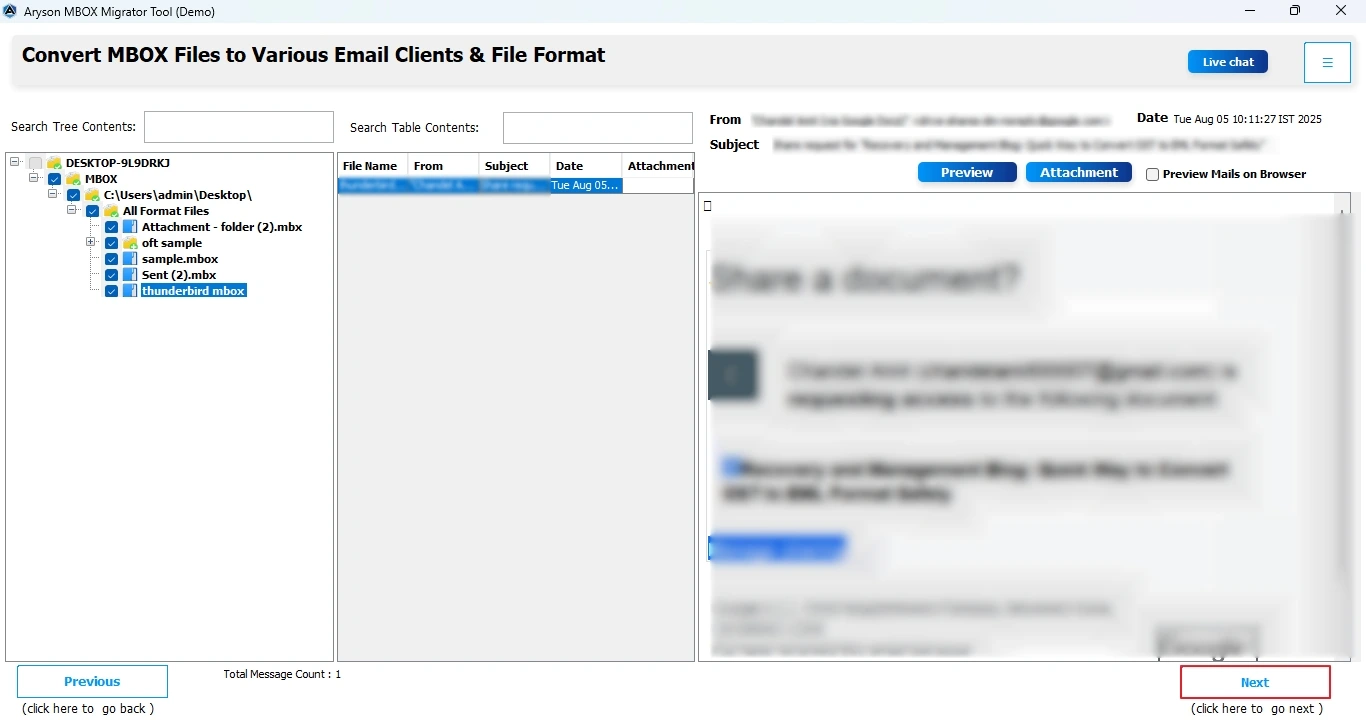
- After you have imported your file, click on Next.
- You can always preview the imported file’s content before migration.
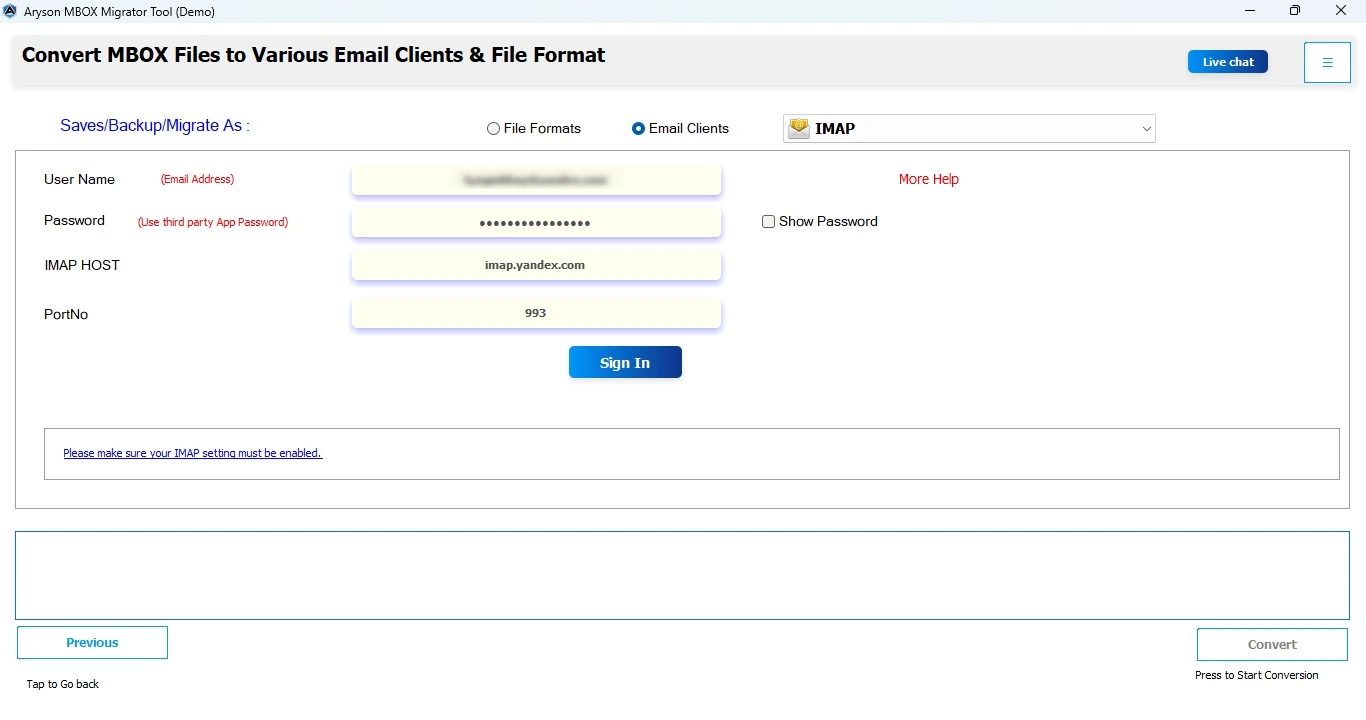
- Select the IMAP from the drop-down menu.
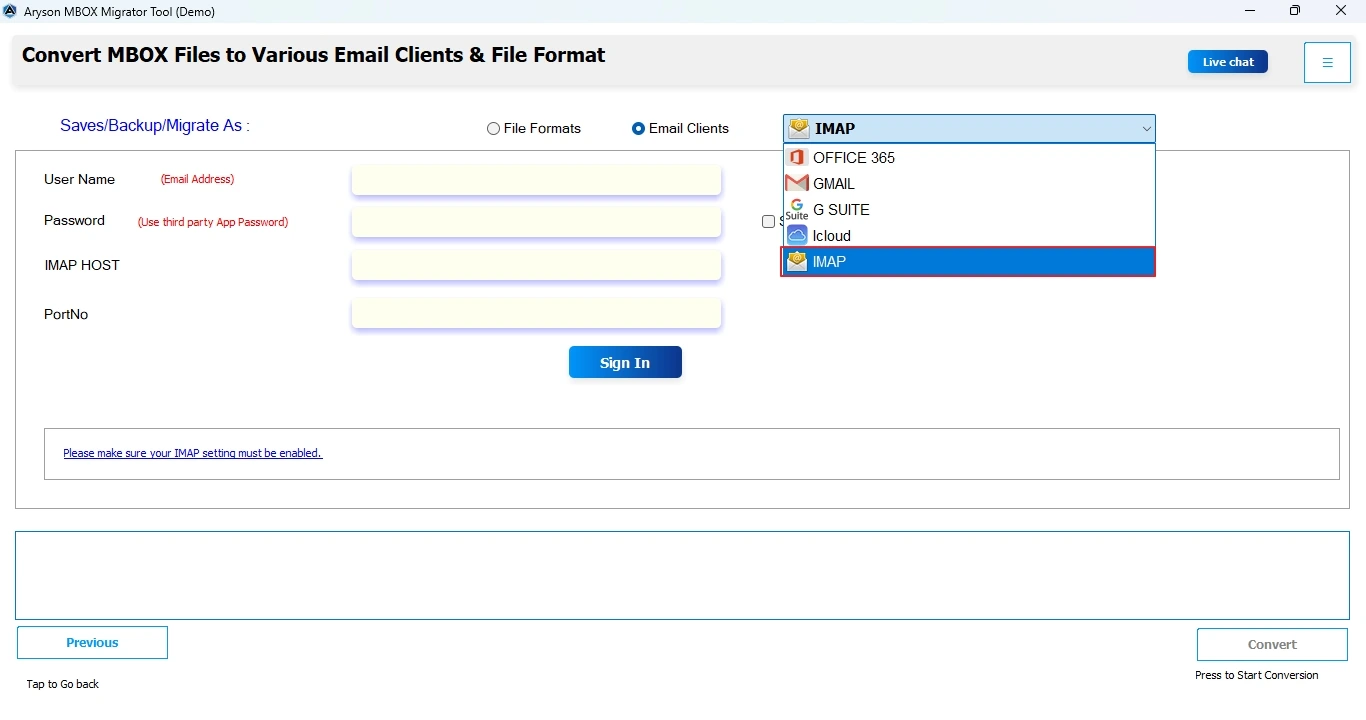
- Type in your Yandex account login details and select Sign In to proceed.
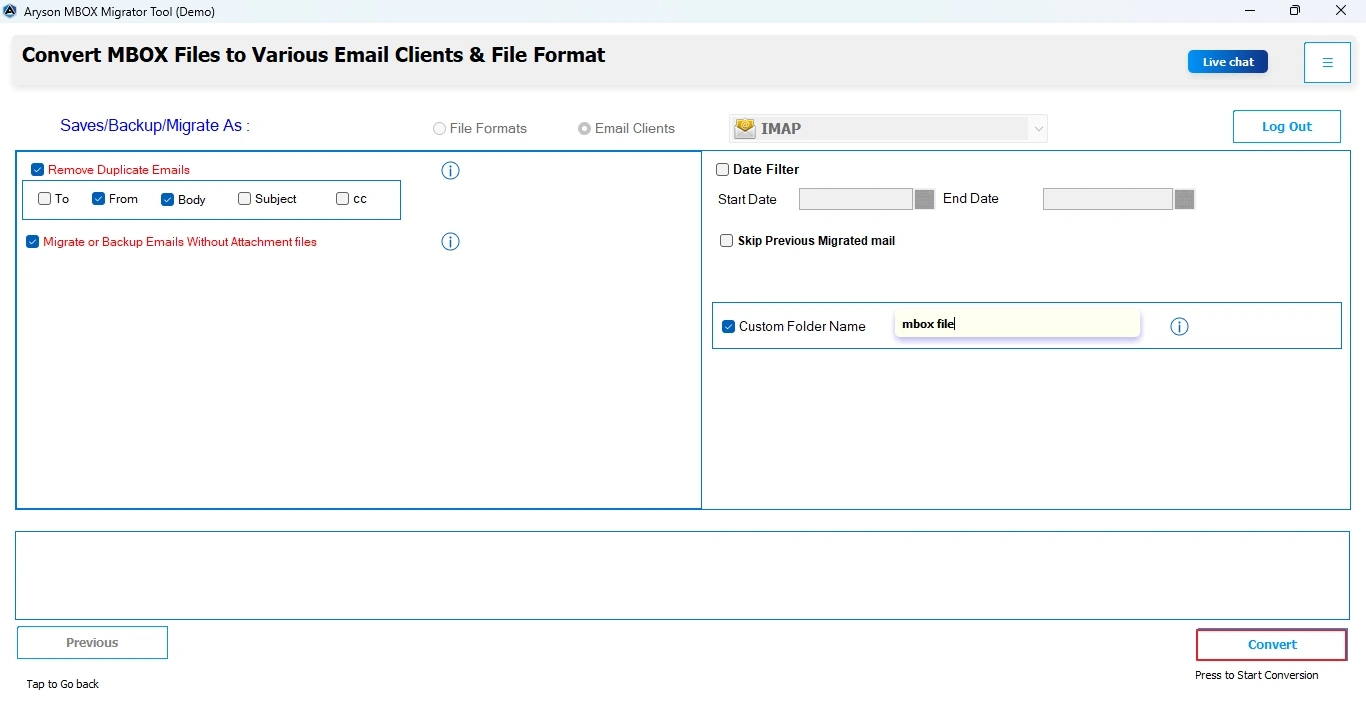
- Lastly, you can apply advanced filters, like which folders to migrate, date filters, or attachment handling, and click on convert.
Tips for a Smooth Import
- Check that IMAP is enabled in Yandex settings before you start.
- You can also export Yandex Emails to PDF and other file formats by this tool.
- Avoid importing giant files all at once; break them up if possible.
- Use app passwords with Yandex if regular login doesn’t work.
Wrapping It Up
The process to import MBOX to Yandex Webmail can be both straightforward and complex, depending on the size and structure of your mailbox. For just a handful of messages, use the above-given suggested manual method, which is a free and practical option. However, when you are handling a very large email archive or need a quick, error-free transfer, an automated utility can make the task easy and time-efficient.
Frequently Asked Questions:
Q.1 Can I import an MBOX file directly into Yandex Webmail?
Ans. No, Yandex does not have a direct MBOX import feature. You’ll need to use an email client or a third-party tool.
Q.2 Will my folder structure be preserved when importing MBOX to Yandex?
Ans. Yes, if you use a reliable migration tool, folder hierarchy and email formatting will remain intact.
Q.3 Can I transfer multiple MBOX files at once to Yandex Webmail?
Ans. Yes, with an advanced migration tool, you can import multiple MBOX files in bulk without losing data.
About The Author:

Evren Cole is an expert in Email and Data Management. She has a strong passion for technology and entrepreneurship. In her free time, she enjoys football, music, and reading books.

