

-
Written By Evren Cole
-
Updated on December 4th, 2025
Import ICS to Google Calendar: Quick How-To Guide
Summary: Many people now prefer Google Calendar because it is easy to use on any device. But when you download an event as an ICS file in Windows, it usually opens in Outlook automatically. This becomes a problem if you only want to use Google Calendar. The good thing is you can easily import ICS to Google Calendar. You can do this using built-in Google options or the MSOutlookHelp ICS Converter Tool. In this guide, you will learn quick and easy ways to open and import ICS files into Google Calendar in a hassle-free manner.
Understand the User’s Need to Import ICS file into Google Calendar
Generally, the user is stuck between the ICS Calendar and the Google Calendar. The given pointers will be quite helpful to decide. Here are common reasons that indicate user to open ICS file in Google Calendar:
- People want to keep all their events together in one place for better organization.
- Also, Google Calendar works easily on phones, laptops, and tablets, so users can manage their schedules anywhere.
- But ICS files open in Outlook by default on Windows, which causes problems for users who prefer Google Calendar.
- In addition, users like to access their events anytime and from any device without restrictions.
- Plus, using one calendar reduces confusion and helps save time along with daily tasks.
How to Import ICS to Google Calendar
There are mainly two simple ways to import ICS files into Google Calendar. Next, we will look at both methods step-by-step. So you can easily move your events into Google Calendar
Solution 01: Import ICS file into Google Calendar Manually
Google Calendar has a built-in feature that lets you import ICS files easily. It works well when you only have a few ICS files and want a quick upload process.
- First, open any web browser and go to Google Calendar.
- After that, you can sign in using your Google account details.
- On the left sidebar, look for the option Add other calendars.
- Now, the user can click on it and select Import from the list.
- In the upcoming window, you can upload the ICS file.
- Click Select file from your computer and browse to choose your ICS file.
- Select the Google Calendar where you want to add the events.
- At last, tap on the Import button to open ICS file in Google Calendar.
Points to Remember: When the import is complete, your ICS events will be available in Google Calendar. But this method can take a lot of time. So if you have many ICS files you have to upload each file separately. Also, Google Calendar may sometimes miss a few event details during the import.
Solution 02: Import ICS to Google Calendar with Complete Data Accuracy
If you have ICS files in bulk, then you should go for the MSOutlookHelp ICS Converter Tool. This automated solution is quite easy and secure to use. You don’t need any technical skills to use it. Moreover, it keeps all your event details the same, including dates, times, reminders, and notes. Within a few clicks, you can add one or multiple ICS files and import them directly into Google Calendar. This software makes sure that no data is changed. Also, it helps you manage all your important events in one place without any hassle. Apart from Google Calendar, you can convert ICS to MSG, PST, PDF, and other formats as well. Additionally, it is compatible with all Windows versions. Along with that, it works smoothly on every version of MS Outlook.
Follow these Simple Steps to Import ICS to Google Calendar
- Start the process and open the MSOutlookHelp ICS Converter on your computer.
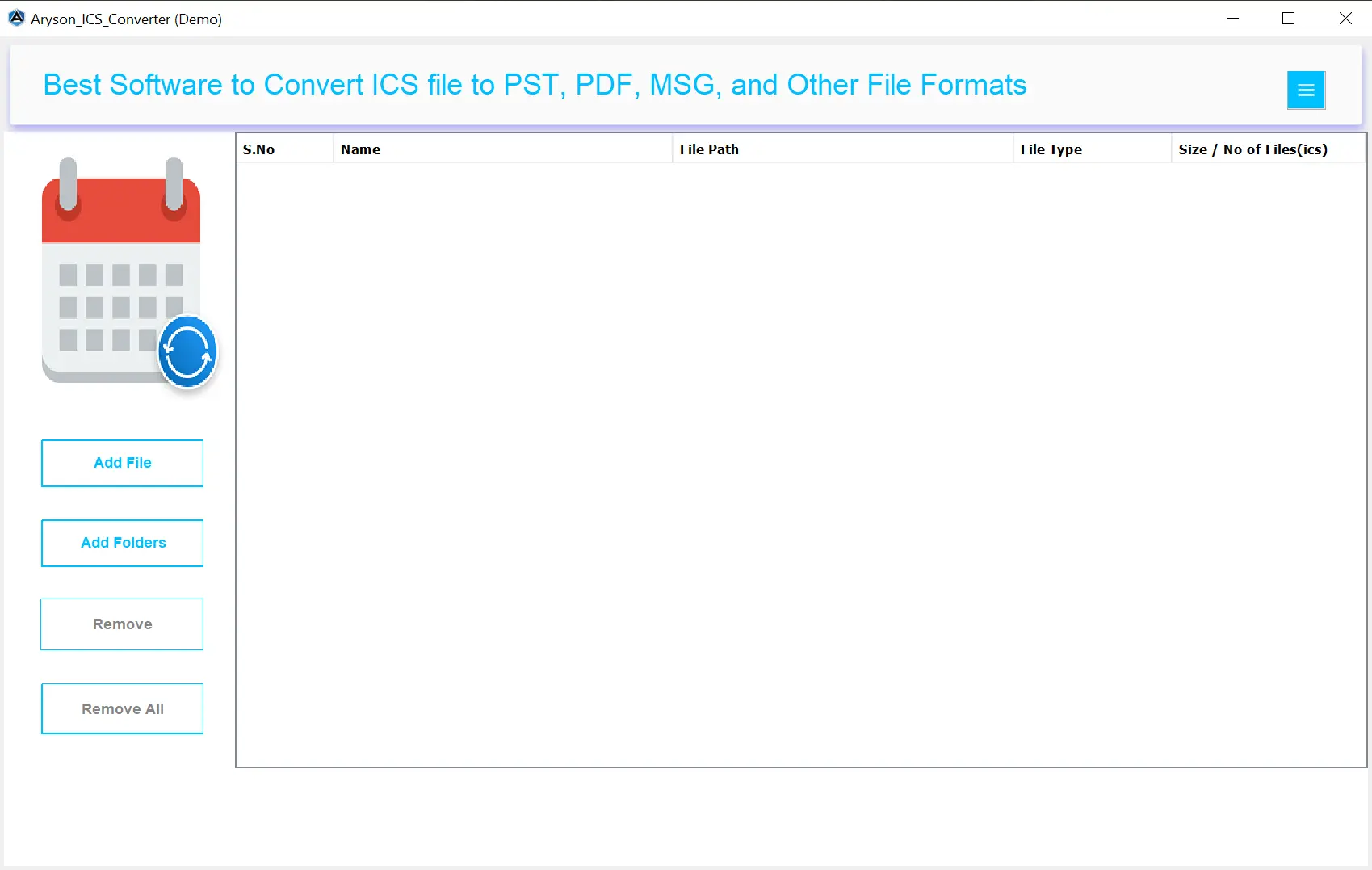
- Click on the “Add File” or “Add Folder” button to select one or multiple ICS files.
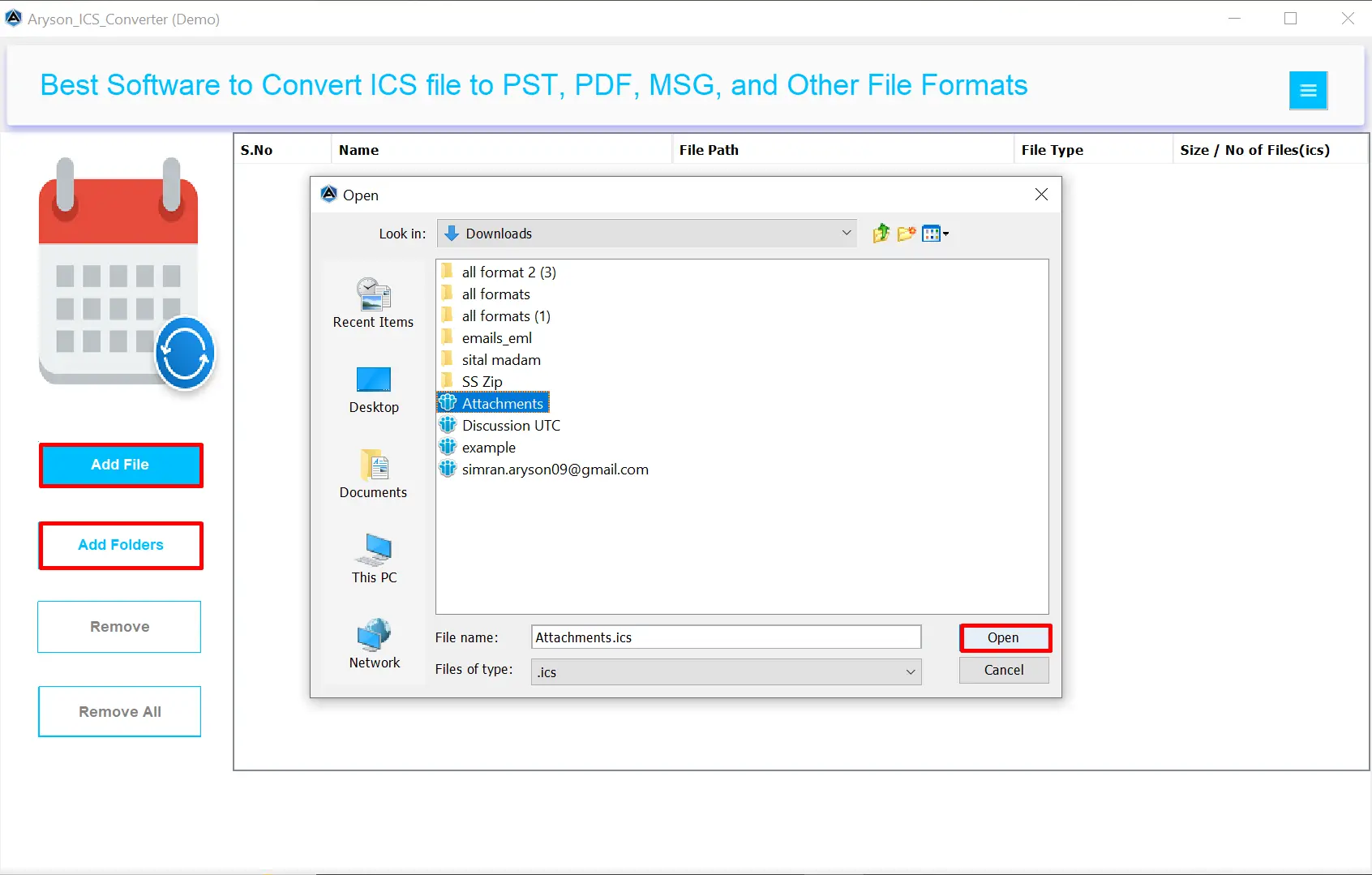
- Now, you can check all the events from your ICS files in the preview section.
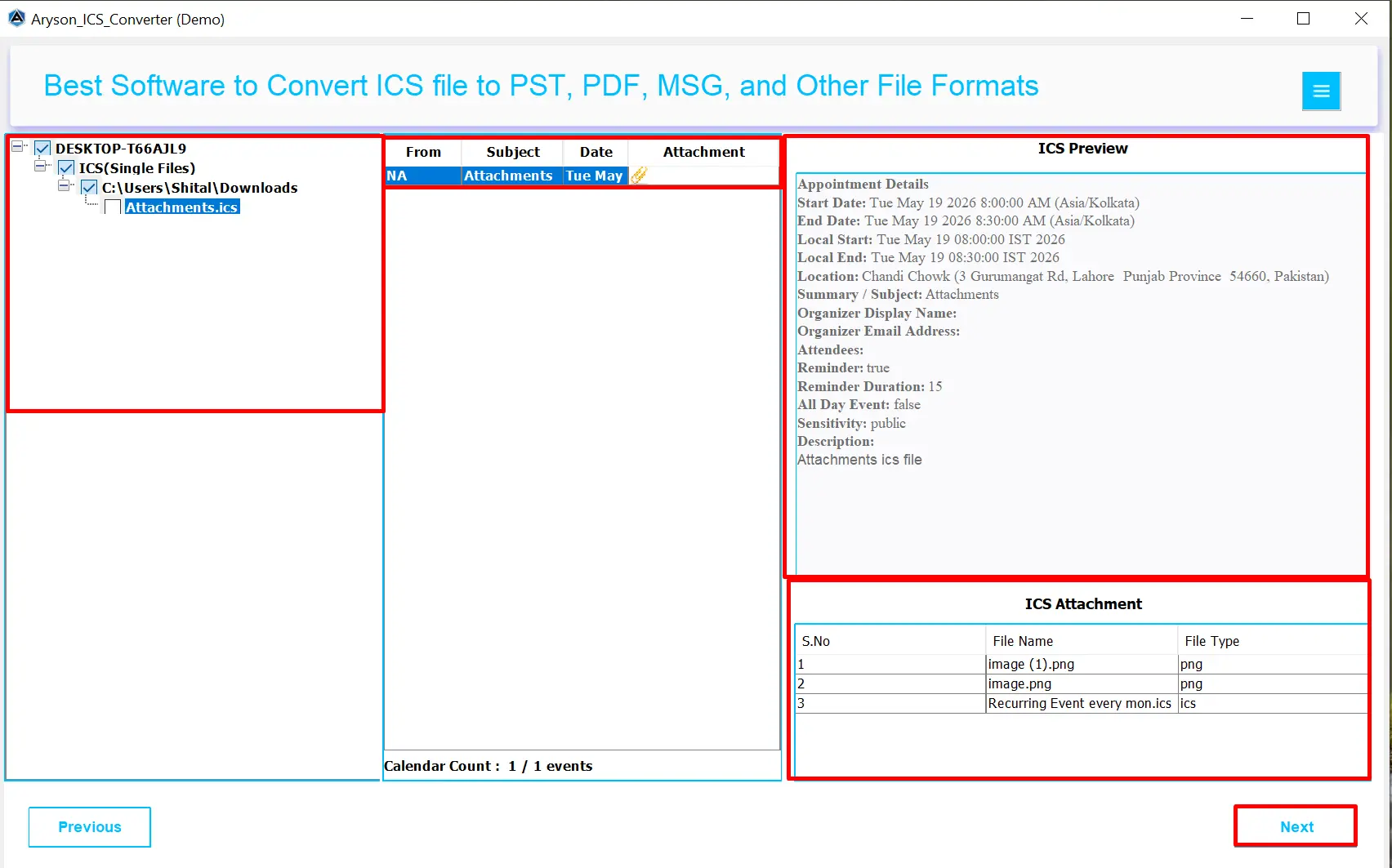
- Select G Suite as the destination where you want to import your events.
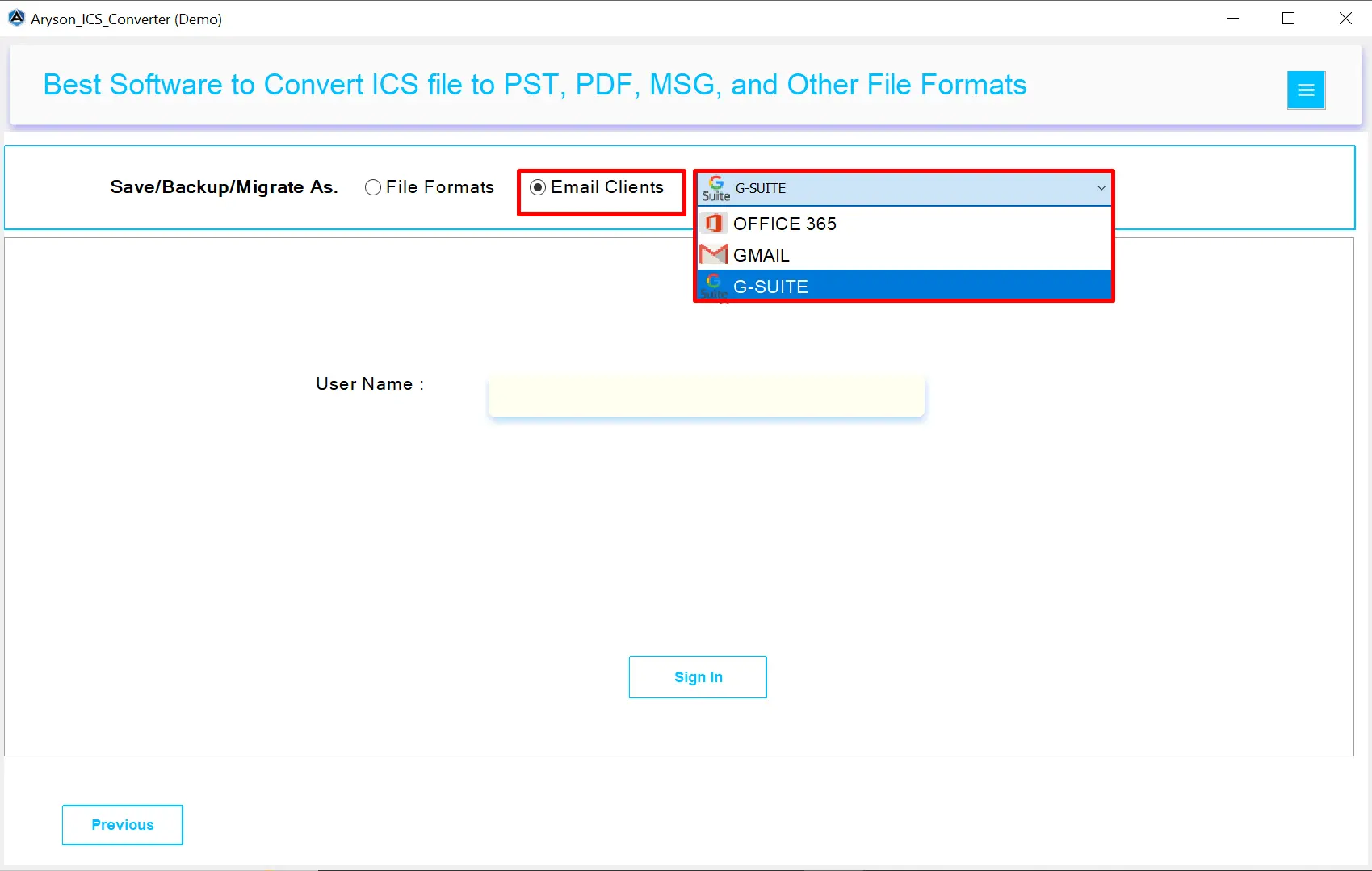
- Here, enter your Google account credentials safely within the software.
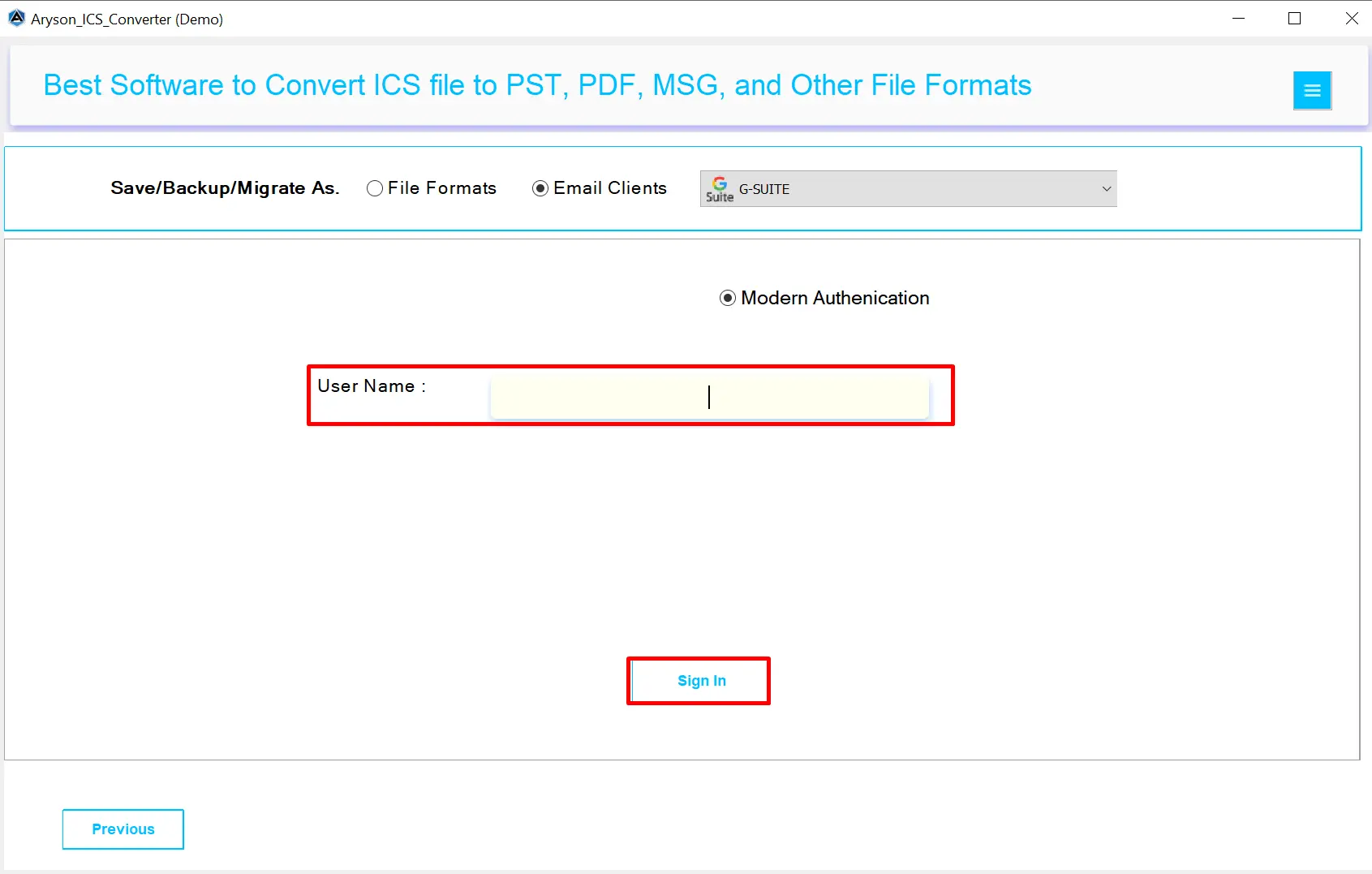
- Also, you can opt for the additional feature of the software accordingly.
- At last, hit the “Convert” button to add ICS Event to Google Calendar.
Conclusion
The above-mentioned solutions are quite relevant to import ICS to Google Calendar. Either you can go for the manual solution or for the automated one. However, it completely depends on the user’s preference. When you add ICS file to Google Calendar is now easy and safe. All your event details, like dates, times, reminders, and notes, stay the same. You can quickly organize many events. Also, it keeps your schedule in one place and makes sure nothing important is missed.
Frequently Asked Questions:
Q.1 Does Google Calendar support recurring events in ICS files?
Ans. Yes, Google Calendar can import recurring events from ICS files. All repeated events, along with their dates, times, and reminders, will be added correctly.
Q.2 Can I add multiple ICS files to Google Calendar at once?
Ans. Normally, Google Calendar only lets you import one ICS file at a time. But with MSOutlookHelp ICS Converter, you can add many ICS files together and import them all at once.
Q.3 Is there a way to bulk add events to Google Calendar?
Ans. Yes, bulk importing is possible using MSOutlookHelp ICS Converter. Follow the given steps to bulk add events to Google Calendar:
1. Open MSOutlookHelp ICS Converter on your computer.
2. Click “Add File” or “Add Folder” to select ICS files.
3. Preview your events in the software.
4. Choose G Suite as the destination.
5. Enter your Google account credentials.
6. Click “Convert” to import events to Google Calendar.
Q.4 How do I add ICS events to an existing Google Calendar?
Ans. To add ICS events to an existing calendar, select that calendar while importing the ICS file. MSOutlookHelp ICS Converter also lets you choose your existing calendar, so all events go directly there without creating a new calendar.
About The Author:

Evren Cole is an expert in Email and Data Management. She has a strong passion for technology and entrepreneurship. In her free time, she enjoys football, music, and reading books.

