

-
Written By Evren Cole
-
Updated on July 28th, 2025
Export Yandex Mail to PST File – Backup Yandex emails
Summary: Currently, most users find it convenient to export Yandex Mail to a PST file for ease of access and management of emails. They may require transferring essential messages to Outlook to facilitate easier communication. Exporting to PST allows easy storage, viewing, and management of emails without the need for internet access. In this guide, you’ll explore multiple ways to export Yandex Mail to PST file. It covers both manual procedures and a trusted professional process with the Yandex Mail Backup Tool.
Reasons to Export Yandex Mail to PST Directly
Exporting Yandex Mail directly to PST is possible in various scenarios, providing a convenient way to store and manage your emails. Here are key reasons to consider doing so:
- PST files offer a secure offline backup solution for your data.
- Importing emails to a PST file makes migration to Outlook seamless.
- With PST files, you can access your Yandex Mail data anytime.
- A PST file can be stored for compliance and archiving purposes.
- A PST backup restores your Yandex Mail data in case of an emergency.
Manual Method to Export Yandex Mail to PST File
There is no direct solution provided by Yandex Mail to export Mail into PST. You’ll require MS Outlook as a mediator. Below are the steps that manually export your data.
- Download and install the MS Outlook application on your system.
- After that, go to the File menu and open the Info section.
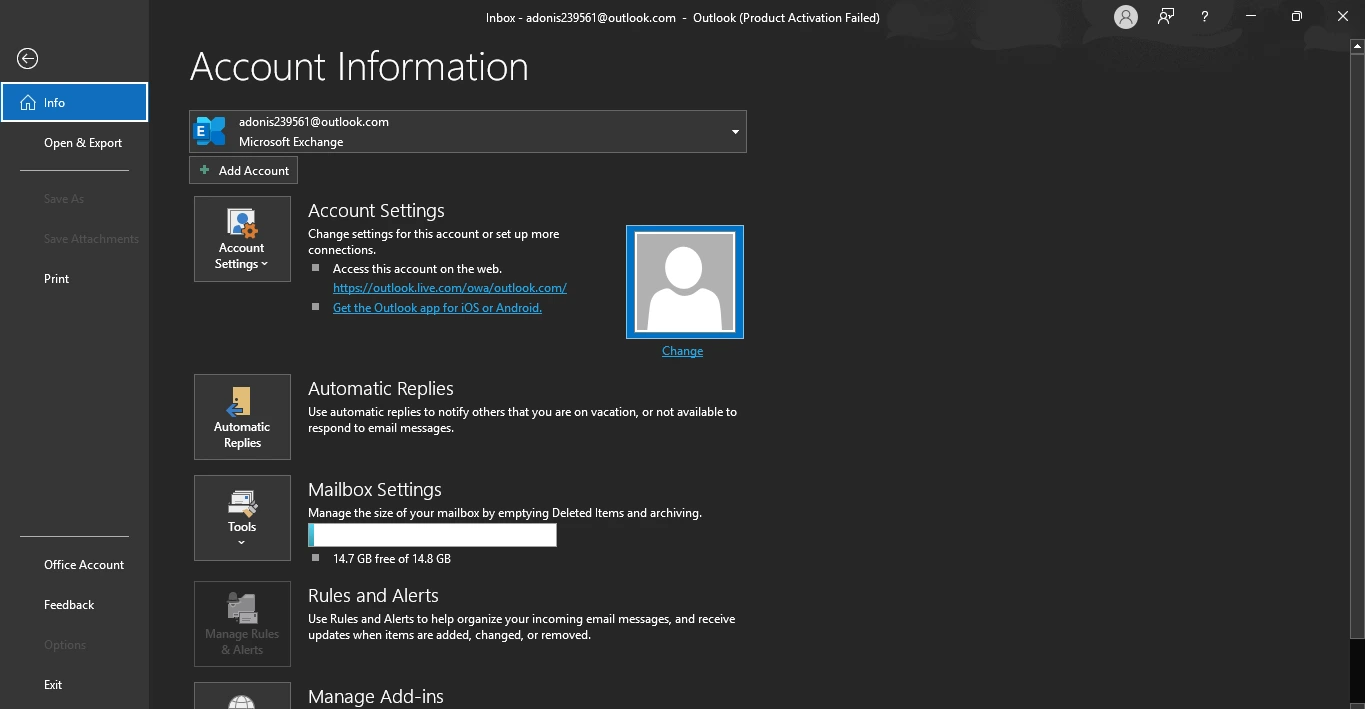
- Then, choose the Account Settings option >> Account Settings.
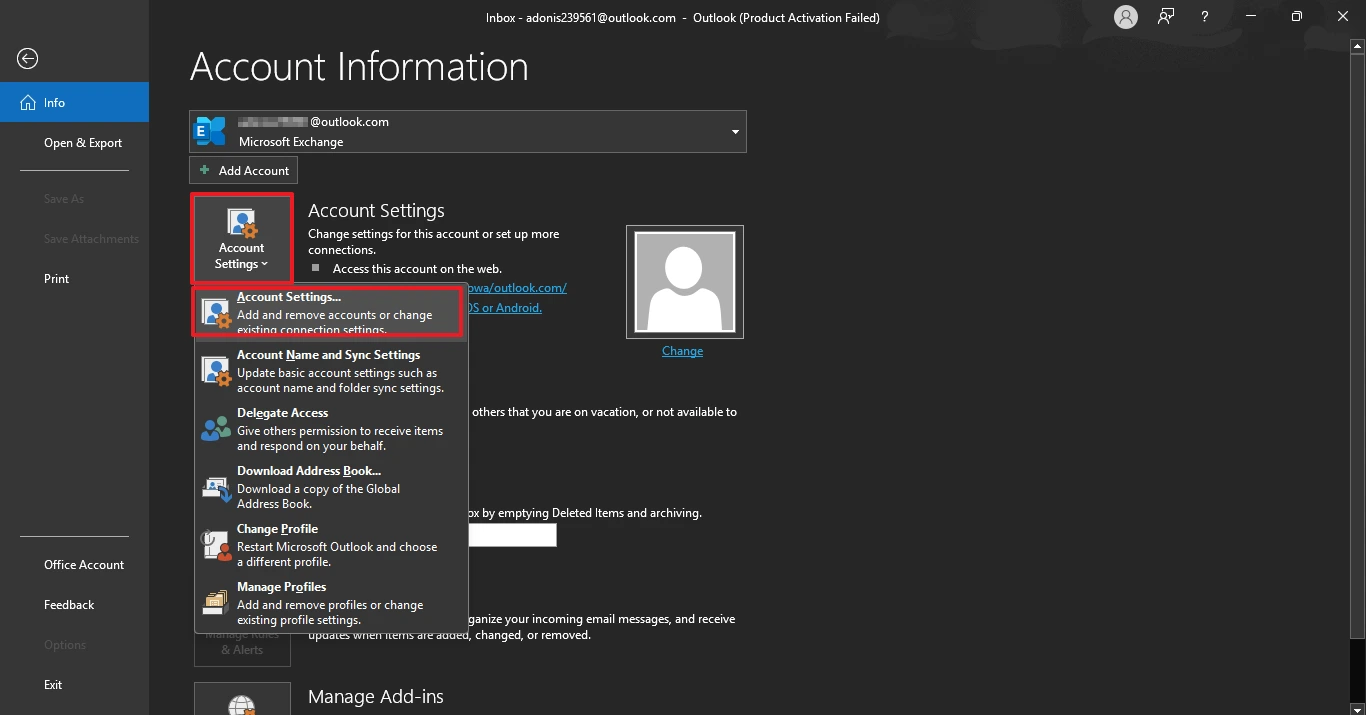
- Under the Account Settings Wizard, choose the New option.
- Here, enter the Yandex Mail credentials to authenticate.
- After that. Select all the desired mailboxes and drop them into Outlook.
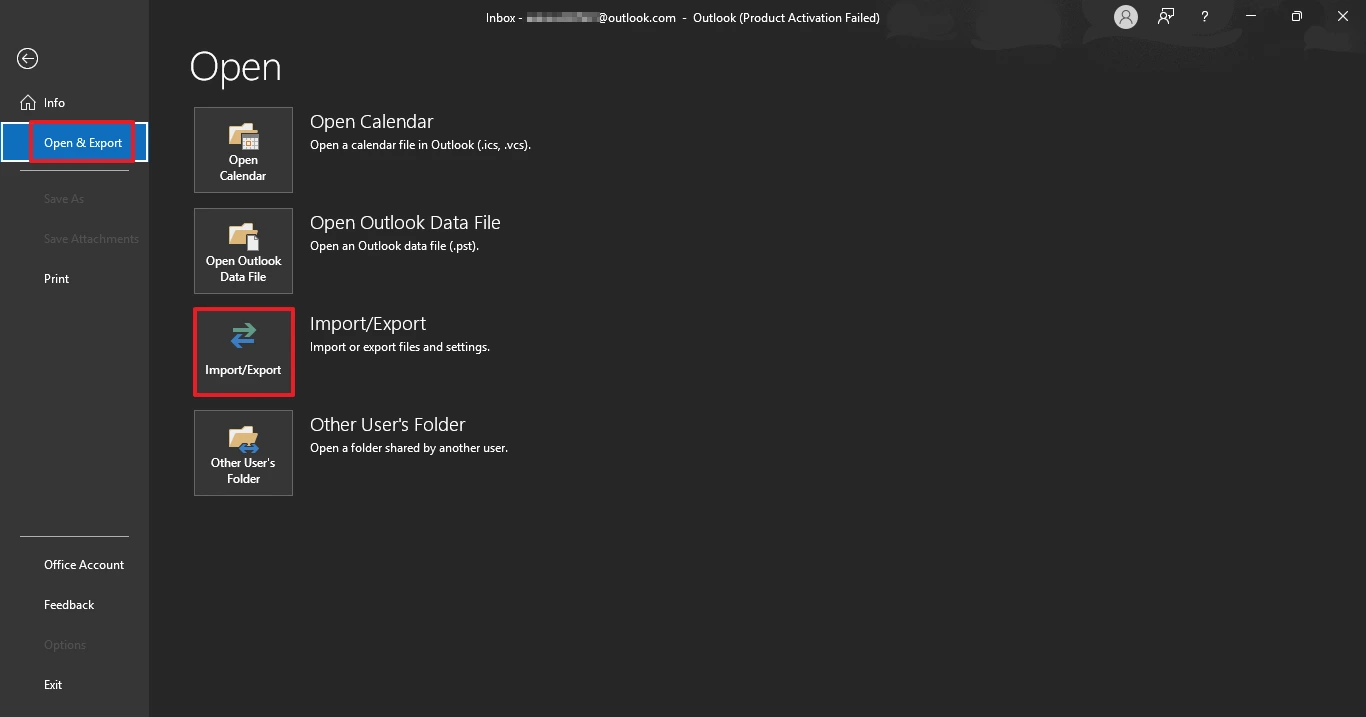
- After that, go to the File menu and open the Info section.
- Under the Open & Export option, choose the Import/Export option.
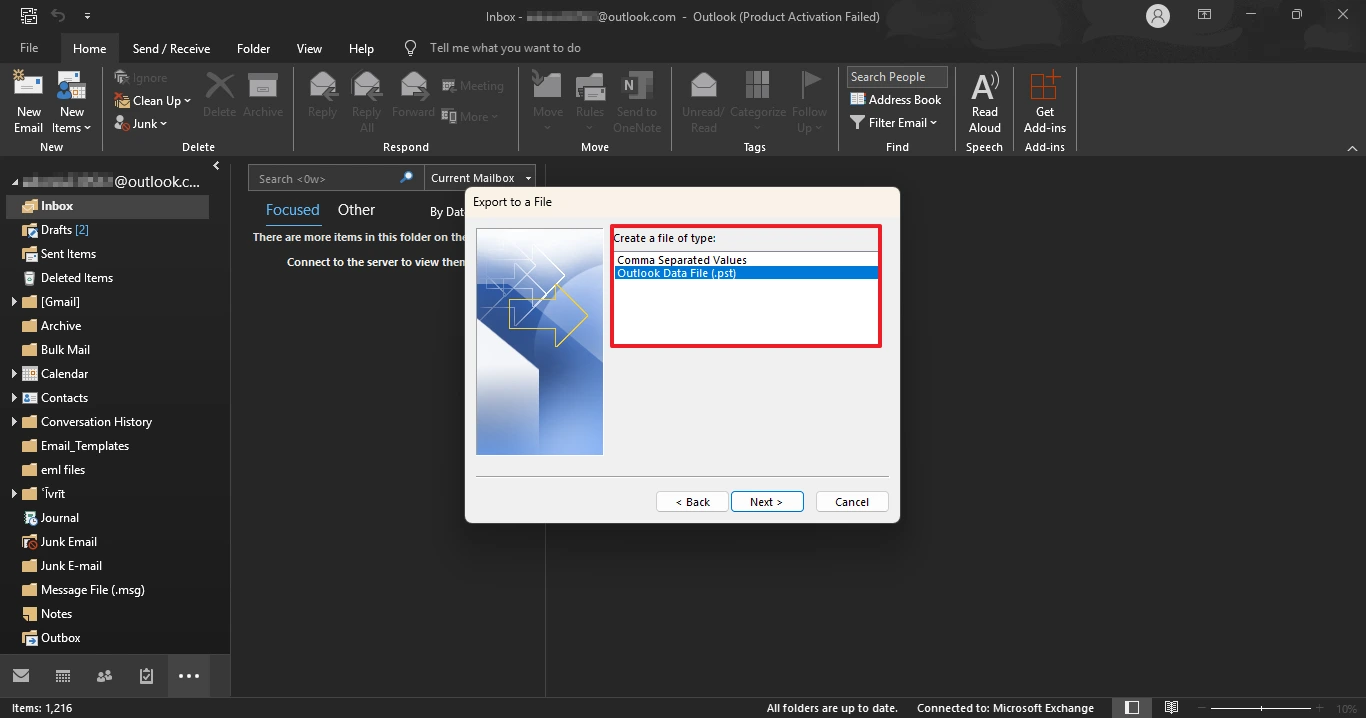
- Here, choose the Export to a file option and choose the .pst option.
- Browse and select the saving location where you want to save the file.
- In the end, make sure all your data is safe and accessible.
Professional Method to Export Yandex Mail to PST File
If the manual method proves to be ineffective, you still have a better choice: using professional software. Yandex Mail Backup Tool is among the best software for backing up the desired mailbox and performing file management. One can simply add a Yandex Mail mailbox and convert it to PST format. No more hassle of juggling between multiple email platforms, just a one-stop solution. Moreover, the tool can also export Yandex Mail to Gmail. The software has a user-interactive GUI and possesses wide compatibility across all Windows OS.
Steps to Export Emails from Yandex to PST File
- Download and install the Yandex Backup Tool on your system.
- After that, log in using the Yandex Mail credentials to authenticate.
- Next, preview all the mailboxes and choose the desired mail from them.
- After that, under the file format option, choose a PST option.
- Then, apply all he required filters to enhance the output file.
- Here, browse and select the destination location to save the resultant file.
- In the end, make sure all your data files are safe and accessible.
Download the Yandex Mail Backup Tool now for better export experiences.
Conclusion
Yandex Mail export to PST keeps your emails secure and readily available at any time. You can perform the process manually by using Microsoft Outlook as a bridge between Yandex Mail and the PST file. If that sounds too complicated, expert tools simplify the process and speed it up. They provide direct export, bonus features, and more control over your files. For backup or migration, PST files are trustworthy. Select the process to export Yandex Mail to PST file that works best for you.
Frequently Asked Questions:
Q.1 How do I export emails from Yandex?
Ans: To export your mail from Yandex Mail, use the professional solution. The professional solution i highly effective to transfer all the mail or desired mail from Yandex Mail.
Q.2 How to open Yandex mail in Outlook?
Ans: There are several ways to access Yandex Mail in Outlook. The manual approach doesn’t support direct migration from Yandex Mail. However, using a Yandex to PST Converter allows you to seamlessly transfer your Yandex Mail data into your chosen Outlook mailbox.
Q.3 How to download files from Yandex?
Ans: If you want to download your desired mail from Yandex Mail. Follow the steps:
Install the Yandex Mail and open it.
After that, go to the desired email and open it.
Then, right-click on it and choose the Download option.
In the end, make sure all your data is safe.
About The Author:

Evren Cole is an expert in Email and Data Management. She has a strong passion for technology and entrepreneurship. In her free time, she enjoys football, music, and reading books.

