

-
Written By Evren Cole
-
Updated on August 7th, 2025
How to Export Yandex Emails to PDF (Quick Guide)
Summary: When do you need to back up your Yandex emails or save them for later use? You can always convert emails to PDF, which is a great way to store important messages. The PDF file format preserves the email data, including attachments. In this guide, we will help you understand two easy methods to export Yandex Emails to PDF. One is the basic method, and the other is the use of the Yandex Backup Tool, which helps you save many emails at once without any hassle.
Why Convert Yandex Emails to PDF?
It is helpful to understand why we convert emails to PDF. PDF files are easy to open on any device, whether using a computer, phone, or tablet. They are also widely used for printing, making it simple to keep a physical record. When a user copies emails, saving them as PDFs keeps the original layout, text, and even attachments just as they are. Plus, once saved, you don’t need internet access to open them.
How to Export Yandex Emails to PDF?
Now that you understand why saving Yandex emails as PDFs is useful, let’s see how it is done. There are two options: one uses basic steps directly from your Yandex account, and the other utilizes automated software to expedite the process when you have data in bulk.
Method 1: Save Yandex Emails to PDF Files by Basic Steps
If you only need to export a few emails, you can do it manually right from your Yandex Mail account.
Steps to Save a Yandex Email as PDF:
- Firstly, log in to your Yandex account.
- Now, choose the email you want to save.
- Press Ctrl + P
- In the print window, change the destination printer to “Save as PDF.”
- Finally, click Save, and choose a folder on your computer.
Additional Tip: This method works best when you have only a few emails to export. It saves the email content exactly as displayed, with proper formatting.
Method 2: Use a Yandex Email to PDF Converter
When you need to save a few emails, doing it manually might work. But when you’re dealing with large data, going one by one takes too much time. That’s where the Yandex Backup Tool can help. It offers backup for multiple Yandex emails at the same time and can also migrate Yandex Mail to Gmail and other email clients. This tool keeps your email formatting and attachments as they are. Such tools are designed to handle large volumes of email without errors or data loss.
Automatically Export Yandex Emails to PDF:
- First, download and open the Yandex Backup Tool on your PC.
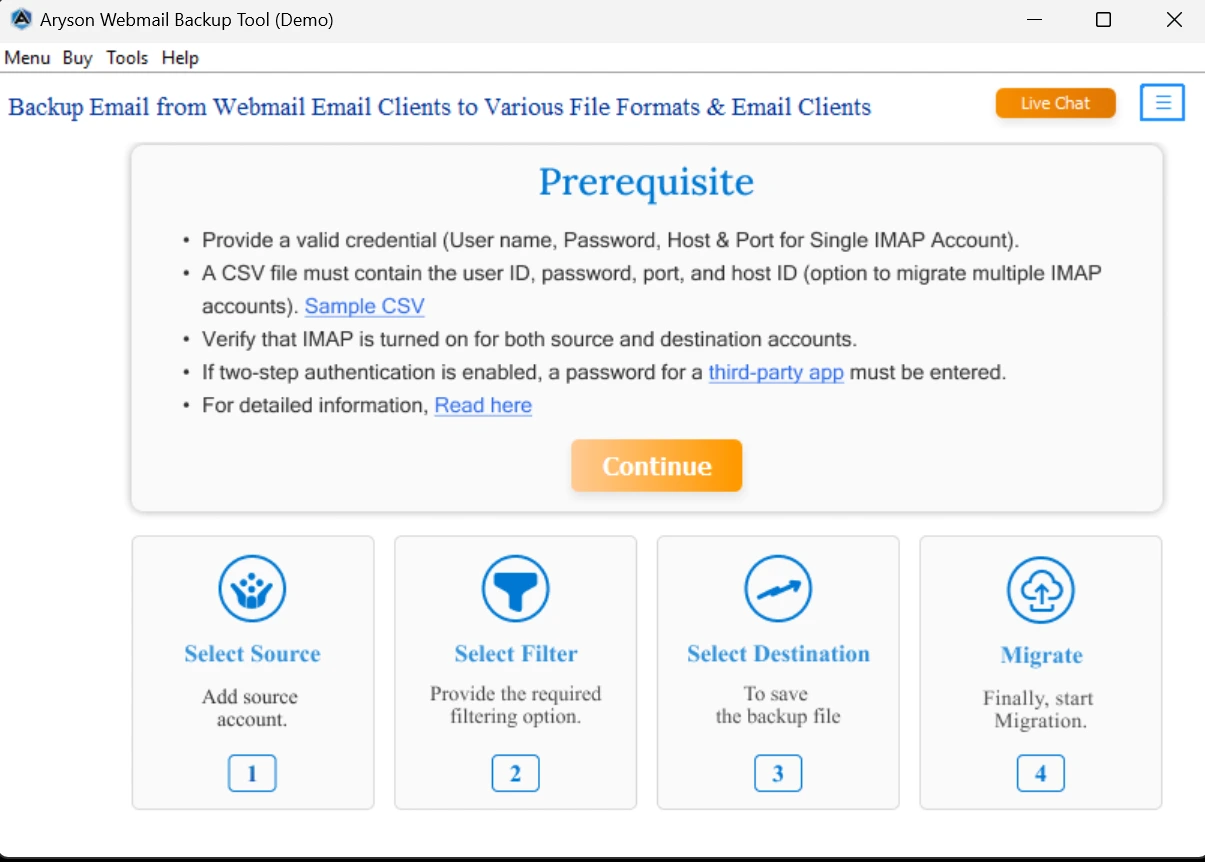
- Log in to your Yandex Mail with your email ID and password.
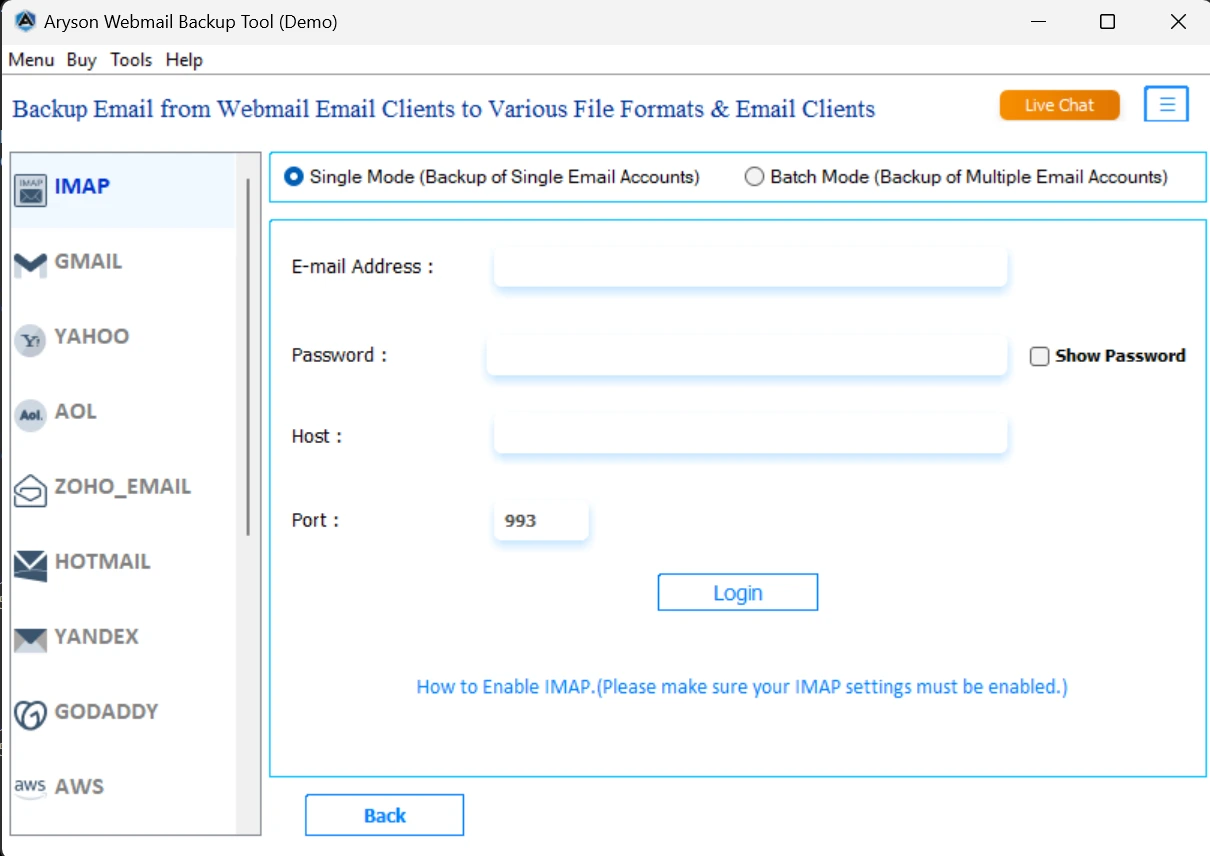
- You can preview the email by just double-clicking on it.
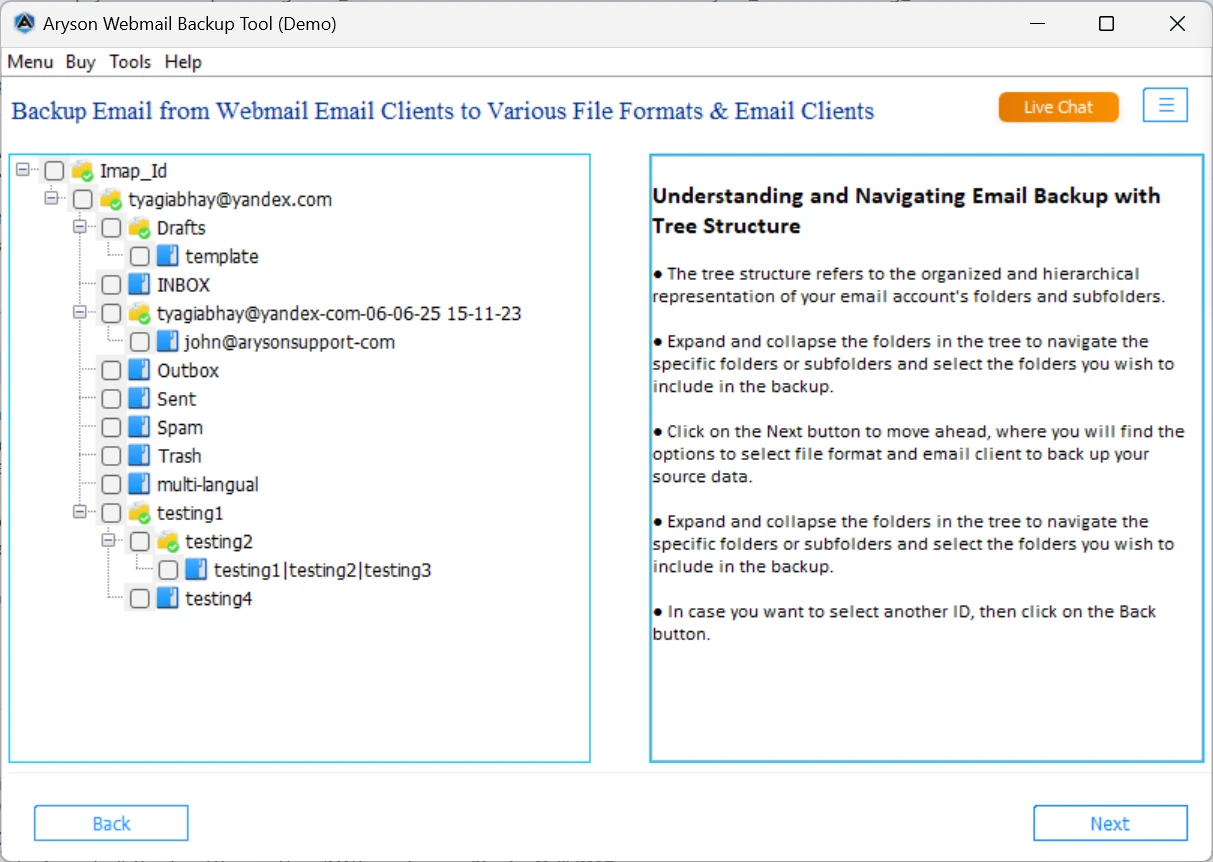
- Now, select the file format as PDF.
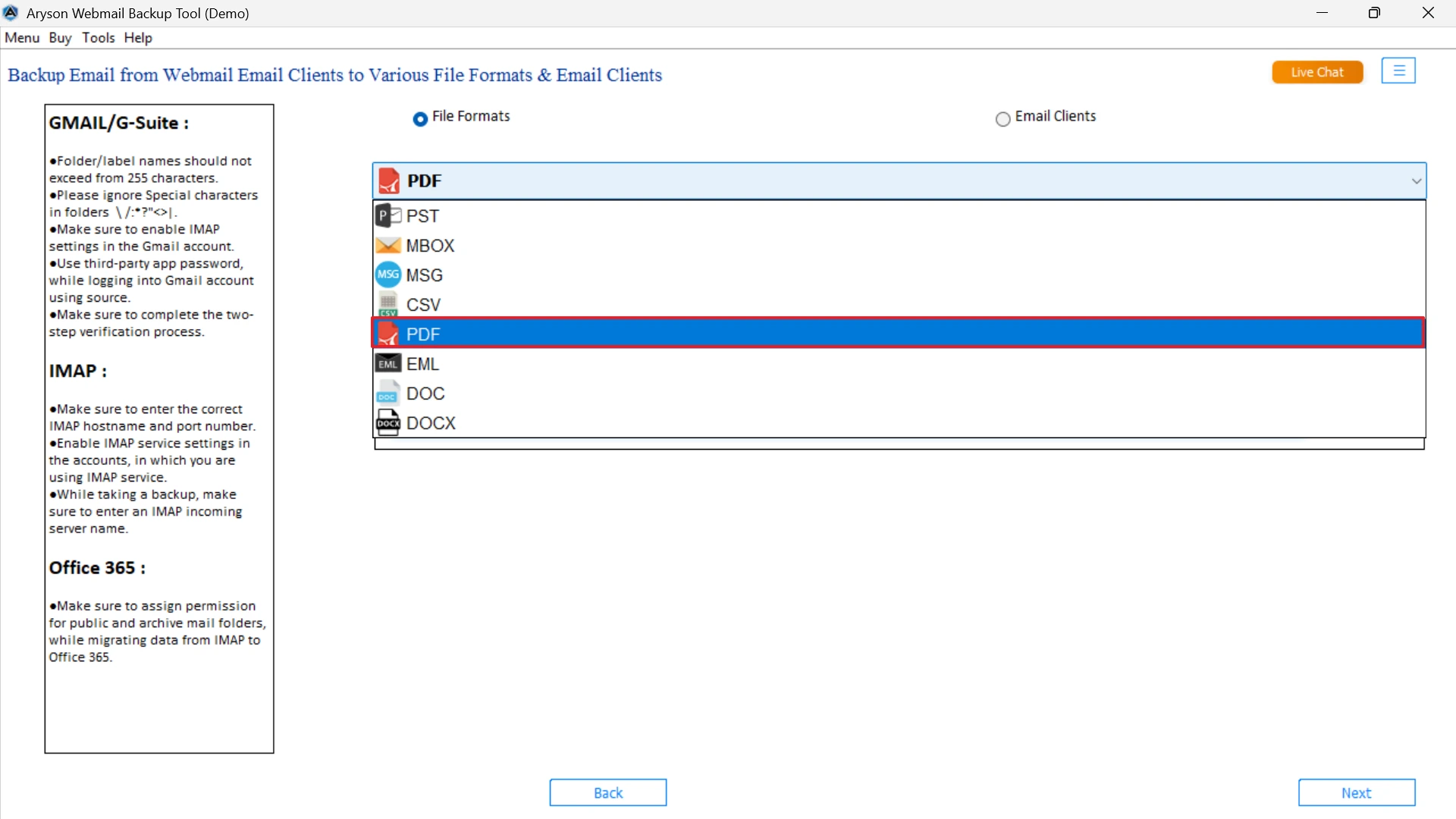
- Choose folders, and set filters if needed.
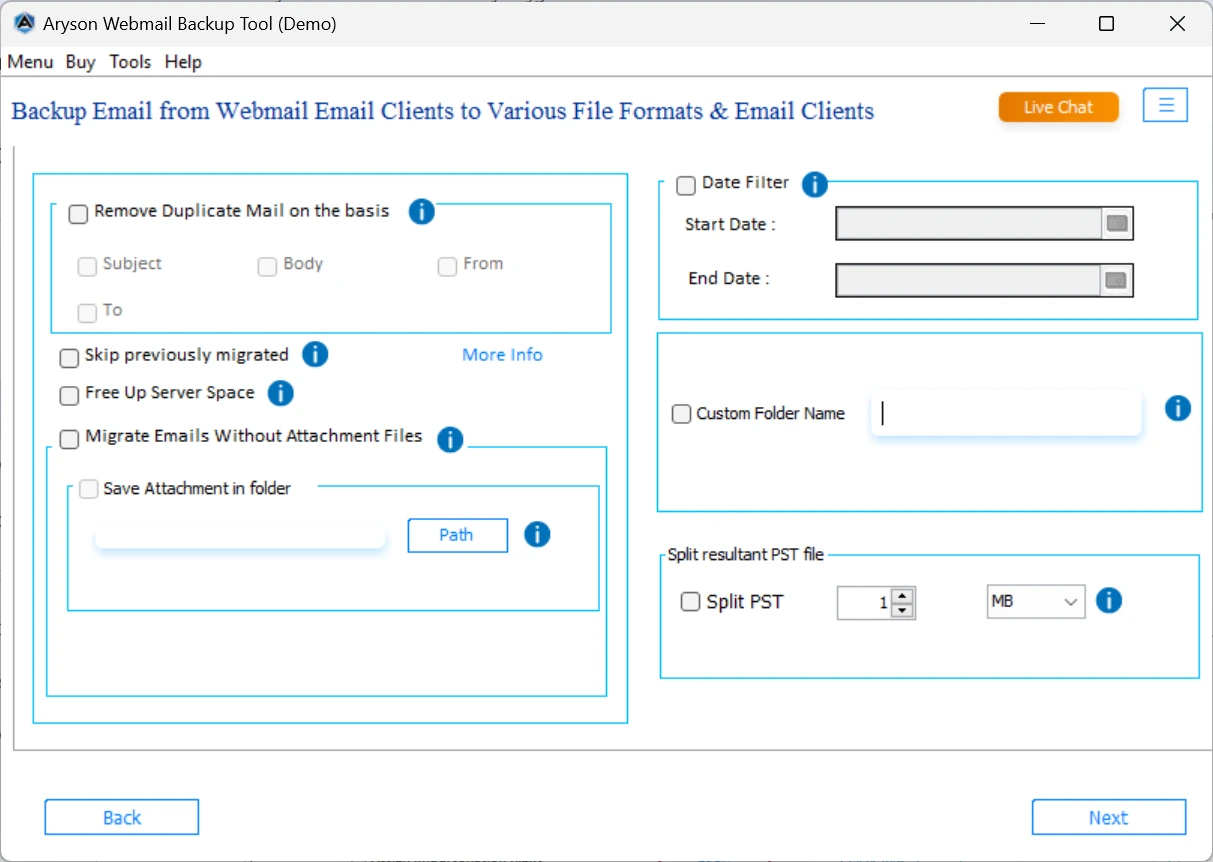
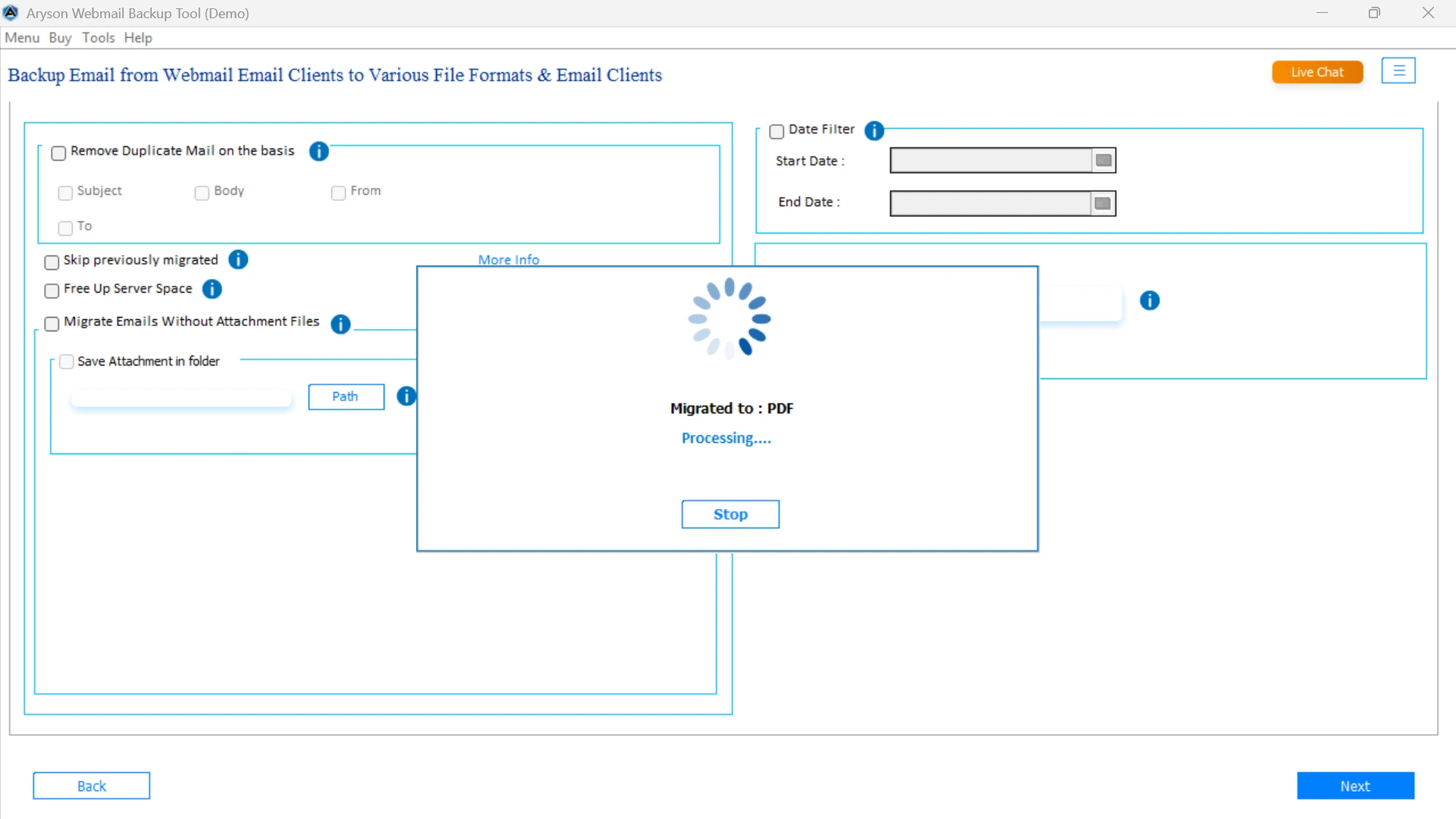
- Hit Next to initiate the Yandex to PDF Migration.
Conclusion
When you export Yandex Emails to PDF, it is a great way to back up and share important messages. For a few emails, the manual method works fine. But having a lot of emails, using an optimized utility is faster while keeping the format and attachments intact. It is a simple way to make sure your data stays safe and accessible anytime, even without internet. Choose the method that you want according to your needs and keep your emails secure.
Frequently Asked Questions:
Q.1 Can I export Yandex emails directly to PDF format?
Ans. Yes, using the Yandex Backup Tool lets you save any open email as a PDF and use it for bulk files.
Q.2 Does exporting Yandex emails to PDF keep the original formatting?
Ans. Yes, the automated method mentioned above preserves the layout, fonts, inline images, and even attachments.
Q.3 Is there a way to batch export multiple Yandex emails to PDF?
Ans. Absolutely. You’ll need to follow some steps:
1. First, download and open the Yandex Backup Tool on your PC.
2. Log in with your Yandex email credentials.
3. You can preview the email by double-clicking on it.
4. Now, select the email client as Gmail.
5. Choose folders, and set filters if needed.
6. Hit Next to initiate the Yandex to Gmail Migration.
About The Author:

Evren Cole is an expert in Email and Data Management. She has a strong passion for technology and entrepreneurship. In her free time, she enjoys football, music, and reading books.

