

-
Written By Evren Cole
-
Updated on December 5th, 2025
Import ICS to Office 365: Step-by-Step Calendar Guide
Overview: Several users nowadays use the ICS file to share events and meeting schedules with apps like Google Calendar, Apple Calendar, and Outlook. But, as the needs of organisations and industry individuals gradually increase, they decide to import ICS to Office 365. This is because Office 365 is Microsoft’s cloud-based email client that helps users manage emails, meetings, and tasks in one place. To help such organisations with the migration process, this blog covers the use of MSOutlookHelp ICS Converter, along with a hands-on approach. But before migration, let’s look at some of the reasons for it.
Why Do We Need to Import ICS to Outlook 365?
There are various reasons why a user would want to import ICS files to Office 365. Let’s shed light on some of the most relevant and common reasons below.
- Office 365 will keep all your calendar events in one place.
- It also allows users to sync their schedule across all devices & Outlook apps.
- Moreover, it becomes easier to switch from other calendar platforms.
- In addition, users can collaborate easily and share events within teams.
- Additionally, it provides secure storage and backup for crucial calendar data.
Proven Techniques to Import ICS to Office 365
Here, in this section, we will explore the two most impactful techniques for ICS to Office 365 migration in detail. Users can adapt either of the two as per their requirements and convenience. Listed below are the two techniques we are discussing:
- The Hands-On Approach
- An Advanced Software
Technique 1: Upload ICS to Office 365 Using Outlook
If you want a hands-on approach to importing ICS to Office 365 and possess basic familiarity with the MS Outlook application, you can use this approach for the migration. You just have to use Outlook’s Import/Export feature to manually bring your ICS calendar into Outlook. This process might seem simple, but following the right steps is important for an accurate conversion.
- To begin, start the Microsoft Outlook application on your PC.
- Then, navigate to File >> Open & Export >> Import/Export.
- After that, select the Import an iCalendar option >> click Next.
- Now, browse & pick the ICS files you want to import.
- Click OK >> decide whether to add it to your existing calendar or create a separate one.
- At last, hit OK to transfer ICS file to Office 365 Calendar.
Drawbacks of the Manual Method
- This method doesn’t allow you to perform bulk import.
- Moreover, it does not sync the calendar automatically afterward.
- As well as your attachments, which are included in the events, may not import properly.
- It may take long hours or may fail to import large ICS files.
- Also, this method is prone to duplication.
Technique 2: Efficient Software to Import ICS to Office 365
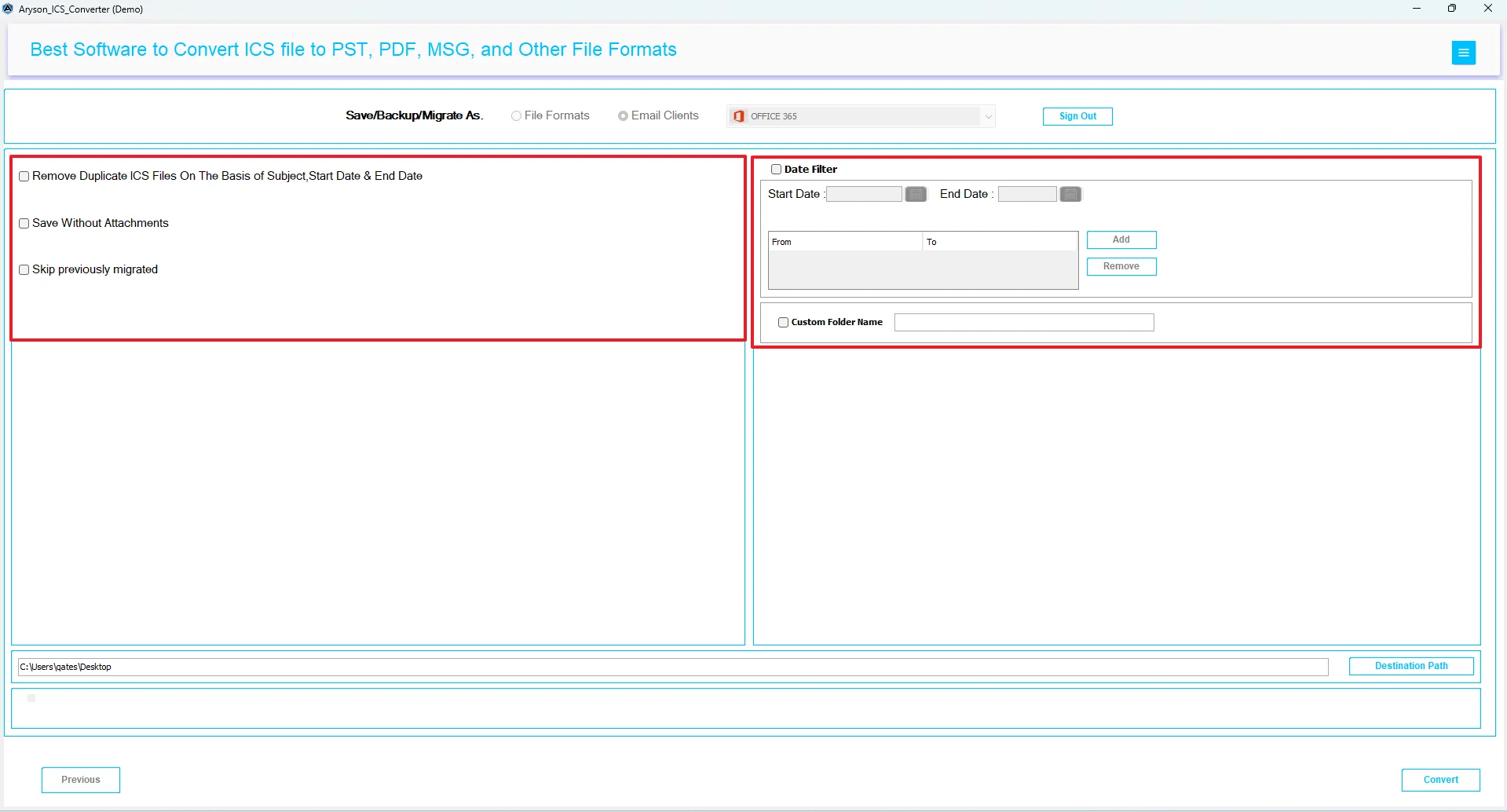
MSOutlookHelp ICS Converter is the most reliable approach used to import a bulk of ICS files to Office 365 format without any data loss. This software maintains data integrity by keeping the important event details intact during the conversion. Moreover, it provides the user with an interactive environment for their ease of conversion. Users can also import ICS to Google Calendar, Zoho Mail, Thunderbird, etc., email clients. Also, you can apply the provided software filters, such as Remove Duplicate Mail, Date Range filter, and Skip Previous Migration, etc., for an accurate result. Now, follow the below given steps of migration.
Simple Steps to Import ICS to Office 365
- Download and install the MSOutlookHelp ICS Converter on your system.
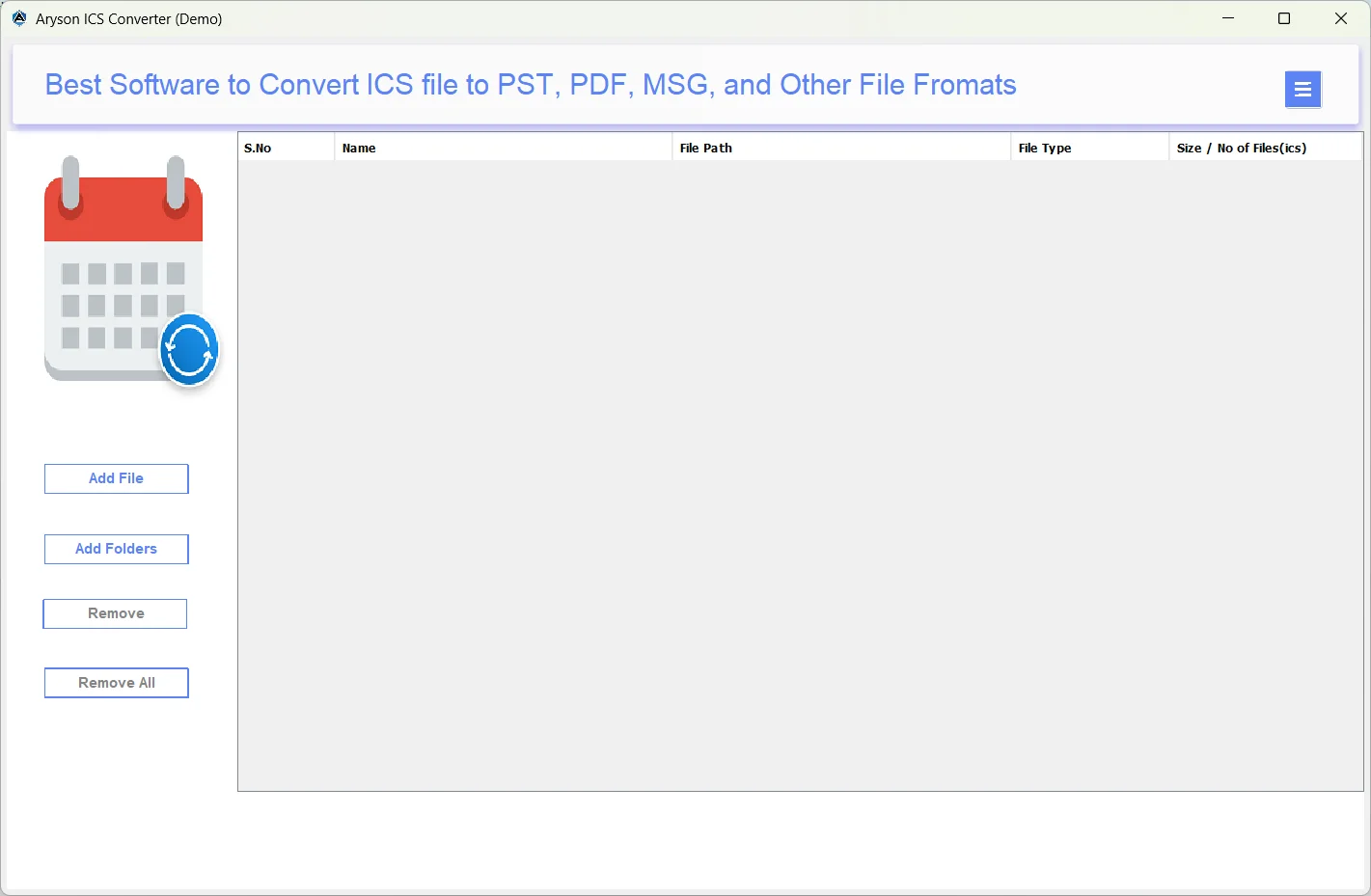
- Then, open the software >> Select Files/Folders to load ICS files >> Next.

- Now, expand the tree hierarchy>>select required ICS files >> preview them >> Next.

- Next, mark the email clients radio button & select Office 365.
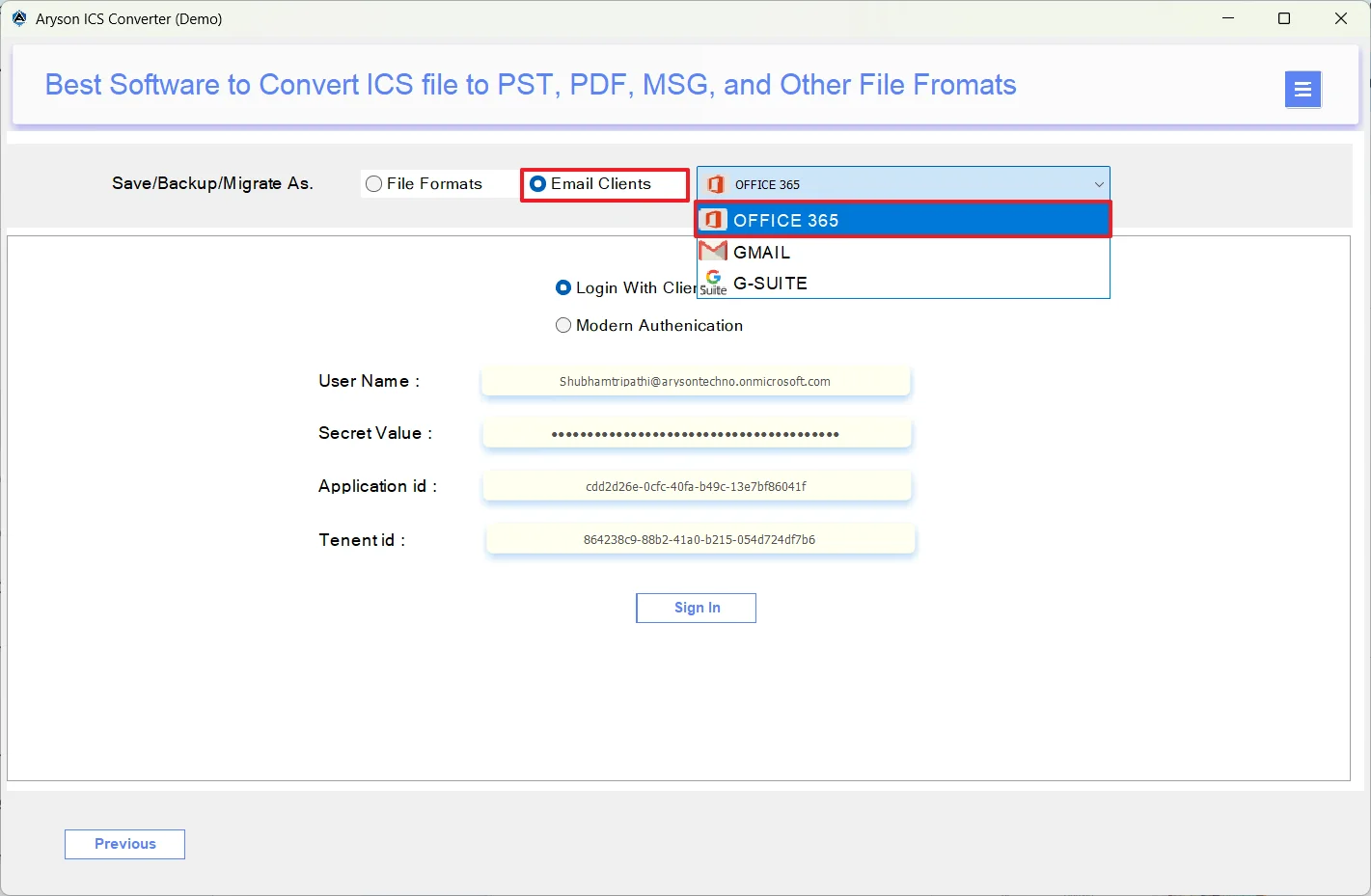
- After that, enter your valid Office 365 credentials and log in.

- Then, use the built-in filters as per your requirements.
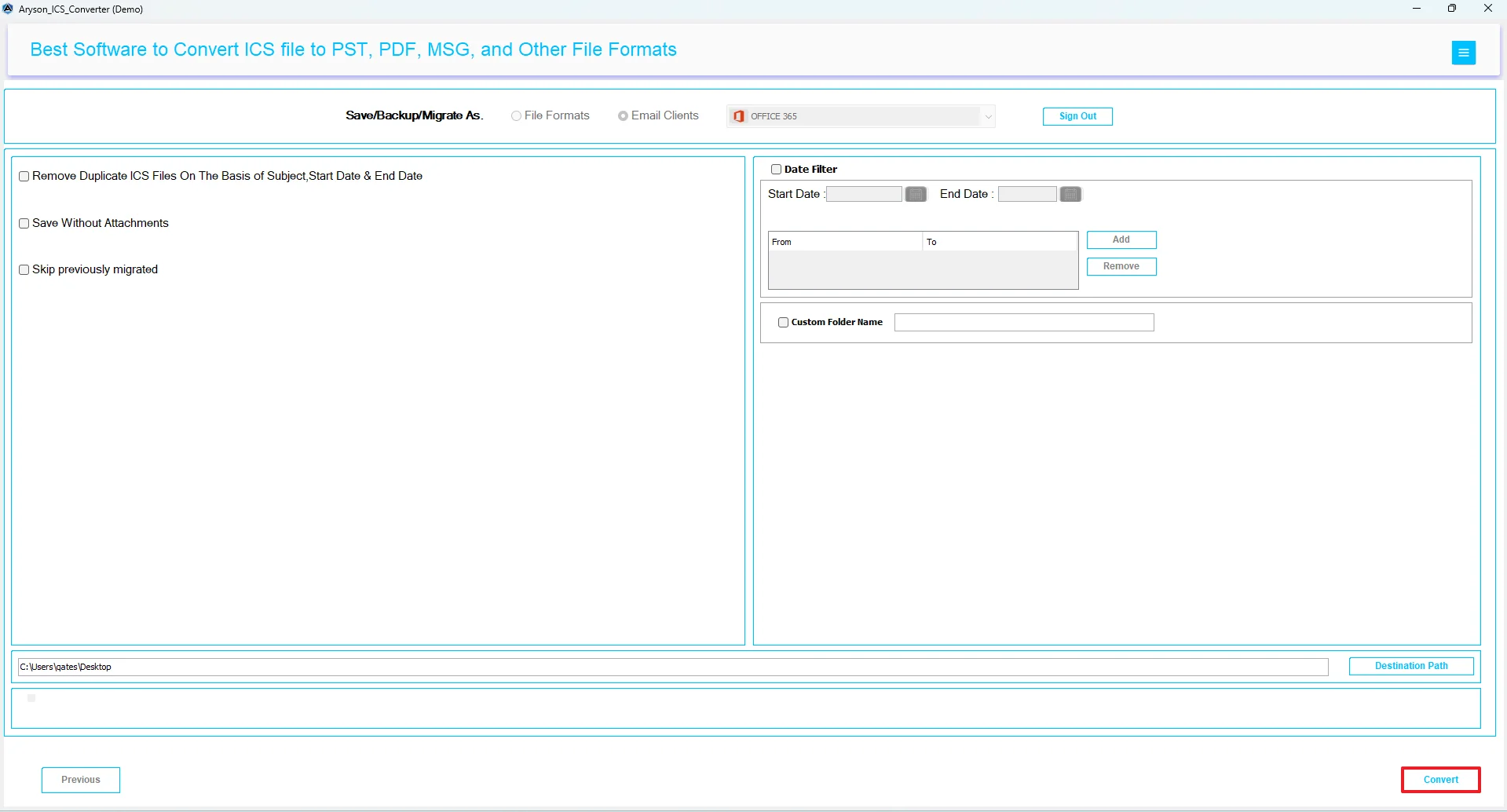
- At last, click the Convert button to add ICS to the Microsoft 365 Group Calendar.
Conclusion
In the above guide, we discussed two different methods to import ICS to Office 365. Users can proceed with either of the two approaches as per their convenience and migration needs. However, it is suggested to opt for the automated solution if you are importing large volumes of data. Still, if you have any queries, reach out to our tech support team.
Frequently Asked Questions:
Q.1 How do I import ICS to Outlook 365 desktop?
Ans. You can import ICS to Outlook 365 desktop using the MSOutlookHelp ICS Converter. Steps to import are as follows:
1. Open the MSOutlookHelp ICS Converter.
2. Add your ICS files to the software.
3. Preview the selected ICS files before importing.
4. Select Office 365 as the email client >> login.
5. Use the advanced filters >> Convert.
Q.2 Why do some ICS events not appear after importing to Office 365?
Ans. If you use the manual approach, this issue might occur. But if you use the automated software, no such import error will take place.
Q.3 Can I import ICS to Microsoft 365 without Outlook?
Ans. Yes, with the help of MSOutlookHelp ICS Converter, you can add ICS to Microsoft 365 Group Calendar without Outlook.
Q.4 Does importing an ICS file overwrite my existing Office 365 calendar?
Ans. No, if you are using the automated solution, importing an ICS file will not overwrite your existing Office 365 calendar.
About The Author:

Evren Cole is an expert in Email and Data Management. She has a strong passion for technology and entrepreneurship. In her free time, she enjoys football, music, and reading books.

